
iPhone Tips & Tricks
Given that we’re on the 15th version of iOS, it’s safe to assume that there are a slew of iPhone tips and techniques that have slipped your mind over the years. Surprisingly, some of the more unusual iPhone tricks we’ve discovered in recent months have appeared on TikTok. As an example, I was astounded a few months ago when I discovered that you could film a video on an iPhone while simultaneously listening to a music on Apple Music or Spotify.
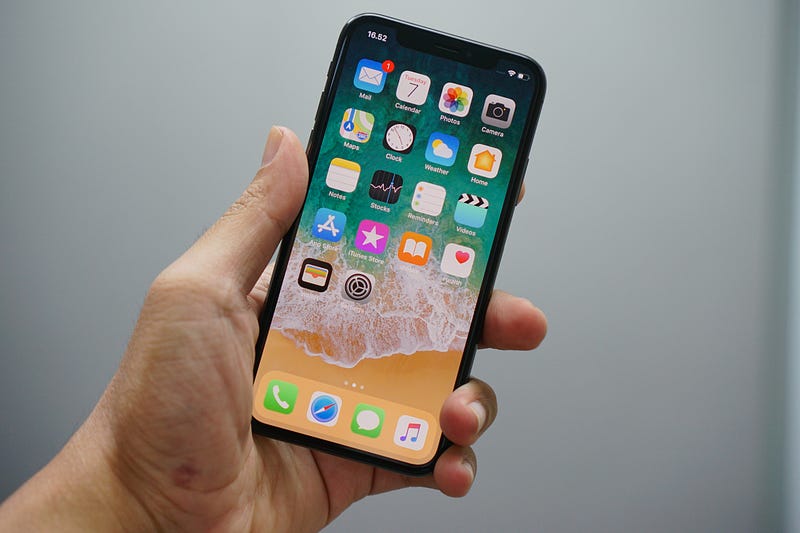
You’ve come to the correct place if you want to get the most out of your iPhone. We’ve compiled a collection of fantastic iPhone tips and techniques that you’ll undoubtedly wish you knew about sooner.
By touching on the back of your iPhone, you can take a screenshot.
This is a fantastic iPhone trick that went viral a few months ago on social media. Simply put, you can snap a screenshot on your iPhone by tapping the back of the device. Back Tap is a feature that has been available since iOS 14.
Open the Settings app to enable this feature. Then, go to the Accessibility settings tab. After that, select “Touch” from the “Physical and Motor” section. You can now continue scrolling down to the “Back Tap” option.
After that, you can choose whatever type of action a Back Tap should initiate. Taking a screenshot, altering the volume, and muting your smartphone are all choices.
In the dark, find a misplaced iPhone.
There’s a creative technique to find your iPhone if you’ve misplaced it but know it’s somewhere in your house. Simply turn off all the lights and activate the iPhone flashlight with the Hey Siri command. It may not be as beneficial in the afternoon, but if it’s later in the day, it’s a handy iPhone tip to remember.
As a level, use your iPhone.
Another iPhone tip that new users may be startled to learn about is this one. Your iPhone can truly be used as a level. It can be used both horizontally and vertically. You can get to it by launching the Measure app and selecting Level from the menu.
Make sure the volume on your headphones is set to a safe level.
The iOS 14 update included this iPhone trick for the first time. In short, there’s a technique to figure out how loud your headphones are. This is an especially useful function if you’re prone to blasting music and don’t want to harm your ears in the process.
Open the Settings app and pick Control Center to access this feature. Then, next to the Hearing setting, press the green “+” icon. When you do this, the Hearing symbol will appear in the Control Center every time you open it. When you access the Control Center, you’ll notice a color-coded audio level if audio is playing. If it’s green, the decibel level is adequate; if it’s yellow, you’ll be advised to turn down the volume.
You may tap the icon for more information, and you’ll see the exact decibel level of your headphones.
Apple is the source of this image.
This cool iPhone trick may be used to determine someone’s height.
This is a clever iPhone trick that makes use of Apple’s augmented reality technology. Basically, you can use your iPhone to measure someone’s height quickly and accurately. Simply start the Measure app and ensure that the person you’re trying to measure is completely within the screen. A line will appear above the person’s head if done correctly. This will display their height.
You may easily save the photo for future reference by tapping the white shutter button to the right.
Apple is the source of this image.
Using Apple Maps to plan vacations
This is a brand-new feature in iOS 15. In essence, the most recent version of Apple Maps allows users to get directions while also setting exact arrival or departure timings. For seasoned Google Maps users, this iPhone trick won’t seem very useful, but it’s fantastic to see Apple Maps finally include it.
When texting, use cool effects.
Apple added various visual effects to the Messages app a few years back. Simply input your message and long press the up arrow to access them. Once you’ve done that, you’ll be able to choose from a variety of text effects to spice up your communications.
Rain and snow alerts via push notifications
There are few things more frustrating than stepping outside to find yourself in the middle of a torrential downpour or a snowfall. To avoid this, iOS 15 offers a feature that allows users to turn on rain and snow push notifications. Go to Settings > Privacy > Location Services > Weather to enable this feature. Allow the Weather app to access your location at all times once you’ve arrived.
Simply launch the Weather app, hit the hamburger menu button in the bottom right-hand corner, then choose the “Turn On Notifications” option.
With all of the sensitive and personal information that individuals store on their devices, it only makes sense to create a Legacy Contact so that someone can access it if you die away. To be sure, it’s a morbid feature, but it’s still useful to be aware of.
Apple says that if you set up a Legacy Contact, this individual will be able to “access your account and personal information in the case of your death.”
To do so, launch the Settings app and select your Apple ID profile from the drop-down menu. Select Password and Security > Legacy Contact from the drop-down menu.
Remove any programs that aren’t in use.
This iPhone hack is all about hiding apps you don’t use very often. After all, there are situations when you don’t want to delete an app since you only use it on rare occasions.
Long-press on an unused app to make it disappear. At the bottom of the screen, you’ll notice a “Remove App” option. You’ll get an option to “Move to App Library” when you click that. That is the option to choose. The app will then be deleted from its current location. You can still get to it by swiping to the left on your final page of apps and then swiping left again.
Take a screenshot of the display (iPhone 101).
This iPhone trick is iPhone 101 in a nutshell. Even so, you’d be amazed how many iPhone users don’t know about it. By pushing the power and volume-up buttons simultaneously, you can capture a snapshot of your display at any moment. These screenshots will appear in your Photos app automatically.
Activate video mode right away.
When you open the Camera app for the first time, it defaults to the Photo mode. Switching to the Video mode is simple and quick, but there’s an iPhone trick that speeds things up a tad. There is a solution worth mentioning if you want to start filming right away, say when your toddler is about to walk for the first time. Simply open the Camera app, and the Photos view will appear. Drag the shutter button to the right, and the camera will begin recording in Video mode automatically.
I hope you enjoyed reading this. If you’d like to support me as a writer, consider signing up to become a Medium member. It’s just $5 a month and you get unlimited access to Medium.