avatarSullivan De Carli

Summary

The web content provides a step-by-step guide on how to start a new Xcode project with a programmatic UIKit interface, without using Storyboard, for Xcode 12 and Swift 5.

Abstract

The article titled "Start a project without storyboard | UIKit, Xcode 12 & Swift 5" outlines the process for iOS developers who prefer to build their app's user interface entirely through code rather than using the Storyboard feature in Xcode. It begins with the creation of a new Xcode project, advises on deleting the default Storyboard file, and instructs on removing references to the Storyboard from the project settings, including the main interface and the Info.plist file. The guide then details how to set up the Window and SceneDelegate to handle the app's interface programmatically. Finally, it suggests a method to verify that the setup is correct by changing the background color of the initial view controller. The article encourages readers to reach out for collaboration and offers a referral link for Medium membership.

Opinions

  • The author assumes that developers may prefer to create UIKit interfaces programmatically rather than using SwiftUI or Storyboards.
  • The guide is presented as a solution to a common problem faced by UIKit developers who want to avoid using Interface Builder.
  • The inclusion of screenshots and code snippets indicates that the article is aimed at providing clear and visual instructions for developers of varying experience levels.
  • The author encourages interaction and collaboration with the readers, suggesting an openness to feedback and community engagement.
  • By offering a referral link for Medium membership, the author implies that the content is valuable enough for readers to consider a subscription for unlimited access to similar articles.

Start a project without storyboard | UIKit, Xcode 12 &Swift 5

When starting a new Xcode project you have two main options: starting with a SwiftUI interface or with the Storyboard. However, if you want to create your app entirely programmatically in UIKit, there are a few steps needed to set up your app!

Photo by Clément H on Unsplash

Step 1: Create a new Xcode project

Open Xcode and select “Create a new Xcode project” from the homepage. Then, select “App” as a template inside the iOS platform and select Storyboard as an interface.
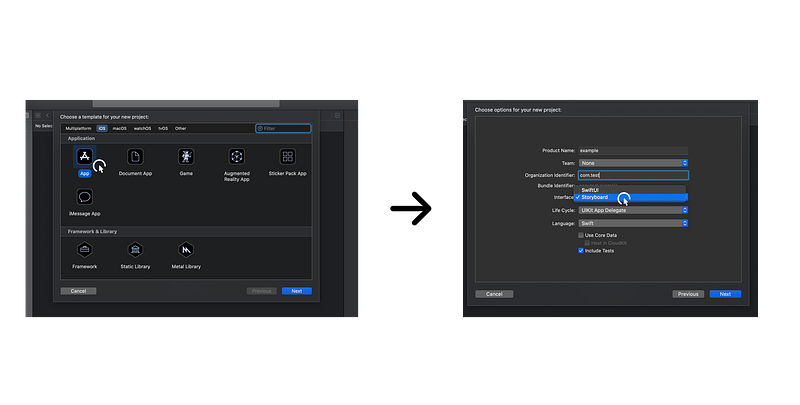
Creation of the Xcode Project

Step 2: Delete the Storyboard

Your new project has been created, now navigate to the left side of your interface, select the “Main.storyboard” file in the main folder, left-click and hit delete.
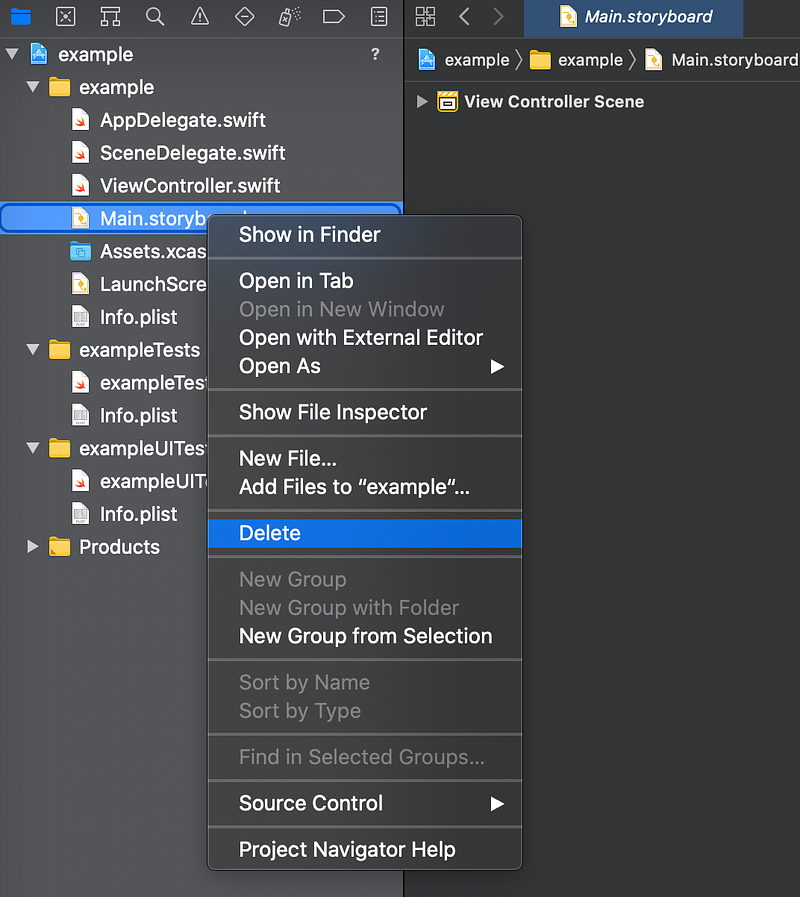
Main.Storyboard

Step 3: Remove the main interface

Still on the left corner, select the first file: the main bundle of your application. Under General > Deployment Info select the world “Main” and delete it.
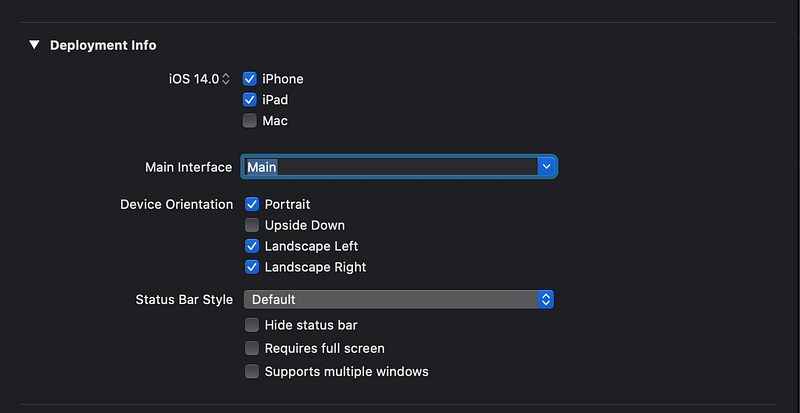
Deployment Info

Step 4: Delete the Storyboard key inside Info.plist

Navigate to the Info.Plist file on the left side. Under the keys, Application Scene Manifest > Scene Configuration > Application Session Role > Item 0 (Default Configuration), select the string “Storyboard Name” and delete it with the minus button.
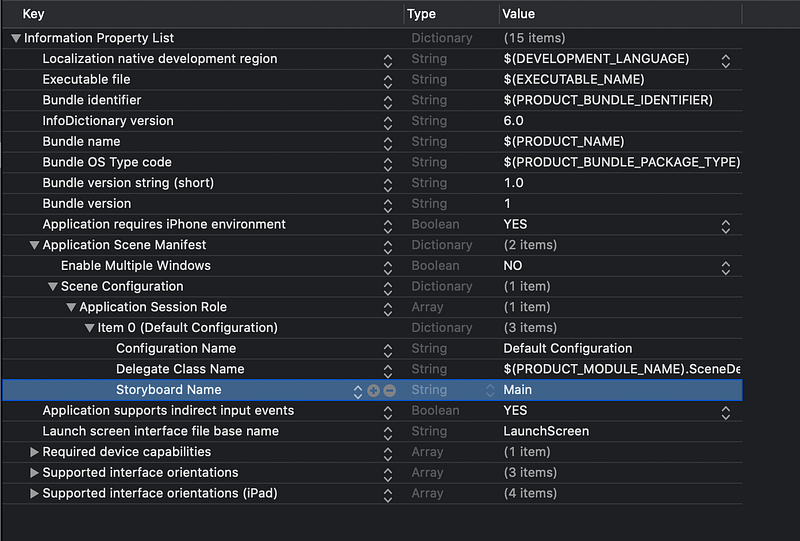
Info.Plist file

Step 5: Add the code in the Window Scene

Now, go to the SceneDelegate.Swift file and add the code below inside the scene function (the first function present in this file).

Then your function should look like this:
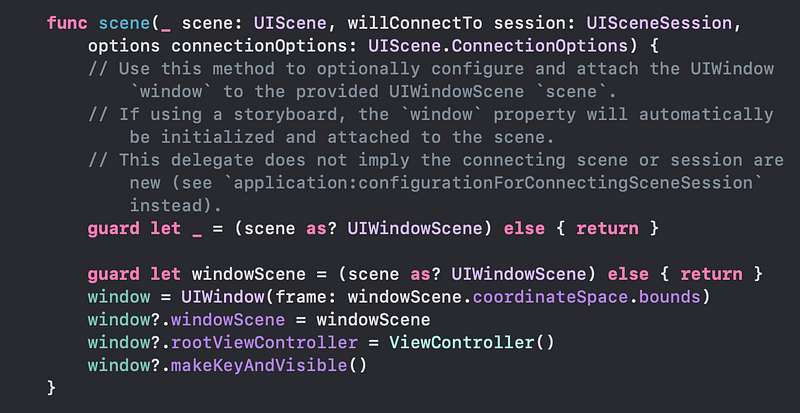
Scene function inside SceneDelegate file

Step 6: Run your App!

It’s time to see if your app runs correctly! Here is a little trick: Add the code below to the ViewDidLoad function inside your ViewController.Swift file so when the screen gets red when you launch the app, it means that everything works perfectly.
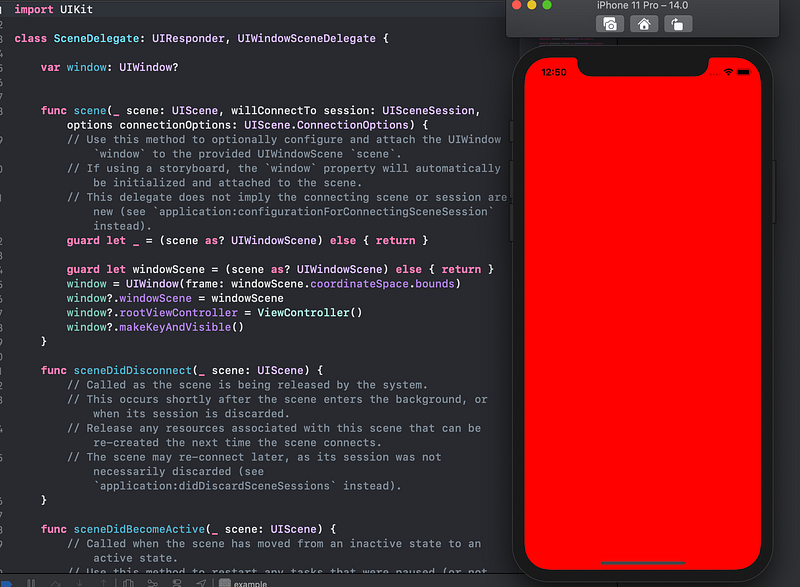
Final Result

Thanks for reading! I’m always happy to have a chat and collaborate at [email protected]. Consider subscribing to enjoy unlimited access to my articles and all of Medium through my referral link.

Swift
Storyboard
Uikit
Xcode
Xcode 12
Recommended from ReadMedium