
iOS 13 Context Menus and SF Symbols
The replacement for 3D Touch is here to stay
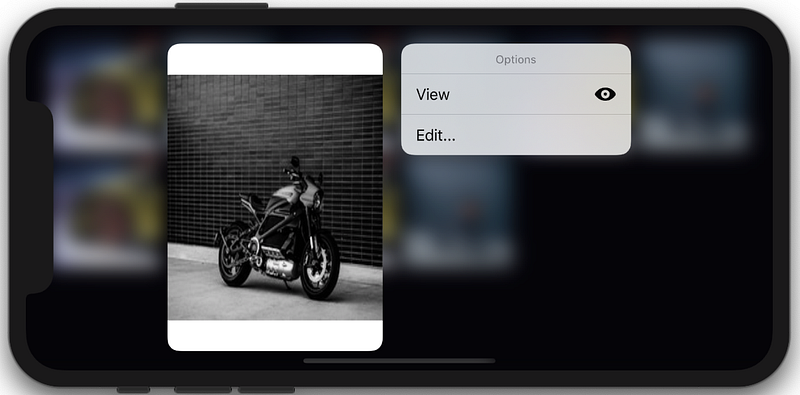
Context menus were one of the significant developments in this year’s WWDC 2019 for iOS 13. Promoted as the replacement for 3D touch, it’s here to stay!
The goal of this article is the implementation of context menus and SF Symbols. So let’s dive right in.
Plan of Action
- We’ll be covering the implementation of context menus using Collection Views.
- We will be using SF Symbols, which provides plenty of system image names.
Context Menus vs. Peek and Pop
Context menus introduced with iOS 13 are not the same as 3D Touch Peek and Pop gestures.
Following are the key differences:
- Peek and Pop works on devices that support 3D Touch, whereas context menus are for all devices.
- Context menus are displayed on a long press or force touch (if the device supports it), whereas a Peek and Pop menu is shown on force touch only.
- Peek and Pop menus require you to swipe up to view the menu, whereas context menus are visible right there where you long-press.
To setup ContextMenu on a View, we need to set upUIContextMenuIteraction on it. Also, we need to conform to UIContextMenuInteractionDelegate
Basic Setup of a Context Menu on a View
Let’s take a glance at the important delegate methods in the UIContextMenuInteractionDelegate protocol:
Initialization of a Context Menu
To initialize a Context Menu, we need to set three arguments (all are optional):
identifier- You can set a string id here.previewProvider- A preview of the next View ControlleractionProvider- We create our menu buttons and actions here.
SFSymbols is a newly introduced Mac application that is essentially an encyclopedia of system icon names. We can pass those names in UIImage(systemName:) initializer introduced with iOS 13.
Customising System Icons
We can customize the size/style of the system icons by passing a configuration argument as shown below:
let config = UIImage.SymbolConfiguration(textStyle: .largeTitle)UIImage(systemName: "paperplane", withConfiguration : config)ContextMenu and CollectionView in Action
In the following sections, we’ll be implementing ContextMenu on a UICollectionView.
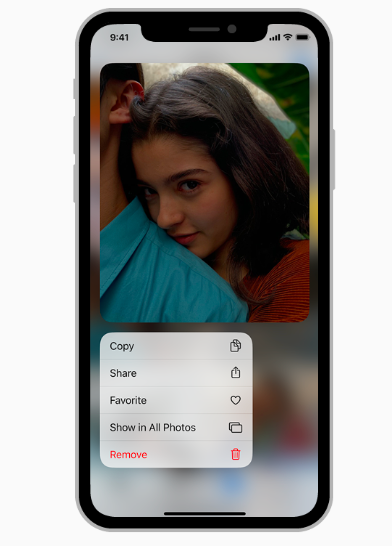
iOS 13 introduces a few new UICollectionViewDelegate methods for context menus. In order to display a ContextMenu when a user long-presses on a CollectionView cell, the following function is used:
func collectionView(_ collectionView: UICollectionView, contextMenuConfigurationForItemAt indexPath: IndexPath, point: CGPoint) -> UIContextMenuConfiguration? {

        let configuration = UIContextMenuConfiguration(identifier: nil, previewProvider: nil){ action in
            let viewMenu = UIAction(title: "View", image: UIImage(systemName: "eye.fill"), identifier: UIAction.Identifier(rawValue: "view")) {_ in
                print("button clicked..")
            }
let rotate = UIAction(title: "Rotate", image: UIImage(systemName: "arrow.counterclockwise"), identifier: nil, state: .on, handler: {action in
print("rotate clicked.")
}) let delete = UIAction(title: "Delete", image: UIImage(systemName: "trash.fill"), identifier: nil, discoverabilityTitle: nil, attributes: .destructive, state: .on, handler: {action in
print("delete clicked.")
})
let editMenu = UIMenu(title: "Edit...", children: [rotate, delete])
return UIMenu(title: "Options", image: nil, identifier: nil, children: [viewMenu, editMenu])
}
return configuration
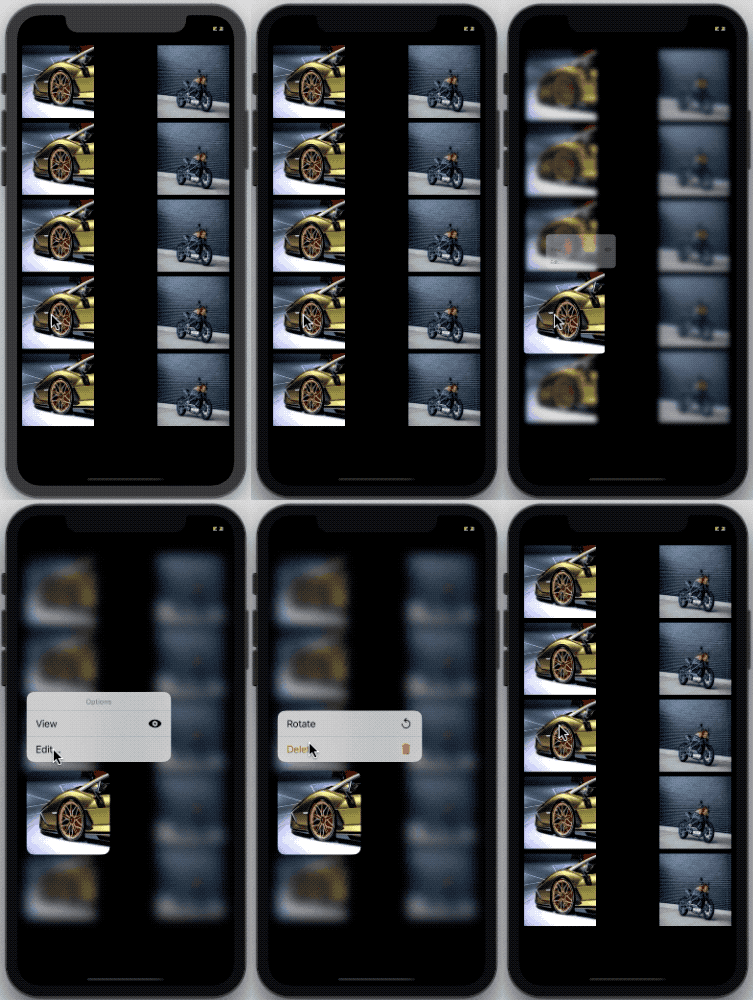
}We’ve created a UIMenu, which consists of a submenu as well. A quick look at the ContextMenu and CollectionView in action is given below:
ContextMenu and PreviewProvider
In this section, we’ll be displaying the target view controller in a preview along with the ContextMenu on cell press.
In order to display the menu, we need to set the target view controller in the PreviewProvider as shown below:
func collectionView(_ collectionView: UICollectionView, contextMenuConfigurationForItemAt indexPath: IndexPath, point: CGPoint) -> UIContextMenuConfiguration? {let configuration = UIContextMenuConfiguration(identifier: "\(indexPath.row)" as NSCopying, previewProvider: {
return SecondViewController(index: indexPath.row)
}){ action in//add your uimenu as earlier
}
}To open the view controller on the preview click, we need to implement the following method which was newly added in UICollectionViewDelegateprotocol.
func collectionView(_ collectionView: UICollectionView, willPerformPreviewActionForMenuWith configuration: UIContextMenuConfiguration, animator: UIContextMenuInteractionCommitAnimating) {

        let id = configuration.identifier as! String

        animator.addCompletion {
            self.show(SecondViewController(index: Int(id)), sender: self)
        }
}
The identifier set earlier is retrieved using configuration.identifier.
In our SecondViewController, we’ve set different CIFilter for each of the images displayed in the UIImageView.
The output of the application in action is given below:
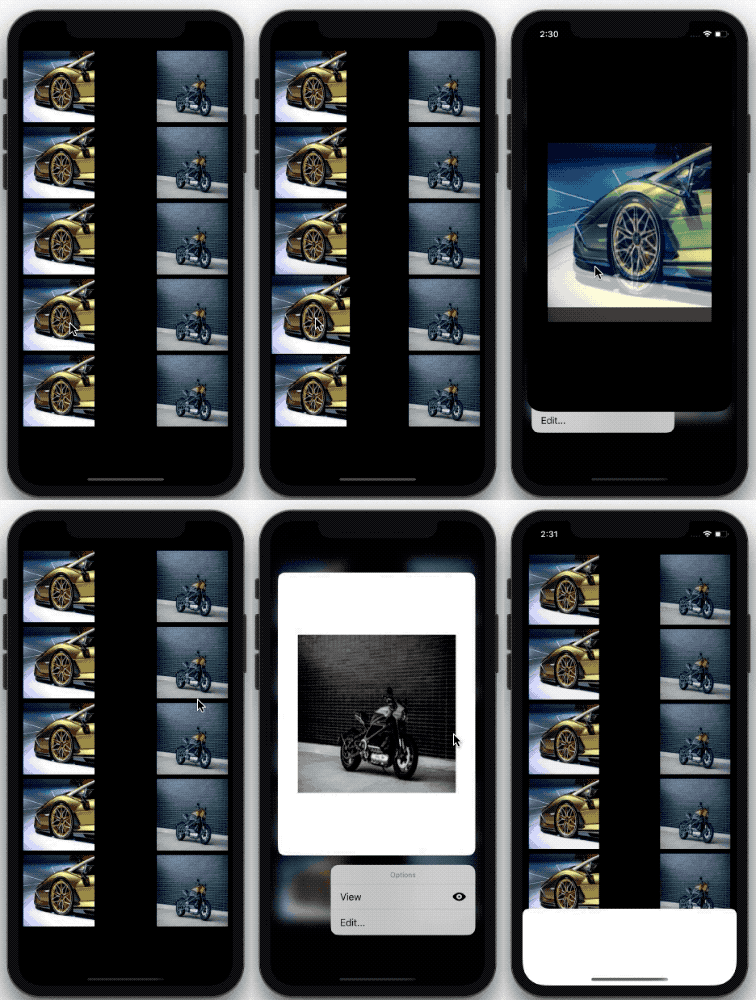
Did you notice? The presented view controller can be swiped down to dismiss. This is the default view controller style starting iOS 13.
That sums up this feature of iOS 13. Context menus look best along with system icons. The full source is available in this GitHub repository.
For more iOS 13 features, refer to my piece “iOS 13 Checklist for Developers.”


