
QUANTRIUM GUIDES
Integrating multiple OCR models to perform detection and recognition separately using Python
Image data extraction using Python
Introduction
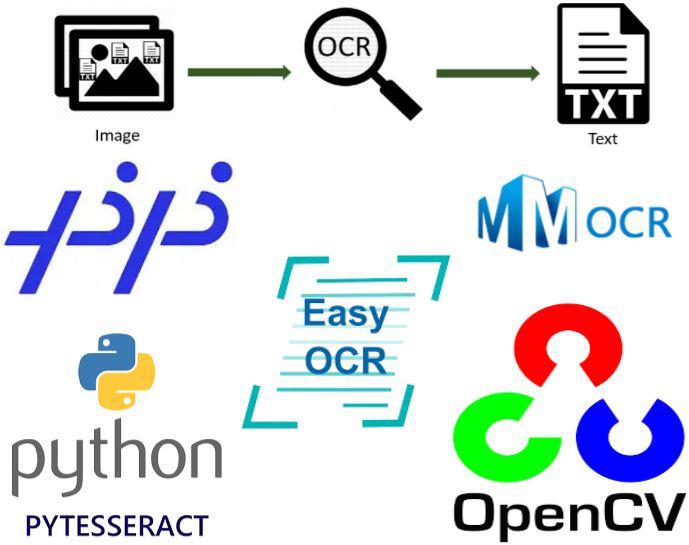
Optical Character Recognition (OCR) is one of the most challenging problems in Computer Vision today. With reduced hardware cost of handheld devices like mobile phones and having very high quality of cameras, it has largely replaced the scanners for normal use. Even, mobile applications provide options to click image of the documents and upload, for example, loan application, bank account opening, scanning of old manuscripts and books, etc.
Hence, images of documents have become one of the most widely used source of data. The text extraction from these images is largely dependent on the OCR.
Some of the important applications of OCR include:
- Text extraction from scanned or captured documents;
- License plate detection and recognition;
- Handwritten text recognition;
and the list goes on. Thus, it is essential to build/design a robust OCR model that detects the text present in the images with high accuracy.
At Quantrium, I am working on projects in which I have to perform OCR on scanned documents using Python. To achieve high level of accuracy, I have used ensemble technique in which I have used different OCRs for detection and recognition separately.
In this article I will explain the purpose of splitting both the operations and the benefit of splitting detection from recognition.
Why to integrate multiple OCR models?
The OCR models works in two steps:
- Detection: Identifies “where” the text is present, i.e., detects the coordinates of the text in the image.
- Recognition: Recognize “what” is the text, i.e., as the name suggests, it recognizes/predicts the text present within the coordinates.
In Python, many OCR models such as PyTesseract, PPOCR, easyOCR, MMOCR, Keras-OCR etc. are available. But one of the major drawbacks of most of the OCR models is that they either have a good detection model or a good recognition model, but not both. Some models are fast in text recognition, but are slower in detection.
Hence to tackle such issues, we ensemble multiple OCR models to perform detection and recognition separately. This has improved the accuracy of OCR to a great extent.
Further, I have explained how to implement text detection on an image using easyOCR (in our research we found that it gives better detection model as compared to other OCR models). Then, I have explained how to perform text recognition using 4 different models, namely the easyOCR recognition model, PPOCR, MMOCR recognition models and PyTesseract. I have also discussed some points of differences among the 3 recognition models towards the end.
Text detection using EasyOCR
To use EasyOCR in Python, first you need to install the following packages:
$ pip install easyocr
$ pip install opencv-python-headless==4.1.2.30
$ pip install Pillow
Now import the following packages in your Python program file and create the object of the Reader class of EasyOCR.
import easyocr
import numpy as np
from PIL import Image, ImageDraw

reader = easyocr.Reader(['en'])
EasyOCR supports over 80 languages. The list of supported languages can be found here. The full easyOCR documentation can be found here.
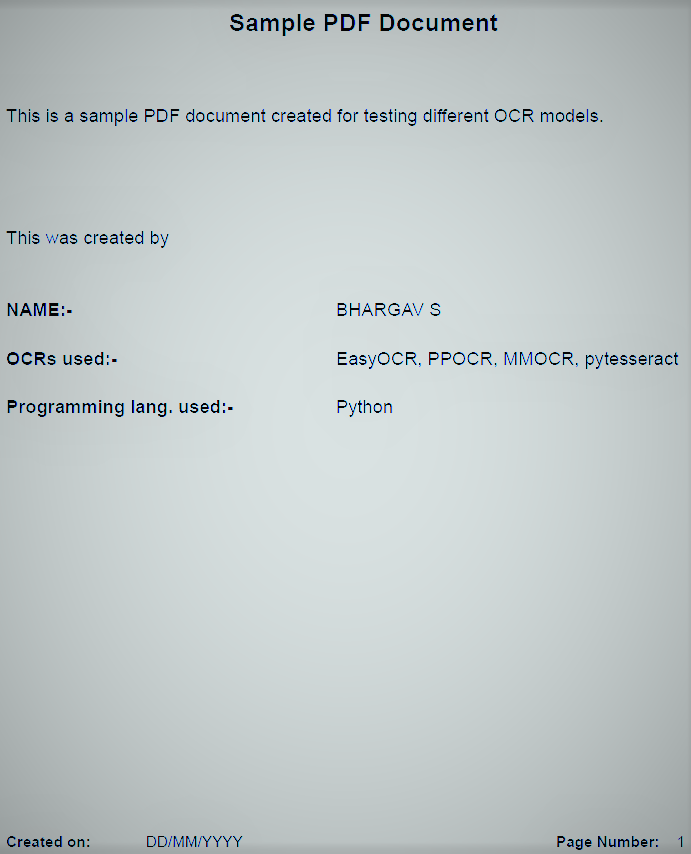
For the purpose of this article, I have created the following image file from a PDF and filtered manually for demonstrating the OCR extraction.
Detection Method
The method for the detection operation can be written as follows:
def detect_text_blocks(img_path):
    detection_result = reader.detect(img_path,
                                 width_ths=0.7,
                                 mag_ratio=1.5
                                 )
    text_coordinates = detection_result[0][0]
    return text_coordinates
I have put some hyper parameter values that optimises the detection process based on my experiments. The parameter width_ths specifies the maximum distance (horizontal) between two bounding boxes to be merged (default threshold is 0.5) and mag_ratio magnifies the image based on the factor given. Generally, you provide the factor >1 to enlarge and <1 to compress the image (default ratio is 1).
Now, lets call the function and get the text-coordinates.
img_path = "path/image.jpg"
text_coordinates = detect_text_blocks(img_path)
print(text_coordinates)
Provide the path to your image to the img_path variable. Upon calling the above method, you will get the output similar to the following:
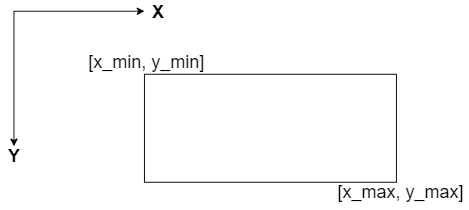
[[225, 502, 8, 41], [3, 604, 104, 130], [4, 172, 227, 251], [5, 75, 300, 319], [335, 442, 300, 319], [4, 119, 349, 369], [334, 684, 344, 374], [4, 236, 396, 421], [334, 396, 396, 420], [4, 92, 833, 851], [144, 243, 833, 849], [553, 661, 832, 852]]As you can see, we get a list of coordinates of the text blocks present in the image. The format of the coordinate is as follows:
[x_min, x_max, y_min, y_max]The following representation in the coordinate system:
Now, to identify visually whether the detection is proper or not, you can draw the boxes on the image using the following function:
def draw_bounds(img_path, bbox):
    image = Image.open(img_path)
    draw = ImageDraw.Draw(image)
    for b in bbox:
        p0, p1, p2, p3 = [b[0], b[2]], [b[1], b[2]], \
                         [b[1], b[3]], [b[0], b[3]]
        draw.line([*p0, *p1, *p2, *p3, *p0], fill='red', width=2)
    return np.asarray(image)
Call this method to draw the boxes on the image using the text coordinates obtained above.
text_blocks_in_image = draw_bounds(img_path, text_coordinates)View this result image, you will see the bounding boxes has been created around the text.
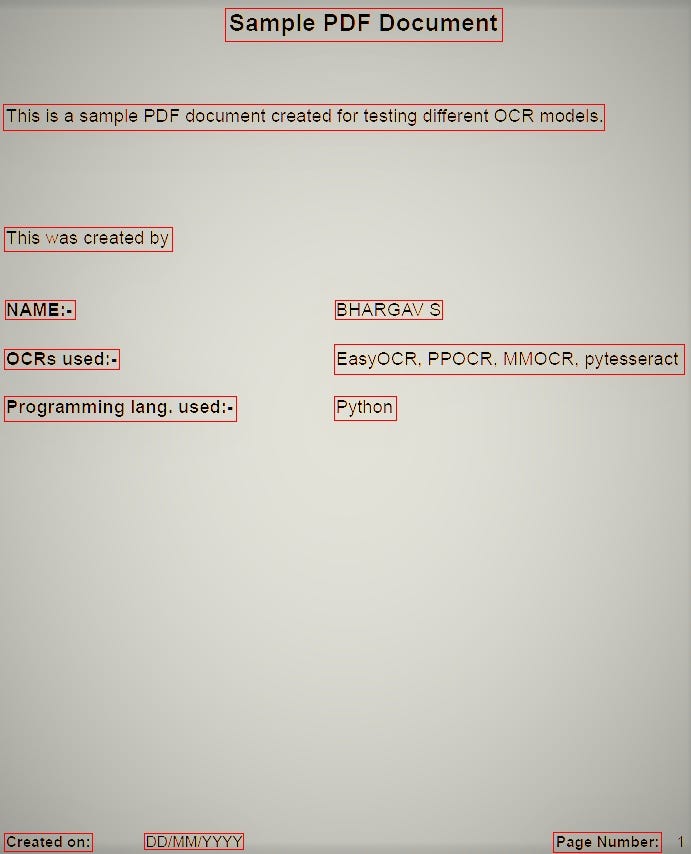
As you can see, the number “1” in the bottom right corner of the page is not detected by the model. But, you can deal with it by adjusting few more hyper parameters of the detect() method of the Reader class. You can find the description of all parameters in the easyOCR documentation.
Now, let us move to the recognition of the detected text.
NOTE: EasyOCR performs faster with a GPU. The detection process is very slow with a CPU. Hence for documents with more text blocks, it is best to use the OCR with a GPU.
Text Recognition using EasyOCR
The text recognition in EasyOCR can be performed using the built-in recognize() method of the Reader class.
recognition_results = reader.recognize(img_path,
                                 horizontal_list=text_coordinates,
                                 free_list=[]
                                 )
for txt in recognition_results:
print("{}: {}".format(txt[0],txt[1]))There are 3 parameters that have to be defined in the recognize() method, the image file path, horizontal_list and free_list. The free_list is another output that is obtained from the detection method. But, it is an optional argument to be passed to the recognize method. Hence, we can simply pass an empty list as a parameter for free_list.
You will see the following output when you run the above code block:
[[225, 8], [502, 8], [502, 41], [225, 41]]: Sample PDF Document
[[3, 104], [604, 104], [604, 130], [3, 130]]: This is a sample PDF document created for testing different OCR models.
[[4, 227], [172, 227], [172, 251], [4, 251]]: This was created by [[5, 300], [75, 300], [75, 319], [5, 319]]: NAME
[[335, 300], [442, 300], [442, 319], [335, 319]]: BHARGAV $
[[4, 349], [119, 349], [119, 369], [4, 369]]: OCRs used:-
[[334, 344], [684, 344], [684, 374], [334, 374]]: EasyocR, PPOCR, MMOCR, pytesseract
[[4, 396], [236, 396], [236, 421], [4, 421]]: Programming lang. used:-
[[334, 396], [396, 396], [396, 420], [334, 420]]: Python
[[4, 833], [92, 833], [92, 851], [4, 851]]: Created on:
[[144, 833], [243, 833], [243, 849], [144, 849]]: DDIMMAYYYY
[[553, 832], [661, 832], [661, 852], [553, 852]]: Page Number:
You can see that the quality of extraction is good. Also, all the 4 coordinates of the bounding boxes are returned along with the recognized text.
Along with these, you will get the confidence score of extraction (which is the 3rd parameter of the recognized result). However, some texts/characters like / are not recognized correctly, S has been recognized as $ and few more.
But this is a good starting point to build a recognition model using easyOCR. With some hyper parameter tuning, you can improve the recognition quality.
Text Recognition using PPOCR
This section assumes that you will be using EasyOCR detection as is, however, here we are replacing the EasyOCR recognition with PPOCR recognition
Popularly known as PaddleOCR. You can find the documentation of PPOCR here.
First, let’s set up PPOCR. You will have to install the following packages:
pip install "paddleocr>=2.0.1"
pip install paddlepaddle
Now import the following packages in your Python program file and create the object of the PaddleOCR:
from paddleocr import PaddleOCR, draw_ocr
import cv2
ocr = PaddleOCR(lang='en')
We already have the coordinates extracted using EasyOCR detection in the variable text_coordinates. Let’s use those coordinates to crop the image with the bounding boxes and run it through the PaddleOCR recognition:
for coord in text_coordinates:
    x_min, y_min, x_max, y_max = coord[0], coord[2], \
                                 coord[1], coord[3]

    if x_min >= 0 and x_max >= 0 and \
       y_min >= 0 and y_max >= 0:
im2 = cv2.imread(img_path)
cropped = im2[y_min:y_max, x_min:x_max]
text = ocr.ocr(cropped,
det=False,
cls=False
)
print("{}: {}".format(coord, text[0][0]))You can perform 3 different operations with PPOCR’s ocr() method, namely detection, recognition and angle classification. You can find about these operations in the documentation link shared above. But since we want to perform recognition alone, we set the other two parameters to False (by default, the parameters of these operations are True).
When the above code block is executed, you will receive the following output:
[225, 502, 8, 41]: Sample PDF Document
[3, 604, 104, 130]: This is a sample PDF document created for testing different OCR models.
[4, 172, 227, 251]: This was created by
[5, 75, 300, 319]: NAME:
[335, 442, 300, 319]: BHARGAV S
[4, 119, 349, 369]: OCRs used:-
[334, 684, 344, 374]: EasyOCR.PPOMMpytesseract
[4, 236, 396, 421]: Programming lang.used
[334, 396, 396, 420]: Python
[4, 92, 833, 851]: Created on:
[144, 243, 833, 849]: DD/MM/YYYY
[553, 661, 832, 852]: Page Number:
Here, we can find that the names of the OCR models are not extracted accurately. But, the overall recognition quality is better than that of easyOCR.
Text Recognition using MMOCR
MMOCR is an OCR model built based on PyTorch. Setting up MMOCR is a slightly long process. Hence, I have not included the installation steps in this article. However, you can find the step-by-step installation instructions here and the full documentation of MMOCR here.
So, let’s move straight into the implementation.
Post successful installation, you have to work inside the mmocr/ repository. You need to make the following imports and instantiate the object of MMOCR as follows:
from mmocr.utils.ocr import MMOCR
import cv2
ocr = MMOCR(det=None, recog='RobustScanner')
Since we are performing text recognition alone, we need to set the det parameter (which is used to define the detection model) to None. This will make the process faster by skipping detection step and jumping directly into recognition.
MMOCR has many in built recognition models. Here, I have used the RobustScanner recognition model. You can find the other recognition models in the documentation and can test recognition with them to arrive at the best model suitable for a particular application.
We will now use the text coordinates obtained from EasyOCR detection to perform recognition.
for coord in text_coordinates:
    x_min, y_min, x_max, y_max = coord[0], coord[2], \
                                 coord[1], coord[3]

    im2 = cv2.imread(img_path)
    cropped = im2[y_min:y_max, x_min:x_max]
    text = ocr.readtext(cropped,
                       print_result=False,
                       output=None)
    print("{}: {}".format(coord,text[0]["text"]))
The following output was obtained after execution of the above program:
[225, 502, 8, 41]: SamplePDFDocument
[3, 604, 104, 130]: Newsgroups:FreechexMECHEST-Ect
[4, 172, 227, 251]: Thiswascreatedby
[5, 75, 300, 319]: NAMER-
[335, 442, 300, 319]: BHARGAVS
[4, 119, 349, 369]: Ocrstused:-
[334, 684, 344, 374]: ESBJOCR.PPOCR.phocr.pyless.csc
[4, 236, 396, 421]: Programminglang.used:-
[334, 396, 396, 420]: Python
[4, 92, 833, 851]: Createdon:
[144, 243, 833, 849]: DD/MM/YYYY
[553, 661, 832, 852]: PageNumber:
It is clear that all of the detected texts were recognized, but some are extracted wrongly. Also, separators (such as spaces) were ignored during the recognition process. These are some of the drawbacks that are found while executing MMOCR RobustScanner recognition model.
Text Recognition using PyTesseract
The PyTesseract OCR works based on Tesseract OCR. PyTesseract setup varies according to your operating system. The detailed installation guide can be found here.
Once set up complete, lets perform text recognition:
for coord in text_coordinates:
    x_min, y_min, x_max, y_max = coord[0], coord[2], \
                                 coord[1], coord[3]

    if x_min >= 0 and x_max >= 0 and \
       y_min >= 0 and y_max >= 0:
im2 = cv2.imread(img_path)
cropped = im2[y_min: y_max, x_min: x_max]
text = pytesseract.image_to_string(cropped)
print("{}: {}".format(coord, text))The following output was obtained from the pytesseract recognition:
[225, 502, 8, 41]: Sample PDF Document
[3, 604, 104, 130]: This is a sample PDF document created for testing different OCR models.
[4, 172, 227, 251]: This was created by
[5, 75, 300, 319]:
[335, 442, 300, 319]:
[4, 119, 349, 369]: OCRs used:-
[334, 684, 344, 374]: EasyOCR, PPOCR, MMOCR., pytesseract
[4, 236, 396, 421]: Programming lang. used:-
[334, 396, 396, 420]: Python
[4, 92, 833, 851]:
[144, 243, 833, 849]: DDB/MMIYYYY
[553, 661, 832, 852]: Page Number
As we can see, the output extraction is better compared to the MMOCR output. The texts are recognized with their respective cases (lower/upper), and spaces are also identified between two words. However, we can also observe that some of the text blocks are not recognized by the pytesseract.
Observation and Conclusion
We have analyzed 4 different OCR recognition models and can make the following observations.
- EasyOCR recognition takes the list of all the coordinates at the same time and performs recognition of all blocks at once (however internally, it is done coordinate wise. You can understand it by looking at the recognition code from the easyOCR repository here.)
- The other OCR models, recognition is done coordinate wise. Hence, depending on the application, the recognition model can be chosen appropriately.
- Separators are ignored by some recognition models (like the MMOCR). Hence, such OCR models could be useful if the coordinates have been detected word-wise by the detection model.
- In pytesseract OCR model, some words are not recognized.
- All the above OCR models, we can observe that some words are not extracted correctly. Such issues could be improved by performing pre-processing operations such as binarization, noise removal, erosion/dilation etc. on the cropped images.
Hence, I feel that I have given a basic idea of integrating multiple popular OCR models to perform detection and recognition separately. I would be happy to answer any questions and clarifications related to the topic which can be posted through the comments. Hope you will find this article useful. Thanks!


