
Integrating Application Gateway Ingress Controller with AKS: Step-by-Step Guide
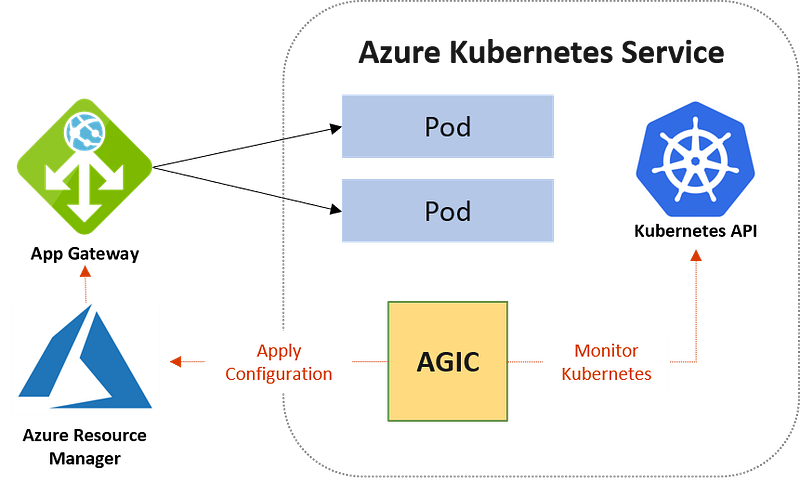
Introduction:
As organizations increasingly adopt cloud-native architectures and deploy applications in containers, Kubernetes has become the de facto orchestration platform. Azure Kubernetes Service (AKS) is a popular managed Kubernetes service provided by Microsoft, which makes it easy to deploy, manage, and scale containerized applications in Azure.
In a Kubernetes cluster, an Ingress controller is responsible for handling incoming traffic to the cluster and routing it to the appropriate services. Application Gateway is a Layer 7 load balancer in Azure that provides advanced features like SSL termination, URL-based routing, and WAF (Web Application Firewall) for securing web applications. By integrating Application Gateway with AKS, you can leverage its powerful features for handling incoming traffic to your containerized applications.
In this article, we will walk through the steps to integrate Application Gateway Ingress Controller with AKS, providing a detailed guide for achieving the same.
Prerequisites:
Before you begin, make sure you have the following prerequisites in place:
- Azure subscription: You need an active Azure subscription to create an AKS cluster and an Application Gateway.
- AKS cluster: Create an AKS cluster in Azure. You can create it using the Azure portal, Azure CLI, or Azure PowerShell.
- kubectl: Install the kubectl command-line tool on your local machine to interact with the AKS cluster.
- Helm: Helm is a popular package manager for Kubernetes that helps you install and manage applications on your cluster. Install Helm on your local machine.
- Application Gateway: Create an Application Gateway in Azure. You can create it using the Azure portal, Azure CLI, or Azure PowerShell.
Step 1: Install Application Gateway Ingress Controller To integrate Application Gateway with AKS, we need to install the Application Gateway Ingress Controller. Follow the steps below:
- Connect to your AKS cluster using kubectl:
az aks get-credentials --resource-group <your-resource-group> --name <your-aks-cluster-name>2. Install the Application Gateway Ingress Controller using Helm
helm repo add application-gateway-kubernetes-ingress https://appgwingress.blob.core.windows.net/ingress-azure-helm-package/
helm repo update
helm install ingress-azure application-gateway-kubernetes-ingress/ingress-azure --set appgw.name=<your-appgw-name> --set appgw.resourceGroup=<your-appgw-resource-group> --set appgw.subscriptionId=<your-azure-subscription-id> --set appgw.usePrivateIP=false
Note: Replace <your-appgw-name>, <your-appgw-resource-group>, and <your-azure-subscription-id> with your actual values.
Step 2: Configure Application Gateway Backend Pool Next, we need to configure the backend pool of the Application Gateway to route traffic to the AKS cluster. Follow the steps below:
- Retrieve the IP address of the Application Gateway frontend:
az network application-gateway frontend-ip show --resource-group <your-appgw-resource-group> --gateway-name <your-appgw-name> --name appGatewayFrontendIP --query publicIpAddress.id -o tsv2. Update the AKS cluster’s load balancer to use the Application Gateway IP address as a backend pool:
az network lb backend-pool update -g <your-aks-resource-group> -n kubernetes -lb-name kubernetes --add properties.backendAddresses "<your-appgw-frontend-ip-address>"Note: Replace <your-appgw-frontend-ip-address> with the IP address retrieved from step 1.
Step 3: Deploy an Ingress Resource Now, we need to deploy an Ingress resource in our AKS cluster to define the routing rules for incoming traffic. Follow the steps below:
- Create an Ingress YAML file with the desired routing rules. Here’s an example:
apiVersion: networking.k8s.io/v1
kind: Ingress
metadata:
  name: my-ingress
  annotations:
    kubernetes.io/ingress.class: azure/application-gateway
    appgw.ingress.kubernetes.io/use-private-ip: "false"
spec:
  rules:
  - host: mydomain.com
    http:
      paths:
      - path: /
        pathType: Prefix
        backend:
          service:
            name: my-service
            port:
              number: 80
In this example, we define an Ingress resource with a routing rule for the host “mydomain.com” that forwards traffic to a service named “my-service” running on port 80.
2. Apply the Ingress resource to your AKS cluster:
kubectl apply -f <your-ingress-file.yaml>3. Verify that the Ingress resource is created successfully:
kubectl get ingressYou should see the status of the Ingress resource as “Healthy”.
Step 4: Test the Application Gateway Ingress Controller Now, you can test the Application Gateway Ingress Controller by sending traffic to your AKS cluster through the Application Gateway. Follow the steps below:
- Obtain the public IP address of the Application Gateway frontend:
az network public-ip show --resource-group <your-appgw-resource-group> --name <your-appgw-frontend-ip-address> --query ipAddress -o tsv2. Update the DNS configuration of your domain to point to the public IP address of the Application Gateway frontend.
3. Send traffic to your domain and verify that it is routed to your AKS cluster through the Application Gateway.
Conclusion:
Integrating Application Gateway Ingress Controller with AKS provides advanced features like SSL termination, URL-based routing, and WAF for securing your containerized applications running in Kubernetes. In this article, we covered the step-by-step guide to achieve this integration, including installing the Application Gateway Ingress Controller, configuring the Application Gateway backend pool, deploying an Ingress resource, and testing the setup. By following these steps, you can leverage the powerful features of Application Gateway to enhance the security and scalability of your AKS cluster.