Integrate Supabase In Android App with Jetpack Compose
Grab a coffee ☕, and let’s implement Supabase in an Android app. The app will be a simple cafe list that will have two screens. Also, here is the repository.

Differences between Firebase Firestore and Supabase.
Both databases offer a generous free plan, but let’s compare them.
Database Type:
- Firebase Firestore: NoSQL document database. Data is stored in JSON-like documents with flexible schemas.
- Supabase: Relational database based on PostgreSQL. Data is stored in tables with defined relationships between them. Powerful for complex queries and data with intricate relationships.
Querying:
- Firebase Firestore: Supports querying with a query language similar to SQL, but less powerful for complex joins and aggregations.
- Supabase: Supports full-fledged SQL queries, allowing for complex data manipulation and retrieval.
Offline Support:
- Firebase Firestore: Offers offline capabilities, allowing data persistence and syncing when back online.
- Supabase: Primarily an online database, but you can implement offline functionality through client-side libraries or custom solutions.
Dependencies
Go ahead in your build.gradle from the app module and add these.
plugins {
    kotlin("plugin.serialization")
}

dependencies {
    // Navigation
    implementation(libs.androidx.navigation.compose)

    // Network Image
    implementation(libs.coil.compose)

    // Supabase
    implementation(platform(libs.supabase.bom))
    implementation(libs.realtime.kt)
    implementation(libs.postgrest.kt)
    implementation(libs.ktor.client.android)
    implementation(libs.kotlinx.serialization.json)
}
Now add these in the build.gradle from the project.
plugins {
    kotlin("jvm") version "2.0.0"
    kotlin("plugin.serialization") version "2.0.0"
}
Adding dummy data
Go ahead in tables and create a new table in your current database.
Here if you want to follow the tutorial enter cafe.

Now, I will disable the RLS because when I tried to use realtime it didn’t work with it checked.

After that, make sure to enable the realtime.

Also, create these columns for the cafe.
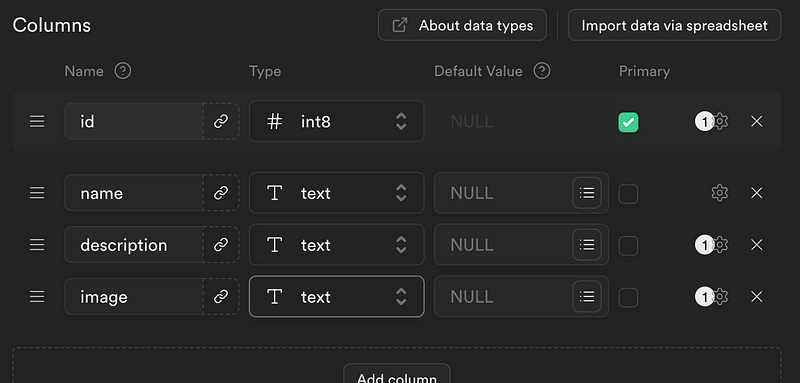
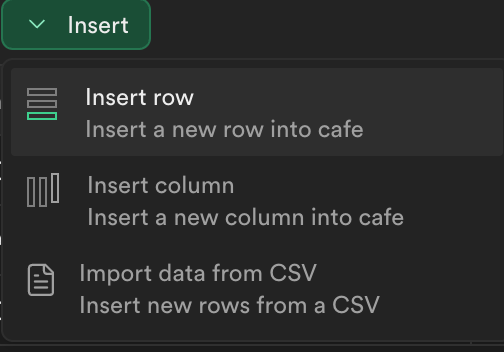
Now enter the table and hit insert and click on Insert row.
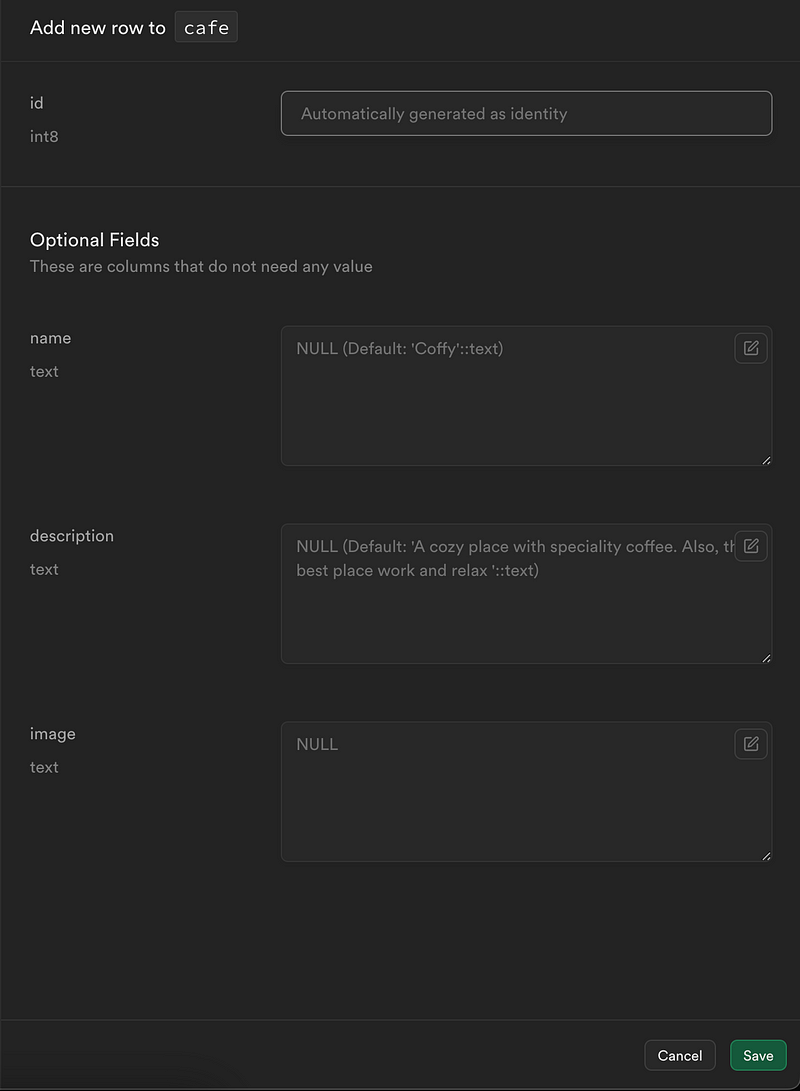
This will open a window and here you can complete it with your names, descriptions, and image links.
Creating the app
Let’s start with the Cafe data class . This will be sent and received from the database. I will use Kotlin serialization, but you can also use Moshi and other serialization dependencies.
@Serializable
data class Cafe(
    val id: Int,
    val name: String,
    val description: String,
    val image: String
)
Ensure you created your database, because now we need to create a Supabase client. This will take the supabaseUrl and supabaseKey . Also, I’ll write the whole implementation, and at the end of the article, you’ll have a link to the repository.
@OptIn(SupabaseInternal::class)
class MainActivity : ComponentActivity() {
    private val supabase = createSupabaseClient(
        supabaseUrl = "YOUR_URL",
        supabaseKey = "YOUR_KEY"
    ) {
        install(Postgrest)
        // These are required for realtime
        install(Realtime)
        httpConfig {
            this.install(WebSockets)
        }
    }
}
Now let’s create the method of fetching data from the database.
suspend fun getCafeList() =
    supabase.from("cafe")
        .select()
        .decodeList<Cafe>()
In case you want to fetch data in real time use this.
fun getCafeListRealtime() =
    supabase.from("cafe").selectAsFlow(Cafe::id)
Now let’s create the CafeListScreen composable. This will have two parameters: onCafeClick and modifier .
@Composable
fun CafeList(
    onCafeClick: (Int) -> Unit,
    modifier: Modifier = Modifier
) {
    // ...
}
To fetch the data, I will use a LaunchedEffect block, and the data will be stored in the cafes variable.
@Composable
fun CafeList(
    onCafeClick: (Int) -> Unit,
    modifier: Modifier = Modifier
) {
    var cafes by remember { mutableStateOf<List<Cafe>>(listOf()) }
    LaunchedEffect(Unit) {
        cafes = getCafeList()
    }
}
After that, we will use a LazyColumn to display the CafeCard . We’ll implement the CafeCard in a moment.
@Composable
fun CafeList(
    onCafeClick: (Int) -> Unit,
    modifier: Modifier = Modifier
) {
    var cafes by remember { mutableStateOf<List<Cafe>>(listOf()) }
    LaunchedEffect(Unit) {
        // One time
        cafes = getCafeList()

        // Realtime
        getCafeListRealtime()
            .collect {
                cafes = it
            }
    }
    LazyColumn(
        modifier = modifier,
        contentPadding = PaddingValues(
            horizontal = 16.dp,
            vertical = 10.dp
        ),
        verticalArrangement = Arrangement.spacedBy(10.dp)
    ) {
        items(
            cafes,
            key = { cafe -> cafe.id },
        ) { cafe ->
            CafeCard(
                cafe = cafe,
                onClick = { onCafeClick(cafe.id) }
            )
        }
    }
}
The CafeCard composable takes two parameters: cafe and onClick .
@Composable
fun CafeCard(cafe: Cafe, onClick: () -> Unit) {
    Box(
        modifier = Modifier
            .fillMaxWidth()
            .height(240.dp)
            .clip(RoundedCornerShape(20.dp))
            .clickable(onClick = onClick),
        contentAlignment = Alignment.Center
    ) {
        AsyncImage(
            model = cafe.image,
            contentDescription = null,
            modifier = Modifier.fillMaxSize(),
            contentScale = ContentScale.Crop,
        )

        Box(
            modifier = Modifier
                .matchParentSize()
                .background(Color.Black.copy(alpha = 0.4f))
        )

        Text(
            text = cafe.name,
            fontSize = 38.sp,
            fontWeight = FontWeight.Bold,
            color = Color.White
        )
    }
}
Now let’s implement the CafeDetails screen. This takes two parameters: cafeID used to get a single cafe from Supabase and the modifier .
This will be a simple screen in which we are displaying an image at the top of the screen and below the title and the cafe description.
We’ll again use the LaunchedEffect block to fetch the data.
@Composable
fun CafeDetails(cafeID: Int, modifier: Modifier = Modifier) {
    var cafe by remember { mutableStateOf<Cafe?>(null) }

    LaunchedEffect(Unit) {
        cafe = getCafeByID(cafeID)
    }

    Column {
        Box(
            modifier = modifier
                .fillMaxWidth()
                .height(240.dp)
                .clip(RoundedCornerShape(bottomEnd = 20.dp, bottomStart = 20.dp)),
            contentAlignment = Alignment.Center
        ) {
            AsyncImage(
                model = cafe?.image,
                contentDescription = null,
                modifier = Modifier.fillMaxSize(),
                contentScale = ContentScale.Crop,
            )
        }

        Column(
            modifier = Modifier.padding(
                horizontal = 20.dp,
                vertical = 6.dp
            ),
            verticalArrangement = Arrangement.spacedBy(6.dp)
        ) {
            Text(
                text = cafe?.name ?: "",
                fontSize = 32.sp,
                fontWeight = FontWeight.Bold
            )

            Text(
                text = cafe?.description ?: "",
                fontSize = 18.sp
            )
        }
    }
}
For the navigation, we will use the type-safe navigation. If you are interested in learning more about this check out this.
To create the routes we need to annotate them with @Serializable.
@Serializable
data object CafeListScreen

@Serializable
data class CafeScreen(
    val id: Int
)
Now let’s simply create the NavHost and pass the screens.
Scaffold { innerPadding ->
    val navController = rememberNavController()

    NavHost(navController = navController, startDestination = CafeListScreen) {
        composable<CafeListScreen> {
            CafeList(
                onCafeClick = {
                    navController.navigate(CafeScreen(id = it))
                },
                modifier = Modifier.padding(innerPadding)
            )
        }

        composable<CafeScreen> {
            val args = it.toRoute<CafeScreen>()

            CafeDetails(
                cafeID = args.id,
                modifier = Modifier.padding(innerPadding)
            )
        }
    }
}
Other methods
Here I will enumerate a couple of methods like how to insert, remove, and update data from the database.
fun getCafeListRealtime() =
    supabase.from("cafe").selectAsFlow(Cafe::id)

suspend fun getCafeList() =
    supabase.from("cafe")
        .select()
        .decodeList<Cafe>()


suspend fun getCafeByID(id: Int) =
    supabase.from("cafe")
        .select(columns = Columns.list("id", "name", "description", "image")) {
            filter {
                Cafe::id eq id
            }
        }
        .decodeSingle<Cafe>()

suspend fun updateCafe(cafe: Cafe) {
    supabase.from("cafe").update(
        {
            set("name", cafe.name)
            set("description", cafe.description)
        }
    ) {
        filter {
            eq("id", cafe.id)
        }
    }
}

suspend fun insertCafe(cafe: Cafe) {
    supabase.from("cafe").insert(cafe)
}

suspend fun upsertCafe(cafe: Cafe) {
    supabase.from("cafe").upsert(cafe)
}

suspend fun deleteCafe(cafe: Cafe) {
    supabase.from("cafe").delete {
        filter {
            Cafe::id eq cafe.id
        }
    }
}
So that’s it. For the latest updates, follow me and subscribe to the newsletter. If you want to see more content, make sure to follow me on X and subscribe to my YouTube channel! Thanks for reading! 😊☕️