
Data Engineering 101
Integrate Jupyter Notebook into Data Pipelines
How to schedule and automate Jupyter using Papermill.

For years, I have been using Jupyter notebooks for program profiling, performance optimization, data analysis, and all kinds of data preparation works. There are a couple of posts from Netflix TechBlog that are very inspiring for me, as they truly broaden my knowledge of how Jupyter Notebooks can be immensely adopted even in the data engineering world:
- Part I: Notebook Innovation (blog post)
- Part II: Scheduling Notebooks (blog post)
- and Netflix’s talks on JupyterCon 2018
The biggest treasure for me is learning that Jupyter with nteract and papermill plugged in allow developers to parameterize, execute (even concurrently) and analyze your notebooks, and it can further be scheduled by simply adding some Cron strings (or using any event consuming tool)! I was excited to complete a POC of scheduling Jupyter notebooks in my spare time and share my takeaways in this blog post.
The ETL problem…
A lot of the data pipelines I have worked on are built on Oozie (for Hadoop jobs) and Crontab (for non-Hadoop jobs). Oozie is ideal for scheduling Hadoop jobs, so I started to rethink how data pipelines can be improved by adopting Jupyter in non-distributed tasks. Let’s start with a very simple data ETL task: copying and renaming incoming monthly data files in CSV format:
- Incoming data is ingested monthly (e.g. from a Kafka topic).
- Incoming data files have random names, so they need to be renamed with data product name and date.
- Each month, last month’s data is processed.
Cron approach
First, create a shell script that does the work (as it is simplest):
Then, use Crontab to schedule to run this shell script every month:
0 8 20 * * copy_and_rename.shNotebook approach
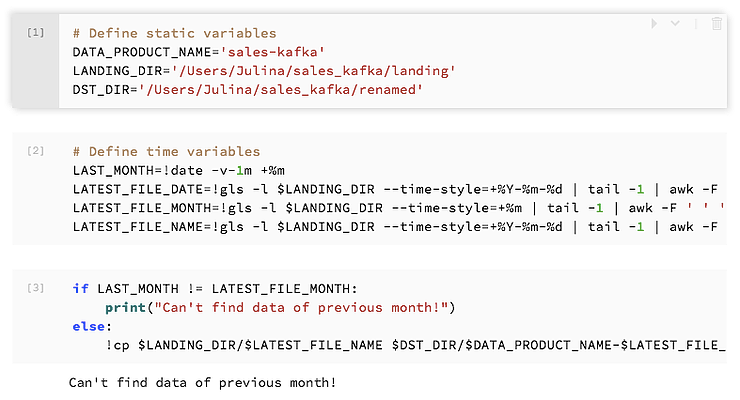
Let’s create a Jupyter notebook (using python 3.5 kernel) that does exactly the same work as copy_and_rename.sh:
(Not familiar with using shell commands in Jupyter? Check out these Jupyter magic commands!)
Next, add the scheduling string to Crontab. Here, we use papermill to execute copy_and_rename.ipynb, and save notebook results under log directory:
0 8 20 * * papermill copy_and_rename.ipynb log/nb_output_$(date ‘+%Y_%m_%d’).ipynbComparison
Logs
When using Jupyter with papermill, the output/log is an executed notebook, which is basically an immutable historical record that contains source code, parameters, runtime config, execution logs, error messages:
What’s even more amazing is that we can use papermill to retrieve variable values in the output notebook as a Panda Dataframe, which greatly eases the pain of debugging:
import papermill as pmnb = pm.read_notebook(‘output.ipynb’)nb.dataframeBesides recovering variable values, we can also use papermill to retrieve images in output notebook and analyze multiple notebook results together.
However, when running a shell script using Crontab, you need to search Cron text logs in /var/log/syslog and you won’t be able to retrieve variables :(
Parameters
Both approaches allow you to set parameters inline. When using Jupyter with papermill, you can put all parameters in a yaml file and simply use -f flag to feed it to your notebook:
0 8 20 * * papermill copy_and_rename.ipynb log/nb_output_$(date ‘+%Y_%m_%d’).ipynb -f parameters.yamlInterface
By using Jupyter with papermill, we have a more user-friendly development interface thanks to all the benefits Jupyter offers.
Setup
Thought Jupyter with papermill offers a lot of powerful functionalities and benefits, it requires installations of Jupyter and papermill.
Notebook’s potentials
- What if you want to run your program in parallel? Yes, you can use papermill to run notebooks in parallel without getting your hand dirty!
- Consider running your Jupyter notebooks in Docker containers, making it much easier to develop and deploy in multiple environments. (Highly recommended)
- For this POC, I picked the Python kernel and used Jupyter magic commands to get the work done. Jupyter also supports many other kernels/languages, such as Java, Scala, C, C++, Julia, Go, etc… (Here is a complete list of Jupyter kernels.) Keep in mind Jupyter is no longer just IPython!
- Apache Airflow now supports integration with Papermill. You can use PapermillOperator to create Airflow tasks that execute your Jupyter Notebooks. (New to Airflow? Check out the beginner’s guide to Airflow.)
jupyter_task = PapermillOperator(
    task_id="sample_jupyter_task",
    input_nb="/jupyter/notebooks/sample.ipynb",
    output_nb="/jupyter/output/output-{{ execution_date }}.ipynb",
    parameters={"msgs": "Airflow task on {{ execution_date }}!"}
)
Want to learn more about Data Engineering? Check out other articles from Data Engineer Things:


