avatarMichael Galarnyk

Free AI web copilot to create summaries, insights and extended knowledge, download it at here

2021

Abstract

an> </pre></div><div id="4ca8"><pre><span class="hljs-comment"># Refresh basically</span> <span class="hljs-built_in">source</span> .bash_profile</pre></div><div id="8657"><pre><span class="hljs-attribute">conda update conda</span></pre></div><p id="cc3f">Keep in mind that you can update the version of Anaconda in this bash script by going to the <a href="https://repo.continuum.io/archive/">Anaconda installer archive</a> and updating the curl command with the appropriate .sh file.</p><figure id="4fe3"><img src="https://cdn-images-1.readmedium.com/v2/resize:fit:800/1*9Lg5WVN58476aI4fuHd9qQ.png"><figcaption></figcaption></figure><p id="b937">3. A good way to test your installation is to open a jupyter notebook. You can do that by typing the command below into your terminal. You can also see the command in action <a href="https://youtu.be/JqGjkNzzU4s?t=1m17s">here</a>.</p><div id="5938"><pre><span class="hljs-attribute">jupyter notebook</span></pre></div><h2 id="0a37">Bash Script Installation (Python 2 Version)</h2><ol><li>Open a terminal. You can do this by clicking on the Spotlight magnifying glass at the top right of the screen, type terminal and then click on the Terminal icon.</li></ol><figure id="3ba5"><img src="https://cdn-images-1.readmedium.com/v2/resize:fit:800/1*eifhUS0r579edeUdvqocgg.gif"><figcaption>Open a terminal</figcaption></figure><p id="a296">2. Paste the script below into your terminal.</p><div id="77d8"><pre><span class="hljs-comment"># Go to home directory</span> <span class="hljs-built_in">cd</span> ~

<span class="hljs-comment"># You can change what anaconda version you want at </span> <span class="hljs-comment"># https://repo.continuum.io/archive/</span> curl https://repo.continuum.io/archive/Anaconda2-5.1.0-MacOSX-x86_64.sh -o anaconda2.sh bash anaconda2.sh -b -p /anaconda2 <span class="hljs-built_in">rm</span> anaconda2.sh <span class="hljs-built_in">echo</span> <span class="hljs-string">'export PATH="/anaconda2/bin:$PATH"'</span> >> ~/.bash_profile

<sp

Options

an class="hljs-comment"># Refresh basically</span> <span class="hljs-built_in">source</span> .bash_profile

conda update conda</pre></div><p id="4915">Keep in mind that you can update the version of Anaconda in this bash script by going to the <a href="https://repo.continuum.io/archive/">Anaconda installer archive</a> and updating the curl command with the appropriate .sh file.</p><figure id="eea5"><img src="https://cdn-images-1.readmedium.com/v2/resize:fit:800/1*FHr7URYIMS0XXADYiMYjAg.png"><figcaption></figcaption></figure><p id="e51f">3. A good way to test your installation is to open a jupyter notebook. You can do that by typing the command below into your terminal. You can also see the command in action <a href="https://youtu.be/JqGjkNzzU4s?t=1m17s">here</a>.</p><div id="f234"><pre><span class="hljs-attribute">jupyter notebook</span></pre></div><h2 id="1c4e">Further Steps (Optional)</h2><p id="a04c">If you aren’t sure what to do after installing Anaconda, here are a few things you can do:</p><ul><li>If you would like to learn more about Anaconda to install libraries, you can learn about more <a href="https://towardsdatascience.com/environment-management-with-conda-python-2-3-b9961a8a5097">here</a>.</li><li>If you want to learn how to utilize the Pandas, Matplotlib, or Seaborn libraries, please consider taking my <a href="https://www.linkedin.com/learning/python-for-data-visualization/value-of-data-visualization">Python for Data Visualization LinkedIn Learning course</a>.</li><li>If you would like to learn how to use Jupyter and Python, you learn more <a href="https://www.youtube.com/watch?v=JqGjkNzzU4s&amp;list=PLtQQKsdL7EPwSllWG67KCPAQrFaiJJgzC">here</a>.</li><li>If you want to install and learn about Git, you can check out this <a href="https://hackernoon.com/install-git-on-mac-a884f0c9d32c">tutorial</a>.</li></ul><p id="cb60">If you any questions, feel free to reach out in the comments below or through <a href="https://twitter.com/GalarnykMichael">Twitter</a>.</p></article></body>

Install Python on Mac (Anaconda)

While I previously made a video on how to manually install anaconda, the way below utilizes bash scripts which are a faster way to install a Python 3 or Python 2 version of Anaconda. If you aren’t sure which Python version you want to install, choose Python 3. Do not choose both. You can always work in Python 2 if you install a Python 3 Version of Anaconda if you want (you can learn more here).

Bash Script Installation (Python 3 Version)

  1. Open a terminal. You can do this by clicking on the Spotlight magnifying glass at the top right of the screen, type terminal and then click on the Terminal icon.

Open a terminal

2. Paste the script below into your terminal.

# Go to home directory
cd ~
# You can change what anaconda version you want at 
# https://repo.continuum.io/archive/
curl https://repo.continuum.io/archive/Anaconda3-5.1.0-MacOSX-x86_64.sh -o anaconda3.sh
bash anaconda3.sh -b -p ~/anaconda3
rm anaconda3.sh
echo 'export PATH="~/anaconda3/bin:$PATH"' >> ~/.bash_profile 
# Refresh basically
source .bash_profile
conda update conda

Keep in mind that you can update the version of Anaconda in this bash script by going to the Anaconda installer archive and updating the curl command with the appropriate .sh file.
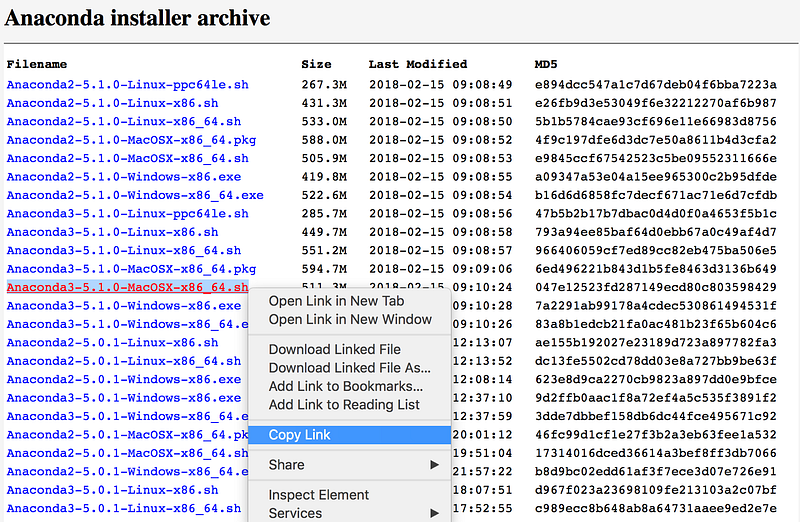
3. A good way to test your installation is to open a jupyter notebook. You can do that by typing the command below into your terminal. You can also see the command in action here.

jupyter notebook

Bash Script Installation (Python 2 Version)

  1. Open a terminal. You can do this by clicking on the Spotlight magnifying glass at the top right of the screen, type terminal and then click on the Terminal icon.
Open a terminal

2. Paste the script below into your terminal.

# Go to home directory
cd ~

# You can change what anaconda version you want at 
# https://repo.continuum.io/archive/
curl https://repo.continuum.io/archive/Anaconda2-5.1.0-MacOSX-x86_64.sh -o anaconda2.sh
bash anaconda2.sh -b -p ~/anaconda2
rm anaconda2.sh
echo 'export PATH="~/anaconda2/bin:$PATH"' >> ~/.bash_profile 

# Refresh basically
source .bash_profile

conda update conda

Keep in mind that you can update the version of Anaconda in this bash script by going to the Anaconda installer archive and updating the curl command with the appropriate .sh file.
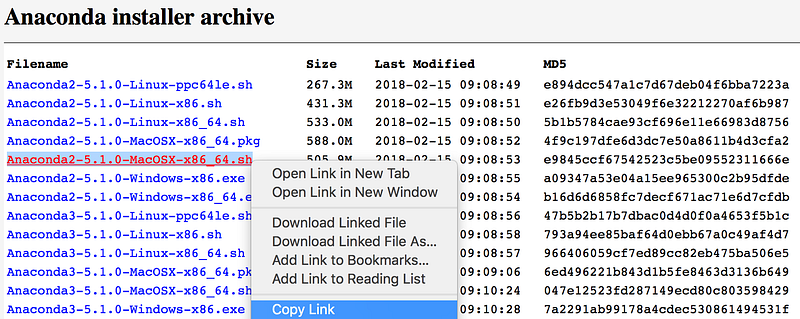
3. A good way to test your installation is to open a jupyter notebook. You can do that by typing the command below into your terminal. You can also see the command in action here.

jupyter notebook

Further Steps (Optional)

If you aren’t sure what to do after installing Anaconda, here are a few things you can do:

  • If you would like to learn more about Anaconda to install libraries, you can learn about more here.
  • If you want to learn how to utilize the Pandas, Matplotlib, or Seaborn libraries, please consider taking my Python for Data Visualization LinkedIn Learning course.
  • If you would like to learn how to use Jupyter and Python, you learn more here.
  • If you want to install and learn about Git, you can check out this tutorial.

If you any questions, feel free to reach out in the comments below or through Twitter.

Bash
Python
Mac
Anaconda
Tutorial
Recommended from ReadMedium