Install Miniconda and Virtual Environments
In this page, we will walk through installation of Miniconda, and play around conda environments.

Two concepts during installation
There are two concepts you need to know during the installation.
- System Python — System Python is the Python installed from Operating System. Sometimes it also refers to the Python already installed before Anaconda/Miniconda installation. Lots of times, you want to pick Miniconda installer match to the version of System Python. If you don’t have System Python installed, Anaconda/Miniconda will install one for you.
- Base Environment — The default environment being created by Anaconda/Miniconda after first time installation. It contains System Python and core libraries used by Anaconda/Miniconda. It is strong recommended not to use base environment, instead, always create your own virtual environment.
Download installation package
First thing to do, is find out which version of Miniconda to install. The easy way is to install the latest pakcage listed from Miniconda website. Alternately, you could pick a installer matching the System Python already installed in your environment.
Now, let’s get started. Open below link to Miniconda official website:
https://docs.conda.io/en/latest/miniconda.html

It is not required to install Python before installing Miniconda. If you don’t have Python installed already, Miniconda will install one for you.
Install Miniconda in Windows
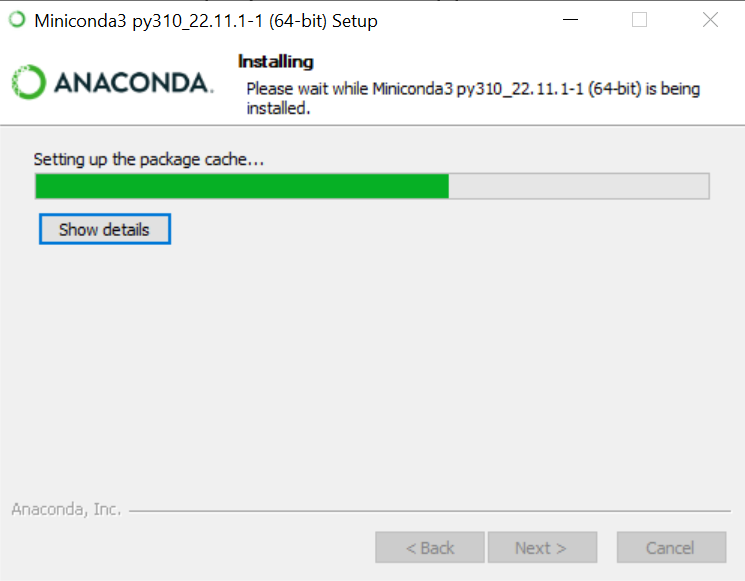
To install Miniconda in Windows, simply download the latest installer from above website. At the time of this page writting, the downloaded file is named “Miniconda3-latest-Windows-x86_64.exe”. Double click on the file, to start installation.


If you install in personal computer, it is recommended to select “All users” for a easy life. Otherwise, you might want to choose “Just me” to avoid any access / permission issues.


System Python is Python coming from your Operation System or the Python installed before Miniconda. It is not recommended to use System Python for any programming work. Instead, you should always create virtual environment for any programming or scripting works, and manage libraries/packages within the virtual environment.

Next, let’s take a look our installation. Go to Windows start menu, you will find two command line prompts showing up from “Anaconda3 (64-bit)” like below. You should also find them under “Miniconda3 (64-bit)” as well, if you scroll down.

Now let’s double click on “Anaconda Prompt (Miniconda3)”. What this command do are:
- Activate base environment with System Python as Python version
- Open a Windows command line window
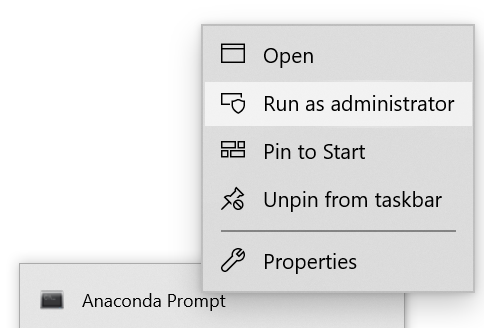
Last, let’s update the conda to latest version. In windows, first open another “Anaconda Prompt” with “administrator” role (right click on Anaconda Prompt icon, and select Run as administor as showing below)
Run below command:
conda update -n base -c defaults condaInstall Miniconda in Linux
In our example, we use Ubuntu 22.04.1 LTS. As we mentioned above, most of Linux comes with a pre-installed Python by default. Let’s find out which version we have as System Python:
$ python3 -V
Next, let’s keep our operation system up to date:
$ sudo apt update
$ sudo apt upgrade

Now, let’s go to Miniconda’s official website (same URL in Windows installation section above): https://docs.conda.io/en/latest/miniconda.html. Let’s find out the installer:
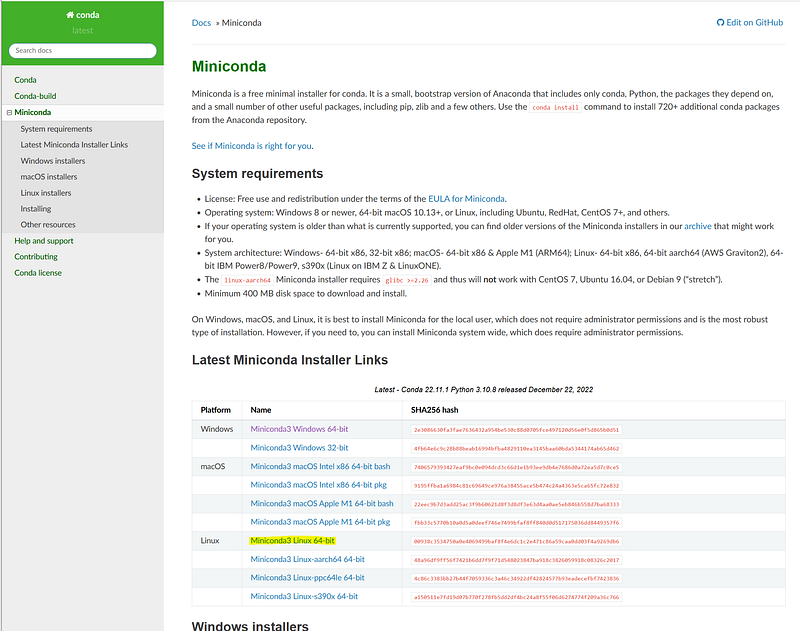
Now, let’s download the installer.
$ curl https://repo.anaconda.com/miniconda/Miniconda3-latest-Linux-x86_64.sh -o Miniconda3-latest-Linux-x86_64.sh
In Linux, we need set execution permission to the installer.
$ chmod +x Miniconda3-latest-Linux-x86_64.sh
Next, let’s install the Miniconda.
$ bash Miniconda3-latest-Linux-x86_64.shLet’s keep all options default.

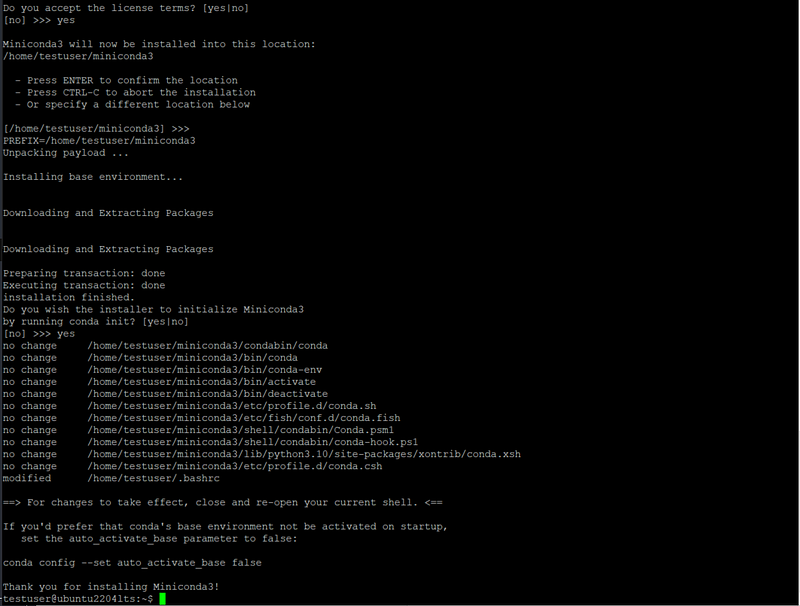
Logoff and login back.
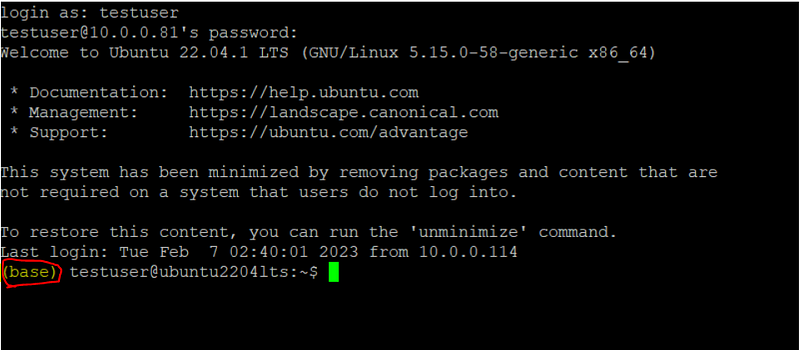
The “(base)” in front of command line looks familiar? Yes, your conda base environment is default activated. Again, do not use it for any programming or scripts. Leave it to be used by Miniconda internally.
Note: Miniconda installation doesn’t export PATH to the system by default, so you need add below export command in ~/.profile or ./bashrc to make it visible across the system.
$ export PATH=$PATH:/home/testuser/miniconda3/binBefore we move to next section, let’s Keep Miniconda to latest version.
$ conda update -n base -c defaults condaTake a First Look
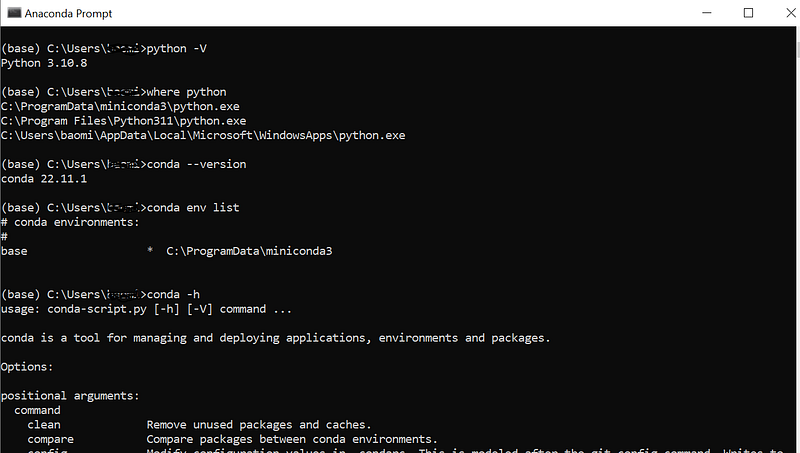
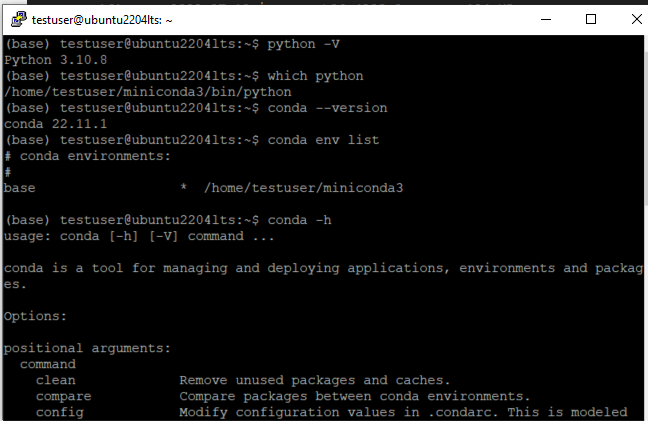
Use below commands:
python -V

where python   (in Windows)
which python   (in Linux)

conda --version

conda -h
In Windows, it will look like:
In Linux, it will look like:
Work with Miniconda environments
- Create Miniconda environment
To create a new environment, use below command:
(base) testuser@ubuntu2204lts:~$ conda create -n myenv1
Collecting package metadata (current_repodata.json): done
Solving environment: done

## Package Plan ##

  environment location: /home/testuser/miniconda3/envs/myenv1

Proceed ([y]/n)?

Preparing transaction: done
Verifying transaction: done
Executing transaction: done
#
# To activate this environment, use
#
#     $ conda activate myenv1
#
# To deactivate an active environment, use
#
#     $ conda deactivate

(base) testuser@ubuntu2204lts:~$
To specify certain version, use below command:
$ conda create -n myenv1 python==3.9.22. Activate Miniconda environment
(base) testuser@ubuntu2204lts:~$ conda activate myenv1
(myenv1) testuser@ubuntu2204lts:~$
3. Deactive current Miniconda environment
(myenv1) testuser@ubuntu2204lts:~$ conda deactivate
(base) testuser@ubuntu2204lts:~$
4. List created environments
(base) testuser@ubuntu2204lts:~$ conda env list
# conda environments:
#
base                  *  /home/testuser/miniconda3
myenv1                   /home/testuser/miniconda3/envs/myenv1

(base) testuser@ubuntu2204lts:~$
5. Delete Miniconda environment
(base) testuser@ubuntu2204lts:~$ conda env remove -n myenv1

Remove all packages in environment /home/testuser/miniconda3/envs/myenv1:

(base) testuser@ubuntu2204lts:~$ conda env list
# conda environments:
#
base                  *  /home/testuser/miniconda3

(base) testuser@ubuntu2204lts:~$
Install libraries and packages into Conda Environment
After activate a conda environment, you could start install packages or libraries which will be isolated inside the virtual environment. In addition to traditional pip command, you could also use conda install command which downloads libraries from conda-forge repository. It is always recommended to consider conda packages as primary source of libraries when using Anaconda environments.


