avatarMichael Galarnyk

Free AI web copilot to create summaries, insights and extended knowledge, download it at here

1722

Abstract

exit-vim/">maybe too hard to use</a> for you if you don’t already know Vim. <b>Choose Nano or Notepad++</b> which are easier to use.</p><figure id="cfae"><img src="https://cdn-images-1.readmedium.com/v2/resize:fit:800/1*gFmDVOw7gXQgEyxlWtY5mw.png"><figcaption></figcaption></figure><p id="a660">5. Choose “Use Git and optional Unix Tools”. I would recommend this as this will provide you Unix commands like “ls” and “cat”.</p><figure id="0d36"><img src="https://cdn-images-1.readmedium.com/v2/resize:fit:800/1*eo_lqm7iG8TxgZ_FqmPMzg.png"><figcaption>Use Git and optional Unix tools from the Windows Command Prompt</figcaption></figure><p id="c879">6. Choose “Use Windows’ default console window.</p><figure id="77f8"><img src="https://cdn-images-1.readmedium.com/v2/resize:fit:800/1*3lq9MV55OS82l8RzlXb5GQ.png"><figcaption>Choose Windows’ Default Console Window</figcaption></figure><p id="d2e7">7. Click on “Install”.</p><figure id="242e"><img src="https://cdn-images-1.readmedium.com/v2/resize:fit:800/1*Z52evehPD6Rom8cTtvAIEg.png"><figcaption>Click on Install</figcaption></figure><p id="cbc0">8. Click on “Finish”</p><figure id="6b8e"><img src="https://cdn-images-1.readmedium.com/v2/resize:fit:800/1*ryaDDTurHA2ohZs_rbFtAw.png"><figcaption>Click on Finish and you are Done!</figcaption></figure><p id="7498">9. Open command prompt and get started!</p><figure id="ec40"><img src="https://cdn-images-1.readmedium.com/v2/resize:fit:800/1*u5pUUcbx9gQtwwim2D0rlw.png"><figcaption>git clone <a href="https://github.com/mGalarnyk/Python_Tutorials.git">https://github.com/mGalarnyk/Python_Tutorials.git</a></figcaption></figure><h2 id="8502">Commonly Asked Questions</h2><ol><li>If you <b>did not</b> choose “Use Git and optio

Options

nal Unix Tools” and now want to add the optional unix tools, you can do it by using the SETX command (or you can manually modify your environment variables).</li></ol><p id="65d7">You can add the add the tools to your path by using the SETX command in your <b>command prompt</b>. If you don’t know where git is located on your computer, you can type <b>where git </b>into the command prompt.</p><figure id="dc56"><img src="https://cdn-images-1.readmedium.com/v2/resize:fit:800/1*iLlPyPEqqFzf8fhMD7tjOQ.png"><figcaption>Finding out where git is on my computer</figcaption></figure><p id="e8e8">All you have to do is add the following to your path (slightly modify it based on what <b>where git</b> outputs).</p><div id="d4aa"><pre>SETX <span class="hljs-built_in">PATH</span> "<span class="hljs-variable">%PATH%</span>;C:\Program Files\Git\usr\bin"</pre></div><p id="06f7">2. If you choose “Use Git and optional Unix Tools” and now want to remove them from command prompt, you can do the following.</p><figure id="5633"><img src="https://cdn-images-1.readmedium.com/v2/resize:fit:800/1*_S6SrDZdnEA0utEyWBFztw.png"><figcaption>Remove the unix tools (enclosed in red) from your path.</figcaption></figure><p id="89e5">From the image, the text enclosed in the red rectangle are the optional unix tools. Go to your Environment Variables on your computer and simply remove C:\PathToGitFolder<b>Git\usr\bin</b> from your path.</p><h2 id="7249">Concluding Remarks</h2><p id="cb50">If you any questions or thoughts on the tutorial, feel free to reach out in the comments below, <a href="https://youtu.be/n3Mh9SOSEUA">youtube video page</a>, or through <a href="https://twitter.com/GalarnykMichael">Twitter</a>.</p></article></body>

Install Git on Windows
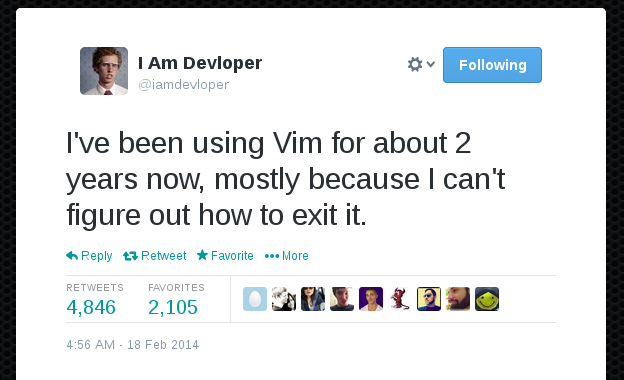
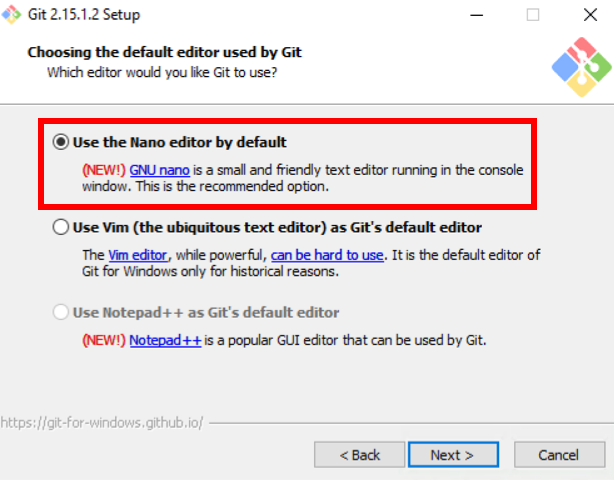
See step 4 in the tutorial to avoid Vim

The following set of instructions details how to install Git on Windows. I should mention that you should be okay with the default installation options. However, these instructions should make your life easier if you are new to Git or don’t know Vim. I even made a youtube video if you want a video walkthrough.

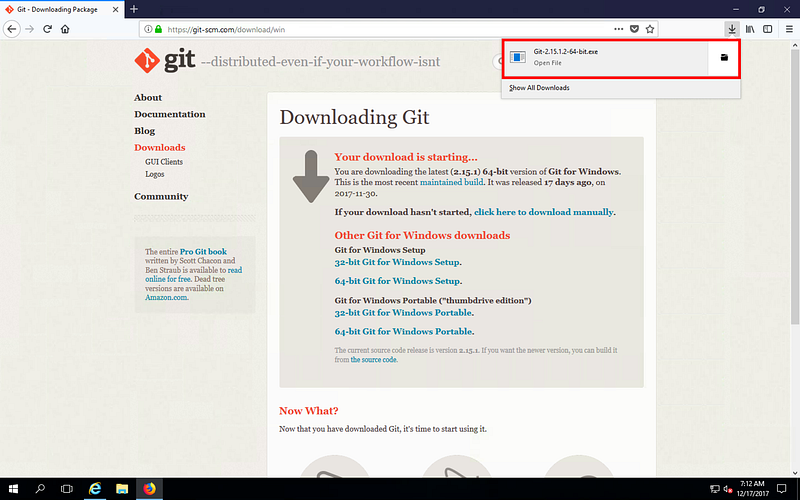
  1. Go to the following website: https://git-scm.com/download/win . If the download doesn’t start automatically, then click on “click here to download automatically”.
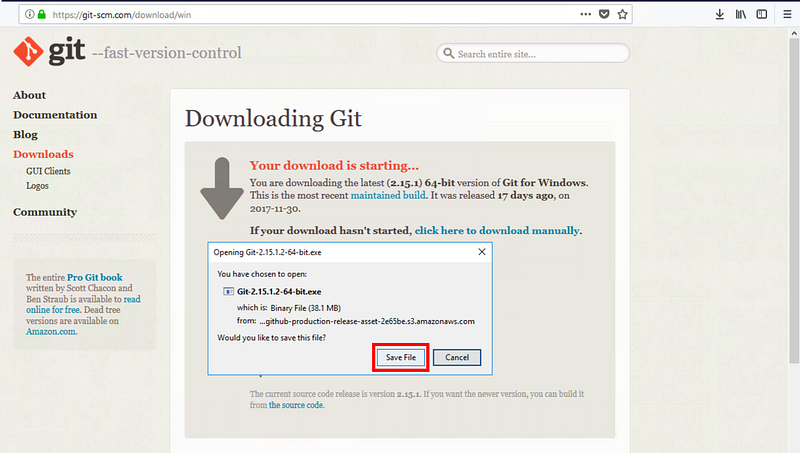
Click on “Save File”

2. Click on the .exe file.

Click on the .exe file

3. Click on “Run” if you see a security warning.
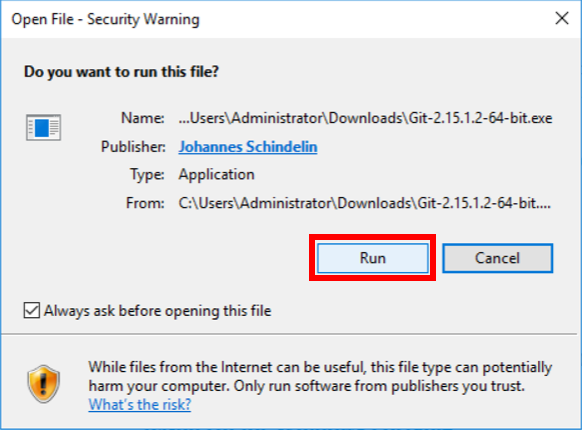
Click on “Run” if you see a security warning.

4. Go through the default installation process until you get to “Choosing the default editor used by Git”. The default “Use Vim” maybe too hard to use for you if you don’t already know Vim. Choose Nano or Notepad++ which are easier to use.
5. Choose “Use Git and optional Unix Tools”. I would recommend this as this will provide you Unix commands like “ls” and “cat”.
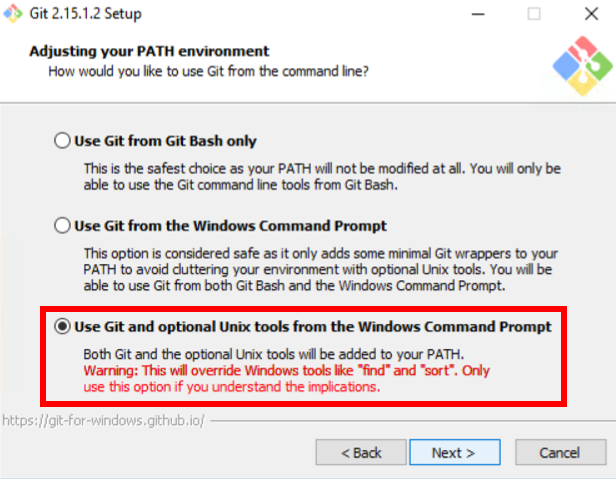
Use Git and optional Unix tools from the Windows Command Prompt

6. Choose “Use Windows’ default console window.
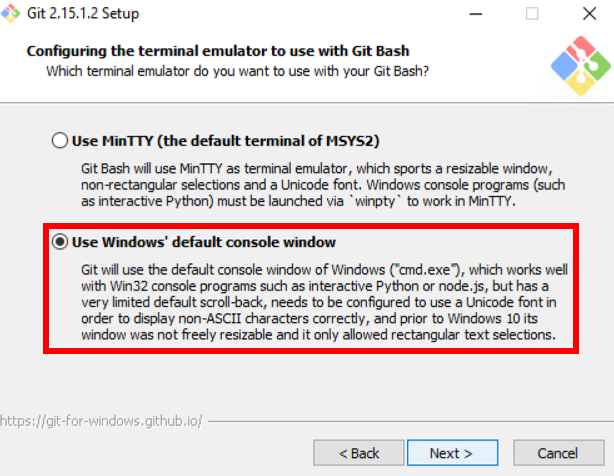
Choose Windows’ Default Console Window

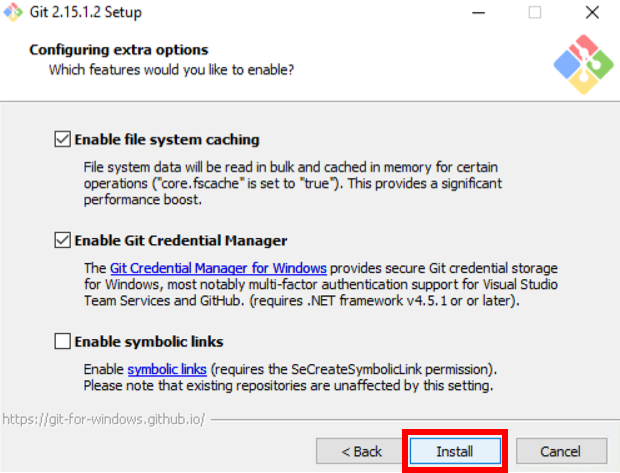
7. Click on “Install”.

Click on Install

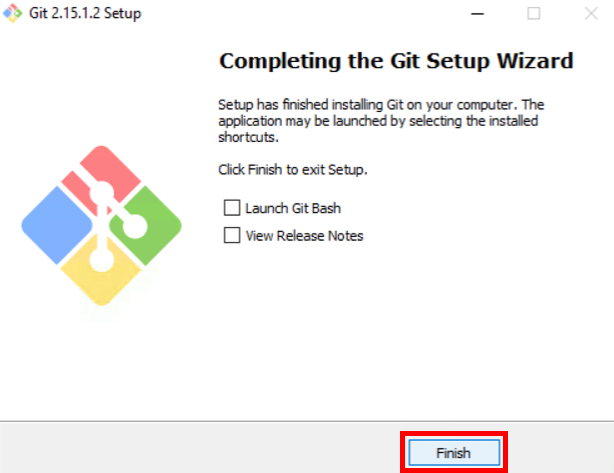
8. Click on “Finish”

Click on Finish and you are Done!

9. Open command prompt and get started!
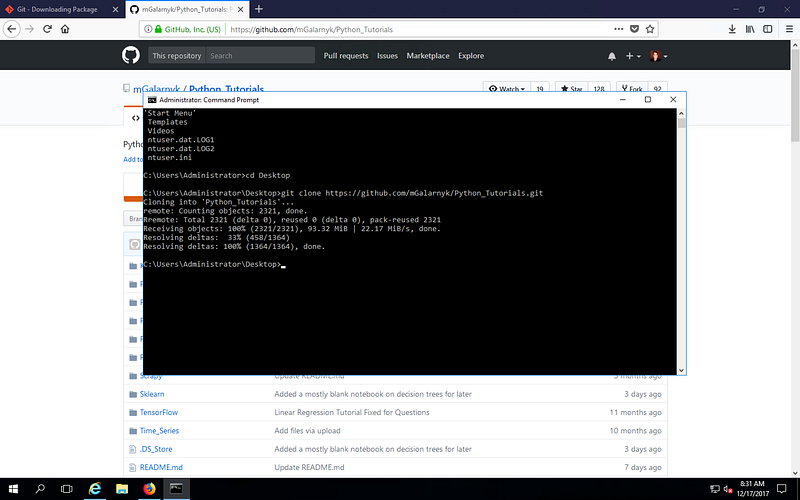
git clone https://github.com/mGalarnyk/Python_Tutorials.git

Commonly Asked Questions

  1. If you did not choose “Use Git and optional Unix Tools” and now want to add the optional unix tools, you can do it by using the SETX command (or you can manually modify your environment variables).

You can add the add the tools to your path by using the SETX command in your command prompt. If you don’t know where git is located on your computer, you can type where git into the command prompt.

Finding out where git is on my computer

All you have to do is add the following to your path (slightly modify it based on what where git outputs).

SETX PATH "%PATH%;C:\Program Files\Git\usr\bin"

2. If you choose “Use Git and optional Unix Tools” and now want to remove them from command prompt, you can do the following.

Remove the unix tools (enclosed in red) from your path.

From the image, the text enclosed in the red rectangle are the optional unix tools. Go to your Environment Variables on your computer and simply remove C:\PathToGitFolder\Git\usr\bin from your path.

Concluding Remarks

If you any questions or thoughts on the tutorial, feel free to reach out in the comments below, youtube video page, or through Twitter.

Programming
Git
Installation
Cmd
Environment Variables
Recommended from ReadMedium