avatarJohan Johansson

Summary

Amethyst is a window manager for macOS that enhances development efficiency through automatic window tiling, offering customizable keyboard shortcuts, floating window options, and various layouts.

Abstract

The article introduces Amethyst, a window management tool designed to streamline the macOS development environment by automatically tiling application windows. Unlike other tools such as Rectangle, Amethyst eliminates the need for manual window adjustments, keeping the workspace organized without user intervention. Installation can be done via Homebrew or by downloading from the GitHub page. Post-installation, users must grant permissions and can then utilize keyboard shortcuts for efficient window management. The article highlights essential shortcuts involving the mod1 key, the ability to toggle floating windows, and the option to customize window layouts and mouse preferences. It also suggests that new users enable mouse resizing for ease of use. The author concludes by encouraging readers to support them and other writers by joining Medium using their referral link.

Opinions

  • The author believes that Amethyst stands out from other window tiling applications due to its automatic tiling feature.
  • Amethyst is praised for its ability to maintain a perfectly tiled window layout without manual intervention.
  • The article suggests that learning a few key shortcuts is crucial for efficiently working with Amethyst.
  • The author finds the toggle to float window feature particularly useful for exceptions to automatic tiling.
  • The preference for floating windows and the ability to add applications to float mode automatically is highlighted as a beneficial feature.
  • The availability of different layouts and the ease of switching between them using keyboard shortcuts are presented as advantages.
  • Enabling mouse resizing is recommended for new users to facilitate the transition to using Amethyst.
  • The author expresses that Amethyst is an amazing window manager, implying a positive endorsement of the tool.

Improve Your macOS Development Environment With Amethyst

Having a window manager with automatic window tiling is a good way to improve the efficiency during development.
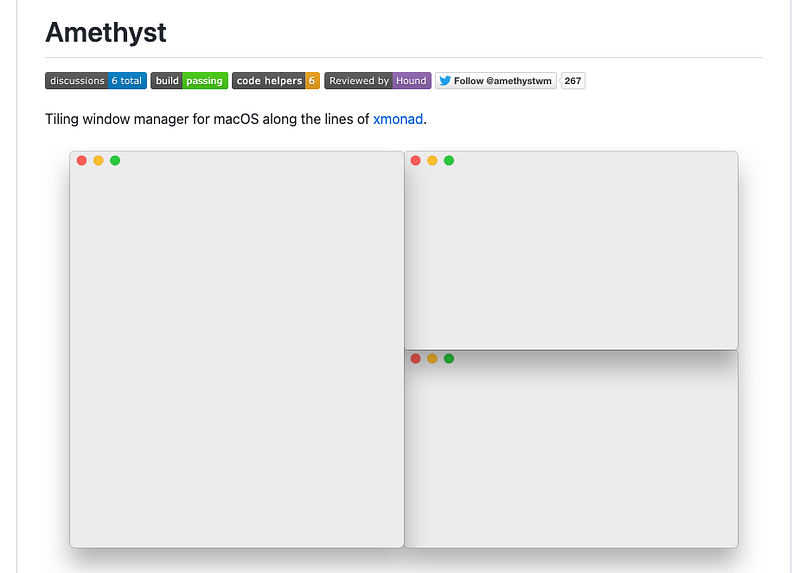
Amethyst tiling example on the Github page.

As described above Amethyst is a window manager for automatic tiling of windows in your macOS environment.

What makes Amethyst stand out is that it keeps your windows perfectly tiled without any manual intervention. This differ from for example Rectangle which also supports Window tiling, but requires each window to be handled separately with a manual action (using a shortcut normally).

Amethyst can be installed with this command:

brew install amethyst

The application can also be downloaded on the Github page.

After the installation it’s only a matter of starting Amethyst and adding the application in accessability — system configuration (a popup will ask for permissions).

Keyboard shortcuts

There’s a few shortcuts to be learned initially to be able work with Amethyst efficiently. The initial shortcuts I suggest learning is those marked below. It’s mainly shortcuts requiring the mod1 identifier which also simplifies the initial learning.
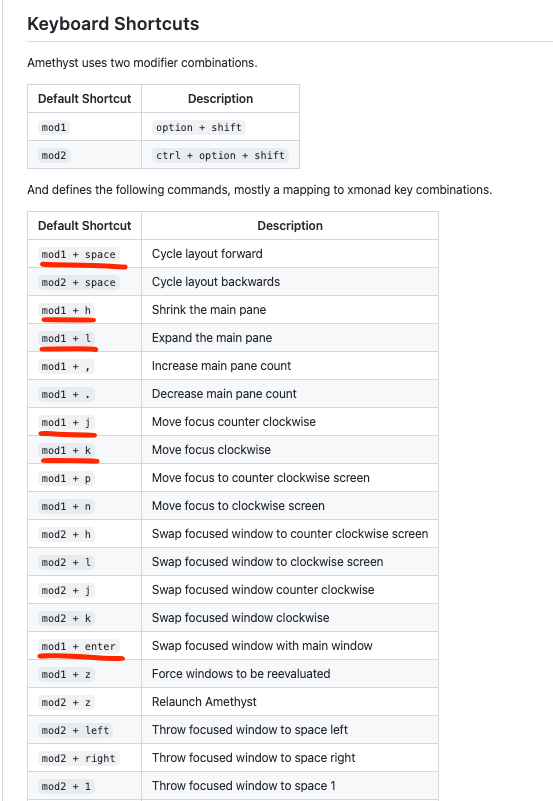
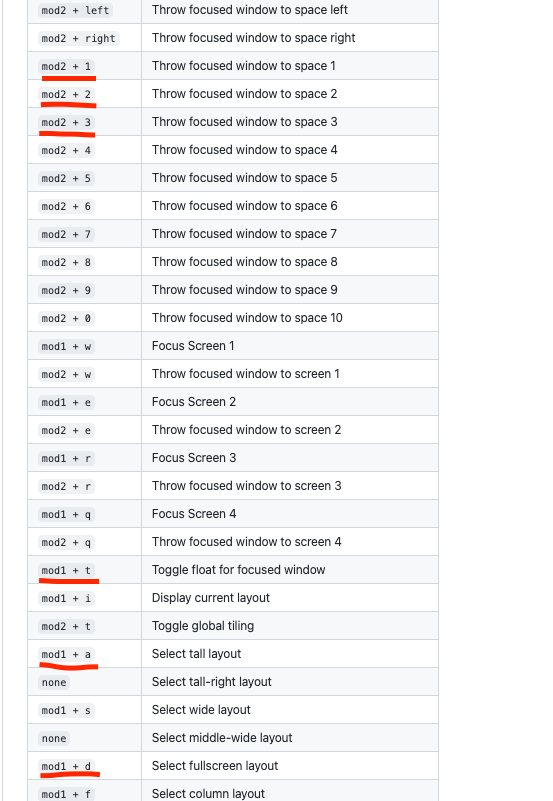
Initial shortcuts to get started.

Floating windows

Besided the marked windows shortcuts above it’s also good to learn the toggle to float window shortcut. It’s for those situations when you want to have a window not being automatically tiled. And in these situations it’s convinient to do a quick mod1 + t on that window.

It is also possible to add applications to be in float mode automatically on startup. See floating in preferences as shown below.
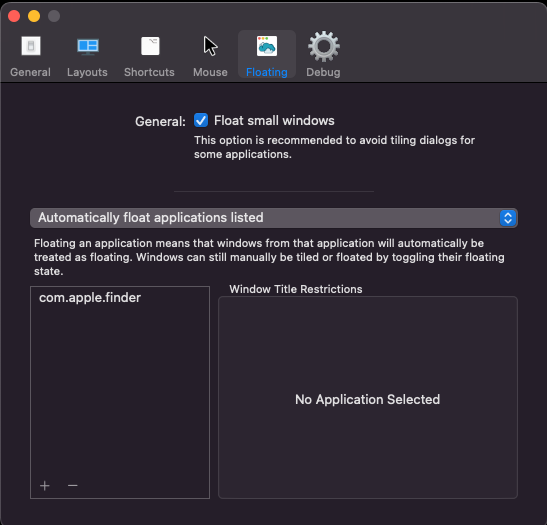
Finder added as a floating application.

Layouts

There’s a few layouts available that can be swapped between using mod1 + space. It’s also possible to add more layouts or change which layouts that will be swapped between in preferences.

Mouse preferences

Another thing that is also convinient, especially the first times when using Amethyst is to enable the possibiliy to resize windows using the mouse. This can be configured by enabling the option below.
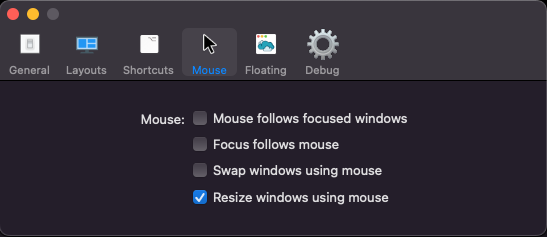
Resize windows option in preferences.

Hope this helps you getting started with the amazing window manager Amethyst.

If you like this content and consider joining Medium, use this link to support me and other writers. For a few dollars a month you get unlimited access to all Medium stories while I also get a small commission.

Thanks for reading!

Window Manager
Programming
Software Development
Efficiency
Macos
Recommended from ReadMedium