
Importing Data to Google Colab — the CLEAN Way
Because clean code is important!
In this article I will present:
- An introduction of Google Colab
- 2 much-used “quick and dirty” methods to upload data to Colab
- 2 automated, “clean” methods to upload data to Colab
What is Google Colab?
It is still hard to believe, but it is true. We can run heavy data science notebooks for free on Google Colab.

Colab is a Cloud service, which means that a server at Google will run the notebook rather than your own, local computer.
Maybe even more surprising is that the hardware behind it is quite good!
Is Colab the perfect new notebook solution?
There is one big issue with Google Colab, often discussed before, which is the storage of your data. Notebooks, for example, Jupyter notebooks, often use data files stored locally, on your computer. This is often done using a simple read_csv statement or comparable.
The Cloud’s local is not your local.
But Google Colaboratory is running in the Cloud. The Cloud’s local is not your local. Therefore a read_csv statement will search for the file on Google’s side rather than on your side. And then it will not find it.
How to get your data into Colab — the manual way?

To get your data into your Colab notebook, I first discuss the two most known methods, together with their advantages and disadvantages. After that, I discuss two alternative solutions, that can be more appropriate especially when your code has to be easy to industrialize.
Manual Method 1 — using files.upload() to upload data to Colab
- Using files.upload() directly in the Colab notebook gives you a traditional upload button that allows you to move files from your computer into to the Colab environment.
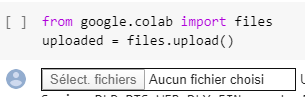
2. Then you use io.StringIO() together with pd.read_csv to read the uploaded file into a data frame

Advantage of using files.upload() to upload data to Colab: This is the easiest approach of all, even though it requires a few lines of code.
Disadvantages of using files.upload() to upload data to Colab: For large files, the upload might take a while. And then whenever the notebook is restarted (for example if it fails or other reasons…), the upload has to be redone manually. This is not the best solution, because firstly our code wouldn’t re-execute automatically when relaunched and secondly it requires tedious manual operations in case of notebook failures.
Manual Method 2 — Mounting your Google Drive onto Colab
Upload your data to Google Drive before getting started with the notebook. Then you mount your Google Drive onto the Colab environment: this means that the Colab notebook can now access files in your Google Drive.
- Mount your drive using drive.mount()
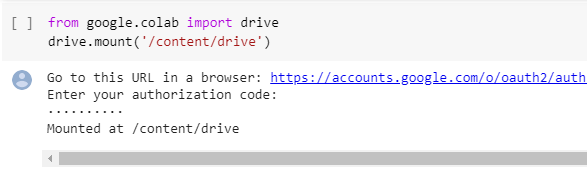
2. Access anything in your Google Drive directly

Advantages of mounting your Google Drive onto Colab: This is also quite easy. Google Drive is very user-friendly and uploading your data to Google Drive is no problem for most people. Also, once the upload is done, it does not require manual reloading when restarting the notebook. So it’s better than approach 1.
Disadvantages of mounting your Google Drive onto Colab: The main disadvantage I see from this approach is mainly for company / industrial use. As long as you’re working on relatively small projects, this approach is great. But if access management and security are at stake, you will find that this approach is difficult to industrialize.
Also, you may not want to be in a 100% Google Environment, as multi-cloud solutions give you more independence from different Cloud vendors.
The Clean Way — use External Data Stores

If your project is small, and if you know that it will always remain only a notebook, previous approaches can be acceptable. But for any project that may grow larger in the future, separating data storage from your notebook is a good step towards a better architecture.
If you want to move towards a cleaner architecture for data storage in your Google Colab notebook, try going for a proper Data Storage solution.
There are many possibilities in Python to connect with data stores. I here propose two solutions: AWS S3 for file storage and SQL for relational database storage:
Clean method 1 — connect an AWS S3 bucket
S3 is AWS’s file storage, which has the advantage of being very similar to the previously described ways of inputting data to Google Colab. If you are not familiar with AWS S3, don’t hesitate to have a look over here.

Accessing S3 file storage from Python is very clean code and very performant. Adding authentification is possible.
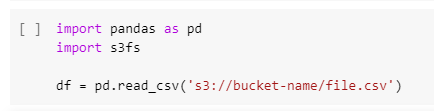
Advantages of using S3 with Colab: S3 is taken seriously as a data storage solution by the software community, while Google Drive, though more appreciated for individual users, is preferred by many developers only for the integration with other Google Services.
This approach, therefore, improves both your code and your architecture!
Disadvantages of using S3 with Colab: To apply this method, you will need to use AWS. It is easy, but it may still be a disadvantage in some cases (e.g. company policy). Also, it may take time to load the data every time. It can be longer than loading from Google Drive since the data source is separate.
Clean Method 2 — connect an SQL Database to Colab
If you have data already in a relational database like MySQL or other, it would also be a good solution to plug your Colab notebook directly to your database.

SQLAlchemy is a package that allows you to send SQL queries to your relational database and this will allow to have well-organized data in this separate SQL environment while keeping only your Python operations in your Colab notebook.

Advantages of connecting an SQL Database to Colab: This is a good idea when you are starting to get to more serious applications and you want to have already a good data storage during your development.
Disadvantages of connecting an SQL Database to Colab: It will be impossible to use Relational Data Storage with unstructured data, but a nonrelational database may be the answer in this case. A more serious problem can be the query execution time in case of very large volumes. It can also be a burden to manage the database (if you don’t have one or if you cannot easily share access).
Conclusion
Google Colab notebooks are great but it can be a real struggle to get data in and out.
Google Colab notebooks are great but it can be a real struggle to get data in and out.
Importing data by Manual Upload or Mounting Google Drive are both easy to use but difficult to industrialize. Alternatives like AWS S3 or a Relational database will make your system less manual and therefore better.
The 2 manual methods are great for small short-term projects and the two methods with external storage should be used when a project needs a clean data store.
Think through your architecture before it’s too late!
Each method has its advantages and disadvantages and only you can decide which one fits with your use case. Whatever storage you use, but be sure to think through your architecture before it’s too late!
I hope this article will help you with building your projects. Stay tuned for more and thanks for reading!