
Implementing Biometric Authentication with Kotlin Multiplatform

In this era of digital interactions, the need for security measures is more critical than ever before. Biometric authentication, including fingerprints, face recognition, and more, has become a popular method for securing mobile applications. It offers a unique and personalized way to verify identities.
Across platforms, consistency in biometrics is not just about security but creating a seamless user experience.
In this blog, we’ll learn how to create a biometric authentication application for Android and iOS with Kotlin Multiplatform.
A uniform multiplatform biometric authentication experience
With the stability of KMM, it is now necessary to ensure a seamless biometric authentication experience across Android’s wide ecosystem and the world of iOS.
Prerequisites: To implement this, you would require the knowledge of: 1. Kotlin language 2. Swift language 3. Kotlin Multiplatform basics
How to use Kotlin Multiplatform for code sharing across Android and iOS
Kotlin Multiplatform Mobile (KMM) allows Android and iOS to have different views and viewModels but to share network, storage, and business logic code. With a single codebase for essential features, and encourages code reuse between the iOS and Android platforms.
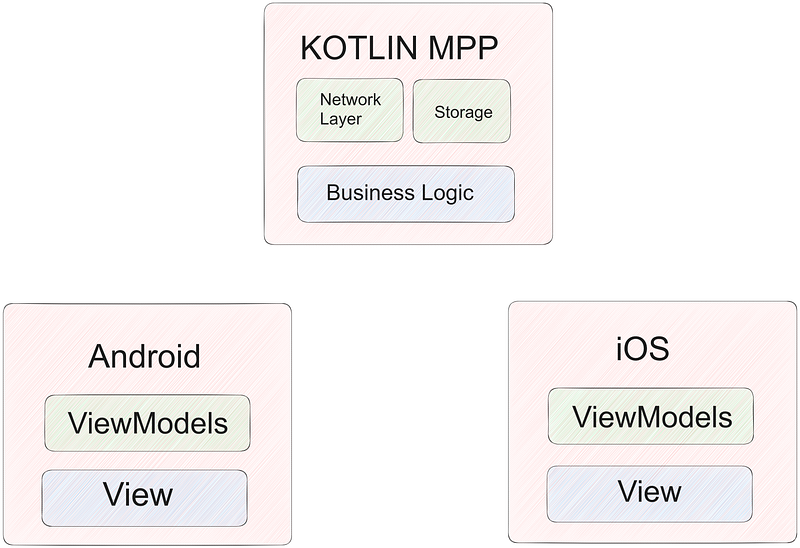
So, are you ready for the multiplatform biometric implementation? 🤩
Project Structure:
KotlinMultiplatformProject
|-- commonMain
|   |-- kotlin
|       |-- com
|           |-- example
|               |-- shared
|                   |-- BiometricAuth.kt
|
|-- androidMain
|   |-- kotlin
|       |-- com
|           |-- example
|               |-- androidapp
|                   |-- MainActivity.kt
|
|-- iosMain
|   |-- kotlin
|       |-- com
|           |-- example
|               |-- iosapp
|                   |-- AppDelegate.kt
|                   |-- ViewController.swift
Designing the Shared BiometricAuth Class
The first step is to create a Kotlin file for shared code for biometric authentication. This will be located in the commonMain source set and will serve as a central repository for code that can be utilized across different platforms (Android & iOS).
Implement Android-Specific Code
Create the BiometricAuth.kt file in the androidMain source set with the Android-specific implementation.
We’ll declare a companion object to define the promptInfo property. This promptInfo property is an instance of a builder which will configure the appearance and behavior of the biometric prompt.
.setTitle is used to set the title of the prompt. .setSubtitle is used to add additional information. .setNegativeButtonText sets the negative action, Cancel in this case.
The outcome of the authentication attempt is captured by the lambda in BiometricPrompt. The coroutine is resumed with a Boolean value indicating if the authentication was successful (true if authenticated, false otherwise) in the resume(result == BiometricPrompt.AuthenticationResult.AUTHENTICATED) line.
Implement iOS-Specific Code
With the iOS-specific implementation, create the BiometricAuth.kt and AppDelegate.kt files in the iosMain source set.
The implementation of BiometricAuth.kt will be similar to the previous one but specific to iOS using the LocalAuthentication framework.
This code uses iOS’s LocalAuthentication framework to determine whether the device supports biometric authentication. It uses the LAPolicyDeviceOwnerAuthenticationWithBiometrics policy to try authentication if it is supported, and the coroutine relays the outcome back.
An essential component of the lifecycle of an iOS app is the AppDelegate,kt file which will control different events and behaviors.
The AppDelegate configurations are contained in the companion object. Using the Objective-C runtime, it initializes and registers the AppDelegate class. This is required in order for the iOS app to recognize and use the Kotlin code.
When the program has finished launching, the application(_:didFinishLaunchingWithOptions:) method is invoked. In this approach, a new instance of the ViewController is created, its title is set, and it is designated as the root view controller of the main window of the application. In the end, it returns true and makes the window visible.
Now, let’s move to the final part of this implementation.
Integrate the Shared Code in the iOS App
Let’s create a new file ViewController.swift and implement the iOS part of this Kotlin Multiplatform project.
This imports the shared module, where the Kotlin Multiplatform code is located. Then, the Swift code uses shared Kotlin Multiplatform code to asynchronously initiate biometric authentication. If authentication is successful, it prints a success message; if not, it prints a failure message.
Once this multiplatform biometric authentication framework has been developed, the next step is to customise it to your own requirements.
Task: Add fingerprint, face detection, and any other biometric methods you like
Here comes the most exciting part!!
The final destination!!
- To run the Android app, open the Android app module and run the app on an emulator or your mobile phone.
- To run the iOS app, open Xcode and run the app on a simulator or your device.
And tadaaa, you’re good to go!!
The biometric prompt will look something like this:

Test the biometric authentication functionality on your device and try to make it more user-friendly. In case of any doubts, you can reach out to me on LinkedIn.


