
I still share my Netflix account with my family, here is how | bypass netflix account sharing
In this guide, I’ll show you how to set up a mini router that will connect to your home router. You can then give this mini router to family or friends. Once they connect to it, they’ll have the same IP address as your household, and guess what? You can still share an account because you’re all coming from the same place.
Goodbye to the good old days of logging into our friends’ Netflix accounts and enjoying endless entertainment for free. Netflix has tested banning account sharing in some countries, and it worked. The number of new subscribers increased.
Of course, other streaming platforms have been watching Netflix’s actions closely. And now, we can see that Disney will also stop account sharing by the start of 2024.
So, back to when we could split the bill with friends and family and enjoy every streaming platform, we now have to ask ourselves what we can afford.
I’m trying my best to keep this guide simple. To determine if your router can be a VPN server, just Google “[your router] WireGuard VPN server.”
Devices I use in this tutorial:
Fritzbox 7590 AX: https://amzn.to/472cDB0
GL.iNET GL-MT300N: https://amzn.to/3FMifU7
Before | Now | How to bypass
Before Account Sharing:
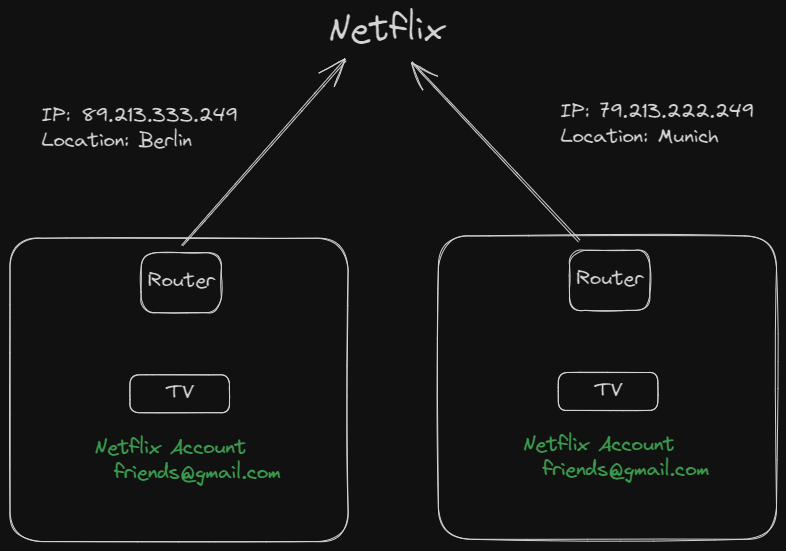
The current situation
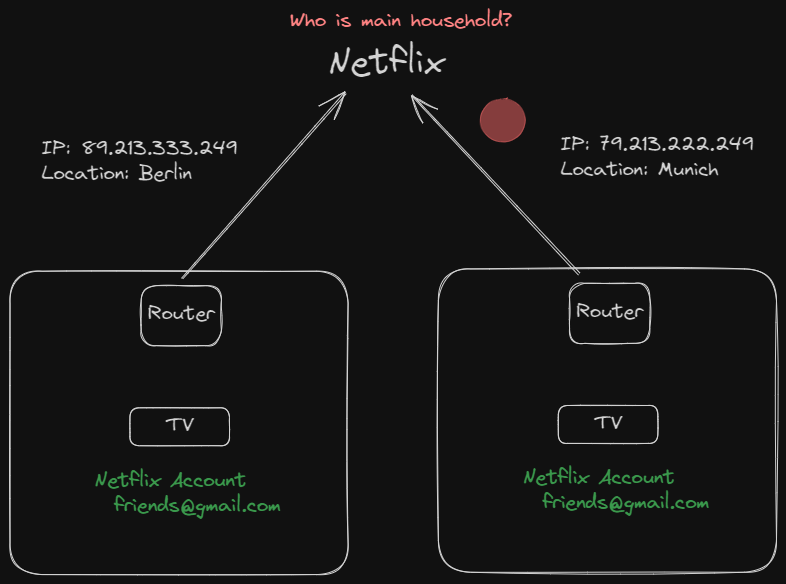
Netflix detects the different locations, you have to choose!
And here is what we will do
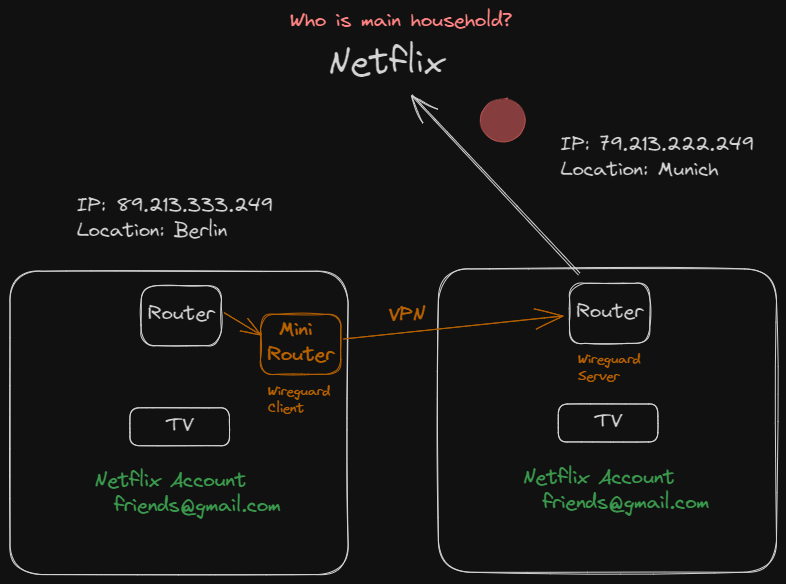
Set up WireGuard VPN Server on Fritzbox
To start, we need to configure the Fritzbox router to act as the VPN server. This tells the router to act as a middleman between our devices and the internet. After the setup, we will get a configuration file that we will use later to tell client devices (such as mini routers) how to connect to our home router.
💡 A VPN server is a computer that acts as a middleman between your device and the internet. When you connect to a VPN server, all of your traffic is routed through that server before it reaches the internet.
To get started, open a web browser and type in http://192.168.178.1/ or http://fritz.box. Then, log in to the Fritzbox web interface. If you have another type of router just google, how to open router web interface on [YOUR ROUTER TYPE]
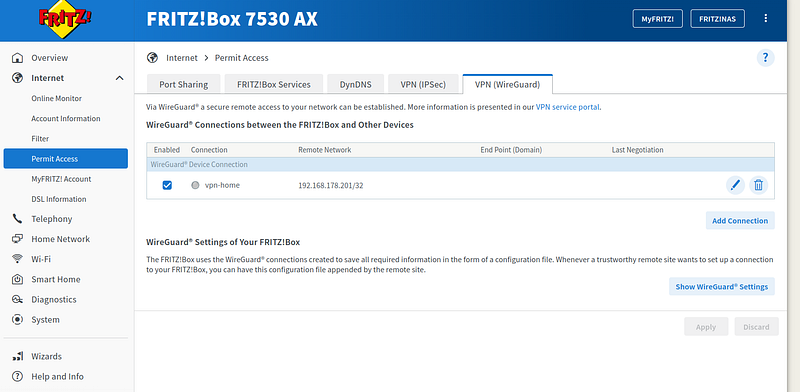
Click on Internet on the left Sidebar and choose Permit Access. Now select the tab VPN(Wireguard). Press on the Button “Add Connection”
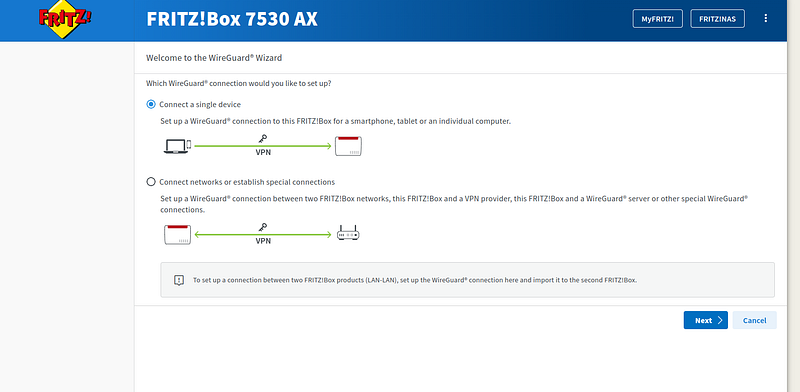
Since our Mango Router is not a fritzbox device, we choose the first option. Click on Next
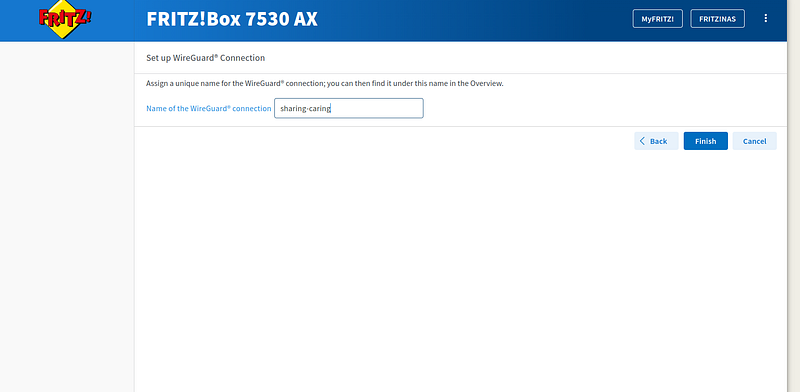
Give a name to this vpn configuration. Sharing is caring right?
Now we need to confirm our vpn setup. Just press a button on your fritzbox.
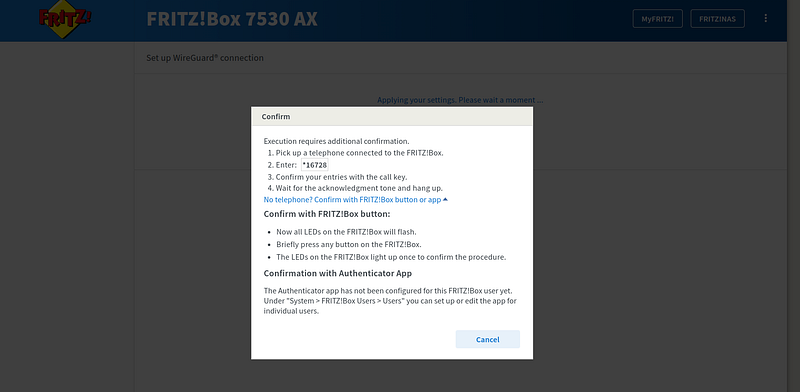
After confirmation, you should see a screen like this.
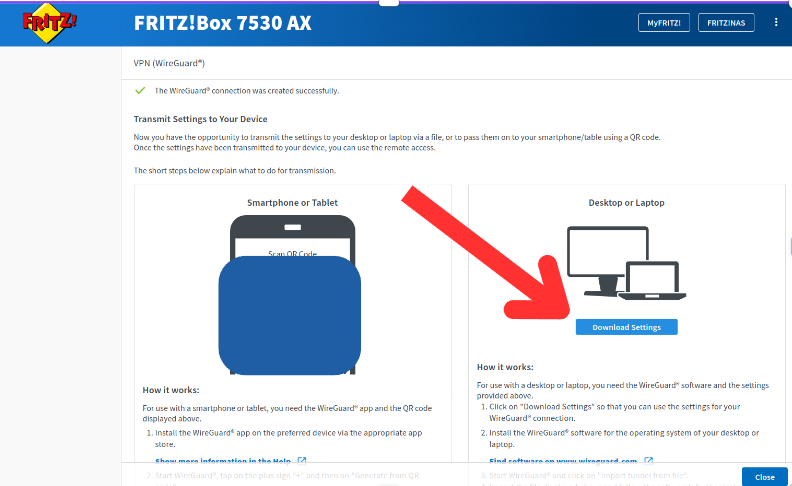
We have successfully configured our Fritzbox to act as a VPN server. Now, click on “Download settings.” Open the settings file and replace the following line:
“AllowedIPs = 192.168.178.0/24,0.0.0.0/0”
with this line:
“AllowedIPs = 0.0.0.0/0”
Otherwise, not all traffic will be redirected, which would be bad. Good job so far we have finished the first part. Now we will set up our VPN client.
2. Set up the Mango Router / VPN Client
Ensure your Mango router is powered on. Then, find the Wi-Fi network named GL-MT300N-V2–291 and connect to it. The password is goodlife, or refer to the installation guide if needed.
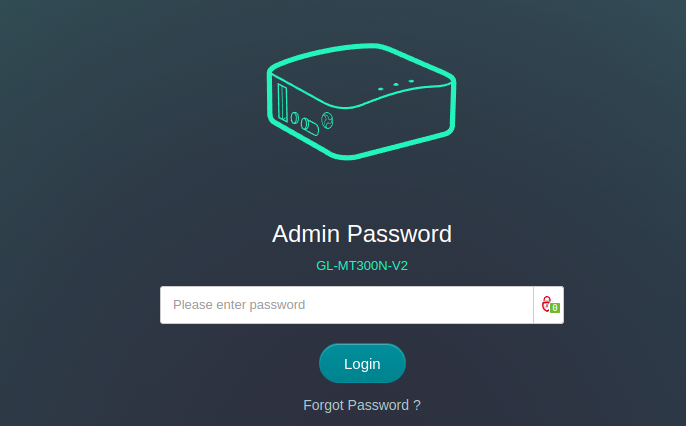
Next, open http://192.168.8.1 in your web browser. You will be prompted to create a password on your first visit. Do so and log in to the web portal.
After login open the VPN tab and click on WireGuard Client
Click on the big button “Set up WireGuard Manually”
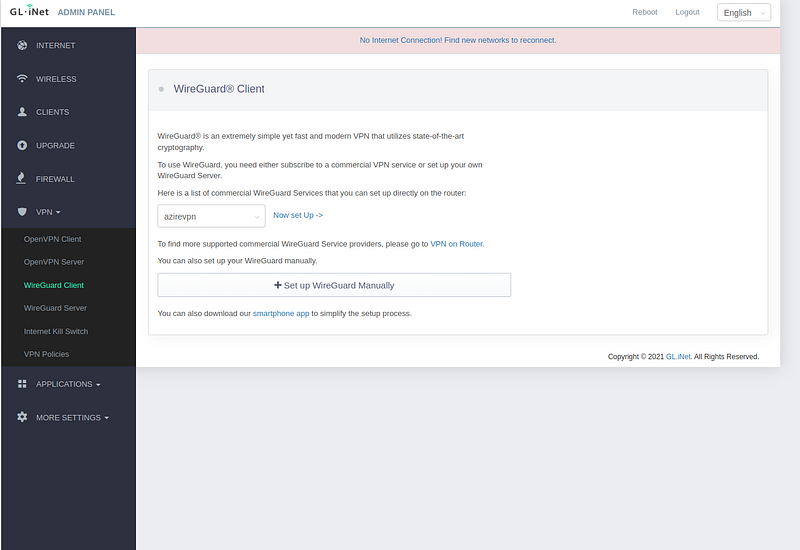
Click on the Configuration Tab and paste in the content of the config file that we have downloaded from step 1.
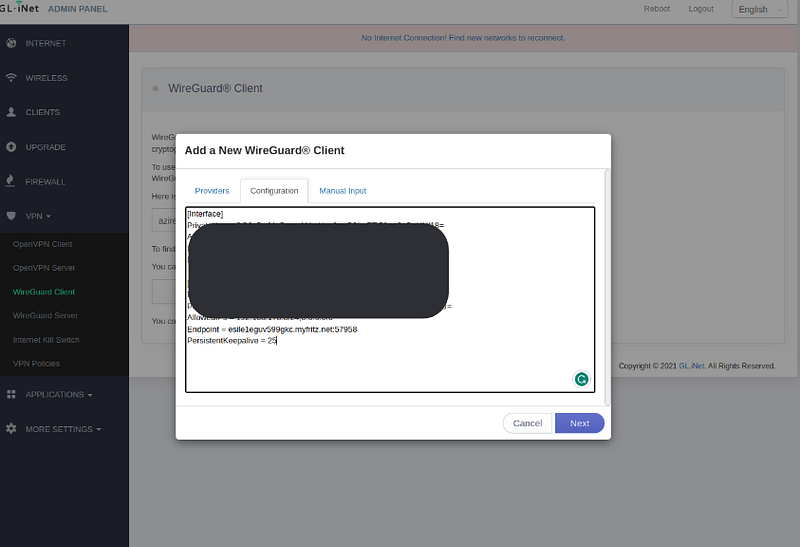
Click on Next and save it.
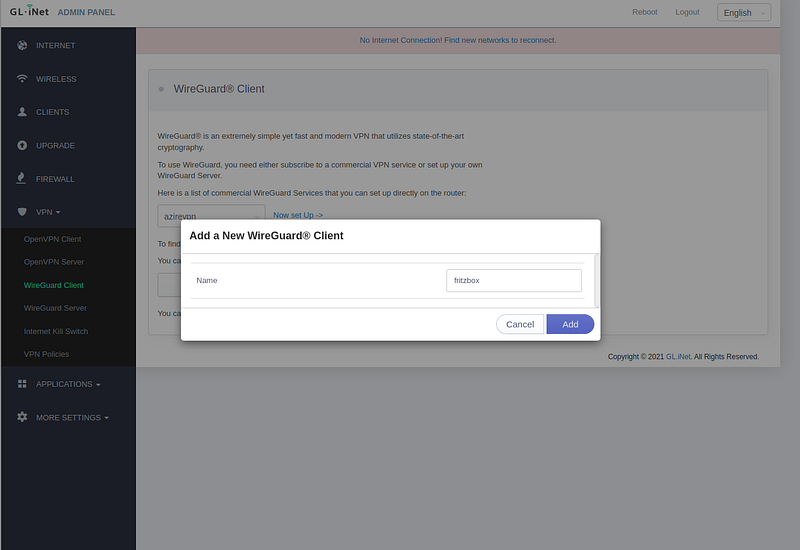
f you see a message like this, then you have forgotten to modify this line in your config
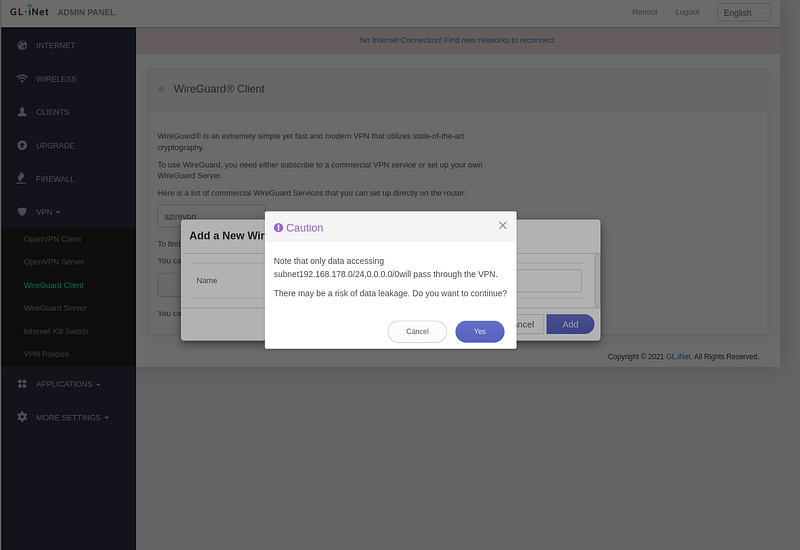
AllowedIPs = 192.168.178.0/24,0.0.0.0/0
(remove the first part 192.168.178.0/24,)
The VPN client is now configured, and you can give the device to your family or friends.
Finally, connect the mini router to a network. You can use a LAN cable or Wi-Fi. I will use Wi-Fi in this case.
Go back to the home view and click Scan (on the Repeater tile)
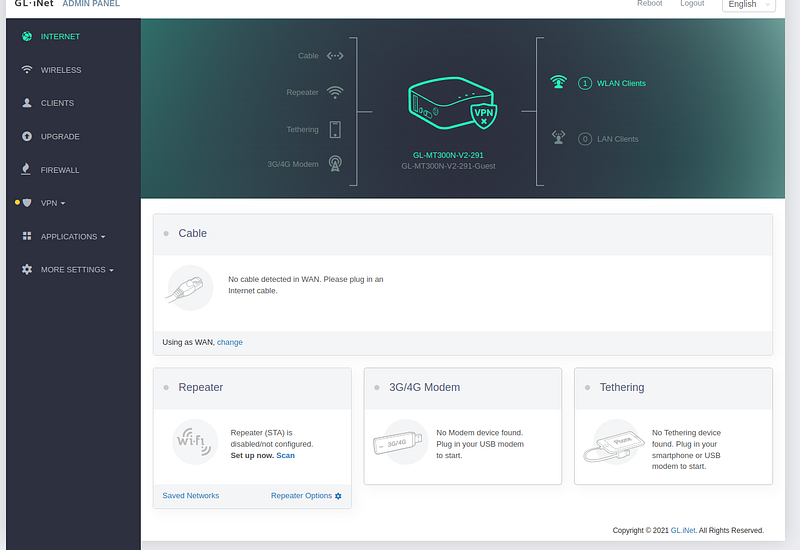
Find your wifi network and connect to it
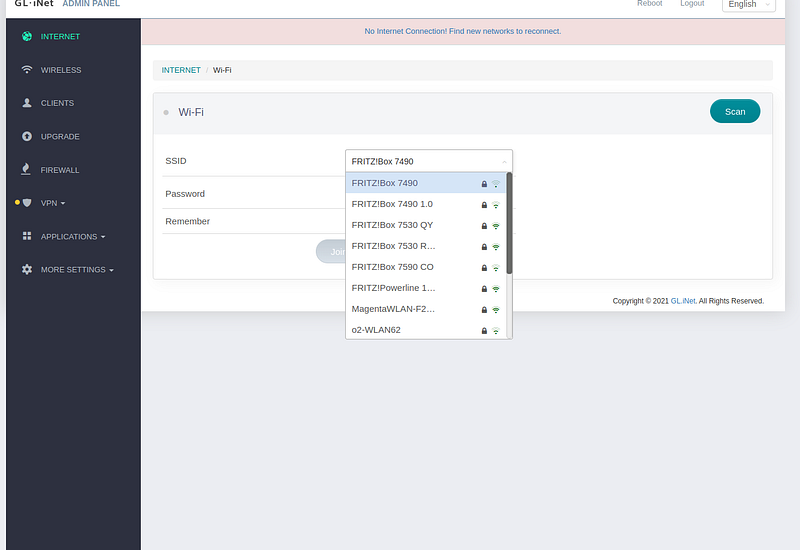
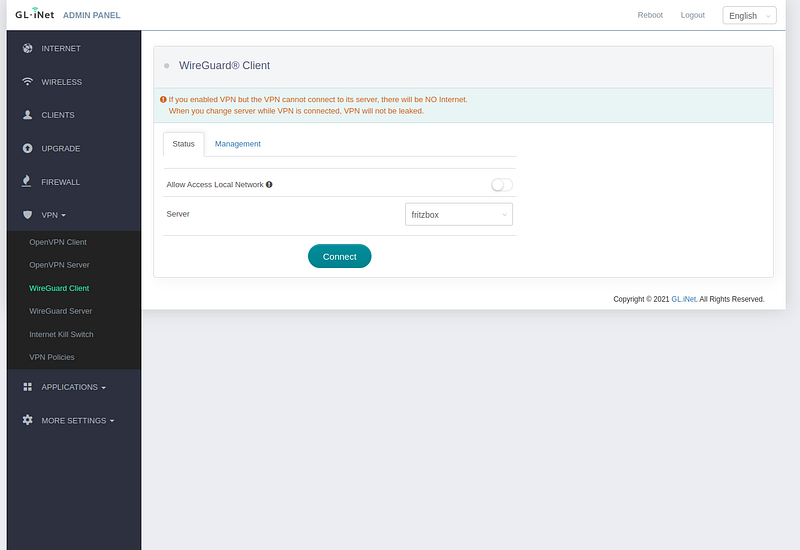
After successful connection we need to activate the VPN connection. Move back to VPN → Wireguard CLient and click on Connect.
If the VPN connection is successful, it will show a green dot on the VPN tab and also the green shield on the image.
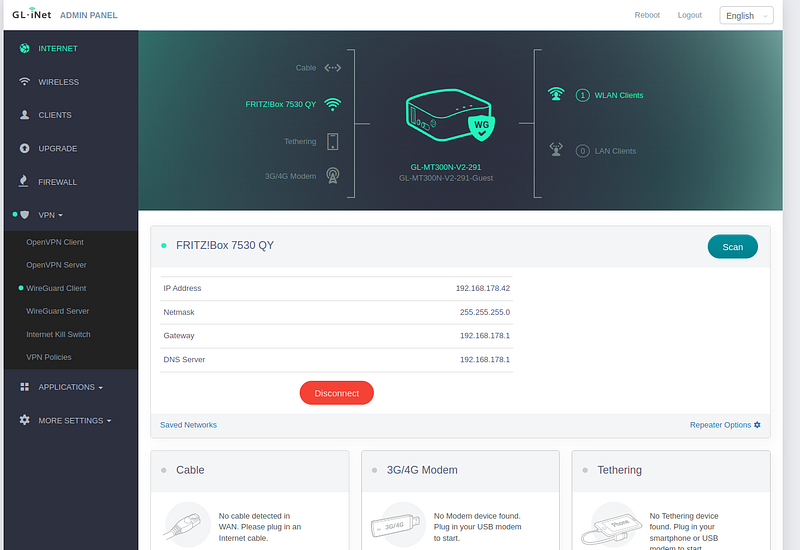
Everything is now up and running and you only need to connect your devices to the GL-MT300N-V2–291 WiFi network and enjoy.
If you have a newer Telekom router, see this tutorial to get the VPN configuration from step 1:
Summary
So in this tutorial, we configured our fritzbox as a Wireguard VPN Server. The result was a config file with all the details that a client needs to connect to this VPN. We used this config file to configure our Mango Router as a VPN Client. The result was a mini router that we can give to our family or friends. They can connect to this router and enjoy the same IP address as our household. I like this approach with a dedicated VPN client with wifi ability because we only need to connect to the wifi and don’t need to configure anything on our devices. Hope this tutorial was helpful for you. If you have any questions, feel free to ask me. I will try to answer them as soon as possible.
P.S. Take your mini router with you on travel and enjoy a free and secure connection to your home. You’ll have a safer connection and can access streaming content only available in your home country. How cool is that?


