avatarYOSHI

Free AI web copilot to create summaries, insights and extended knowledge, download it at here

1038

Abstract

800/1*BpRKA6ibhaFXoXKLcjBntQ.png"><figcaption></figcaption></figure><p id="5fd1">This will complete the following file.</p><figure id="c91c"><img src="https://cdn-images-1.readmedium.com/v2/resize:fit:800/1*TTuZRotLCHy2kewEr3IysA.png"><figcaption></figcaption></figure><p id="65b3">From Tableau, click on the button with the red border in the lower left corner.</p><figure id="ae16"><img src="https://cdn-images-1.readmedium.com/v2/resize:fit:800/1*d4d6yGIR5kGlLCDIwgLtfQ.png"><figcaption></figcaption></figure><p id="869f">When loaded correctly, it will appear as follows! Excellent!</p><figure id="5914"><img src="https://cdn-images-1.readmedium.com/v2/resize:fit:800/1*qHNgVtOBu5YIpP7ZmOGz0g.png"><figcaption></figcaption></figure><p id="2873">Go to the sheet and drag and drop the items on the left.</p><figure id="3c99"><img src="https://cdn-images-1.readmedium.com/v2/resize:fit:800/1*xr0iUfeg7Uv4EcqkcsyjhQ.png"><figcaption></figcaption></figure><p id="7d65">Then drag and drop the key number in the lower left corner as shown in th

Options

e image.</p><figure id="6250"><img src="https://cdn-images-1.readmedium.com/v2/resize:fit:800/1*u4ya8f0SzbPv0n8ptbGvSQ.png"><figcaption></figcaption></figure><p id="1c42">Select the red frame area in the upper right corner.</p><figure id="4117"><img src="https://cdn-images-1.readmedium.com/v2/resize:fit:800/1*AsPLSjMK2rrQITS8EMpgWg.png"><figcaption></figcaption></figure><p id="c140">Drag and drop the items on the left part to “color” as shown below.</p><figure id="54e2"><img src="https://cdn-images-1.readmedium.com/v2/resize:fit:800/1*YzOQdLp6WRhgvv5CdNE4Hg.png"><figcaption></figcaption></figure><p id="36a1">Wow!The completed dashboard looks like this!</p><figure id="7d77"><img src="https://cdn-images-1.readmedium.com/v2/resize:fit:800/1*2v3rWUhAoU1SKuOyLeDDTw.png"><figcaption></figcaption></figure><p id="5156">If you are interested in Tableau, please give it a try. Tableau public is free to use. We are using Tableau public again this time. Please enjoy. Thank you for your interest. Thank you very much.</p></article></body>

I made a BI on Tableau dashboard! in Star Wars! (in JsonFile)

This time we will use a file with the extension Jsonfile. The completed image is shown below. Let’s begin!
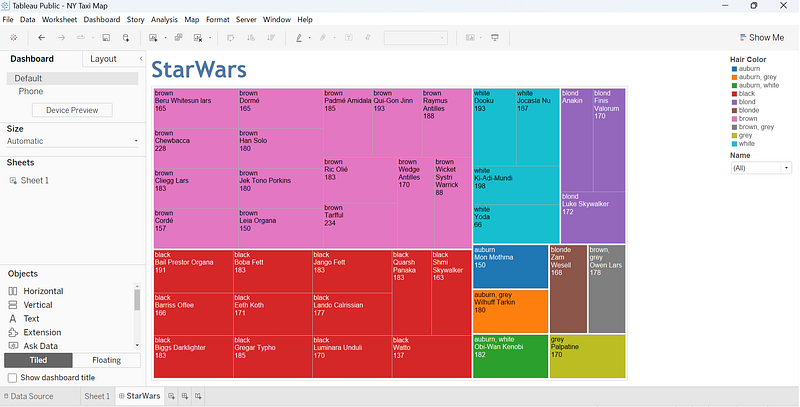
In this case, a file with a Jsonfile extension is used. However, there is nothing difficult to do. Just type “json” when saving the file. Reference data can be found at the following URL

https://public.tableau.com/app/resources/sample-data

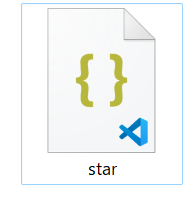
Copy the above file to Notepad. Also, add “.json” to the end of the name when saving the file.

This will complete the following file.
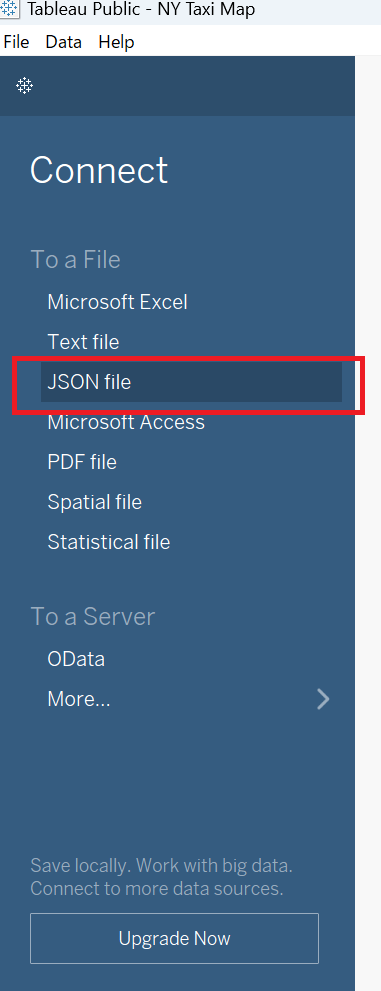
From Tableau, click on the button with the red border in the lower left corner.
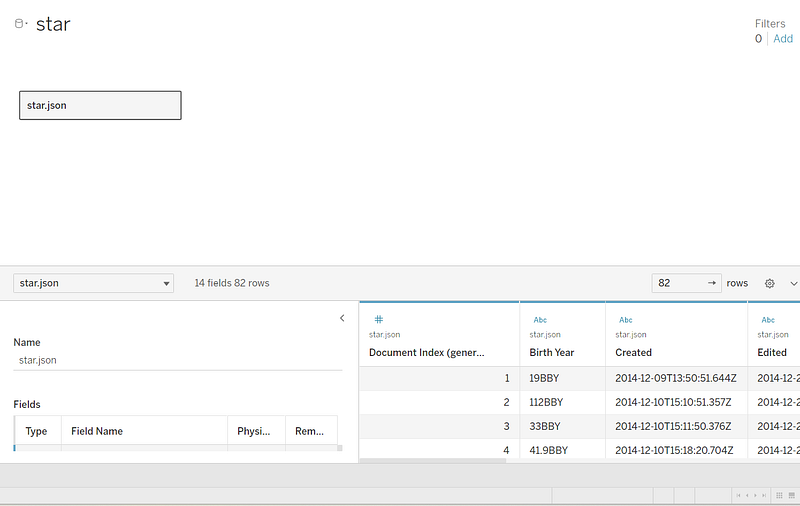
When loaded correctly, it will appear as follows! Excellent!
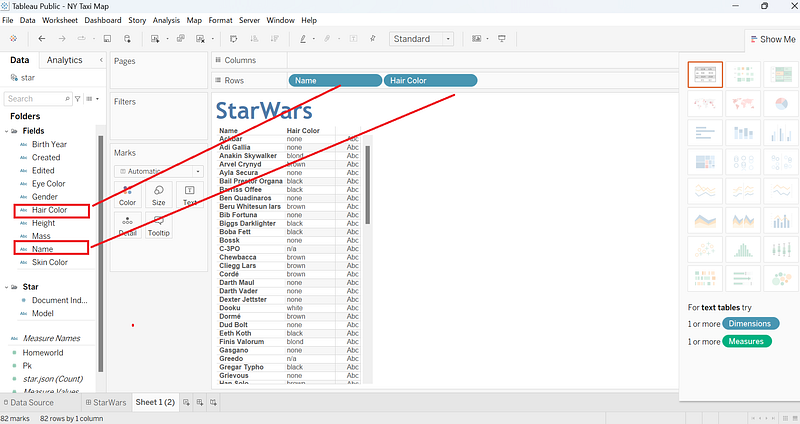
Go to the sheet and drag and drop the items on the left.
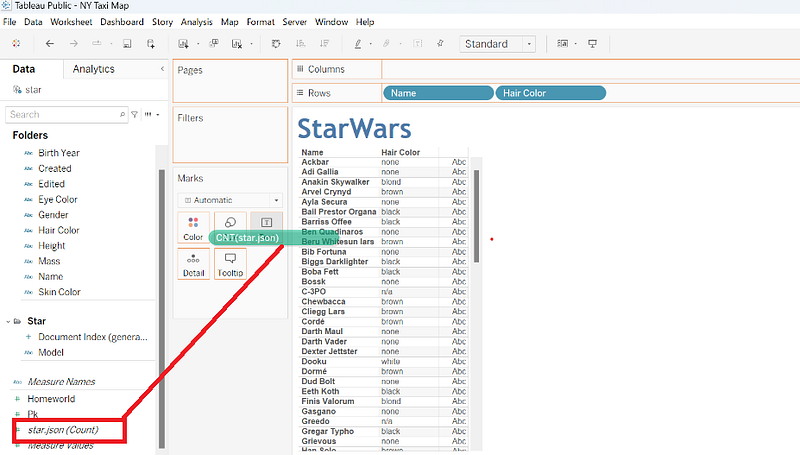
Then drag and drop the key number in the lower left corner as shown in the image.
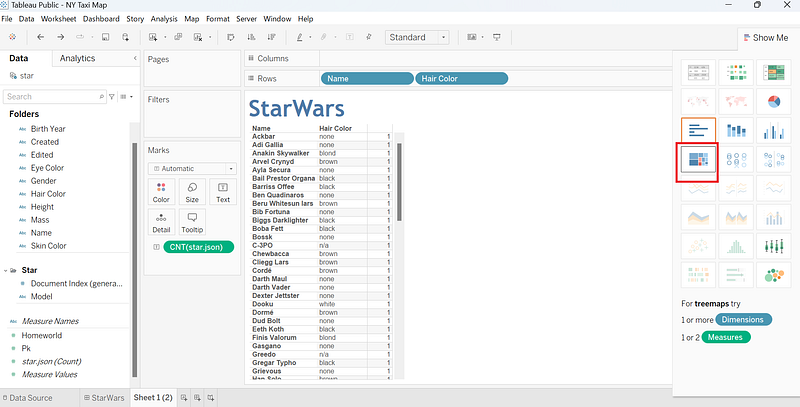
Select the red frame area in the upper right corner.
Drag and drop the items on the left part to “color” as shown below.
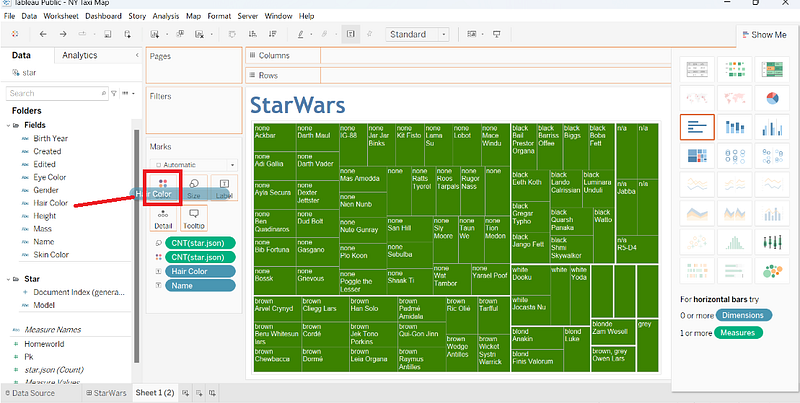
Wow!The completed dashboard looks like this!

If you are interested in Tableau, please give it a try. Tableau public is free to use. We are using Tableau public again this time. Please enjoy. Thank you for your interest. Thank you very much.

Tableau
Dashboard
Bi
Star Wars
Analytics
Recommended from ReadMedium