
I Broke My Website In 5 Minutes — Here’s What Happened
Don’t repeat it for your website.

After working in the SEO field for over five years, I thought I knew most of the SEO mistakes.
I accidentally spent my client’s monthly ad budget and did CRO with zero impact, to name a few.
However, I’ve never messed up anything on my website. Well, until this very moment.
If you think breaking a website in 5 minutes is impossible, let me prove otherwise. I hope my experience will teach you something new and you won’t repeat this mistake when managing your website.
An error message is how the story started
As an SEO expert, I regularly test various SEO tools to find the ones worth using.
This time I tested ContentKing, an SEO tool for real-time website SEO auditing and monitoring. It automatically ran a site audit, discovering familiar and totally new issues related to my website performance.
If interested, you can read my ContentKing review here.
There is one feature I particularly liked about ContentKing — real-time alerts. You’ll get an alert message if anything changes on your website.
I was fortunate (or unfortunate) to experience how the feature worked.
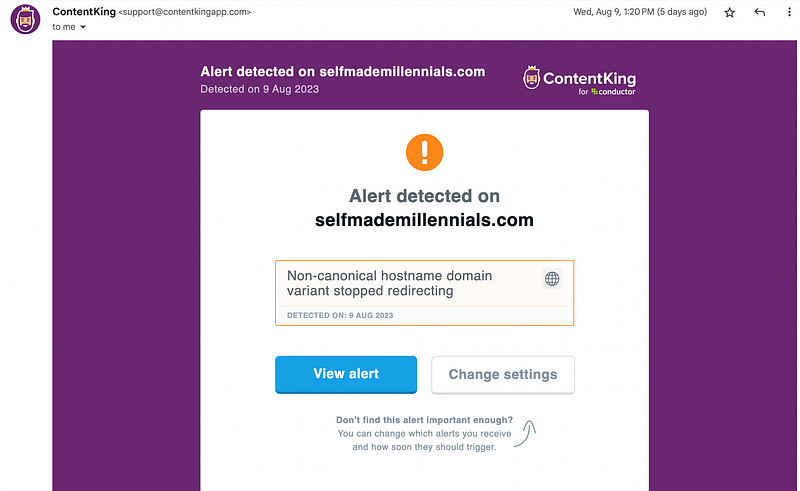
I’ve got a message that my website’s URL with www stopped redirecting to the non-www version.
I was surprised and impressed at the same time since I would not have discovered this issue until the next manual site audit. So, I give extra credit to ContentKing for its 24/7 website monitoring.
Don’t do this when in a hurry
I was in a hurry but wanted to research and fix the issue.
There are multiple ways to fix the broken www to non-www redirect. Since I don’t have a developer working on my website, I decided to do it independently.
I use WordPress to power my website, which has access to essential root folders and files, like an htaccess.file.
An htaccess file is used to make changes to your website’s configuration without editing the server configuration files. This can be useful for tasks such as:
- Rewriting URLs
- Password protecting directories
- Blocking IP addresses
- Setting up redirects
Htaccess files are powerful tools but can also break your website if you don’t know how they work.
I thought adding a few lines of code was a piece of cake. In reality, you can break an entire website if you insert the code incorrectly.
This is exactly what happened to me.
I added a piece of code to the file based on the recommendations from developers, validated the code to ensure it was error-free, and hit “save.”
Here is what happened next:
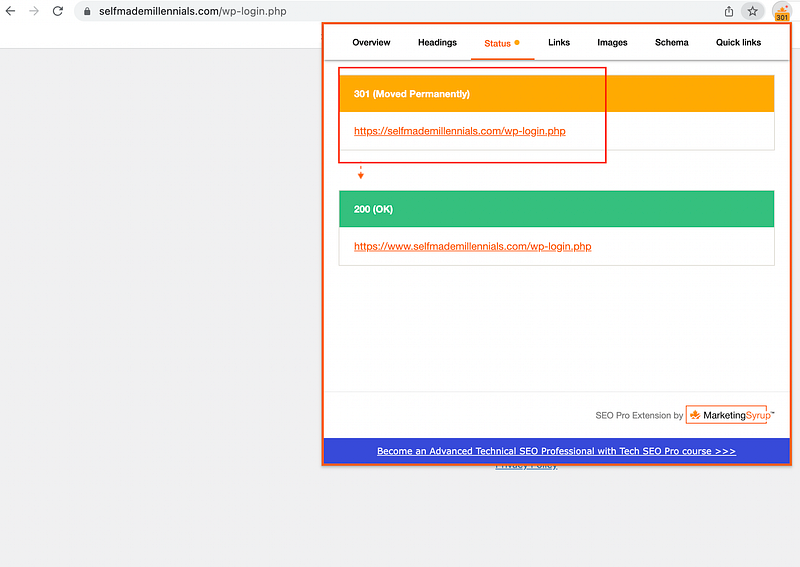
- I was immediately logged out from WordPress.
- My website did not load due to multiple redirects.
- I could not log in because the correct login page redirected me to a different URL.
I broke my website and did now know what to do next.
Here is how I fixed it
I cried after realizing I couldn’t access my website anymore and it was down.
All my achievements from the past two years, including 4 figures monthly income from my website, have been undone by negligent behavior.
I learned a good lesson never to implement any technical SEO changes if I were in a hurry or did not know how to do it right.
I had no one to help me.
Besides, asking a developer for help would take a few days. Google would have noticed the issue during this time.
So, I allocated a few hours to research the problem and find a solution.
Now, be ready to learn a solution to this deadly SEO mistake and hopefully never repeat it for your website.
The issue is called a redirect loop when you accidentally create multiple redirects that redirect one to another.
To access your website on WordPress or any other platform, you must turn off redirects causing the issue. But how to do it if you don’t have access to the website?
The issue can be solved by turning off a redirect plugin via the file transfer protocol (FTP) server.
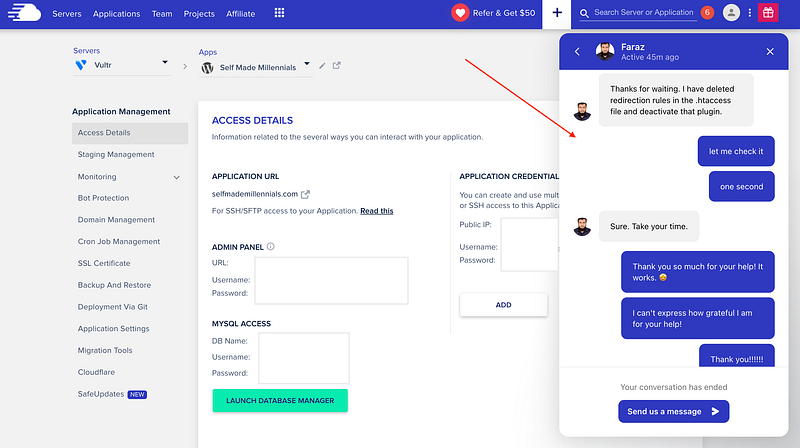
Even though I could not access my website’s FTP server, I contacted my web hosting provider for help.
I’ve been using Cloudways for website hosting for three years.
I switched to Cloudways from Bluehost because of its slow server response time. Cloudways’ support team helped me download the website’s log file when I did not know how to do it. This time, they were my only hope and did not disappoint me!
When they turned off the plugin, causing the redirect issue, the WordPress login page stopped redirecting, and I could finally log in! 🎉
The conclusion of this story
Never ever edit the htacess.file of your website on your own in your content management system!
You can ask a developer for help if you work with one. Alternatively, if you manage your website all alone, like me, there are a few things you can do:
- Download the htacess.file before making any changes, so you can quickly reupload the file if something breaks.
- Instead of managing the htaccess.file, install a redirect plugin to your content management system.
- As for expert advice.
Do you know what’s the funniest thing in this story?
I am taking an advanced technical SEO course to improve my SEO skills. I watched an entire lesson dedicated to this issue a day after it happened to my website. I was laughing when the lesson topic was announced at the beginning of the video.
Well, personal experience, whether it’s good or bad, is the best teacher. Agree?
📖 Grab my guide to learn how I create blog posts that hit the Google front page.
📈 Want to learn more about SEO? Join my free email course.