
How to Work With Secrets on Google Cloud Platform (GCP)
Learn a better way to manage your sensitive data

An application normally needs some sensitive data like API keys, database passwords, private keys, etc. It’s common to store them as environment variables. However, this is not a good practice because the values of environment variables are set and stored as plain texts and thus can be revealed easily. If your application is hosted on the Google Cloud Platform (GCP), you can use the Secret Manager to manage these sensitive data, which is a very secure and convenient solution. In this post, we will introduce the essentials of using the Secret Manager for our applications.
Preparation
If you create a project with your private Google account, then you are the owner of the project and don’t need to worry about permissions. However, if you work in a team, you would need to be granted the Secret Manager Admin role if you want to follow all the instructions in this post. Normally, as a developer, you may not have this admin role but only some limited roles to create secret versions or just to view the secret.
Create a secret
Normally we don’t need to create secrets programmatically in our code. We only need to do it from time to time manually when we need to create or update sensitive data. Therefore, it’s more convenient to create secrets in the GCP console where you can have a lot of helpful tips for whats, whys, and hows.
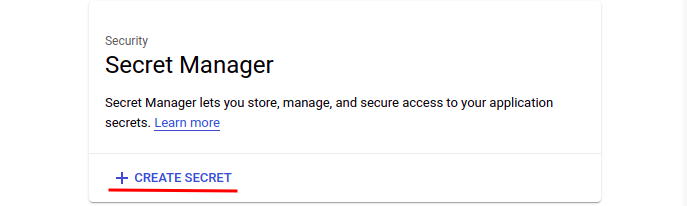
In the GCP console, search for “secret manager” and choose the one displayed below:

Then click “CREATE SECRET” to create a new one:
On the page opened, enter a name for the secret, which must be unique within a project. Therefore, give it a descriptive and unique name that is easy to identify.
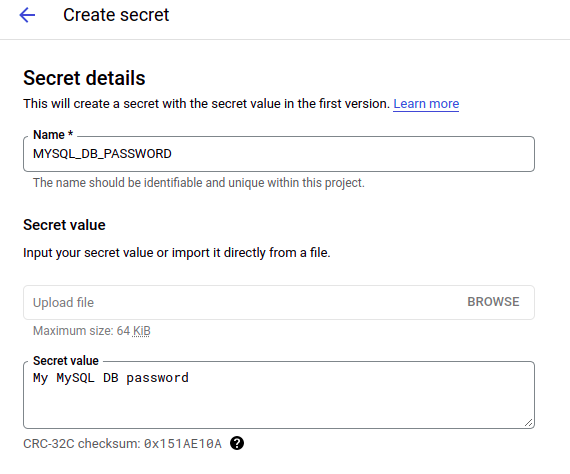
You can input your secret value directly or import it from a file. It’s safe to enter the sensitive data directly here as it won’t be revealed anywhere unless you work in an insecure environment and have people watching your screen 👀. For private keys which are normally stored in text files already, it’s more convenient to upload the files directly.
You can leave all other options unchanged because the default ones are sufficient in most cases. You can of course have more fine-grained control over how the secret should be managed by fine-tuning these options. Now click “CREATE SECRET” to create the secret.
The gcloud command for creating a secret is
$ gcloud secrets create my-secret --data-file=/tmp/secretLocally in the terminal, it’s better to specify the secret value through a data file rather than plain text because the latter can be revealed in the Linux command history which is a security issue by itself.
Check the secret value
For the secret created by the Secret Manager, a very important concept is “version”. A secret version contains the actual value of a secret. A secret can contain multiple versions, which are named sequentially from 1. By default, the latest version with the largest version number is used if no version id is specified. We can also access the value of a specific version by specifying the version id.
A benefit of using the versioning feature is that the same secret with different values can be used for different environments and thus minimize the number of secrets to maintain. For example, we normally have different API keys for development, staging, and production environments. We can use different versions of the same secret for these environments.
Let’s check the value of the first version of our secret:
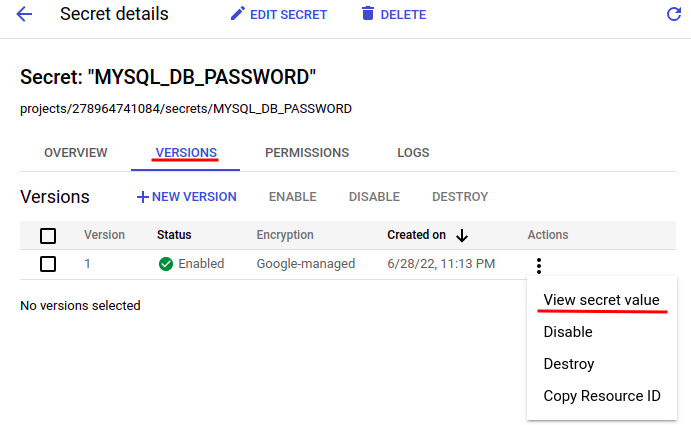

The gcloud command for checking the value of a secret is:
We can access the secret version either by a version id or the “latest” tag.
Add a secret version
We may need to add a secret version if we need to have different values for different environments, or simply because we need to update the value of the secret.
Creating a new version in the GCP console is simple:
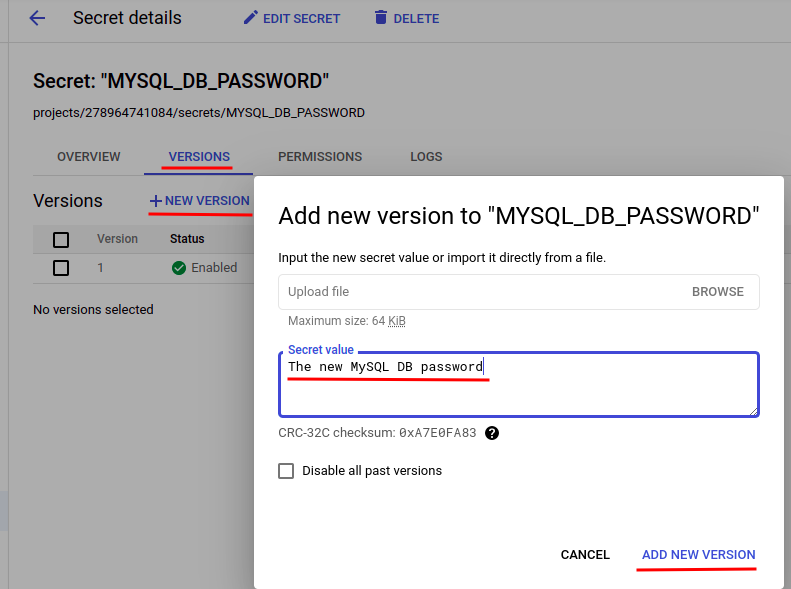
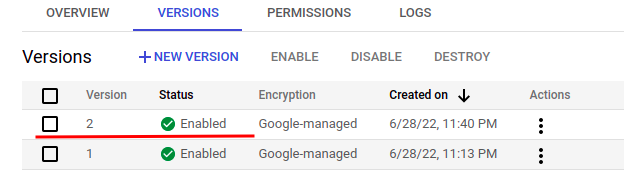
The gcloud command for creating a new version for a secret is:
$ gcloud secrets versions add secret-id --data-file=/tmp/secretUsing secret directly in your application code
As a developer, our main focus is on how to use the secrets created by the Secret Manager in our application code. To do this, we need to install a Secret Manager client library for a specific programming language. If you use Python, you can use pip to install the client library:
It’s recommended to create a virtual environment and install the client library there so it won’t mess up with your system libraries.
Then we can use the following code to read the value of the secret and use it for authentication in our application:
Notes:
- If you encounter authentication issues, please do have a look at this post which will very likely solve your problem.
- We need to construct a complete resource name with the project ID, secret ID, and version ID, which will then be used to access the secret. Project ID, secret ID, and version ID can be stored as environment variables.
- The value is by default returned as binary strings and we need to decode it to plain strings in most cases.
Mount secrets as environment variables
As you found above, we need to use a client library if we need to access the secret value directly. However, sometimes your code can rely heavily on environment variables or secret files, for example when you use the Pydantic library to manage these data. In this case, major refactoring would be needed if you want to get rid of Pydantic and use the Secret Manager client library directly.
Fortunately, we don’t need to do so! For GCP services like Cloud Run, we can mount secrets as environment variables and use them directly in Pydantic. No refactoring work is necessary at all.
It’s quite some work to create a Cloud Run microservice from scratch because you need to prepare the code for the microservice (normally some API code) as well as how to build and deploy the service. Please check this post for how to deploy a Cloud Run service from scratch. Here we will only focus on how to expose a secret as an environment variable or a mounted volume.
You can edit your Cloud Run service and switch to the “VARIABLES & SECRETS” tab, where you can reference a secret and use it as an environment variable:

When you click “REFERENCE A SECRET”, you can specify the secret id, version id, as well as how to reference it in your Cloud Run service:
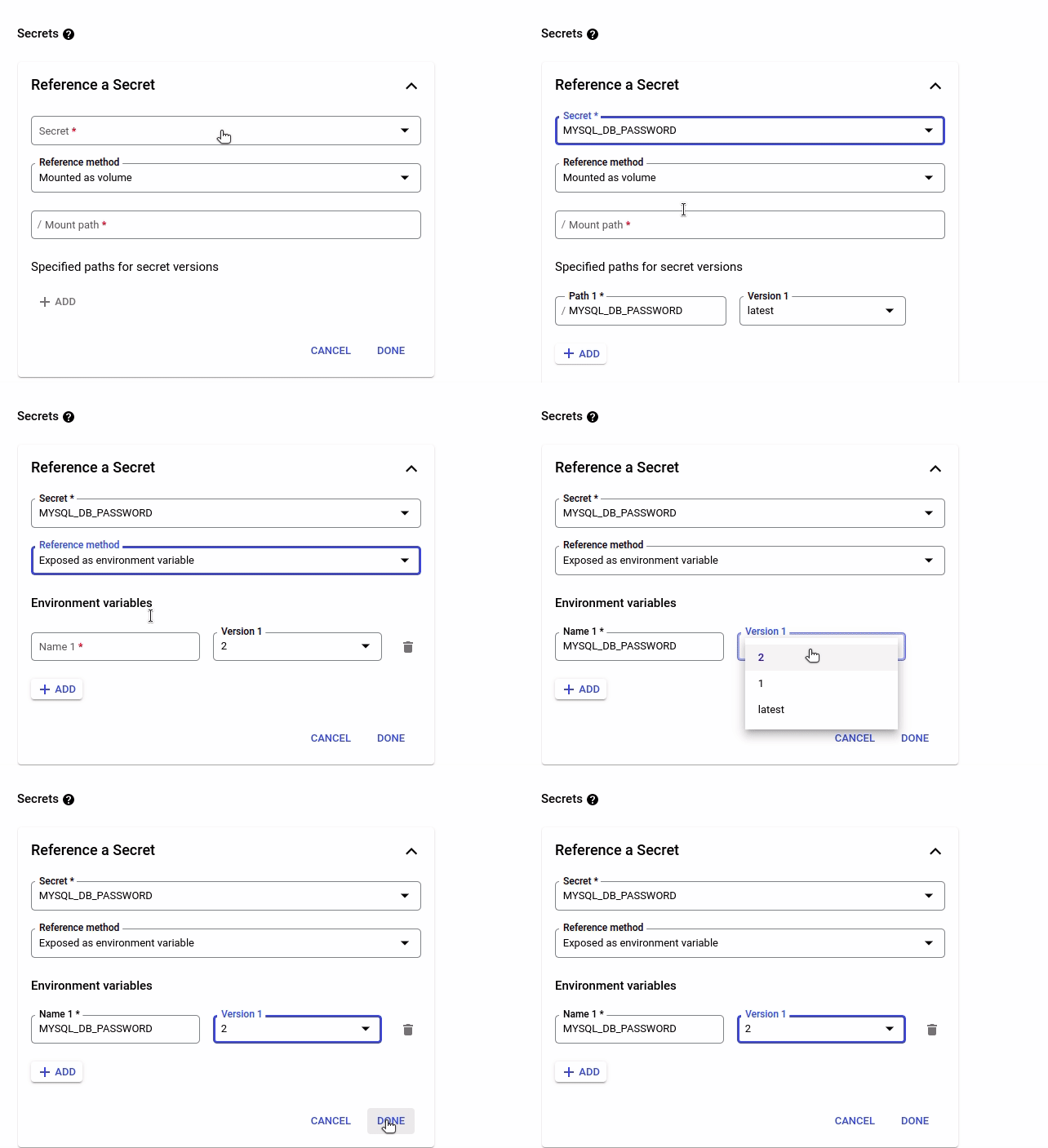
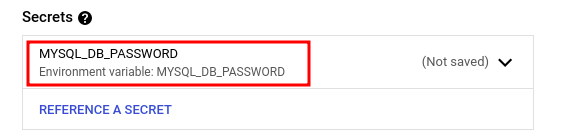
Now you can use the secret just as an environment variable in your code and don’t need to change your code at all, which is very convenient.
In this post, we have introduced how to create, update and access secrets with the Secret Manager. A very important concept is versioning where each version stores an independent value of the secret which can be handy for maintenance. We have also introduced how to access secrets in your application code with Python. Last but not least, we can expose secrets as environment variables in Cloud Run services which lets us take advantage of the security feature of secrets conveniently without major refactoring of the code.
Related articles:


