
How to Work With JSON in the Command Line and Terminal With FX
Easily handle pipe curl requests and handle the JSON in your terminal

If you’re using Linux or macOS, then you’ve probably heard of curl. With curl, you can easily send different kinds of requests (e.g., HTTP) from inside your terminal. Many developers use curl because of its extensive functionality.
Here’s a simple curl request getting some JSON data from a REST endpoint:
curl https://jsonplaceholder.typicode.com/posts/1
The response of the request above looks like this:

This is already neat because you don’t need a web browser to make a request to an API that returns JSON data. However, if you spend a lot of time in your terminal, then you may appreciate a more powerful tool to get things done.
There are some open-source solutions available, and fx is my personal favorite tool in this category. fx is written entirely in JavaScript, and it can be installed either through npm (requires Node.js to be installed on your machine) or Homebrew.
In this piece, I’ll show you how fx makes working with JSON in your terminal easier. For demonstration purposes, I’ll use JSONPlaceholder, which is a free fake REST API and is ideal for testing and playing around.
How to Work With JSON in Your Terminal With fx
Here’s how you can install install fx on your machine:
npm install -g fx # Use NPM to install the fx package globally
brew install fx # Or use Homebrew to install the fx package
Now that we’ve installed fx, we can retry the same request as above using fx and see what fx can do.
curl https://jsonplaceholder.typicode.com/posts/1 | fx .
Using fx, the response looks like this:

As you can see, we still use curl to get the data from the REST API. However, we use fx to print the data. The JSON response fx outputs is easier to read — which you’ll appreciate if you’re dealing with bigger and more complex data.
If we omit the dot used in the example above, we’ll enter interactive mode. This allows you to inspect and edit JSON using your mouse and keyboard (it was the first time I’d seen a command-line tool having mouse support). The interactive mode allows you to search JSON, which is super useful when dealing with large JSON data.
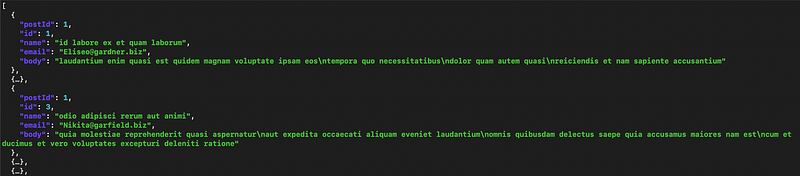
Need only some part of the JSON data (e.g., the first element)? fx can help you with that by allowing you to filter the JSON:
curl https://jsonplaceholder.typicode.com/comments | fx .[0]

Do you have local JSON files you want to read and edit? fx can deal with those as well:
fx data.json
If you’re looking for some more examples, I can recommend this post by the author of fx showcasing some more advanced uses of fx.
Conclusion
Thanks for reading this short piece about using fx to work JSON data in the terminal. As you can see, I like the simplicity of fx — which makes it a nice tool for developers working a lot with JSON in the terminal.