How To Validate an Excel File in JavaScript
Validate .xlsx and .xls files in a few simple steps

You have an Excel file with many columns and rows, and you need to validate it. How would you do it? The following article will describe a simple way to do it that works fine with both small and big files.
First of all, we need to know which Excel columns we want to validate and what kind of validations to apply. In this example, I will use a file with five rows and five columns, but the method works just as well if it has 30,000 rows and 100 columns.
For simplicity, I will construct it all using only a couple of files: index.html and script.js. Obviously, this can be improved by separating the different parts into different classes and files.
Index.html
Let’s start by creating a file called index.html that will be the interface of our application. It has a button that, when pressed, will let us select a file.
- On line 10, we define a button that, when clicked, will open a browser window and allow us to select a .xls or a .xlsx file.
- The results of the Excel validation will be displayed in the div on line 18.
- On line 20, we import the script with all the application logic.
The Script
Create a file called script.js. It will contain all the logic of our application.
Definition of some masks
We will define some masks with vanilla JS using regular expressions that we will use in a later step to create our validations.
As you can see, it is simple:
- The
_isIntegerobject defines a mask that we will use later to validate integer numbers. - The
_isDecimalobject defines a mask that we will use later to validate decimal and integer numbers. - The
_isPhoneobject defines a mask that we will use later to validate international phone numbers.
Now let’s define some validations.
Validations
validAgeon line 3 validates that the age column is of typeInteger.validPhoneon line 17 validates that the age column is of typePhone.validScoreon line 31 validates that the age column is of typeDecimal.
Definition of the method that will validate the JSON content
Once we have converted the Excel to a JSON object, we will go through all its elements and apply the corresponding validation.
The result of the errors found will be stored in another array named Errors.
Definition of the method that loads the file, converts it to a JSON object, and validates it
This is the main method of the application in charge of reading the file and converting it to a JSON object using the xlsx-parse-json library. It then calls the validateExcel method in charge of validating its content. If there are errors or not, a message will be shown with the result of the validations.
All together
The Excel Files
To test the result of applying the validations to the file, we have created two .xlsx files with the following content.
The first file no contains validation errors:
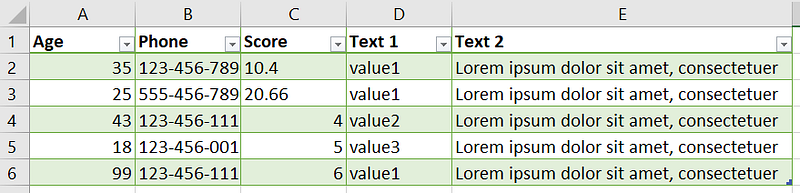
And the second file contains several validation errors, as you can see below:

Testing the Application
Result of applying validations to Excel
Here, the Excel file contains several validation errors:
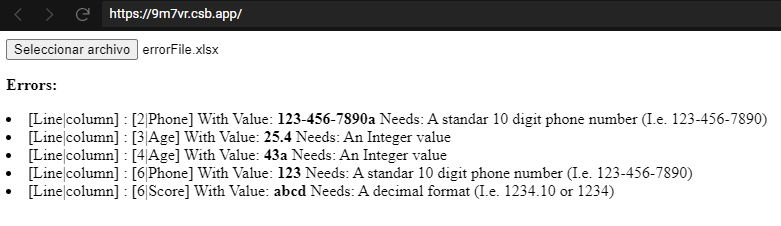
This Excel file does not contain any validation errors:
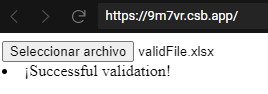
Conclusion
Often, we don’t need to complicate things to perform a task. In this example, I showed how to validate a file in .xlsx format in a simple way. It is a solution that can be improved a lot, but the objective was to show how easy it can be to validate an Excel-formatted file.
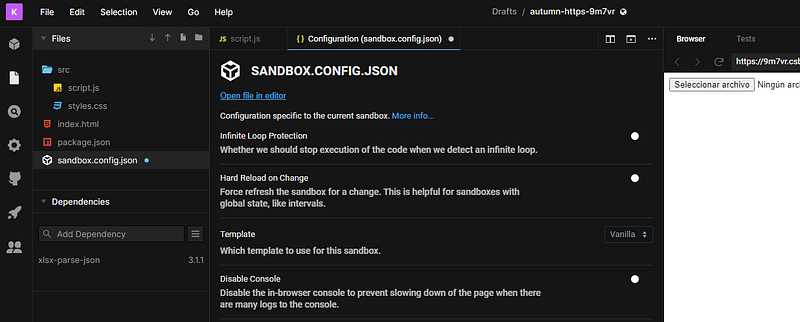
You can try to download the code from CodeSandbox.
Note: To try the application in the sandbox, you have to disable the infinite loop protection.