
How to Use Selenium to Simulate Manual Actions for Website Tests in Python
Learn basic website test automation in minutes

Selenium is a tool commonly used to automate website tests in the browser. You can simulate all kinds of manual actions with Selenium. In this post, we will introduce some manual actions that are commonly used in website tests or web scraping.
Preparation
We need to install Selenium and some dependencies before getting started. We should install the libraries in a virtual environment for best practice. It’s recommended to use conda for managing environments because we can install a specific version of Python in each environment.
In order to use the latest version of Selenium, it’s best to use the latest version of Python as well. We will also install the iPython library to run interactive Python code more conveniently. You can copy and paste the Python code shown below in iPython to see the results.
Especially, with webdriver-manager, we don’t need to download and manage the browser driver as before, which saves us a lot of effort.
How to start a driver and open a website?
Starting a driver is much more straightforward now because we don’t need to manage the browser driver separately:
The webdriver, which is chromedriver in this example, will be automatically downloaded and used:
Then we can open a website with the driver:
Normally we would maximize the window for testing purposes, but you can also set it to a specific size with the set_window_size method.
We can now take a screenshot of the website to make sure it is opened and displayed properly.
How to click an element?
We can click on various elements, such as links, buttons, radio buttons, etc. Let’s click the “login” link on the home page of quotes.toscrape.com. We need to find the XPath of the link first.
If you don’t know how to get the XPath of a web element, this post can be helpful.
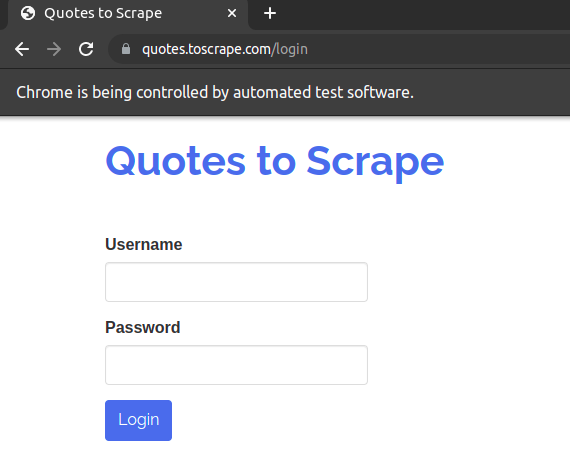
There are various ways to pick an XPath. Yours can be different from the one used here, as long as it can pinpoint the element correctly. The login page will be opened as follows:
How to enter text in a text box?
We can enter a fake username and password on this page by the send_keys method. Any text will work as it’s just a demo.
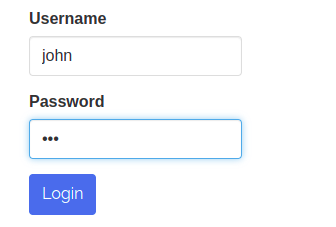
We can now click the “Login” button as shown in the previous step. Alternatively, we can send an “Enter” key which has the same effect as clicking:
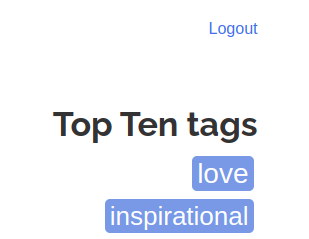
Now we are “logged in”:
How to scroll the view to an element?
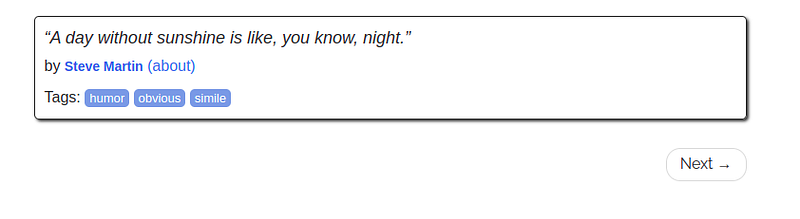
With some JavaScript frameworks, the content of an element (or related content) is only shown when it’s scrolled to the view. To do this, we need to execute some script. Let’s scroll the view to the “Next” button:
Now the view is scrolled to the “Next” button:
How to open a link in a new tab?
This is a trickier one as most references online are for Java code and the ones for Python are mostly outdated. To open a link in a new tab, we need to use ActionChains, which simulates CTRL + CLICK:
Now the “Login” page is opened in a new tab:
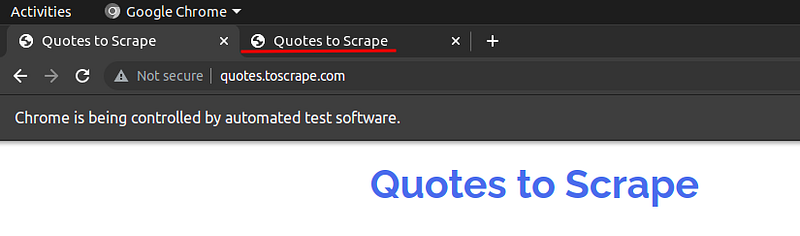
Note that if you are logged in, you need to log out first to open the login link in a new tab. Besides, you will still stay on the original tab. Now let’s switch to the new tab with Selenium.
How to switch to a new tab with Selenium?
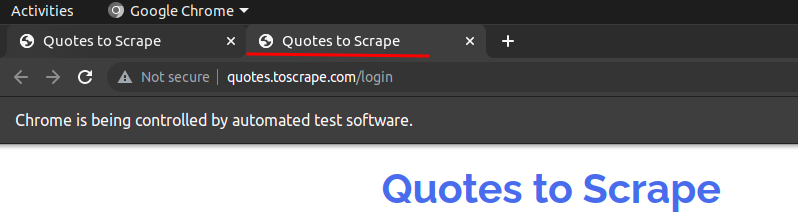
Sometimes a link would be opened in a new tab. However, the driver will not switch to the new tab directly and we need to do it explicitly. To do this, we need to get the window handlers and switch to the one of the new tab:
Now we are switched to the new tab and can deal with the elements shown in the webpage of this tab now:
In this post, we have covered some manual actions that are commonly used in website tests or web scraping. I hope they will also be helpful for your work.
Related article:


