
How To Use Script Activity in Azure Data Factory
This article demonstrates how to use script activity in ADF to execute SQL commands.
We’ll cover the following topics-
✅ Exploration of components of ADF script activity; ✅ Example of Use Cases on how to use script activity; 📢 a Tip
Let’s explore the Script activity in ADF and its components.

Right away, we can see that there are two radio buttons — Query and NonQuery.
- Query — Pick this radio button when you expect your SQL command to return a result. Example — Aggregate queries such as count.
- NonQuery — Pick this radio button when you do not expect the SQL command to return a result. Example — DML statement such as delete, insert, update.
Furthermore, we observe that there’s another feature called Script parameters. This enables a data engineer to pass dynamic parameters to the SQL command being executed by the script activity.
Click New button to observe the properties associated with the parameters.

The Index column specifies the position in which the parameter’s value should go in the SQL command. In other words, if there is more than 1 parameter to be attached to the SQL script, the order in which those parameters are called from SQL script should be the same as their order under Script parameters section (see use case #4 below).
The other properties under this section are provided below:
- Name column is the name given to the parameter.
- Type is the data type of the input parameter.
- Value is the value of the parameter being sent to the SQL script. This field is ignored if the direction column has a value of Output.
- If you need to pass a null parameter, check the Treat as null checkbox.
- Direction is the direction of the parameter. Script activity handles parameters that are meant as input, output or inputoutput.
- Size refers to the max size of the parameter. This value only applies if you have selected Output/InputOutput direction parameter of type string/byte[].
If you would like to read Microsoft’s documentation, please find that here.
👉 Test Setup
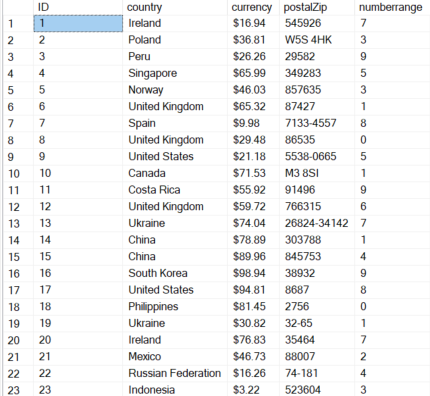
In my Azure SQL Database, I created a dummy table called testingde with a data volume of 100 rows. The data from this table is shown below:
📌 Use Case 1 — Get Count of Data From Table
Let’s see how the script activity works on some real-time use cases. In the script activity below, I provided an inline SQL command to get the total count from the above table. Since we want the activity to return a value, I chose Query radio button instead of NonQuery.

Let’s explore the output below —

The total_count as we see is provided in a JSON format.
👉 Pro Tip — If you want to extract the count value and store it in a variable in ADF, you can do so as shown below:

Code —
@string(activity(‘Script1’).output.resultSets[0].rows[0].total_count)📌 Use Case 2— Insert Value In Table
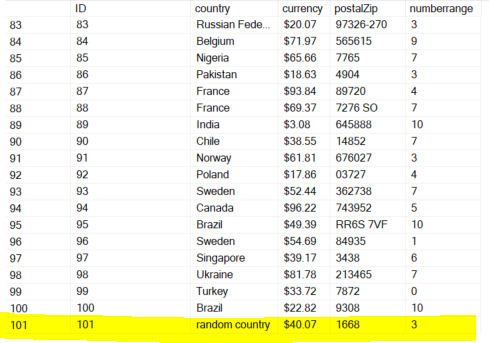
Let’s use the NonQuery radio button to perform a DML operation. In this case, I will add a new record in the above table.

Let’s explore the output below —

As we can see, the output does not provide any useful information. This is because, we picked the NonQuery radio button and the documentation states that it will not return any result.
In the table, we can see the new record got added.
📌 Use Case 3— Passing a Single Parameter To Script Activity
Let’s finally see how we can pass dynamic parameters. I will switch back to Query radio button and get the count of the records for country = United States. The country will be passed as a parameter.

In the output window, we can see that the result contained count for only the input parameter.

📌 Use Case 4— Passing Multiple Parameters To Script Activity
Finally, let’s see how the multiple parameters need to be passed to script activity. Continuing the above example, I will add another parameter for United States as shown in the SQL below —
select * from dbo.testingde
where country = 'United States' and currency > '$10'
Let’s handle the country and currency parameter in ADF’s Script activity. We should get a total count of 4.

In the above image, we can see the importance of the position in which parameters are provided. Index 1 for parameter country_name implies that this is the first parameter to get passed to the SQL script and index 2 for parameter currency implies that this will go second in line.
And Voila. That’s all for now as I’m also in the early stages of exploring this relatively new addition by Microsoft. When I find new use cases that can be solved using Script activity, I’ll make sure to document those here with examples 😃


