
How to use Open Interpreter to help you automate data visualization?
Don’t make the same mistake as me and judge it as just another open-source Code Interpreter.

New Option
Back in May, I wrote about how to do data analysis without coding using Code Interpreter (now renamed to Advanced Data Analysis).

At that time, even most Plus users couldn’t use this mode since Code Interpreter was only available to a small portion of users. After reading my article and realizing how powerful Code Interpreter was, they felt frustrated that they couldn’t use it themselves.
Soon after, I shared a new method — using the ChatGPT Plus plugin to achieve similar functionality.

Some readers said they didn’t want to purchase the expensive ChatGPT Plus. But man, the automated analysis is too good to give up!
So I wrote another article recommending the Code Interpreter API.

After these articles, I felt I had pretty much figured out how to do automated data analysis with GPT-4.
When I saw Open Interpreter marketed itself as an open-source Code Interpreter, I dismissed it completely. Because apps like that are a dime a dozen, right?
But Professor Ni kept urging me to take a look at Open Interpreter. Seeing his excitement piqued my interest — what’s so special about it?
Turns out I had misjudged it again. Open Interpreter is far more than a vanilla open-source Code Interpreter.
Previously, to do automated analysis, you had to adapt to ChatGPT’s interface and “push” your data up. But now, Open Interpreter lets you “pull” these magical LLM capabilities down to your local computer to help analyze your local data. I tried a few use cases and it’s just incredible.
In this article, I’ll show you how to install Open Interpreter and walk through some data analysis examples. Hopefully this gives you a good intro to get started.
Installation
Let’s open the Open Interpreter Github page first:
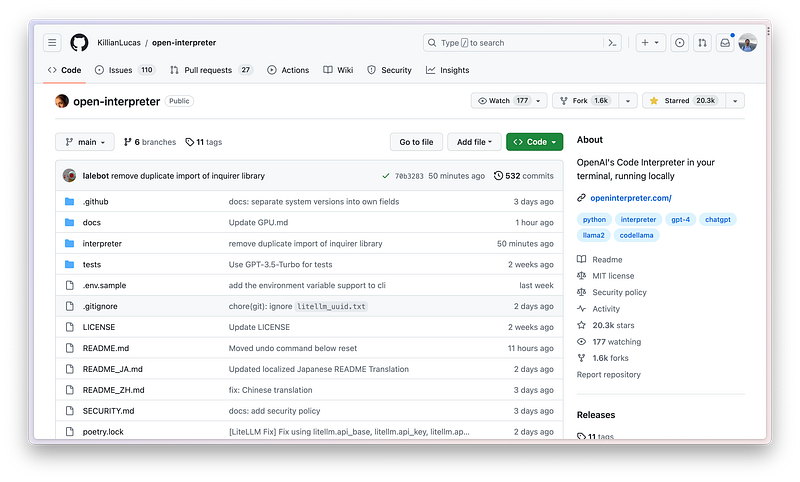
As you can see, the project has over 20,000 stars. The trend of stars gained looks like this:
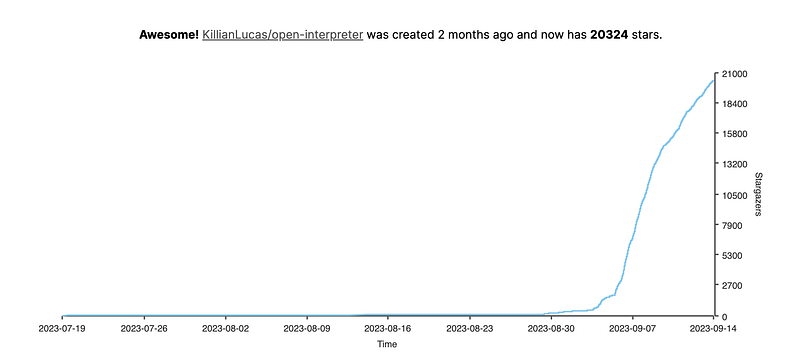
An explosive rise since August!
The Github page shows the simplest installation with one line of code:
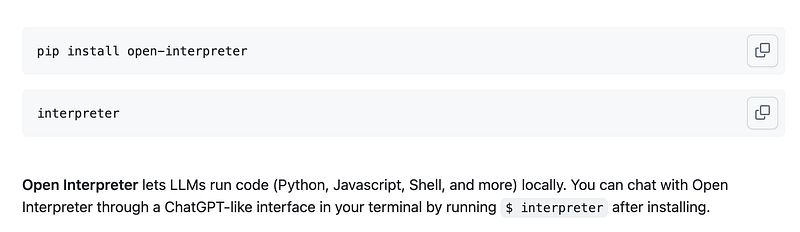
But unfortunately direct installation didn’t work for me:
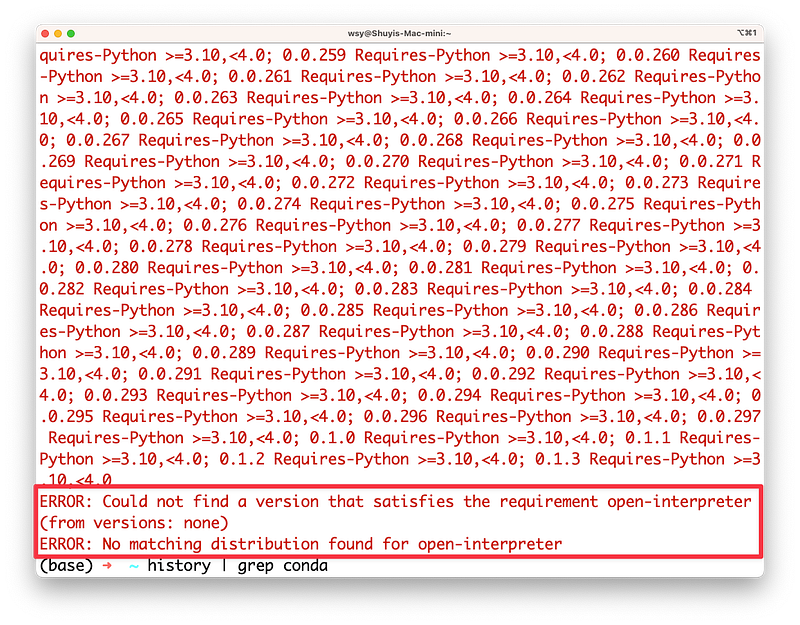
pip install open-interpreterSee, it threw an error right away:
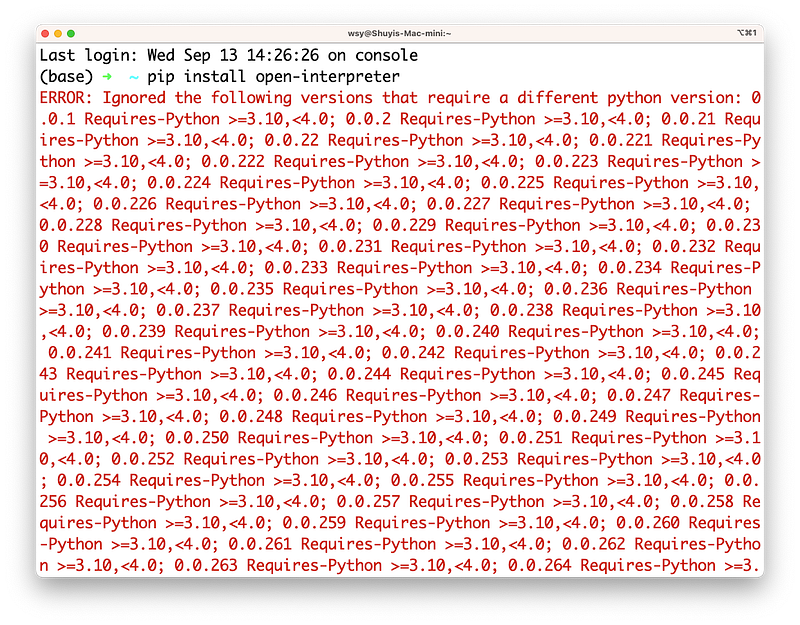
After taking a closer look, the error was due to version mismatch between my local Python and Open Interpreter’s requirements:
No big deal. Since it’s a Python version issue, we can use a virtual environment to solve it. With Anaconda, it’s easy to setup:
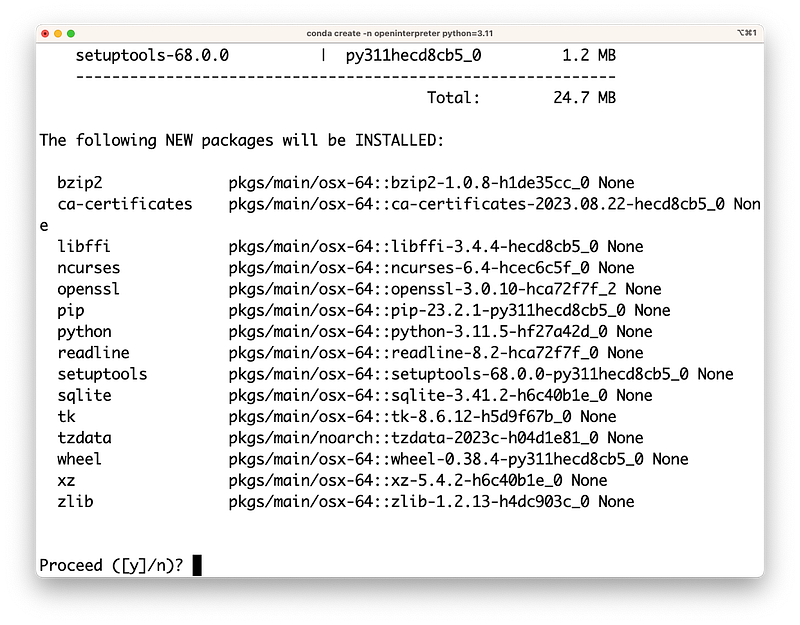
conda create -n openinterpreter python=3.11Anaconda will ask if you want to install some packages, just hit enter.
The virtual environment will be ready very soon:
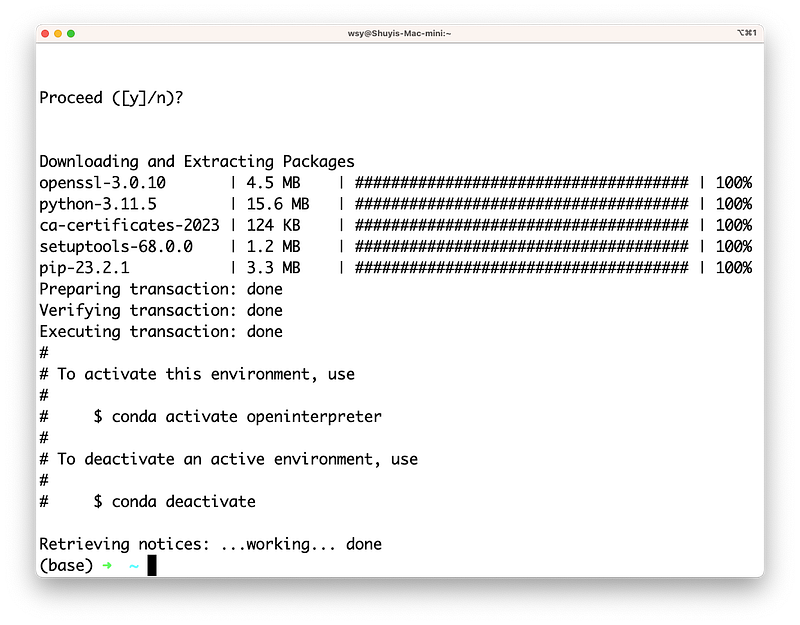
Remember to activate it first when using:
conda activate openinterpreter
Then we can install Open Interpreter itself:
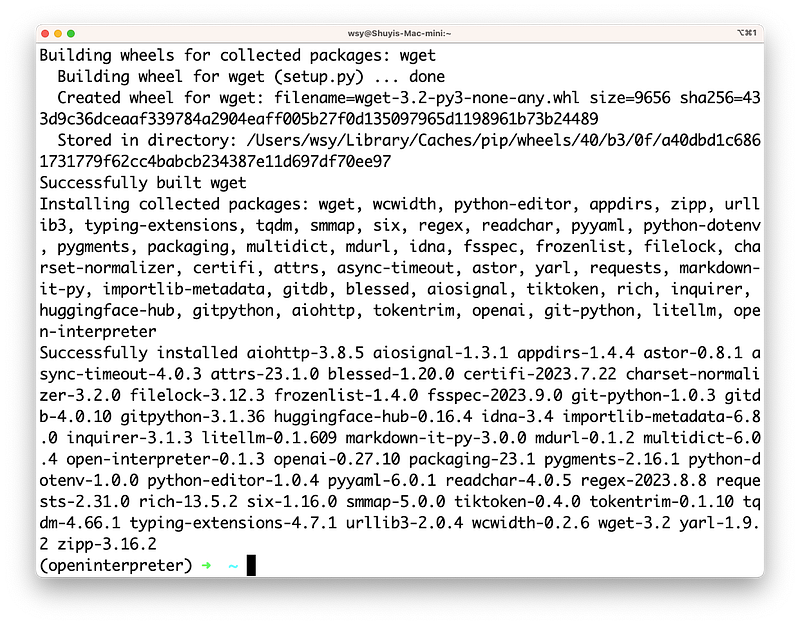
pip install open-interpreterThere we go, it’s installing happily:
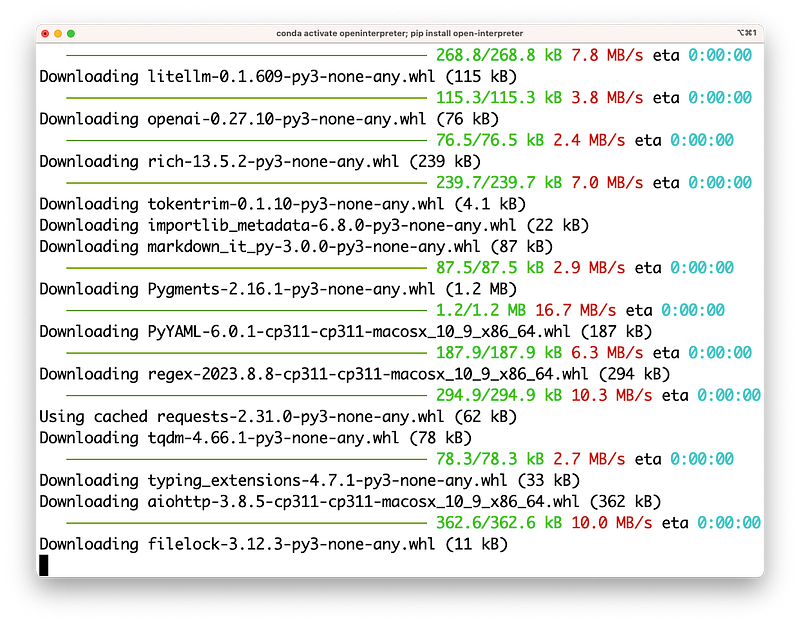
And done very quickly:
Now we can run:
interpreter -y
Note the -y parameter means:
Just do it if you’re sure, don’t bother me.
Without this flag, Open Interpreter will ask for confirmation at every step. Polite but annoying.
On first run, Open Interpreter will pause here and ask for setup:
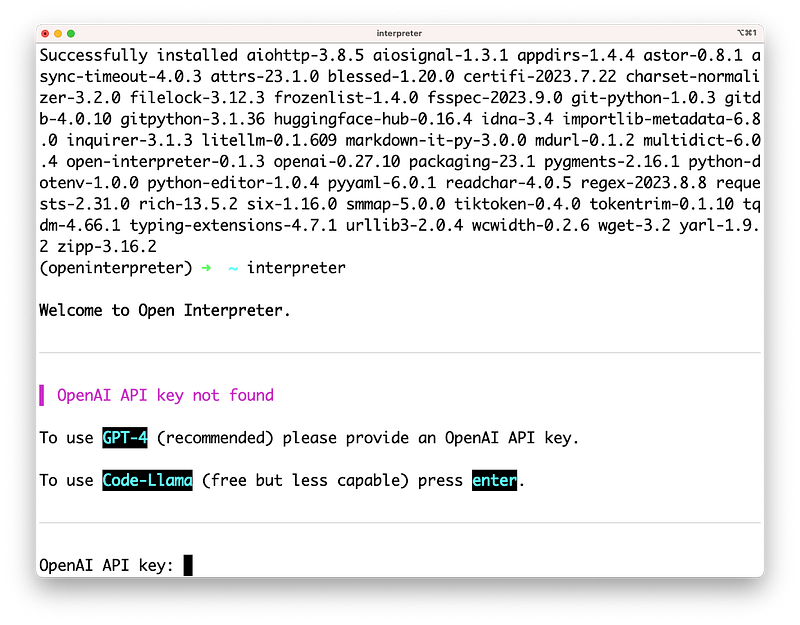
It wants you to choose the LLM. Default is to call GPT-4, so you’ll need to provide your OpenAI API key.
Alternatively, you can use Code-Llama, a free open-source local model. But that requires some setup we won’t cover here. Let’s just use GPT-4 since it’s the most powerful data analysis LLM for now.
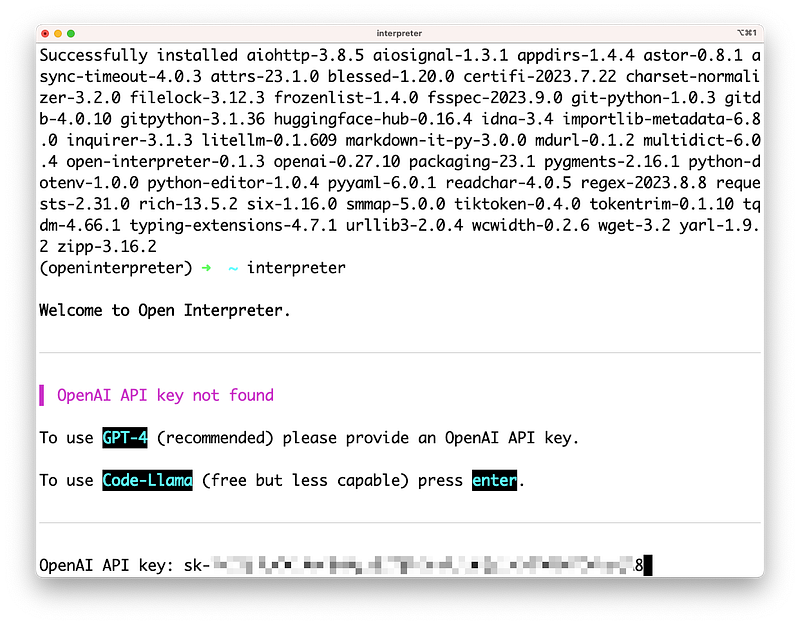
I entered my OpenAI API key and hit enter:
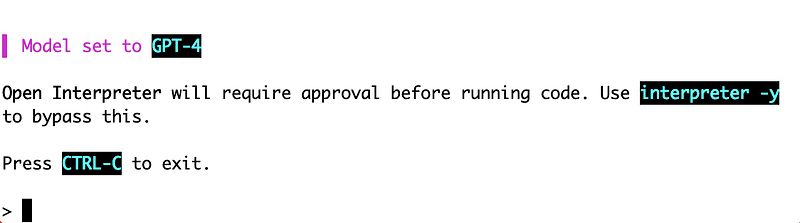
That’s it for setup. You can now start chatting:
Comparison
Let’s do a simple test without providing our own data. First I’ll ask ChatGPT Plus’s Advanced Data Analysis to plot some stock prices:
plot the stock price of apple and amazon YTD
And here’s the response:
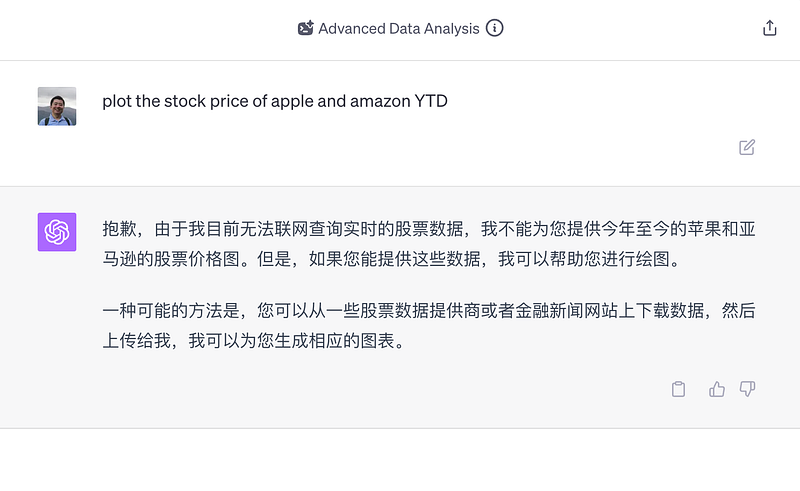
As expected. Advanced Data Analysis can’t access the internet to query live data like stock prices.
Let’s try the same question with Open Interpreter. It happily accepts the task and starts by automatically installing dependencies:
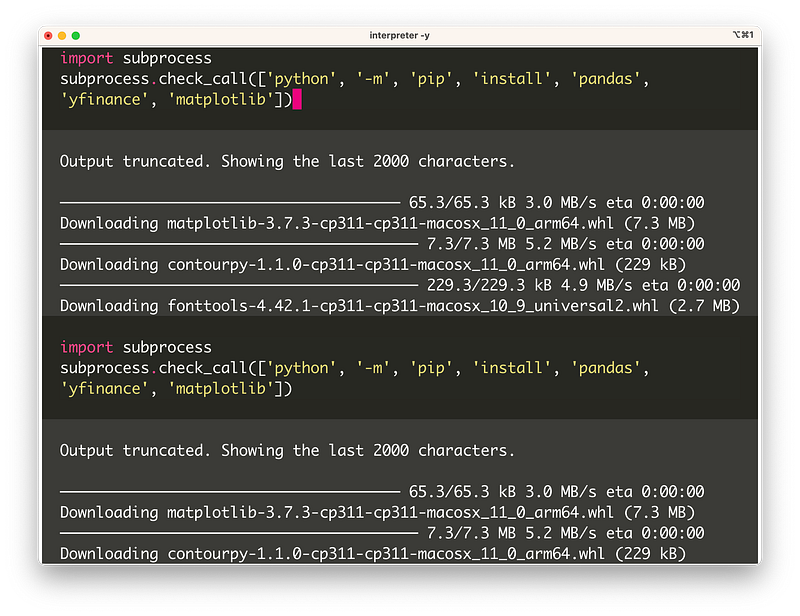
Then it tries to write some Python code:
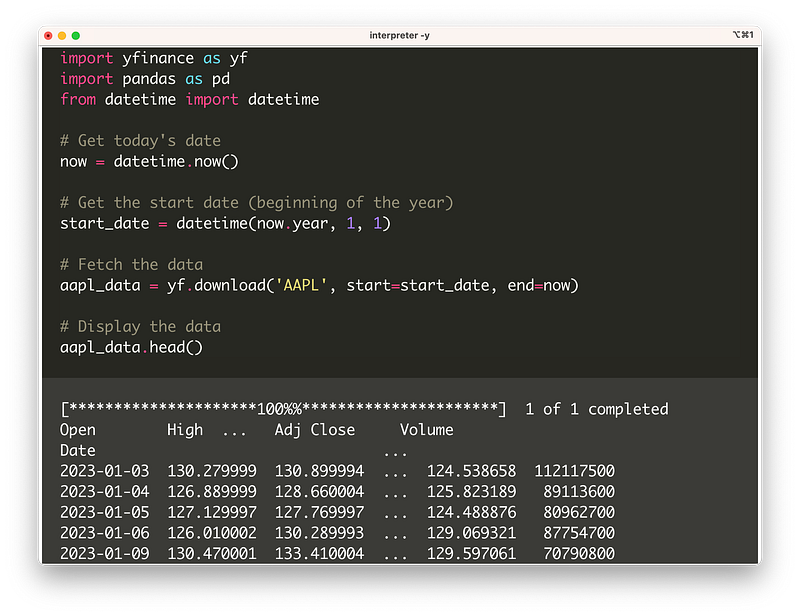
After that, Open Interpreter decides how to plot based on the data analysis:
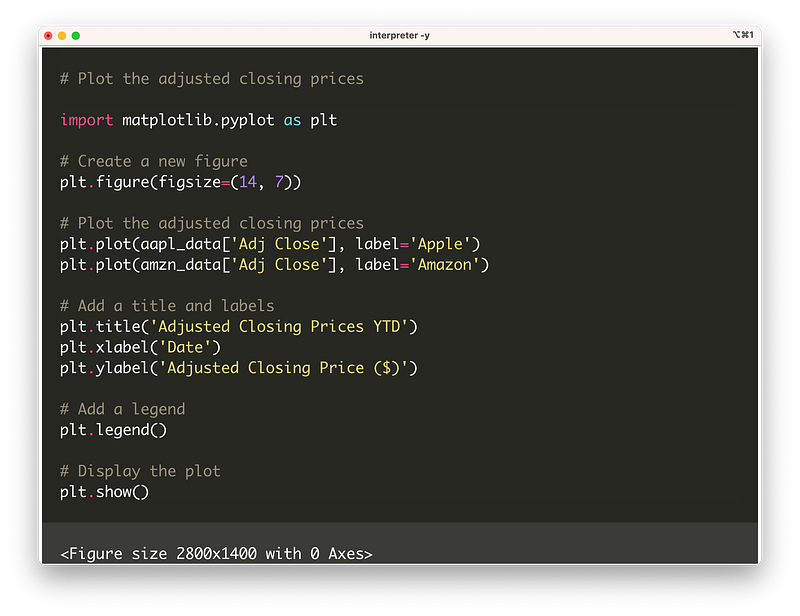
Skipping over the intermediate steps, the end result looks like this:
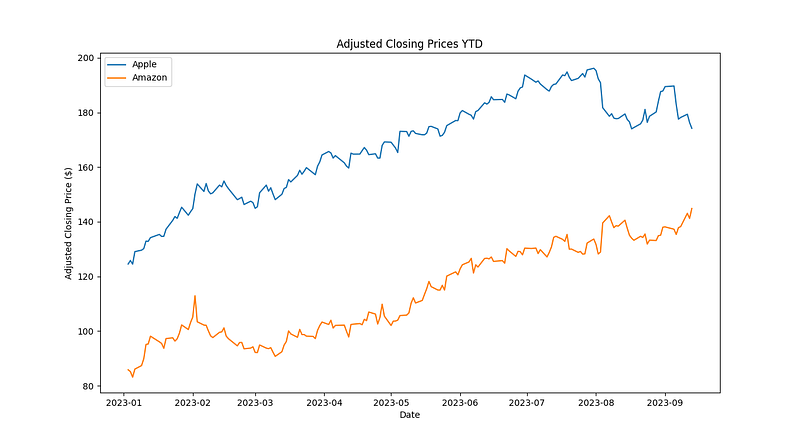
See, without any additional prompting from me, the stock price comparison is done!
Open Interpreter then asks if I have any new requests:
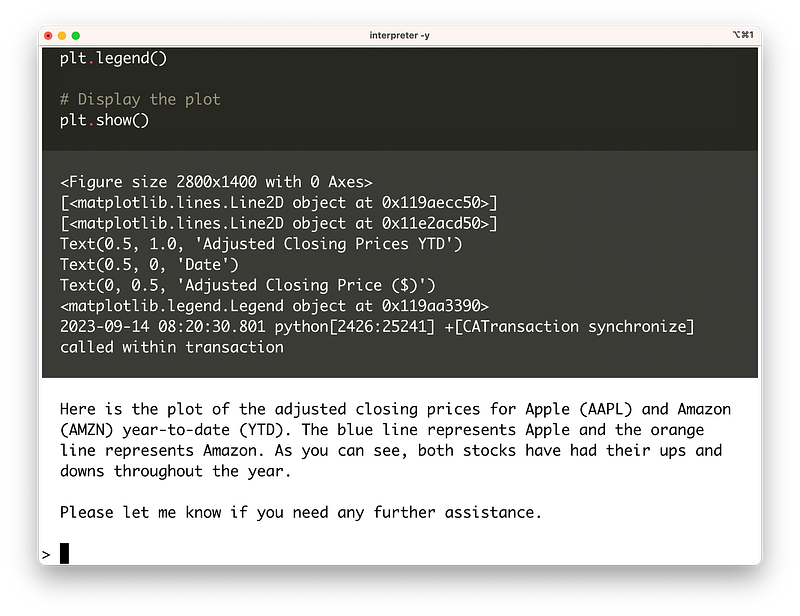
Smooth as butter. With this, I feel my students could easily analyze open data.
Next, let’s try having Open Interpreter analyze some local data.
Iris Dataset
First we’ll test Open Interpreter’s ability to visualize numeric data. I’m using the classic Iris dataset stored in iris.csv, structured like this:
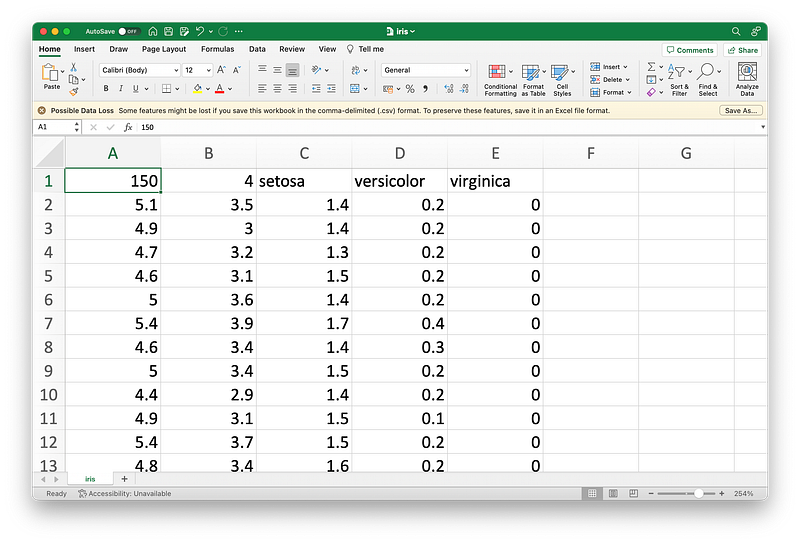
I simply threw the data at Open Interpreter to analyze:
Analyze this dataset and plot something interesting about it.
But how do I pass the data when there’s no upload button?
Very easy — open a file manager window, go to the folder containing iris.csv, then drag and drop the csv file after the prompt. It will automatically create a file link. Hit enter and we’re good to go.
Open Interpreter starts planning and coding:
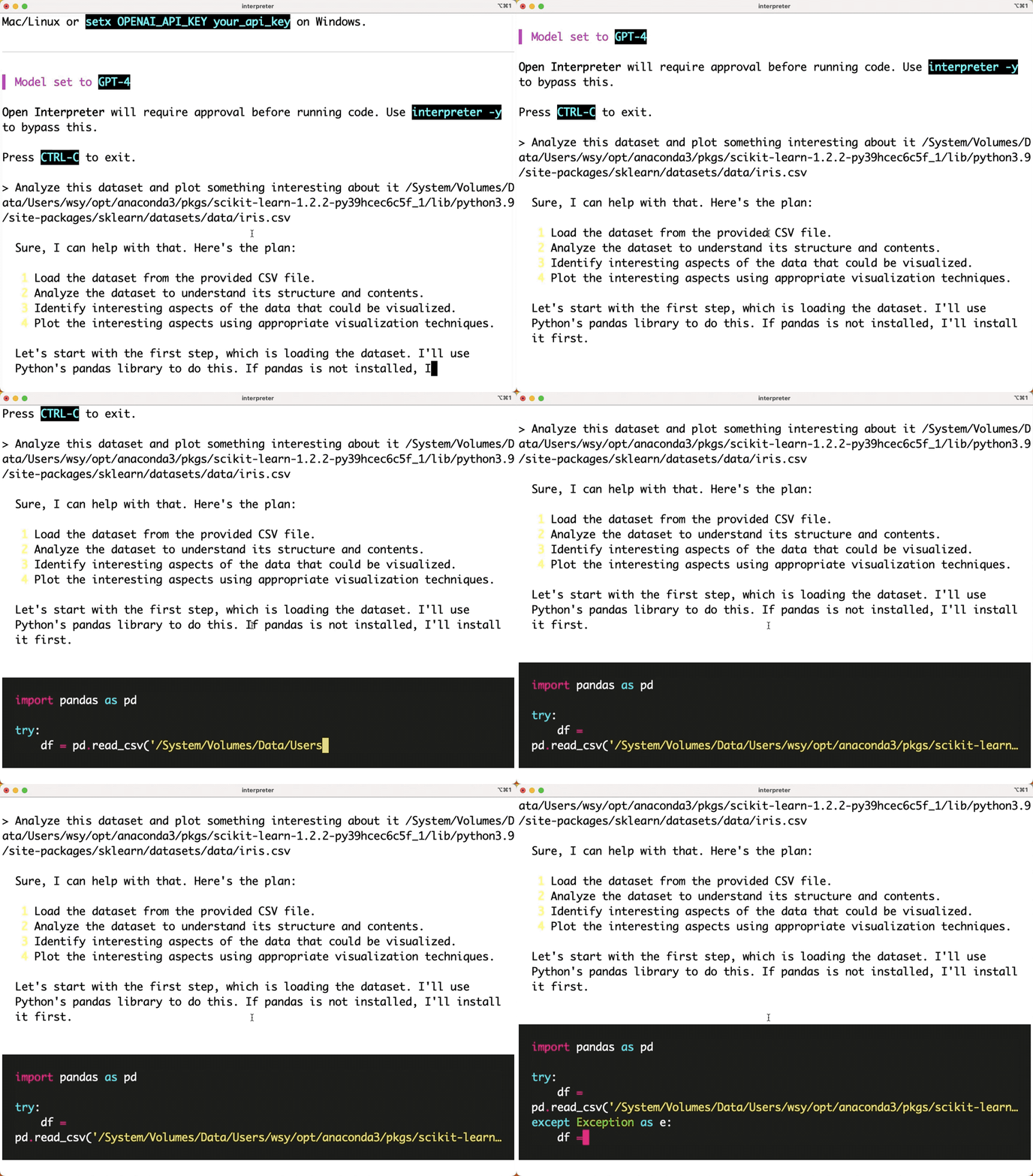
It analyzes the data and decides what to do next:
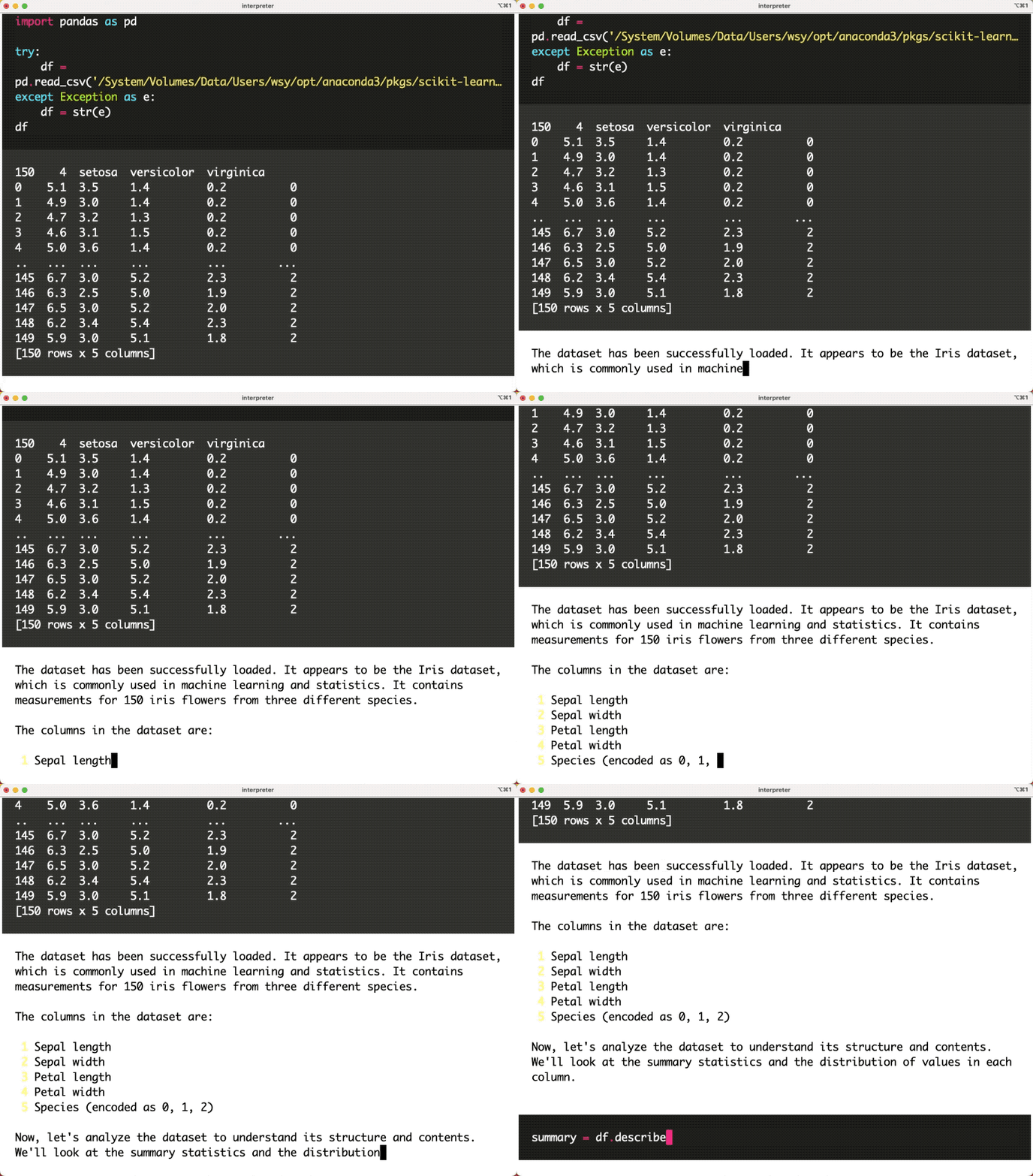
Then sets the output format:
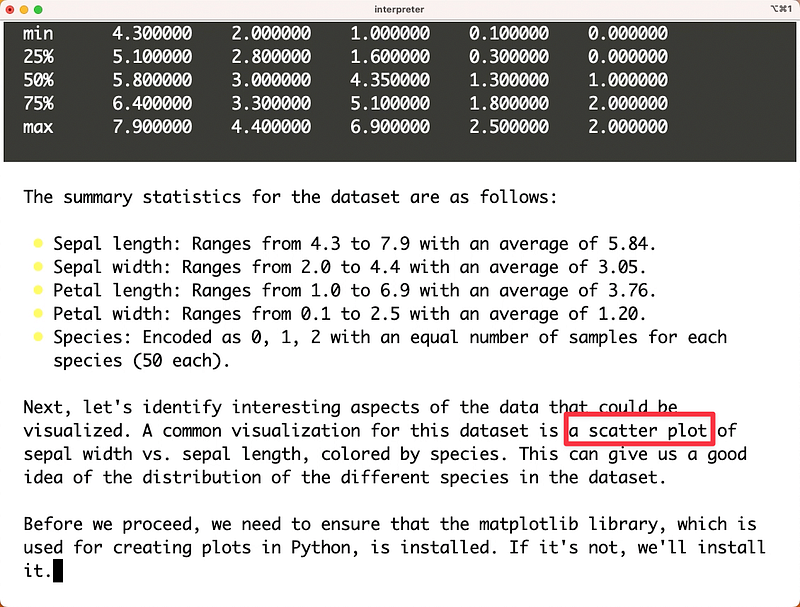
It can even install missing packages automatically:
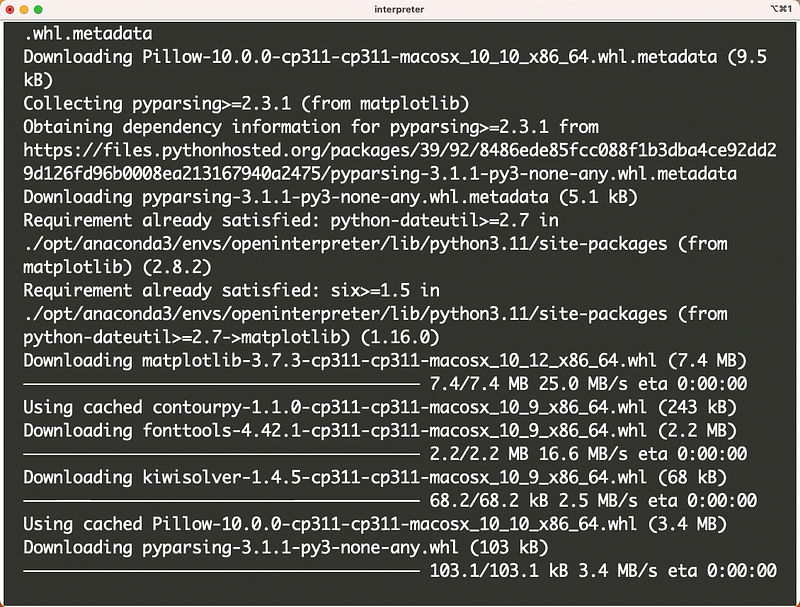
The final output looks like this:
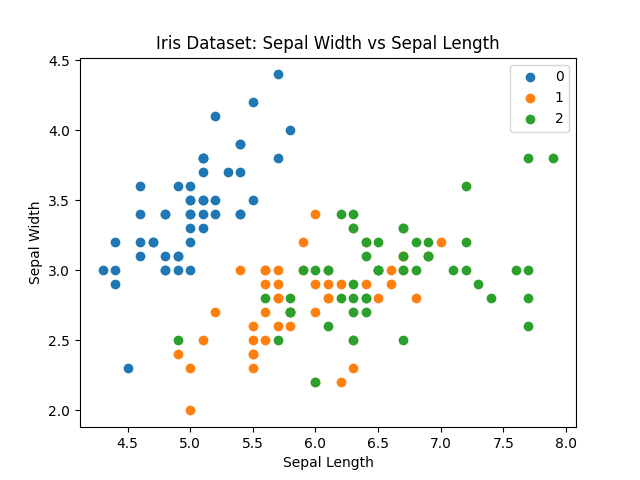
As you can see, Open Interpreter had no issues visualizing the Iris data.
Next let’s look at a more complex task — social network analysis across multiple files instead of simple numeric visualization.
Social Network
Here I’m using the highschooler dataset commonly used in database courses. It contains 3 csv files representing partial student info, who likes whom (Likes, one-way), and friendship between students (Friend, two-way).
For simplicity, I zipped the 3 files into data.zip. Unzipped, the files look like:
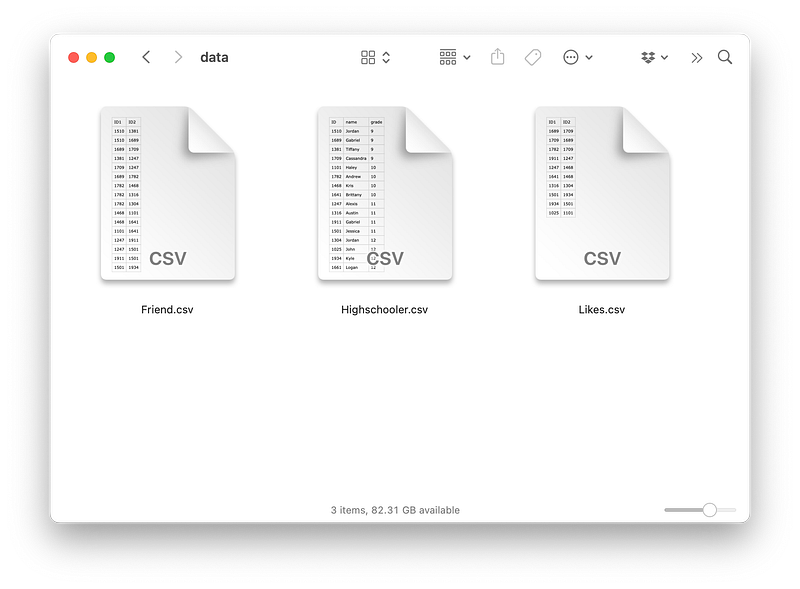
I won’t go into detail here. Let’s just throw the zip file at Open Interpreter with this prompt:
Please use the data in the zip file to help me analyze the relationship between students’ likes and friends, and visualize it.
Drag and drop the zip file to pass it. Let’s see what happens during analysis:
Open Interpreter first analyzes the basic structure of the data:
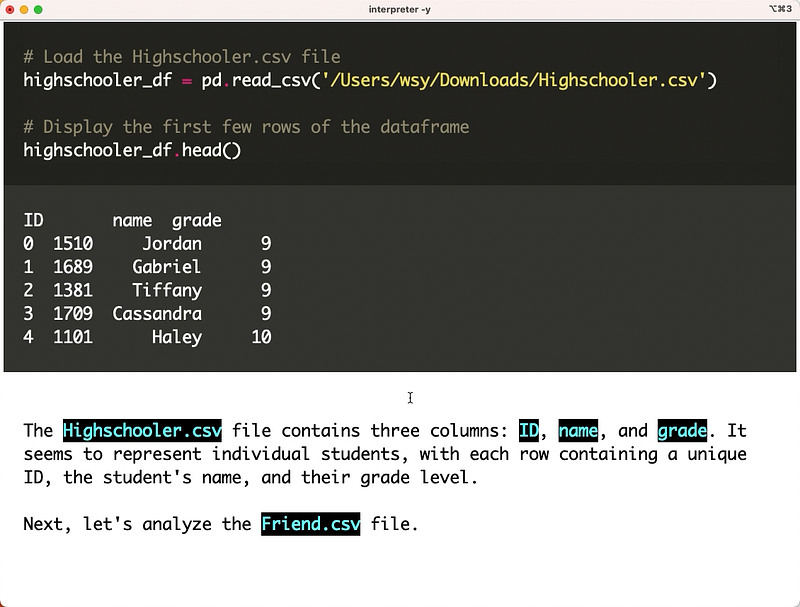
After analyzing all 3 files, it provides an overview and plan for visualization:
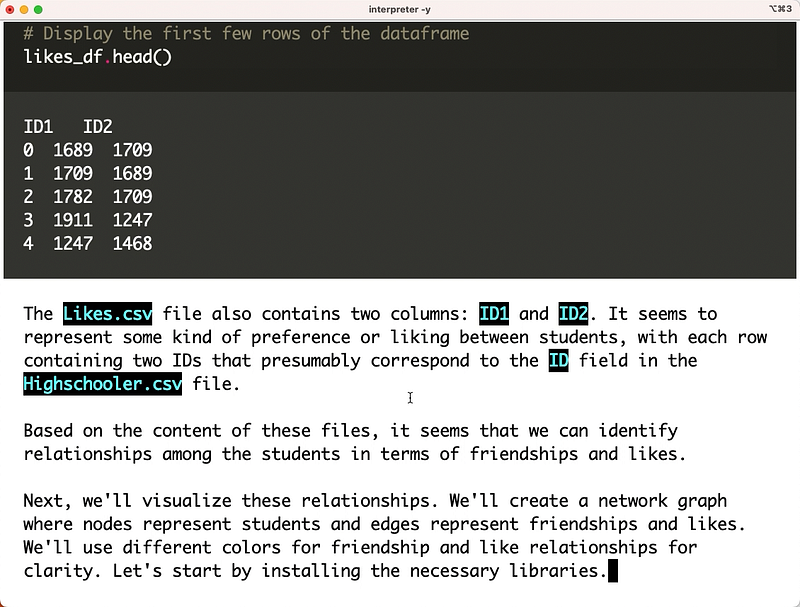
Next, it installs missing packages and writes code using networkx and matplotlib to plot the relationships:
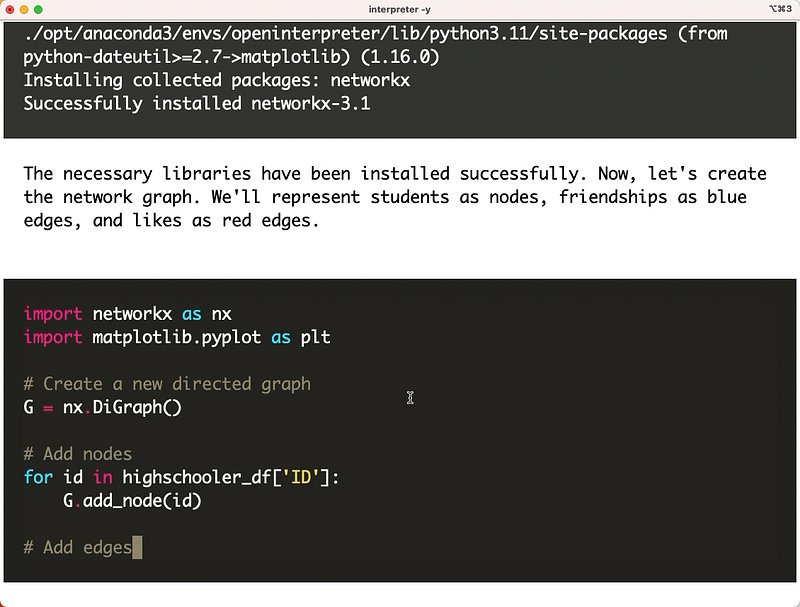
Skipping the intermediate steps again, the end result is:

This graph shows associations between students. Red lines represent “Likes” while blue lines represent “Friends”. Overlapping lines indicate closer relationships.
Just a simple example, but it shows Open Interpreter can help analyze multiple files and visualize social networks.
Beyond
Earlier I mentioned we’re only covering data visualization to stay focused. If you underestimate Open Interpreter because of this, you’ll miss out on its much broader capabilities.
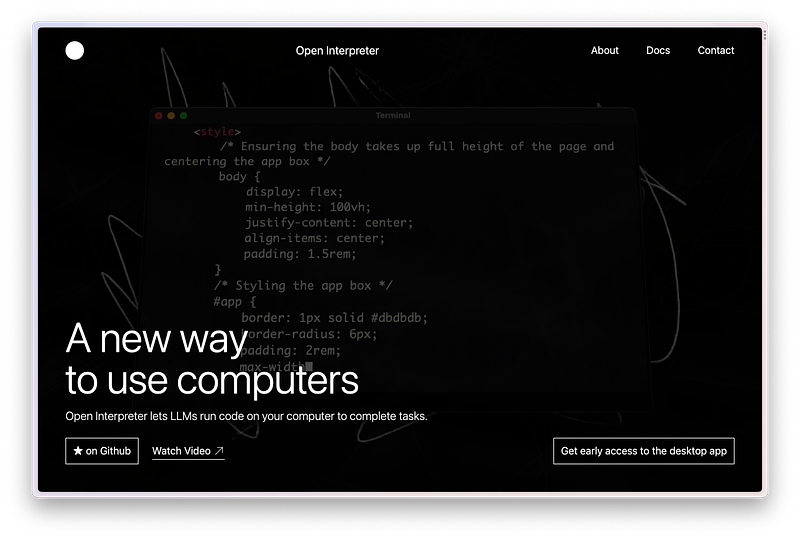
I highly recommend watching this video on Open Interpreter’s homepage. It changed my attitude from dismissive to awestruck.
They also provide a Colab Notebook example showing what Open Interpreter can do. Clone it and run through everything yourself.
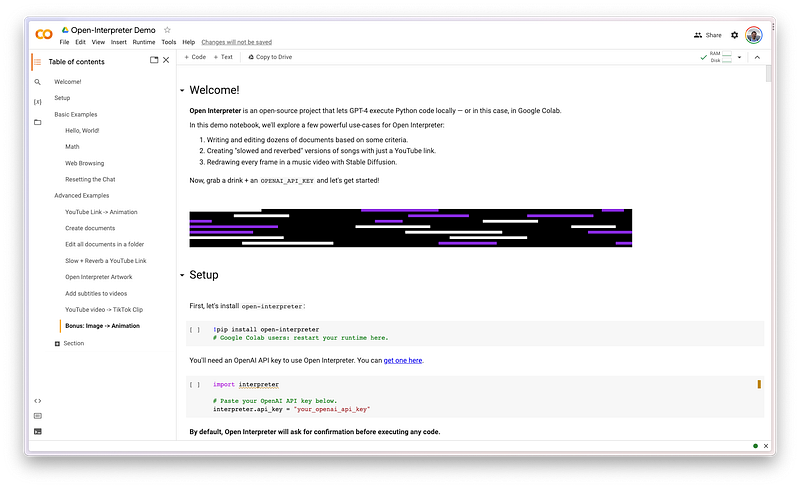
The video and image processing really impressed me.
But that’s not the point. Open Interpreter’s biggest edge over Code Interpreter is breaking limitations. Your computer’s capabilities define its upper limit.
For example, Code Interpreter and Noteable can’t handle deep learning problems. Why? Because the tiny virtual environments not only lack GPUs but even have weak CPUs. Limited memory, storage, and a 120 second runtime cap. You also can’t install any deep learning frameworks or even Chinese fonts.
None of those constraints exist for Open Interpreter. If your computer has GPUs, it can happily train deep learning models when you provide the data and prompt.
You may have noticed Open Interpreter currently only has a command line interface, which limits usability for non-programmers.
Good news — a desktop version is coming soon! Click here to sign up for early access.
But that may take a few weeks before I can use the desktop app.
No worries, good things come to those who wait! Looking forward to it.
Summary
In this article, I showed you how to use Open Interpreter for data visualization of open data, tabular data, and social networks. Although we didn’t test machine learning modeling, feel free to try it out yourself and see if it meets your needs.
In my opinion, Open Interpreter is a powerful AI assistant disguised as an open-source Code Interpreter. It brings GPT-4 capabilities directly to your local computer, enabling quick processing of previously unimaginable tasks.
If you find it genuinely helpful for your work or studies, share your experience in the comments! Let’s learn from each other and make progress together.
Happy Open Interpreting!
If you find this article useful, please hit the clap button.
If you think this article might be helpful to your friends, please share it with them.
Feel free to follow my column to receive timely updates.
To watch video content, please subscribe to my Youtube channel.
My Twitter: @wshuyi


