
How to Use Obsidian For Task Management
Beginner friendly guide
For the longest time, I was afraid of using obsidian as a task manager. ‘I’ll just use it as a note-taking app. Only for knowledge management.”, I thought. But boy, I was wrong.
I’m using obsidian as a task manager for a few weeks now. And I can vouch that it's the decision I made. For people out there, who think obsidian can’t be a good task manager, you’re wrong. It’s the best in my experience, especially if you use obsidian extensively for knowledge management.
In this article, I will guide how to set up a task management system in obsidian. By the end of this article, you will learn:
- How to set up obsidian as a task manager
- Automatically move rolled tasks
- How to view all your tasks in a calendar view
The Most important thing
You know that obsidian is not a good choice for fleeting notes. It doesn’t serve any purpose in my task capture system.
You need other apps that can help you capture tasks. I use TickTick as my task capture system. It's free and has almost all the features I need. I can quickly capture my tasks and thoughts on the go, both on my phone as well as laptop.
All of my tasks are first captured in the TickTick inbox throughout the day. Then at the end of the day, they are processed.
Tasks are either deleted because they are no longer relevant or moved to the obsidian system. Whatever I do, they are marked as done in the TickTick inbox.
The Obsidian Task Inbox
Obsidian is a simple markdown editor app. But it's the community plugins that make it immensely powerful. One such plugin is the Tasks plugin. It turns obsidian from a knowledge management system to task management system.
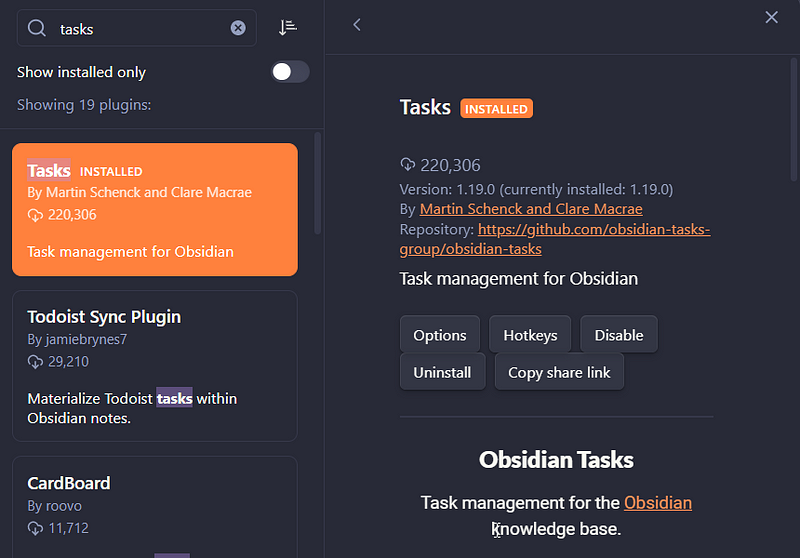
Once you have installed the plugin, go to options and you can configure settings.
The only setting I want you to focus on right now is the global task filter. If you leave it empty, all the checklist items on your vault will appear as tasks.
If you want to use a task filter like a #tag beside all of your tasks, you can do that. It adds some friction to your workflow. So I suggest you leave it empty.
Creating tasks in obsidian
Creating tasks in obsidian is easy. Since we left the global task filter as empty, any checkbox item will behave as a task. You can open a note and switch it to a checkbox to convert it into a task.
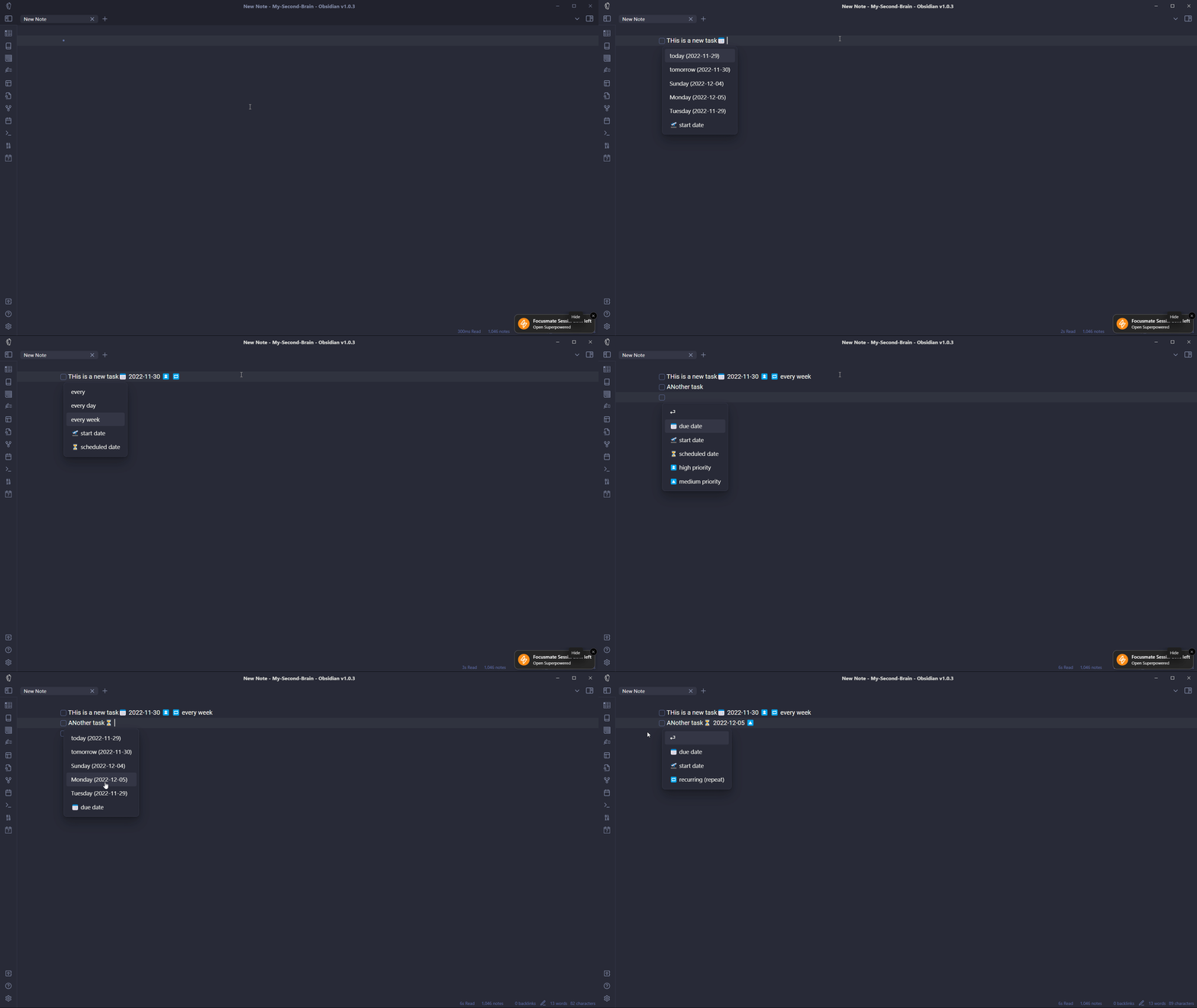
The reason why task management is helpful in obsidian is because you can see the context of the task.
Some tasks are created right inside of obsidian on different notes while most of my tasks need to be imported from ticktick. This is a manual by the way.
At the end of the day, I will process the tasks in my ticktick inbox and add it to the end of my daily note template. You can add these tasks literally anywhere, but I prefer the daily notes.
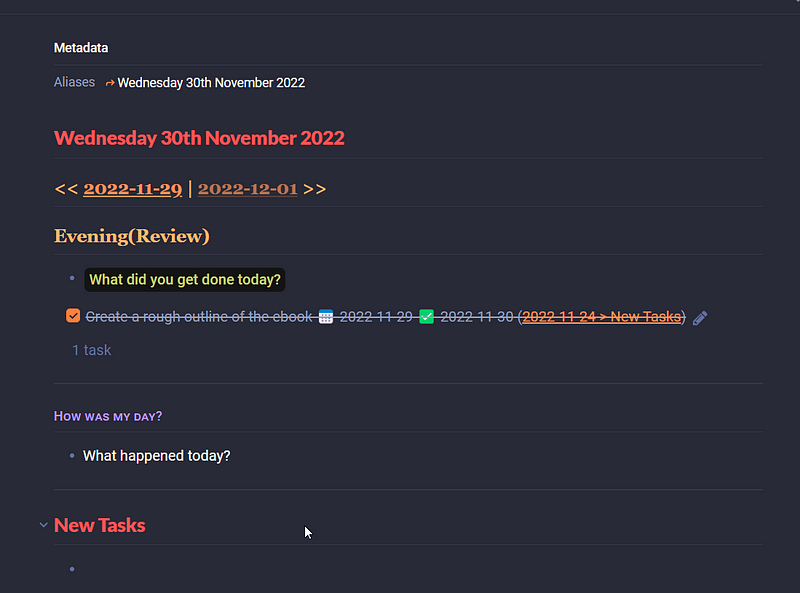
So this is about adding tasks in obsidian. But how do we see our tasks in one place? We don’t want to search, open our notes and then see the tasks individually. We want a better system, right?
For that, we’ll use task queries.
Task Queries in obsidian
There are a lot of task queries you can do in obsidian which you can see in the documentation. But here, I will show you all the queries that I do in my vault in order to give a basic overview.
I have a note called Action Dashboard, which has four sections:
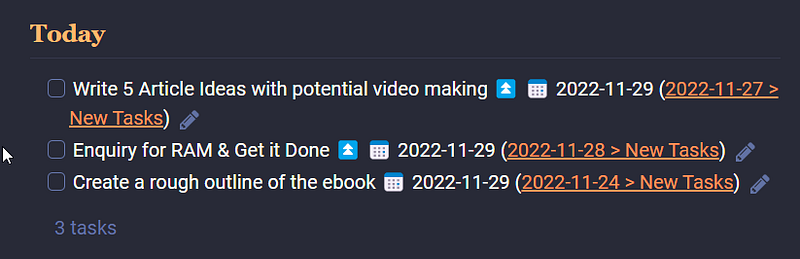
Today’s Tasks
This will query all the tasks with a due date as today.
```tasks
not done
due today
sort by priority
```
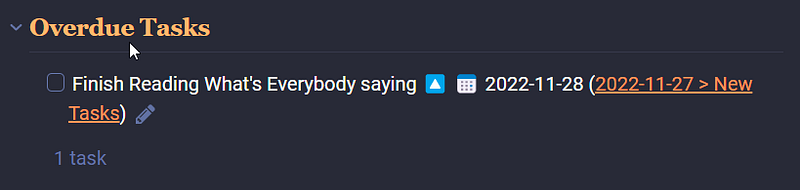
Overdue Tasks
This queries the overdue tasks that I’ve not completed on time.
```tasks
not done
due before today
sort by priority
```
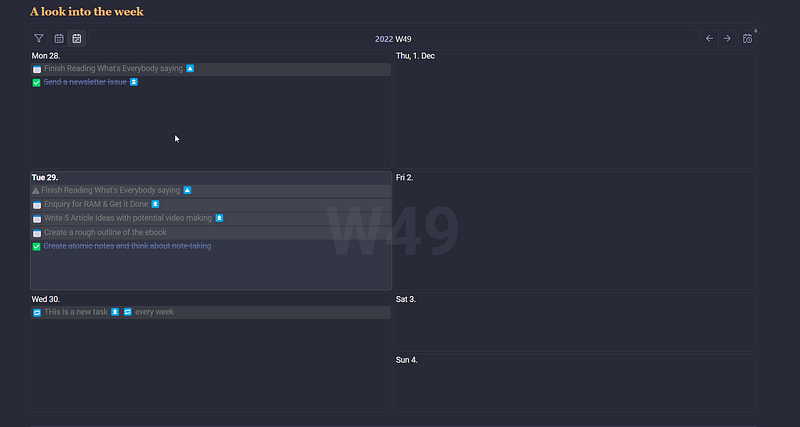
Week View
This takes advantage of the obsidian tasks calendar. You need to download the zip and move the folder taskcalendar to your vault.
This is a file you need to download. Then you need to move the folder called tasksCalendar to your vault. It has two files: view.css & view.js.
You can download my task manager template vault and add it from there as well.
Then add the following code to display your task in calendar view.
```dataviewjs
    await dv.view("tasksCalendar", {pages: "", view: "week", firstDayOfWeek: 1, options: "style8"})
```
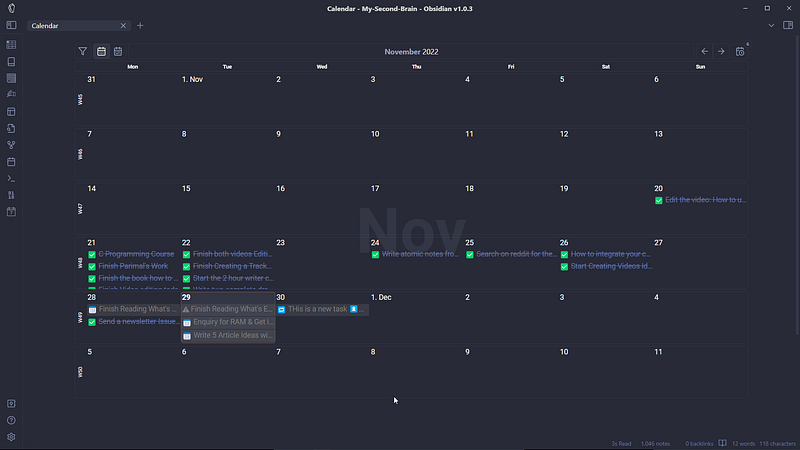
You can change the view to month view, first day of the week to 2, and style from 1 to 8.
Here’s an example of the code with a month view, different start day of the week, and different styles.
```dataviewjs
    await dv.view("tasksCalendar", {pages: "", view: "month", firstDayOfWeek: 2, options: "style1"})
```
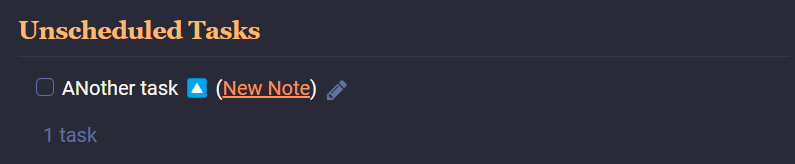
Unscheduled Tasks
This will search for all tasks in my calendar with no due date so that I can add one.
```tasks
not done
no due date
```
A Better Look At Today’s Task
I find it daunting to open tasks note every time. Therefore, I have pinned a task note on the sidebar above the calendar. Here’s how it looks.
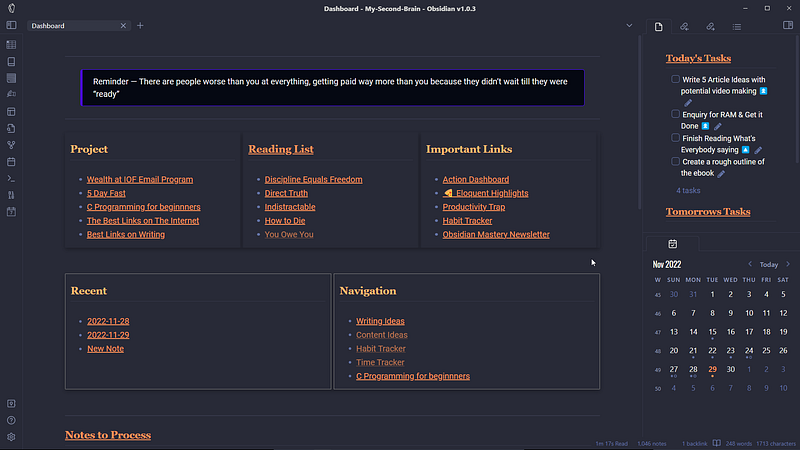
Here’s the query used:
```tasks
not done
due before tomorrow
sort by priority
hide backlink
hide due date
```
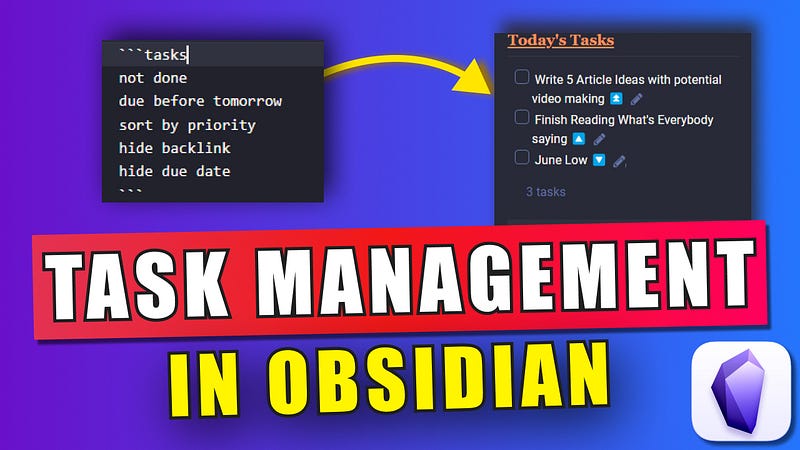
This queries overdue tasks as well as tasks that have due date as today. And to get a clear overview, I hide the backlink and due date.
Then there’s a link to tomorrow's tasks. I take a look at this note to see what tasks do I have to get done tomorrow before going to bed. This helps to set the tone for the next day.
The query used here is:
```tasks
not done
due before in 2 days
sort by priority
hide backlink
hide due date
```
This is the simple task management system that I use in obsidian to get things done. Hope this helps in some way to make your own workflow.
Not a Medium Member Yet?
If you liked this story, you will love the medium subscription. With only $5 a month(less than the price of a cup of coffee), you get unlimited access to the best stories and articles written on the web.
This is my referral link. If you sign up using this link, I earn a small commission with no additional charges to you.


