
How to Use Metamask: A Beginner’s Guide
Metamask is the main wallet of The Parallel. Designed as a web browser plugin, users can send PRL in standard transactions and interact with our platform.
I — HOW TO INSTALL METAMASK?
Install Metamask from the project’s official website or an app store. It is safest to install from the official website because app stores have accidentally hosted fake Metamask apps in the past.
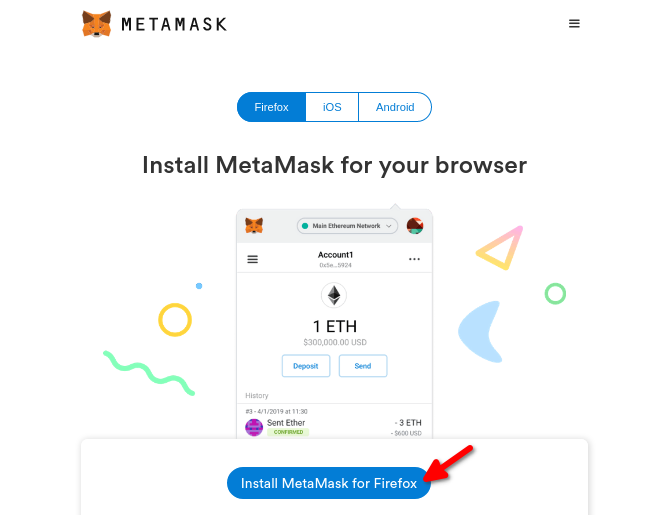
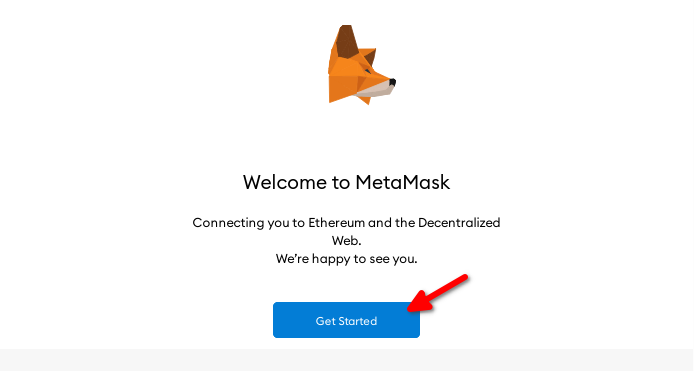
Once you have installed Metamask, click on the Metamask icon in your browser’s toolbar to open the app. Then, click on “Get Started.”
II — HOW TO SET UP A NEW WALLET?
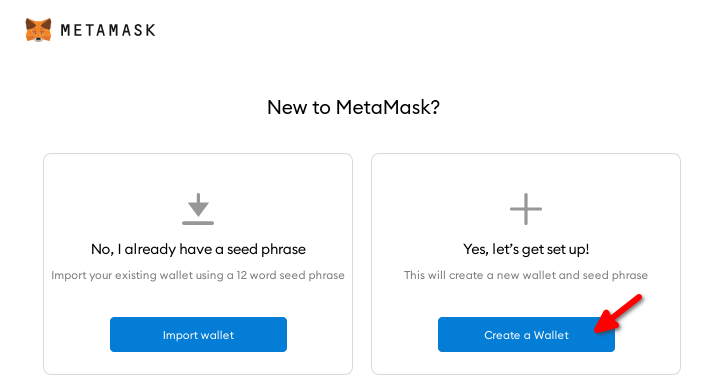
Click on “Create a Wallet” to make a new Ethereum wallet. (Or, if you have created one already, you can restore your wallet and access your existing funds.)
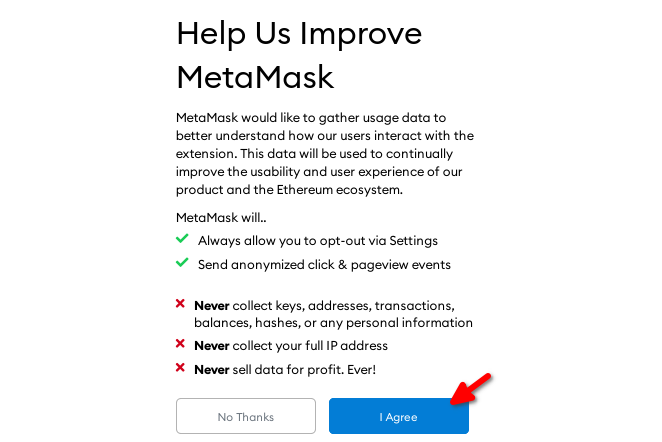
Agree or disagree with feedback sharing to continue.
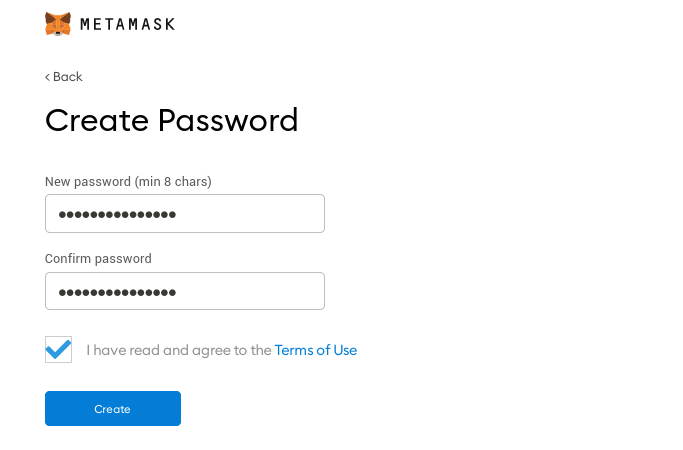
Create a password for your wallet. Though you should safely store this password, you can recover your wallet even if you lose your password.
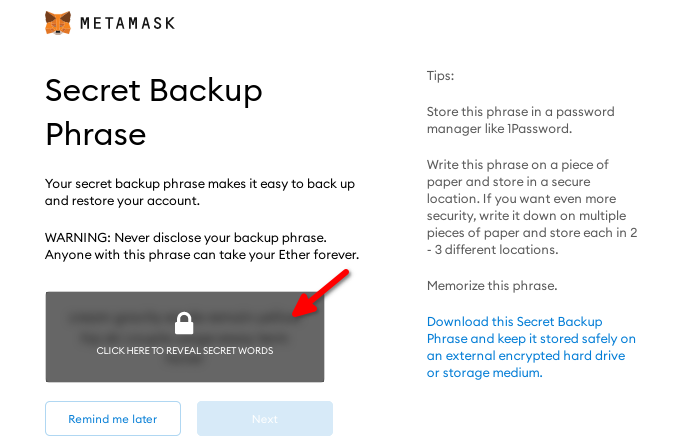
Click on the grey area to unlock your seed phrase. Be sure to store this seed phrase safely.
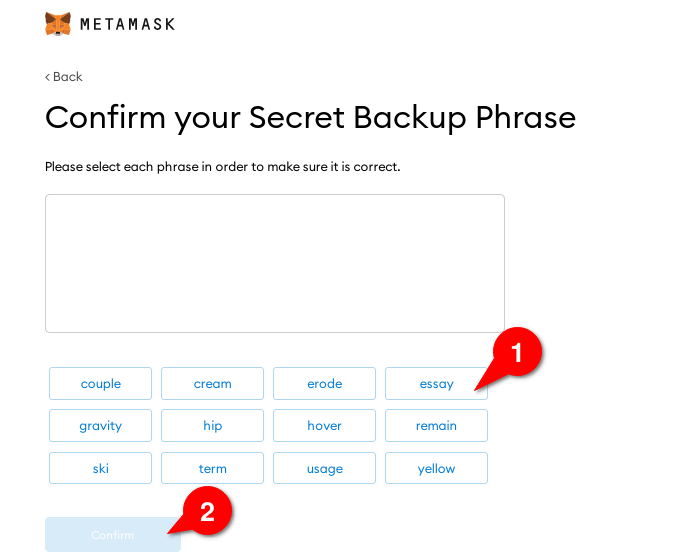
Click on your seed phrase’s words in the right order (1) to prove that you have written them down correctly. Then, click “Confirm” (2). Your Metamask wallet is ready for use in transactions.
III — HOW TO ADD BINANCE SMART CHAIN TO METAMASK?
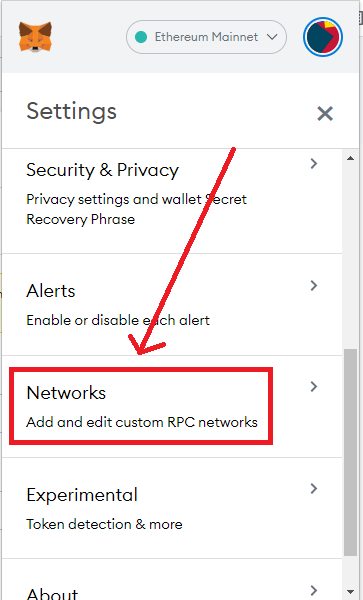
Step 1: On the Settings page, click on the Networks menu.
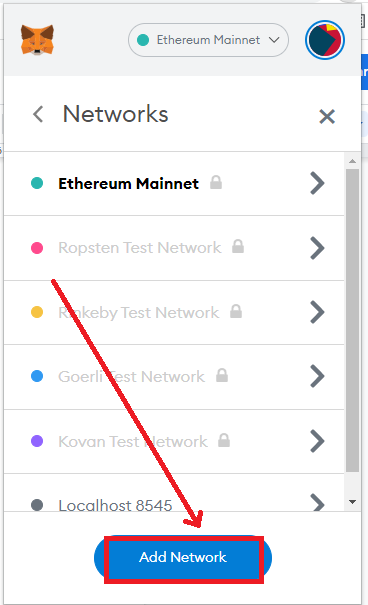
Step 2: Choose Add Network.
Step 3: To connect to the BSC network, fill in the following information:
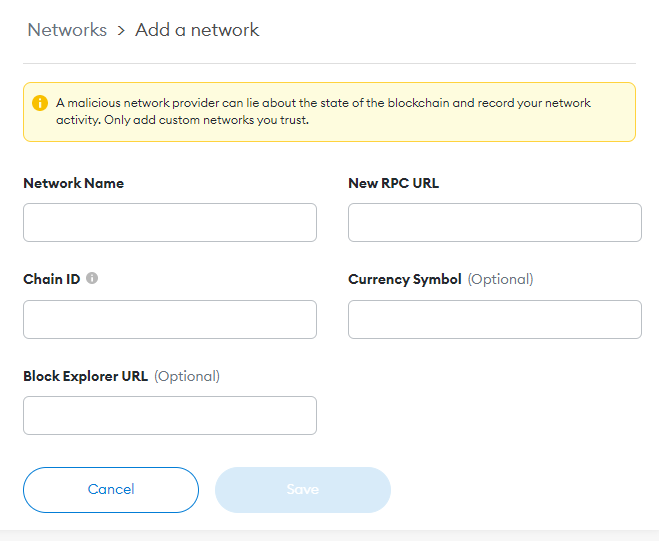
- Network Name: Binance Smart Chain
- New RPC URL: https://bsc-dataseed.binance.org/
- ChainID: 56
- Symbol: BNB
- Block Explorer URL: https://bscscan.com
Step 4: Click on Save
III — HOW TO IMPORT PRL TO METAMASK
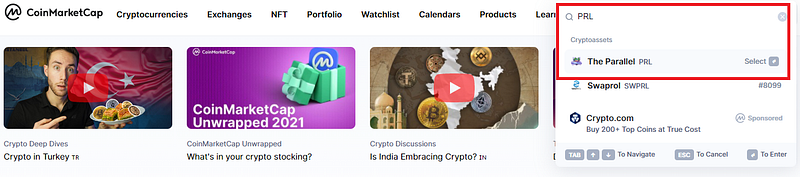
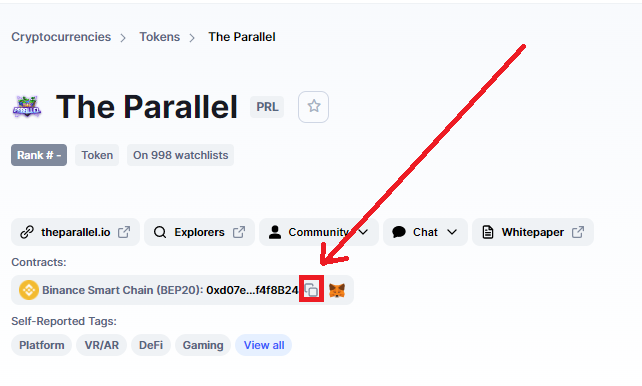
Step 1: Search for PRL token on CoinMarketCap.
Step 2: Copy PRL token’s address. (Save our official contracts: 0xd07e82440A395f3F3551b42dA9210CD1Ef4f8B24)
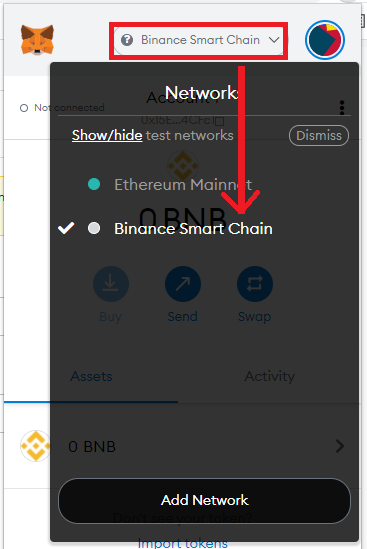
Step 3: Select the BSC network on MetaMask.
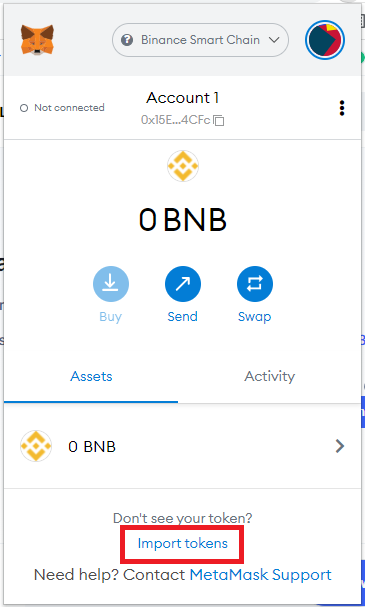
Step 4: Click on “Import tokens”
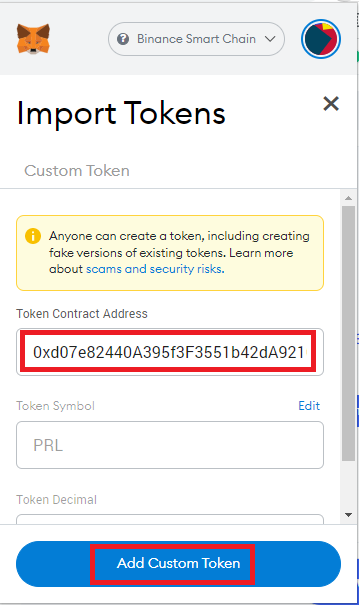
Step 5: Paste PRL token’s address and add it.
*Please note:
After you’ve pasted the address of the token, the “PRL Symbol” and the “Token Decimal” field should be auto-populated.
If the fields are not auto-populated, it means that you’ve probably selected the wrong network. (e.g. Ethereum Mainnet instead of Smart Chain).
If that’s the case, you need to select the correct network of the token and try to import it again.


