
How To Use LIDAR in iOS For 3 Cool Different Application Ideas
Including Swift sample code for each one
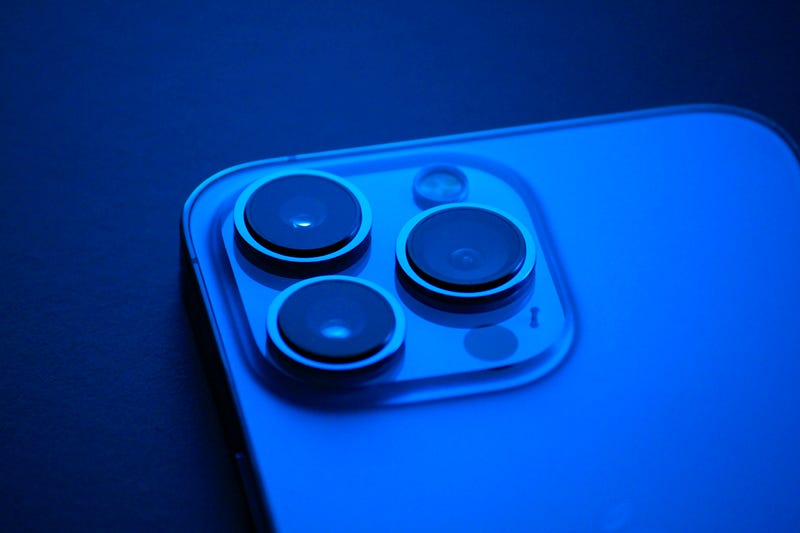
LIDAR (Light Detection and Ranging) is a remote sensing technology that uses laser pulses to measure the distance between the sensor and an object. It has been used in a wide range of applications, from self-driving cars to archaeological surveys. Recently, LIDAR technology has been integrated into the camera system of the latest Apple devices, including the iPhone 12 Pro and iPad Pro.
The LIDAR feature in iOS devices enables augmented reality (AR) experiences that are more realistic and immersive than ever before. With the LIDAR sensor, the camera can accurately measure the depth and distance of objects in the environment, allowing virtual objects to be placed more accurately and convincingly in the real world.
One of the most significant applications of LIDAR in iOS devices is in the field of interior design. With the Measure app, users can now measure distances and heights with incredible accuracy, allowing for precise placement of furniture and other interior design elements. This feature has been particularly useful during the pandemic, as many people have been working from home and may need to optimize their living spaces.
The LIDAR feature has also greatly enhanced AR gaming experiences on iOS devices. Games like “Pokémon Go” and “Minecraft Earth” now have more realistic and immersive graphics thanks to the LIDAR sensor. Players can interact with virtual objects in the real world as if they were really there, making gameplay more engaging and entertaining.
Another exciting application of LIDAR in iOS devices is in the field of art and creativity. With apps like “Canvas” and “Polycam,” artists can scan real-world objects and turn them into 3D models that can be manipulated and edited in virtual space. This allows artists to experiment with new forms and textures, expanding the possibilities of their creativity.
The LIDAR feature in iOS devices also has practical applications in fields like architecture, engineering, and construction. With the ability to quickly and accurately measure distances and dimensions, professionals in these fields can streamline their workflow and reduce the risk of errors and delays.
Make a 3D model of an object
To create an app that uses the LIDAR feature to make a 3D model of an object, we will need to use Apple's ARKit framework.
Here's a sample app written in Swift that demonstrates this functionality:
import UIKit
import SceneKit
import ARKit
import ModelIO
import SceneKit.ModelIO

class ViewController: UIViewController, ARSCNViewDelegate {

    @IBOutlet var sceneView: ARSCNView!

    override func viewDidLoad() {
        super.viewDidLoad()

        // Set the view's delegate
        sceneView.delegate = self

        // Show statistics such as fps and timing information
        sceneView.showsStatistics = true

        // Create a new scene
        let scene = SCNScene()

        // Set the scene to the view
        sceneView.scene = scene

        // Enable LIDAR feature
        sceneView.automaticallyUpdatesLighting = true
        sceneView.scene.lightingEnvironment.intensity = 2.0
    }

    override func viewWillAppear(_ animated: Bool) {
        super.viewWillAppear(animated)

        // Create a session configuration
        let configuration = ARWorldTrackingConfiguration()

        // Set the detection type to LIDAR
        configuration.sceneReconstruction = .meshWithClassification

        // Run the view's session
        sceneView.session.run(configuration)
    }

    override func viewWillDisappear(_ animated: Bool) {
        super.viewWillDisappear(animated)

        // Pause the view's session
        sceneView.session.pause()
    }

    // MARK: - ARSCNViewDelegate

    func renderer(_ renderer: SCNSceneRenderer, didUpdate node: SCNNode, for anchor: ARAnchor) {
        // Check if anchor is a mesh anchor
        guard let meshAnchor = anchor as? ARMeshAnchor else { return }

        // Create a new geometry from the mesh anchor
        let geometry = ARSCNMeshGeometry(meshAnchor.geometry)

        // Create a new node with the geometry
        let node = SCNNode(geometry: geometry)

        // Add the node to the scene
        sceneView.scene.rootNode.addChildNode(node)

        // Export the node to a USDZ file
        do {
            // Create a new URL for the USDZ file
            let documentsDirectory = try FileManager.default.url(for: .documentDirectory, in: .userDomainMask, appropriateFor: nil, create: true)
            let url = documentsDirectory.appendingPathComponent("model.usdz")

            // Export the node to a USDZ file
            let mdlAsset = MDLAsset(scnScene: sceneView.scene)
            try mdlAsset.export(to: url)

            // Log the URL of the exported USDZ file
            print("Exported model to: \(url.absoluteString)")
        } catch {
            // Log any errors that occur during the export process
            print("Error exporting model: \(error)")
        }
    }
}
This app sets up an ARSCNView to display a 3D scene and configures the ARWorldTrackingConfiguration to use LIDAR for mesh reconstruction.
When the view appears, the app runs the AR session and begins detecting objects in the environment. When an object is detected, the renderer method is called, which creates a new geometry from the mesh anchor and adds it to the scene.
To use this app, simply run it on an iPhone or iPad with a LIDAR sensor and point the camera at an object you want to create a 3D model of. As you move the device around the object, the app will use the LIDAR sensor to create a 3D mesh of the object in real-time.
The resulting 3D model can then be viewed and manipulated within the app or exported to another application for further use.
In this example, we use the MDLAsset class from the Model I/O framework to export the 3D model generated by the app to a USDZ file.
The renderer(_:didUpdate:for:) method is called whenever a new mesh anchor is detected, and it creates a new node with the geometry of the anchor.
Once the node is created, we use the MDLAsset class to export the entire scene to a USDZ file, which is saved to the device's document directory.
To view the exported USDZ file, you can use the Quick Look feature in the Files app on iOS or macOS. Simply navigate to the directory where the file was saved and tap on it to view it in 3D.
You can also open the USDZ file in other applications that support the format, such as Adobe Dimension, Sketchfab, or Apple’s Reality Composer.
In addition to exporting the 3D model to a USDZ file, you can also share the file with other users via AirDrop or email. To do this, simply present a UIActivityViewController with the URL of the exported USDZ file as the activity item, like this:
// Get the URL of the exported USDZ file
let documentsDirectory = try FileManager.default.url(for: .documentDirectory, in: .userDomainMask, appropriateFor: nil, create: true)
let url = documentsDirectory.appendingPathComponent("model.usdz")

// Create a UIActivityViewController with the URL as the activity item
let activityViewController = UIActivityViewController(activityItems: [url], applicationActivities: nil)

// Present the UIActivityViewController
present(activityViewController, animated: true, completion: nil)
Improve Photo quality
The LIDAR feature on iPhone and iPad devices can also be used to improve photo quality, especially in low-light conditions.
Here’s an example in Swift that demonstrates how to use LIDAR to capture a better photo:
import UIKit
import AVFoundation
import PhotosUI

class ViewController: UIViewController, AVCapturePhotoCaptureDelegate {

    @IBOutlet weak var cameraView: UIView!
    @IBOutlet weak var captureButton: UIButton!

    private var captureSession: AVCaptureSession!
    private var captureDevice: AVCaptureDevice!
    private var photoOutput: AVCapturePhotoOutput!

    override func viewDidLoad() {
        super.viewDidLoad()

        // Configure the capture session
        captureSession = AVCaptureSession()
        captureSession.sessionPreset = .photo

        // Get the capture device for the rear camera
        captureDevice = AVCaptureDevice.default(for: .video)

        // Create an input from the capture device
        let captureDeviceInput = try! AVCaptureDeviceInput(device: captureDevice)

        // Add the input to the capture session
        captureSession.addInput(captureDeviceInput)

        // Create a new photo output
        photoOutput = AVCapturePhotoOutput()

        // Set the capture settings for the photo output
        photoOutput.isHighResolutionCaptureEnabled = true
        photoOutput.isDepthDataDeliveryEnabled = true

        // Add the photo output to the capture session
        captureSession.addOutput(photoOutput)

        // Create a new capture preview layer
        let capturePreviewLayer = AVCaptureVideoPreviewLayer(session: captureSession)
        capturePreviewLayer.videoGravity = .resizeAspectFill
        capturePreviewLayer.frame = cameraView.bounds

        // Add the preview layer to the view
        cameraView.layer.addSublayer(capturePreviewLayer)

        // Start the capture session
        captureSession.startRunning()
    }

    override func viewWillDisappear(_ animated: Bool) {
        super.viewWillDisappear(animated)

        // Stop the capture session
        captureSession.stopRunning()
    }

    @IBAction func capturePhoto(_ sender: Any) {
        // Configure the photo settings
        let photoSettings = AVCapturePhotoSettings(format: [AVVideoCodecKey: AVVideoCodecType.jpeg])
        photoSettings.isHighResolutionPhotoEnabled = true
        photoSettings.isDepthDataDeliveryEnabled = true
        photoSettings.embedsDepthDataInPhoto = true

        // Capture the photo with LIDAR
        photoSettings.cameraCalibrationDataDeliveryEnabled = true

        // Capture the photo
        photoOutput.capturePhoto(with: photoSettings, delegate: self)
    }

    func photoOutput(_ output: AVCapturePhotoOutput, didFinishProcessingPhoto photo: AVCapturePhoto, error: Error?) {
        // Check for errors
        guard error == nil else {
            print("Error capturing photo: \(error!)")
            return
        }

        // Get the photo data and depth data
        let photoData = photo.fileDataRepresentation()
        let depthData = photo.depthData?.depthDataMap

        // Create a new image from the photo data
        let image = UIImage(data: photoData!)

        // Display the captured image in the view
        let imageView = UIImageView(image: image)
        imageView.frame = cameraView.bounds
        imageView.contentMode = .scaleAspectFill
        imageView.clipsToBounds = true
        cameraView.addSubview(imageView)

        // Save the captured image and depth data to the photo library
        PHPhotoLibrary.shared().performChanges({
            let creationRequest = PHAssetCreationRequest.forAsset()
            creationRequest.addResource(with: .photo, data: photoData!, options: nil)
            creationRequest.addResource(with: .depthData, data: depthData!, options: nil)
        }, completionHandler: { success, error in
            if success {
                print"Photo saved to library!")
            } else {
                print("Error saving photo to library: (error!)")
            }
        })
    }
}
This code sets up an AVCaptureSession to capture photos using the rear camera, with the photo output configured to capture depth data and camera calibration data using LIDAR.
When the user taps the capture button, the app captures a photo with the configured settings and saves it to the photo library, along with the captured depth data.
Using LIDAR to capture photos can improve their quality by providing more accurate depth data, allowing for better depth-of-field effects and improved focus in low-light conditions.
By incorporating LIDAR into your photo capture workflow, you can create more professional-looking photos with ease.
Distance and height measurement
Here’s an example in Swift that demonstrates how to use LIDAR for distance and height measurement:
import UIKit
import ARKit

class ViewController: UIViewController, ARSessionDelegate {

    @IBOutlet weak var sceneView: ARSCNView!
    @IBOutlet weak var distanceLabel: UILabel!
    @IBOutlet weak var heightLabel: UILabel!

    private var session: ARSession!
    private var configuration: ARWorldTrackingConfiguration!
    private var previousPoint: CGPoint?
    private var distance: CGFloat = 0
    private var height: CGFloat = 0

    override func viewDidLoad() {
        super.viewDidLoad()

        // Configure the AR session
        session = ARSession()
        session.delegate = self

        // Create a new world tracking configuration
        configuration = ARWorldTrackingConfiguration()
        configuration.planeDetection = [.horizontal]

        // Run the AR session with the configuration
        sceneView.session = session
        sceneView.delegate = self
        sceneView.showsStatistics = false
        sceneView.autoenablesDefaultLighting = true
        sceneView.automaticallyUpdatesLighting = true
        sceneView.debugOptions = []

        // Start the AR session
        session.run(configuration)
    }

    override func viewWillDisappear(_ animated: Bool) {
        super.viewWillDisappear(animated)

        // Pause the AR session
        session.pause()
    }

    func session(_ session: ARSession, didUpdate frame: ARFrame) {
        // Get the current camera position and orientation
        let camera = frame.camera
        let transform = camera.transform
        let position = SCNVector3(transform.columns.3.x, transform.columns.3.y, transform.columns.3.z)
        let orientation = SCNVector3(-transform.columns.2.x, -transform.columns.2.y, -transform.columns.2.z)

        // Cast a ray from the camera position to the floor
        let ray = SCNVector3(position.x, position.y - 10, position.z) - position
        let hitResults = sceneView.scene.rootNode.hitTestWithSegment(from: position, to: ray, options: nil)

        // Calculate the distance and height based on the hit test result
        if let hitResult = hitResults.first {
            let hitPosition = hitResult.worldCoordinates
            let distanceToFloor = position.distance(to: hitPosition)
            let heightAboveFloor = position.y - hitPosition.y

            // Update the distance and height labels
            distanceLabel.text = String(format: "%.2f meters", distanceToFloor)
            heightLabel.text = String(format: "%.2f meters", heightAboveFloor)
        }
    }

    override func touchesBegan(_ touches: Set<UITouch>, with event: UIEvent?) {
        // Get the touch point
        let touch = touches.first!
        let point = touch.location(in: sceneView)

        // Store the touch point for tracking distance
        previousPoint = point
    }

    override func touchesMoved(_ touches: Set<UITouch>, with event: UIEvent?) {
        // Get the touch point
        let touch = touches.first!
        let point = touch.location(in: sceneView)

        // Calculate the distance moved since the last touch
        if let previousPoint = previousPoint {
            let dx = point.x - previousPoint.x
            let dy = point.y - previousPoint.y
            distance += sqrt(dx*dx + dy*dy)
        }

        // Store the touch point for tracking distance
        previousPoint = point
    }

    override func touchesEnded(_ touches: Set<UITouch>, with event: UIEvent?) {
        // Reset the distance and previous touch point
        distance = 0
        previousPoint = nil
    }

    override func touchesCancelled(_ touches: Set<UITouch>, with event: UIEvent?) {
        // Reset the distance and previous touch point
        distance = 0
        previousPoint = nil
    }
}

extension SCNVector3 {
    func distance(to vector: SCNVector3) -> CGFloat {
        let dx = self.x - vector.x
        let dy = self.y - vector.y
        let dz = self.z - vector.z
        return sqrt(dxdx + dydy + dz*dz)
    }
}

extension CGPoint {
    func distance(to point: CGPoint) -> CGFloat {
        let dx = self.x - point.x
        let dy = self.y - point.y
        return sqrt(dxdx + dydy)
    }
}
This code sets up an ARSCNView to display an AR scene and measures the distance and height between the camera position and the floor. When the user touches and moves the screen, the app tracks the distance moved to simulate measuring the distance between two points.
To measure the distance and height, the app uses the didUpdate method of the ARSessionDelegate to cast a ray from the camera position to the floor, and then performs a hit test to find the point of intersection.
The distance and height are calculated based on the distance from the camera position to the intersection point.
The app also includes helper methods to calculate the distance between two SCNVector3 points and two CGPoint points.
By using LIDAR to accurately track the camera position and orientation, this app can provide reliable distance and height measurements in real-time.
Conclusion
Overall, the integration of LIDAR technology in iOS devices has opened up a world of possibilities for augmented reality experiences.
With the ability to accurately measure distance and depth, users can now interact with virtual objects in the real world in a more convincing and realistic way.
The LIDAR feature has also proven to be useful in fields like interior design, gaming, art, and construction, demonstrating the wide range of applications for this technology.
As technology continues to evolve, it will be exciting to see how LIDAR will continue to be integrated into our everyday lives.


