avatarDavid Olivas

Free AI web copilot to create summaries, insights and extended knowledge, download it at here

3529

Abstract

ages-1.readmedium.com/v2/resize:fit:800/1*9pkrqra6yIqWixo35NYTZw.png"><figcaption>Save access policy changes.</figcaption></figure><p id="264c">Now that we have provided access to get and list secrets from the Key Vault to our service principal we can implement the two methods to get secrets from a pipeline.</p><h2 id="ceb2">Azure DevOps Variable Groups</h2><p id="e038">Variable groups are useful when we have several variables that are used across different pipelines. Instead of defining the same variable over and over again in each pipeline, simply add it to a variable group and link that group to the pipelines where the variable needs to be used.</p><p id="1aa8">To create a variable group we have to go to Azure DevOps, under “<i>Pipelines</i>” click on “<i>Library</i>”, and then “<i>+ Variable group</i>”.</p><figure id="31c2"><img src="https://cdn-images-1.readmedium.com/v2/resize:fit:800/1*Vmr2ONrucLupSk9B4f7cEw.png"><figcaption>Create a new variable group, part 1.</figcaption></figure><p id="90c5">When creating a new variable group we must define a name, the description is optional, and toggle the option to link secrets from Key Vault. By toggling that option we’ll see two drop-down menus to select our service connection and Key Vault, we’ll choose the correct values we want to use.</p><figure id="743b"><img src="https://cdn-images-1.readmedium.com/v2/resize:fit:800/1*PRxkKVe1u2TrcU7GKkqJQA.png"><figcaption>Create a new variable group, part 2.</figcaption></figure><p id="6826">When the Key Vault has been selected, we’ll see a new section appear called “<i>Variables</i>”, here we can choose exactly which secrets we want to add to the variable group.</p><figure id="5ca1"><img src="https://cdn-images-1.readmedium.com/v2/resize:fit:800/1*PYGlmp36w61AQxTdmmORuQ.png"><figcaption>Create a new variable group, part 3.</figcaption></figure><p id="2ce1">We only have one secret in our Key Vault, so we’ll select it and click on “<i>Ok</i>”. After choosing the secrets to add to the variable group we can save our changes and start using our new variable group in our pipelines.</p><p id="f377">First, let’s see how to access a variable group from a YAML pipeline. It is very simple, all we need to do is to call the group by its name in the variables section.</p><div id="9f1b"><pre><span class="hljs-symbol">variables:</span> - <span class="hljs-keyword">group</span>: <span class="hljs-string">"Var Group 01"</span></pre></div><p id="c6b6">To get the secret value, use it as a regular pipeline variable.</p><div id="6734"><pre>$(<span class="hljs-keyword">my</span>-<span class="hljs-keyword">first</span>-secret)</pre></div><p id="de27">If we needed to have other variables in our pipeline, we can define them in the same variables section.</p><div id="ddd9"><pre>variables: - <span class="hljs-keyword">group</span>: <span class="hljs-string">"Var Group 01"</span> - name: my-pipeline-<span class="hljs-built_in">var</span> value: <span class="hljs-string">"This is my pipeline variable"</span></pre></div><p id="66a7">Finally, using a variable group in release pipelines. For this, we need to go to the “<i>Variables</i>” section of our pipeline, select “<i>Variable groups</i>”, and “<i>Link variable group</i>”.</p><figure id="4181"><img src="https://cdn-images-1.readmedium.com/v2/resize:fit:800/1*jDhlq7g8JlWxcm4_mOtToQ.png"><figcaption>Use variable group in a release pipeline, part 1.</figcaption></figure><p id="9323">Then we select the variable group that we want to link t

Options

o our pipeline and set the scope for that variable group. The scope can be the whole release or, it can be specific to only certain stages. For simplicity, we’ll select the release as the scope. And click on “<i>Link</i>”.</p><figure id="0984"><img src="https://cdn-images-1.readmedium.com/v2/resize:fit:800/1*RHHKH5jp-FuqglKSCU30SQ.png"><figcaption>Use variable group in a release pipeline, part 2.</figcaption></figure><p id="a727">Now we can access the secret by using it as a pipeline variable, within the scope defined for the variable group.</p><h2 id="c0d1">Azure Pipeline Key Vault Task</h2><p id="0e71">Azure pipelines have a task called “<a href="https://docs.microsoft.com/en-us/azure/devops/pipelines/tasks/deploy/azure-key-vault?view=azure-devops"><i>Azure Key Vault</i></a>” that can be used to download secrets and use them as pipeline variables. After setting up this task, all the following tasks will have access to the downloaded secrets.</p><p id="e051">Using this pipeline task is quite simple, in the pipeline assistant look for a task called “<i>Azure Key Vault</i>” and click on it. We must select the service connection we want to use and the Key Vault from where we must read the secrets. There is a task parameter called “<i>Secrets filter</i>”, with this parameter we can specify exactly which secrets, separated by a comma, we want to download from the Key Vault. We can also use “” to get all the secrets.</p><figure id="3220"><img src="https://cdn-images-1.readmedium.com/v2/resize:fit:800/1*OJapn21eni6EQWeuY1xXmQ.png"><figcaption>Azure Key Vault pipeline task.</figcaption></figure><p id="bbf1">The option to “<i>Make secrets available to whole job</i>” makes the secrets downloaded using this task available to all the other tasks in the job, no matter their position. By default, only the tasks defined after this task will be able to use the downloaded secrets. Also, only tasks within the same job will be able to access the secret.</p><p id="9b9e">The task setup is the same for YAML and release pipelines. Accessing the secret is done the same way in both types of pipelines. It can be accessed as a pipeline variable.</p><div id="fe17"><pre>$(<span class="hljs-keyword">my</span>-<span class="hljs-keyword">first</span>-secert)</pre></div><p id="a6c1">This is what the task looks like in a YAML pipeline.</p><div id="26b9"><pre><span class="hljs-bullet">-</span> <span class="hljs-attr">task:</span> <span class="hljs-string">AzureKeyVault@2</span> <span class="hljs-attr">inputs:</span> <span class="hljs-attr">azureSubscription:</span> <span class="hljs-string">'personal-projects (...)'</span> <span class="hljs-attr">KeyVaultName:</span> <span class="hljs-string">'kv-demotest-001'</span> <span class="hljs-attr">SecretsFilter:</span> <span class="hljs-string">''</span> <span class="hljs-attr">RunAsPreJob:</span> <span class="hljs-literal">false</span></pre></div><h2 id="21c5">Final Thoughts</h2><p id="d2bf">It’s essential to always avoid storing sensitive data as plain text in a variable which we can’t control who access its value. That’s why Key Vaults are a great tool to store sensitive data, and variable groups and the Key Vault pipeline task are the best methods to use secrets in a pipeline.</p><p id="3861">Choosing between one method or the other is going to depend on our needs. There is no good or wrong implementation, simply understand as clearly as possible what the needs are and use the method that best fits those needs.</p></article></body>

DevOps Good Practices

How to Use Key Vault Secrets in Azure Pipelines

Different ways to access Key Vault secrets in Azure Pipelines.

Photo by Kristina Flour on Unsplash

Using Key Vault secrets to store sensitive data is essential to keep it safe. By using secrets we can control who has access to see and manipulate the data stored in them, making sure only the correct people have the appropriate level of access.

It is very common to have a pipeline that needs a key, a password, a connection string, or any other type of data that can be considered sensitive and we don’t want anyone seeing or manipulating its value. For these scenarios, most of the time the best solution is to use Key Vault secrets.

There are several different ways to access Key Vault secrets from an Azure Pipeline. This post will cover the two most common ones, using a variable group and using the Key Vault task. Another way of accessing secrets from the pipeline is by using the Azure CLI, but doing it this way is over-complicating the implementation when there are easier ways like the two mentioned above.

Prerequisite

Before creating a variable group or using the Key Vault task, we must configure an access policy in our Key Vault to allow the service connection to have get and list access to the secrets. To achieve this, we will need the service principal display name or application id. To get those values we can go to “Project settings” in Azure DevOps, then click on “Service connections”, select the service connection that will be used by the variable group, and then click on “Manage Service Principal”.
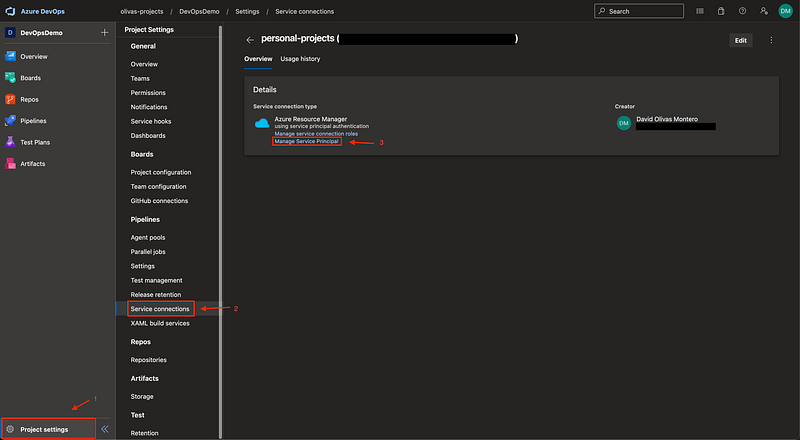
See service principal info.

That will takes us to Azure Active Directory, where we’ll be able to see all the information related to the service principal. There we can copy the display name or the application id, either of them will work to create the access policy in the Key Vault.

Now we must go to our Key Vault to create a new access policy. For this access policy, we only need the get and list permissions for secrets.
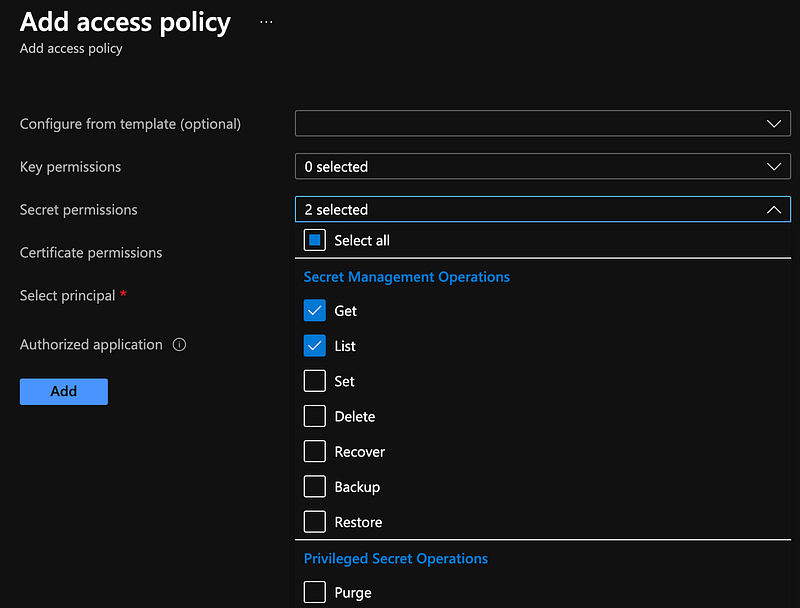
Get and list secret permissions.

Now we must select the service principal that we are going to apply this policy to. In this example, we copied the display name of the service principal, we’ll use it to search for it, select it, and add it to the access policy.
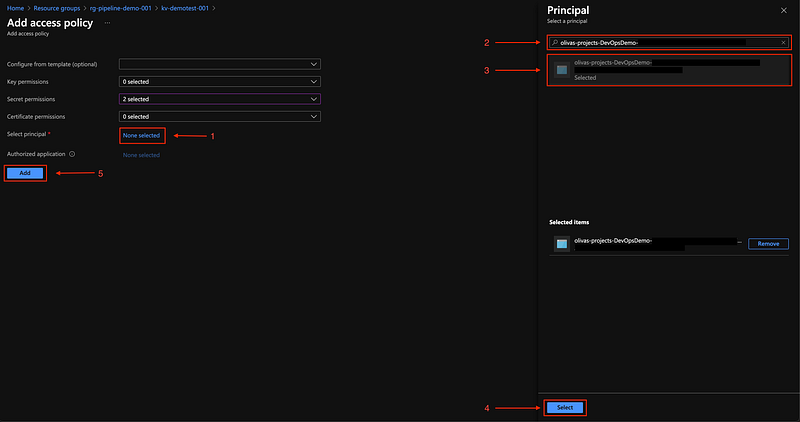
Add service principal to the access policy.

Important, always make sure to save any change made to the “Access policies” section of a Key Vault, Azure even shows us an alert message to make sure we save our changes.
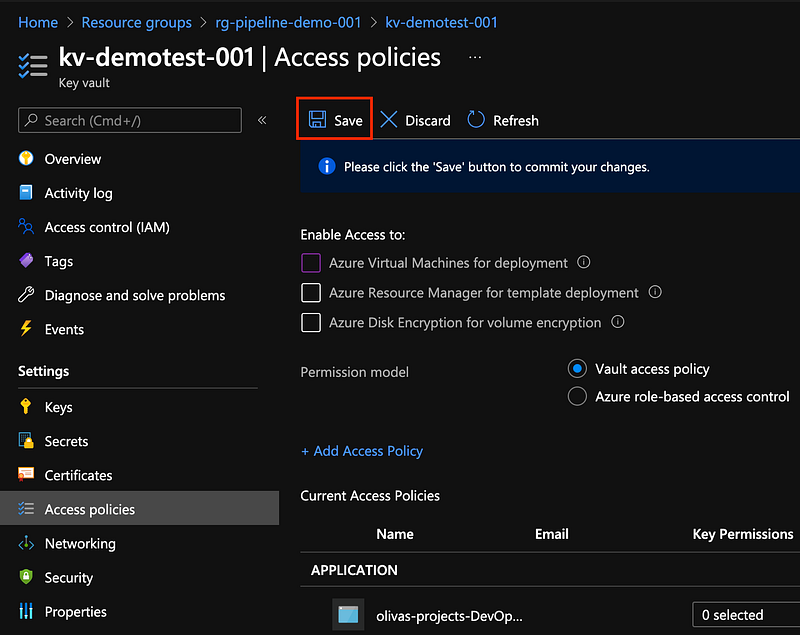
Save access policy changes.

Now that we have provided access to get and list secrets from the Key Vault to our service principal we can implement the two methods to get secrets from a pipeline.

Azure DevOps Variable Groups

Variable groups are useful when we have several variables that are used across different pipelines. Instead of defining the same variable over and over again in each pipeline, simply add it to a variable group and link that group to the pipelines where the variable needs to be used.

To create a variable group we have to go to Azure DevOps, under “Pipelines” click on “Library”, and then “+ Variable group”.

Create a new variable group, part 1.

When creating a new variable group we must define a name, the description is optional, and toggle the option to link secrets from Key Vault. By toggling that option we’ll see two drop-down menus to select our service connection and Key Vault, we’ll choose the correct values we want to use.
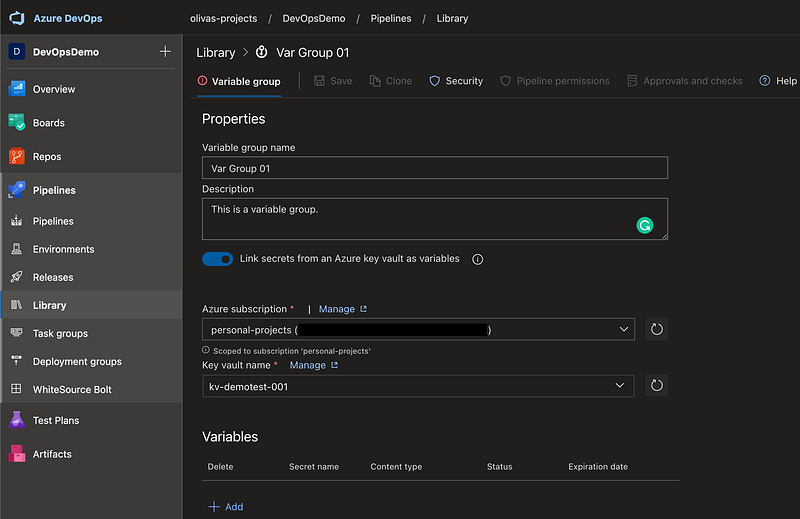
Create a new variable group, part 2.

When the Key Vault has been selected, we’ll see a new section appear called “Variables”, here we can choose exactly which secrets we want to add to the variable group.
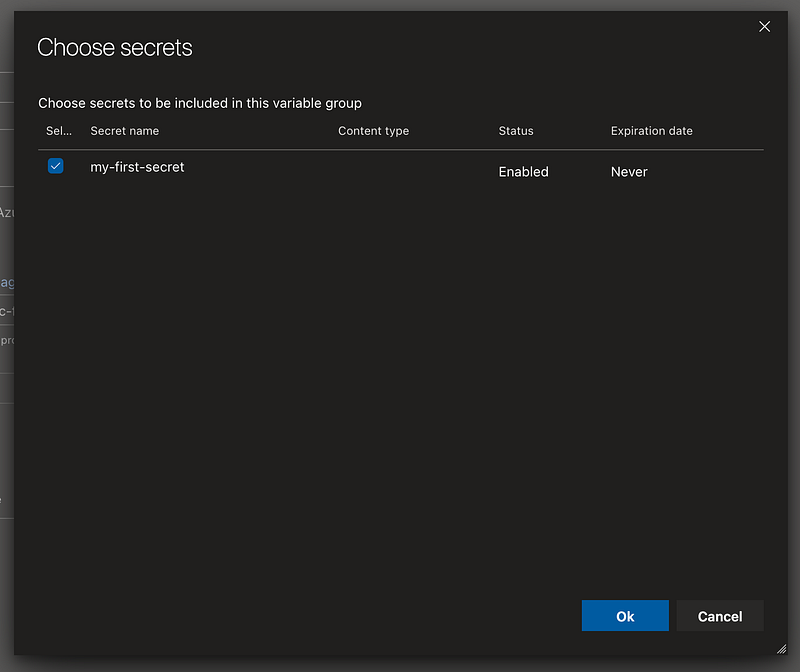
Create a new variable group, part 3.

We only have one secret in our Key Vault, so we’ll select it and click on “Ok”. After choosing the secrets to add to the variable group we can save our changes and start using our new variable group in our pipelines.

First, let’s see how to access a variable group from a YAML pipeline. It is very simple, all we need to do is to call the group by its name in the variables section.

variables:
    - group: "Var Group 01"

To get the secret value, use it as a regular pipeline variable.

$(my-first-secret)

If we needed to have other variables in our pipeline, we can define them in the same variables section.

variables:
    - group: "Var Group 01"
    - name: my-pipeline-var
      value: "This is my pipeline variable"

Finally, using a variable group in release pipelines. For this, we need to go to the “Variables” section of our pipeline, select “Variable groups”, and “Link variable group”.

Use variable group in a release pipeline, part 1.

Then we select the variable group that we want to link to our pipeline and set the scope for that variable group. The scope can be the whole release or, it can be specific to only certain stages. For simplicity, we’ll select the release as the scope. And click on “Link”.
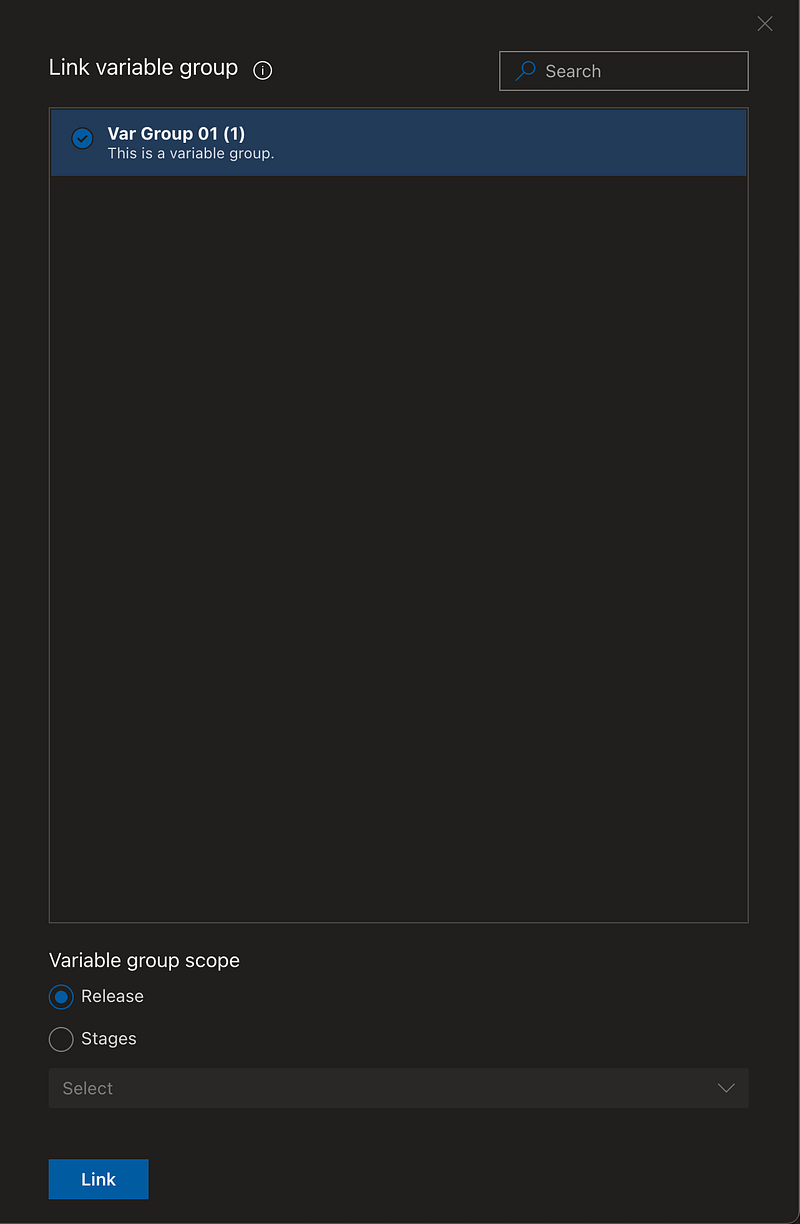
Use variable group in a release pipeline, part 2.

Now we can access the secret by using it as a pipeline variable, within the scope defined for the variable group.

Azure Pipeline Key Vault Task

Azure pipelines have a task called “Azure Key Vault” that can be used to download secrets and use them as pipeline variables. After setting up this task, all the following tasks will have access to the downloaded secrets.

Using this pipeline task is quite simple, in the pipeline assistant look for a task called “Azure Key Vault” and click on it. We must select the service connection we want to use and the Key Vault from where we must read the secrets. There is a task parameter called “Secrets filter”, with this parameter we can specify exactly which secrets, separated by a comma, we want to download from the Key Vault. We can also use “*” to get all the secrets.
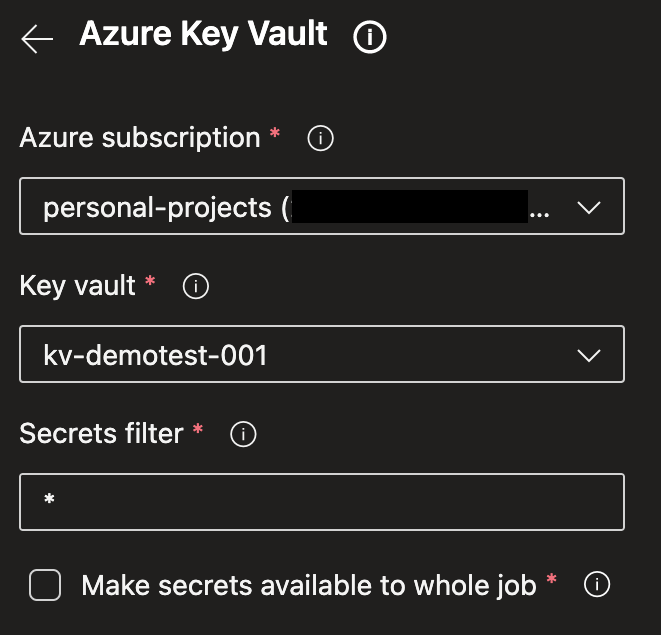
Azure Key Vault pipeline task.

The option to “Make secrets available to whole job” makes the secrets downloaded using this task available to all the other tasks in the job, no matter their position. By default, only the tasks defined after this task will be able to use the downloaded secrets. Also, only tasks within the same job will be able to access the secret.

The task setup is the same for YAML and release pipelines. Accessing the secret is done the same way in both types of pipelines. It can be accessed as a pipeline variable.

$(my-first-secert)

This is what the task looks like in a YAML pipeline.

- task: AzureKeyVault@2
  inputs:
    azureSubscription: 'personal-projects (...)'
    KeyVaultName: 'kv-demotest-001'
    SecretsFilter: '*'
    RunAsPreJob: false

Final Thoughts

It’s essential to always avoid storing sensitive data as plain text in a variable which we can’t control who access its value. That’s why Key Vaults are a great tool to store sensitive data, and variable groups and the Key Vault pipeline task are the best methods to use secrets in a pipeline.

Choosing between one method or the other is going to depend on our needs. There is no good or wrong implementation, simply understand as clearly as possible what the needs are and use the method that best fits those needs.

Azure
Azure Devops
Azure Key Vault
Pipeline
Secrets
Recommended from ReadMedium