
How to use Google Voice Dictation to Write Articles
Write more with this helpful program.

Some of us are not very good at typing. There are programs out there such as Dragon Naturally Speaking, but this costs quite a bit of money, and when you are short on cash, it is not the best option. Thankfully, Google offers a dictation service that is built right into Google Documents. You can use your microphone as long as the room is quiet, or you can use a voice headset with a microphone built into it, which is probably the better way to go. This guide will show you how to use Google voice dictation to help you write articles, books, or anything you want to do.
Why Google Voice?
I like to use Google Voice because it is quick, and it doesn’t cost you anything. Other programs like Dragon Naturally Speaking are better in terms of how they dictate, but they cost a lot of money and for a lot of writers this isn’t that practical. I can write quickly in Google Documents and transfer these to another program such as Word. I can apply things such as Grammarly and the regular editor in word to clean up the article.
Google Documents does tend to make some mistakes, but overall it is quite useful, and I find I can write a lot of words in less time when I use this program. It works perfectly for me since I’m not a fast typist. You don’t need any special programs or software to run it. All you need is Google Documents, and you are set to go. Use this handy voice commands page to learn the different commands that Google dictation is capable of.
Getting It Working
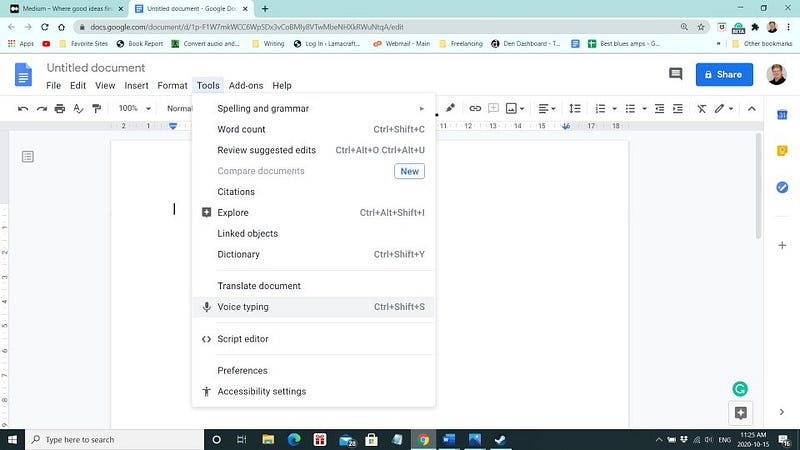
You will need to be signed in to Google documents to use the voice program. Click on the Tools menu, as shown in the screenshot. You can also use the shortcut Ctrl + shift + S, bringing up the microphone icon. Click on the microphone icon to activate it. You can set the language that you want. One nice thing about Google dictation is it works in multiple languages, so it’s perfect if you want to write something in a different language.
Sometimes the icon will stop working, so you have to click it again to reactivate it. If you’re using your regular microphone from your laptop, make sure there is no noise in the room, or the program will pick up the extra noise. It works better if you use a regular headset microphone.
Fast Article Creation
Doing a lot of regular typing can cause repetitive stress injuries. I like dictation because it is much easier to speak out loud and get your thoughts down than it is to write on the screen. It takes a little bit of getting used to, but if you speak clearly and your voice is loud enough, Google dictation will pick up most of what you say. It does make more mistakes than programs such as Dragon Naturally Speaking, but it is free. For example, sometimes, it will not properly capitalize the first letter of a sentence or it will capitalize some random words.
These are small problems compared to the program's speed, which will help you create your article in no time at all. While there are errors from time to time, the program tends to recognize most words, and I haven’t had that much of a problem with it. It works great if you combine it with a program such as Grammarly. This will clean up your writing even more.
If you find you’re having problems with it, make sure your microphone is working correctly. Sometimes you might have to reload the page in case it gets stuck. It would help if you also spoke in slow sentences. Don’t try to rush while you are dictating as it won’t work the way you expect. When you first start a sentence, try to emphasize the first word as much as possible. I find that Google dictation often misses the first word. If you emphasize that word, it should pick it up without too much difficulty.
Try it Out
Google dictation saves me a lot of time. While it is certainly not as robust as a program such as Dragon Naturally Speaking, it is free, and it can help you get used to a dictation program. I find that it’s probably around 85 to 90% accurate. It does make some strange mistakes, but these are easily corrected with a program such as Grammarly.
It’s definitely the program to try if you were a slow typist and create more content online. You can help you get your blog up and running, create articles here on Medium, or help you finish your novel. It is a pretty good program considering that it is free, whereas other dictation programs will cost you several hundred dollars. Please do not rely on it completely, as it will make mistakes. Make sure you use Grammarly and edit your work as much as possible.


