
How to use Google Pub/Sub emulator locally to test Google Pub/Sub on Apple Silicon Chip (M1)
When you are working with Google Pub/Sub you know it sometimes can be very boring to test on a new sandbox environment and the testing time can take longer than it should do.
So why not use the gcloud emulator for that? Yes, you can install a Google Pub/Sub emulator locally on your machine and test out an application before you ship it into Google Cloud Platform.
Setup Google Pub/Sub emulator
When you have installed the Google Pub/Sub emulator you can start it locally very easily with a single gcloud CLI command.
If you are missing Java on your macOS you need to install it first, you will probably see this message if so then you need to install Java from the brew package manager.

You need to install Java and then create a symlink to the java path and export it to your .zshrc file. After that, you are ready to go with your Google Pub/Sub emulator.
Now you try to start up your Google Pub/Sub emulator again and see about this time its start-up success, it will run on default port 8085

If your emulator is running on the same machine as your application you can change your Google Pub/Sub connection for your application so all connection is going directly to your local environment.
Using and testing the Google Pub/Sub emulator
The first thing you need to do is clone the GitHub repository https://github.com/googleapis/python-pubsub go inside the folder samples/snippets where you need to install all the packages from the requirements file.
Now let's create our first topic in our Google Pub/Sub emulator to test our Pub/Sub emulator are working.
Then you should get the response back there confirm our topic is created successfully.

Now let's create a subscriber bind to this test-topic
After that, it creates a subscriber bind to our test-topic with default settings.

It's time to publish messages into our Google Pub/Sub emulator topic with test data.
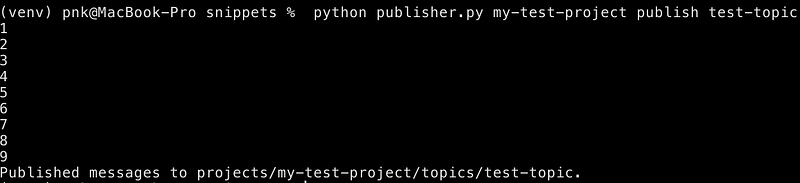
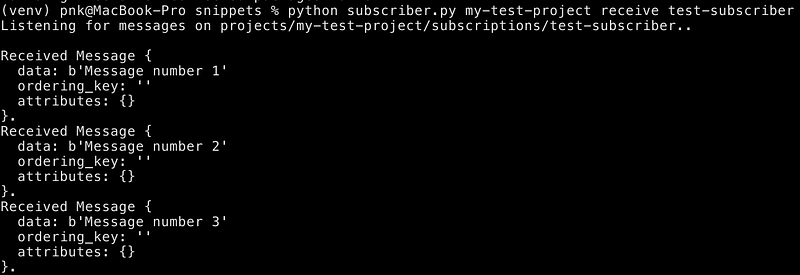
To receive your message again you can run a test subscriber application there are listen on your subscriber test-subscriber in your project my-test-project
Your terminal should look like my image below here, if so then you have done its success and are ready to integrate the Pub/Sub emulator into your own application.
Stop using the emulator
When you are finished testing your Google Pub/Sub emulator you can click control+c and then unset the environment related to the Google Pub/Sub emulator.
unset PUBSUB_EMULATOR_HOST


