
How to use Google Bard for Finance?
Google Bard is a large language model that can be used for a variety of tasks, including financial planning and analysis (FP&A).
Bard can be used to generate financial reports, create budgets, and forecast future financial performance. Bard can also be used to identify risks and opportunities, and to make recommendations for improving financial performance.
To use Google Bard for FP&A, you can simply type in your questions or requests. Bard will then use its knowledge to generate a response. For example, you could ask Bard to generate a profit and loss statement, or to create a budget for the upcoming year.
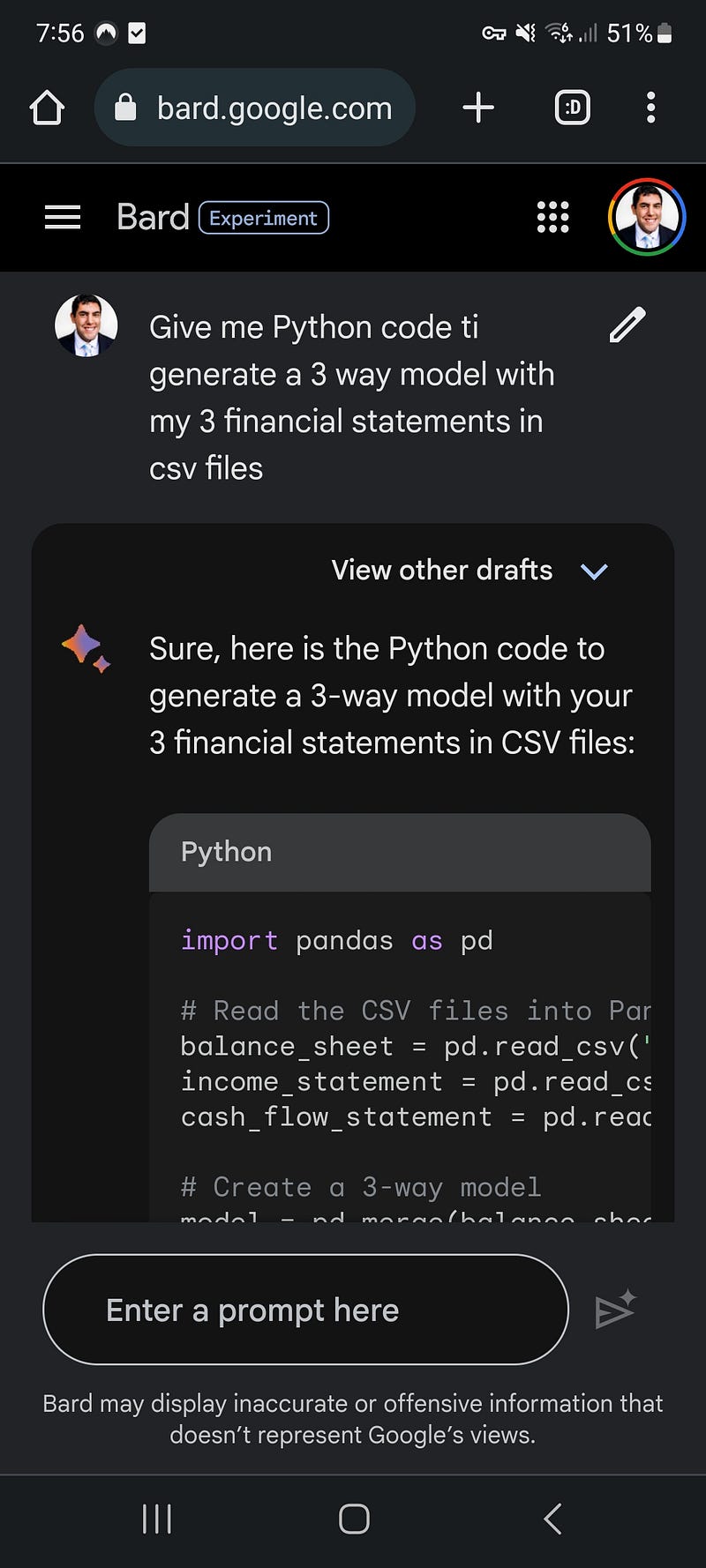
Bard can also answer more complex questions, such as “What are the risks to our company’s financial performance?” or “What are the opportunities for our company to improve its financial performance?”
Google Bard is a powerful tool that can be used to automate many of the tasks involved in FP&A. This can free up your time so that you can focus on more strategic activities. Bard can also help you to improve the accuracy and efficiency of your FP&A processes.
How to use it?
When you log into Bard AI, you will immediately be directed to the chat window. Similar to other widely used AI chatbots, Google Bard’s chat window is designed to be easy to use and navigate.
Upon opening the Bard window, you will see several options on the left-hand side of the screen, including:
- Reset chat: This option clears the current conversation and starts a new one.
- Bard Activity: Although your conversations with Google Bard are not saved, your prompts are. Clicking on Bard Activity will display your prompt history in a new tab.
- FAQ: If you have any Bard-specific questions that are not addressed in this article, the FAQ section can provide answers.
- Updates: This option lists the history of updates made to Bard AI.
- Help & Support: If you encounter any issues while navigating Google’s AI-powered identity, you can reach Bard Help or submit feedback by clicking on Help & Support.
- Text area: You can enter your questions or prompts at the bottom of the screen and submit them by hitting enter or clicking the Submit button on the right.
- Microphone: The microphone within the text area allows you to dictate your prompts to Google Bard.
- Conversation: Your conversation with Bard AI appears in the center of the chat window. Once the AI chatbot responds to your queries, you can view other drafts for each response, give feedback by selecting thumbs up or down, refresh for a new answer, select, copy it to your clipboard, and report it.
- Edit: The Edit button, located next to your prompt in the chat window, allows you to modify your prompt to get a new answer.
- Account: You can access your Google account from the top-right corner of the window.