avatarAlex Mamo

Free AI web copilot to create summaries, insights and extended knowledge, download it at here

9094

Abstract

ing">'1.1.0-alpha01'</span> firebase_bom_version = <span class="hljs-string">'32.1.0'</span> } dependencies { classpath <span class="hljs-string">"org.jetbrains.kotlin:kotlin-gradle-plugin:<span class="hljs-variable">kotlin_version</span>"</span> classpath <span class="hljs-string">"com.google.gms:google-services:<span class="hljs-variable">google_services_version</span>"</span> classpath <span class="hljs-string">"com.google.dagger:hilt-android-gradle-plugin:<span class="hljs-variable">$hilt_version</span>"</span> } }

plugins { <span class="hljs-built_in">id</span> <span class="hljs-string">'com.android.application'</span> version <span class="hljs-string">"<span class="hljs-variable">{gradle_version}</span>"</span> apply <span class="hljs-literal">false</span> <span class="hljs-built_in">id</span> <span class="hljs-string">'com.android.library'</span> version <span class="hljs-string">"<span class="hljs-variable">{gradle_version}</span>"</span> apply <span class="hljs-literal">false</span> <span class="hljs-built_in">id</span> <span class="hljs-string">'org.jetbrains.kotlin.android'</span> version <span class="hljs-string">"<span class="hljs-variable">{kotlin_version}</span>"</span> apply <span class="hljs-literal">false</span> }</pre></div><p id="47a7">And the following dependencies in the <code>build.gradle</code> (<b>Module</b> file):</p><div id="2444"><pre>dependencies { <span class="hljs-comment">//Compose</span> implementation platform(<span class="hljs-string">"androidx.compose:compose-bom:<span class="hljs-variable">compose_bom_version</span>"</span>) implementation <span class="hljs-string">"androidx.compose.material:material"</span> <span class="hljs-comment">//Hilt</span> implementation <span class="hljs-string">"com.google.dagger:hilt-android:<span class="hljs-variable">hilt_version</span>"</span> kapt <span class="hljs-string">"com.google.dagger:hilt-android-compiler:<span class="hljs-variable">hilt_version</span>"</span> <span class="hljs-comment">//Hilt Navigation Compose</span> implementation <span class="hljs-string">"androidx.hilt:hilt-navigation-compose:<span class="hljs-variable">hilt_navigation_compose_version</span>"</span> <span class="hljs-comment">//Firebase</span> implementation platform(<span class="hljs-string">"com.google.firebase:firebase-bom:<span class="hljs-variable">firebase_bom_version</span>"</span>) implementation <span class="hljs-string">"com.google.firebase:firebase-messaging-ktx"</span> }</pre></div><p id="3f2c">Right after that, we need to add a service (outside the activity tag) in the AndroidManifest.xml file:</p><div id="a14e"><pre><span class="hljs-tag"><<span class="hljs-name">manifest</span> <span class="hljs-attr">xmlns:android</span>=<span class="hljs-string">"http://schemas.android.com/apk/res/android"</span> <span class="hljs-attr">xmlns:tools</span>=<span class="hljs-string">"http://schemas.android.com/tools"</span>></span>

<span class="hljs-tag">&lt;<span class="hljs-name">application</span>
    <span class="hljs-attr">android:name</span>=<span class="hljs-string">".FirebaseCloudMessagingApp"</span>
    <span class="hljs-attr">android:allowBackup</span>=<span class="hljs-string">"true"</span>
    <span class="hljs-attr">android:dataExtractionRules</span>=<span class="hljs-string">"@xml/data_extraction_rules"</span>
    <span class="hljs-attr">android:fullBackupContent</span>=<span class="hljs-string">"@xml/backup_rules"</span>
    <span class="hljs-attr">android:icon</span>=<span class="hljs-string">"@mipmap/ic_launcher"</span>
    <span class="hljs-attr">android:label</span>=<span class="hljs-string">"@string/app_name"</span>
    <span class="hljs-attr">android:roundIcon</span>=<span class="hljs-string">"@mipmap/ic_launcher_round"</span>
    <span class="hljs-attr">android:supportsRtl</span>=<span class="hljs-string">"true"</span>
    <span class="hljs-attr">android:theme</span>=<span class="hljs-string">"@style/Theme.FirebaseCloudMessaging"</span>
    <span class="hljs-attr">tools:targetApi</span>=<span class="hljs-string">"31"</span>&gt;</span>

    <span class="hljs-tag">&lt;<span class="hljs-name">meta-data</span>
        <span class="hljs-attr">android:name</span>=<span class="hljs-string">"com.google.firebase.messaging.default_notification_icon"</span>
        <span class="hljs-attr">android:resource</span>=<span class="hljs-string">"@android:drawable/ic_menu_manage"</span> /&gt;</span>
    <span class="hljs-tag">&lt;<span class="hljs-name">meta-data</span>
        <span class="hljs-attr">android:name</span>=<span class="hljs-string">"com.google.firebase.messaging.default_notification_color"</span>
        <span class="hljs-attr">android:resource</span>=<span class="hljs-string">"@color/purple_700"</span> /&gt;</span>

    <span class="hljs-tag">&lt;<span class="hljs-name">activity</span>
        <span class="hljs-attr">android:name</span>=<span class="hljs-string">".presentation.MainActivity"</span>
        <span class="hljs-attr">android:exported</span>=<span class="hljs-string">"true"</span>
        <span class="hljs-attr">android:theme</span>=<span class="hljs-string">"@style/Theme.FirebaseCloudMessaging"</span>&gt;</span>
        <span class="hljs-tag">&lt;<span class="hljs-name">intent-filter</span>&gt;</span>
            <span class="hljs-tag">&lt;<span class="hljs-name">action</span> <span class="hljs-attr">android:name</span>=<span class="hljs-string">"android.intent.action.MAIN"</span> /&gt;</span>

            <span class="hljs-tag">&lt;<span class="hljs-name">category</span> <span class="hljs-attr">android:name</span>=<span class="hljs-string">"android.intent.category.LAUNCHER"</span> /&gt;</span>
        <span class="hljs-tag">&lt;/<span class="hljs-name">intent-filter</span>&gt;</span>
    <span class="hljs-tag">&lt;/<span class="hljs-name">activity</span>&gt;</span>

    <span class="hljs-tag">&lt;<span class="hljs-name">service</span>
        <span class="hljs-attr">android:name</span>=<span class="hljs-string">"ro.alexmamo.firebasecloudmessaging.data.services.BookMessagingService"</span>
        <span class="hljs-attr">android:exported</span>=<span class="hljs-string">"false"</span>&gt;</span>
        <span class="hljs-tag">&lt;<span class="hljs-name">intent-filter</span>&gt;</span>
            <span class="hljs-tag">&lt;<span class="hljs-name">action</span> <span class="hljs-attr">android:name</span>=<span class="hljs-string">"com.google.firebase.MESSAGING_EVENT"</span> /&gt;</span>
        <span class="hljs-tag">&lt;/<span class="hljs-name">intent-filter</span>&gt;</span>
    <span class="hljs-tag">&lt;/<span class="hljs-name">service</span>&gt;</span>
<span class="hljs-tag">&lt;/<span class="hljs-name">application</span>&gt;</span>

<span class="hljs-tag"></<span class="hljs-name">manifest</span>></span></pre></div><p id="c14a">It is optional, but I have also added some metadata that consists of a random icon from Android and a color that already exists in the project. In a real project, you should create a custom icon and choose a color that defines your project.</p><p id="eab2">Now, getting to the Android code, we have a single activity that contains a column with a text centered on the screen:</p><div id="edf8"><pre><span class="hljs-meta">@AndroidEntryPoint</span> <span class="hljs-keyword">class</span> <span class="hljs-title class_">MainActivity</span> : <span class="hljs-type">ComponentActivity</span>() { <span class="hljs-keyword">private</span> <span class="hljs-keyword">val</span> viewModel <span class="hljs-keyword">by</span> viewModels<MainActivityViewModel>()

<span class="hljs-keyword">override</span> <span class="hljs-function"><span class="hljs-keyword">fun</span> <span class="hljs-title">onCreate</span><span class="hljs-params">(savedInstanceState: <span class="hljs-type">Bundle</span>?)</span></span> {
    <span class="hljs-keyword">super</span>.onCreate(savedInstanceState)
    setContent {
        Column(
            modifier = Modifier.fillMaxSize(),
            verticalArrangement = Arrangement.Center,
            horizontalAlignment = Alignment.CenterHorizontally
        ) {
            Text(
                text = TEXT,
                fontSize = <span class="hljs-number">18.</span>sp
            )
        }
        SubscribeToLowStockTopic()
    }
}

<span class="hljs-meta">@Composable</span>
<span class="hljs-keyword">private</span> <span class="hljs-function"><span class="hljs-keyword">fun</span> <span class="hljs-title">SubscribeToLowStockTopic</span><span class="hljs-params">()</span></span> {
    <span class="hljs-keyword">when</span>(<span class="hljs-keyword">val</span> subscribeToLowStockTopicResponse = viewModel.subscribeToLowStockTopicResponse) {
        <span

Options

class="hljs-keyword">is</span> Loading -> <span class="hljs-built_in">Unit</span> <span class="hljs-keyword">is</span> Success -> <span class="hljs-built_in">Unit</span> <span class="hljs-keyword">is</span> Failure -> print(subscribeToLowStockTopicResponse.e) } } }</pre></div><p id="0aa1">The most important thing in the above code is the fact that we collect the result of a subscription to the topic. Notice that the actual subscription exists inside the <b>init</b> block in the ViewModel class:</p><div id="6619"><pre><span class="hljs-meta">@HiltViewModel</span> <span class="hljs-keyword">class</span> <span class="hljs-title class_">MainActivityViewModel</span> <span class="hljs-meta">@Inject</span> <span class="hljs-keyword">constructor</span>( <span class="hljs-keyword">private</span> <span class="hljs-keyword">val</span> repo: MainRepository ): ViewModel() { <span class="hljs-keyword">var</span> subscribeToLowStockTopicResponse <span class="hljs-keyword">by</span> mutableStateOf<SubscribeToLowStockTopicResponse>(Success(<span class="hljs-literal">false</span>))

<span class="hljs-keyword">init</span> {
    subscribeToTopic()
}

<span class="hljs-keyword">private</span> <span class="hljs-function"><span class="hljs-keyword">fun</span> <span class="hljs-title">subscribeToTopic</span><span class="hljs-params">()</span></span> = viewModelScope.launch {
    subscribeToLowStockTopicResponse = Loading
    subscribeToLowStockTopicResponse = repo.subscribeToLowStockTopic()
}

}</pre></div><p id="f86a">As you can see inside the constructor we inject an instance of <i>MainRepository</i> that is created inside the <i>AppModule</i> file<i>:</i></p><div id="25ca"><pre><span class="hljs-variable">@Module</span> <span class="hljs-variable">@InstallIn</span>(<span class="hljs-attribute">ViewModelComponent</span>::class) class AppModule { <span class="hljs-variable">@Provides</span> fun <span class="hljs-built_in">provideFirebaseMessaging</span>() = Firebase.messaging

<span class="hljs-variable">@Provides</span>
fun <span class="hljs-built_in">provideMainRepository</span>(
    <span class="hljs-attribute">messaging</span>: FirebaseMessaging
): MainRepository = <span class="hljs-built_in">MainRepositoryImpl</span>(
    messaging = messaging
)

}</pre></div><p id="41ec">The <i>subscribeToLowStockTopic()</i> function exists inside the <i>MainRepository</i> interface:</p><div id="c048"><pre><span class="hljs-keyword">typealias</span> SubscribeToLowStockTopicResponse = Response<<span class="hljs-built_in">Boolean</span>>

<span class="hljs-keyword">interface</span> <span class="hljs-title class_">MainRepository</span> { <span class="hljs-keyword">suspend</span> <span class="hljs-function"><span class="hljs-keyword">fun</span> <span class="hljs-title">subscribeToLowStockTopic</span><span class="hljs-params">()</span></span>: SubscribeToLowStockTopicResponse }</pre></div><p id="2610">And the implementation of the above method exists inside the <i>MainRepositoryImpl</i> class:</p><div id="1312"><pre><span class="hljs-keyword">class</span> <span class="hljs-title class_">MainRepositoryImpl</span> <span class="hljs-keyword">constructor</span>( <span class="hljs-keyword">private</span> <span class="hljs-keyword">val</span> messaging: FirebaseMessaging ) : MainRepository { <span class="hljs-keyword">override</span> <span class="hljs-keyword">suspend</span> <span class="hljs-function"><span class="hljs-keyword">fun</span> <span class="hljs-title">subscribeToLowStockTopic</span><span class="hljs-params">()</span></span> = <span class="hljs-keyword">try</span> { messaging.subscribeToTopic(LOW_STOCK).await() Success(<span class="hljs-literal">true</span>) } <span class="hljs-keyword">catch</span> (e: Exception) { Failure(e) } }</pre></div><p id="a760">The most interesting part of this article is related to the Firebase Messaging Service. So we need to create a class that extends the <i>FirebaseMessagingService</i> class. Inside the class we have to override the <i>onMessageReceived()</i> and <i>onNewToken()</i> functions:</p><div id="1e73"><pre><span class="hljs-keyword">class</span> <span class="hljs-title class_">BookMessagingService</span> : <span class="hljs-type">FirebaseMessagingService</span>() { <span class="hljs-keyword">override</span> <span class="hljs-function"><span class="hljs-keyword">fun</span> <span class="hljs-title">onMessageReceived</span><span class="hljs-params">(message: <span class="hljs-type">RemoteMessage</span>)</span></span> { <span class="hljs-keyword">super</span>.onMessageReceived(message) sendNotification(message) }

<span class="hljs-keyword">private</span> <span class="hljs-function"><span class="hljs-keyword">fun</span> <span class="hljs-title">sendNotification</span><span class="hljs-params">(message: <span class="hljs-type">RemoteMessage</span>)</span></span> {
    <span class="hljs-keyword">if</span> (message.notification != <span class="hljs-literal">null</span>) {
        <span class="hljs-keyword">val</span> title = message.notification?.title.toString()
        <span class="hljs-keyword">val</span> body = message.notification?.body.toString()

        <span class="hljs-keyword">val</span> channel = NotificationChannel(CHANNEL_ID, CHANNEL_NAME, NotificationManager.IMPORTANCE_HIGH)
        getSystemService(NotificationManager::<span class="hljs-keyword">class</span>.java).createNotificationChannel(channel)
        <span class="hljs-keyword">val</span> notification = Notification.Builder(<span class="hljs-keyword">this</span>, CHANNEL_ID)
            .setContentTitle(title)
            .setContentText(body)
            .setSmallIcon(android.R.drawable.ic_menu_manage)
            .setColor(getColor(R.color.purple_700))
            .setAutoCancel(<span class="hljs-literal">true</span>)
            .build()
        NotificationManagerCompat.from(<span class="hljs-keyword">this</span>).notify(<span class="hljs-number">1</span>, notification)
    }
    <span class="hljs-keyword">if</span> (message.<span class="hljs-keyword">data</span>.isNotEmpty()) {
        <span class="hljs-keyword">val</span> bookId = message.<span class="hljs-keyword">data</span>[BOOK_ID]
        log(bookId)
    }
}

<span class="hljs-keyword">override</span> <span class="hljs-function"><span class="hljs-keyword">fun</span> <span class="hljs-title">onNewToken</span><span class="hljs-params">(token: <span class="hljs-type">String</span>)</span></span> {
    log(token)
}

}</pre></div><p id="680a">When a notification arrives on the device and the app is in the foreground, the <i>onMessageReceived()</i> function fires. To get the information out of the <i>RemoteMessage</i> object, we first have to get the <b>notification</b> and right after that the <b>title </b>and the <b>body</b>. Once we have them, we can create a notification channel and the notification itself. The notification has the exact same icon as we set in the Android Manifest file and the exact same color.</p><p id="dc14">The exact procedure is needed to get the <b>data</b> out from the <i>RemoteMessage</i> object. Please also note that the <b>notification</b> object is an object of type <a href="https://firebase.google.com/docs/reference/kotlin/com/google/firebase/messaging/RemoteMessage.Notification">Notification</a>, while the <b>data</b> is a Map<string, string="">.</string,></p><p id="cf80">Since we don’t use tokens to send notifications, inside the <i>onNewToken()</i> function, I just simply logged the new token.</p><h1 id="9d82">Conclusion</h1><p id="a19f">That’s the simplest way in which you can send and receive notifications using Firestore, Cloud Functions for Firebase, and Firebase Cloud Messaging.</p><p id="170f">I hope you found this article useful and if you have any questions regarding this topic, feel free and leave a comment in the section below.</p><p id="087a">If you wanna support me, please <a href="https://medium.com/@alex.mamo/membership"><b>join me</b></a>!</p><p id="d440">Thanks for staying with me until the end. You can find the full source code <a href="https://github.com/alexmamo/FirebaseCloudMessaging">here</a> and you can also watch it on Youtube:</p> <figure id="78d1"> <div> <div> <img class="ratio" src="http://placehold.it/16x9"> <iframe class="" src="https://cdn.embedly.com/widgets/media.html?src=https%3A%2F%2Fwww.youtube.com%2Fembed%2Fvn2J6jfkqIY&amp;display_name=YouTube&amp;url=https%3A%2F%2Fwww.youtube.com%2Fwatch%3Fv%3Dvn2J6jfkqIY&amp;key=a19fcc184b9711e1b4764040d3dc5c07&amp;type=text%2Fhtml&amp;schema=google" allowfullscreen="" frameborder="0" height="480" width="854"> </div> </div> </figure></iframe></div></div></figure><p id="6c5e">#BetterTogether 🔥</p></article></body>

How to use Firebase Cloud Messaging on Android?

This tutorial explains how to handle push notifications when the app is in the foreground or in the background on Android.
In this article, we’ll learn how to add Firebase Cloud Messaging (FCM) to an Android application, which will enable us to receive and send push notifications to users that are subscribed to a topic.

What is Firebase Cloud Messaging or FCM?

In short, is a cross-platform solution that lets you send messages and notifications at no cost. It’s basically a bridge between Cloud Functions for Firebase (or your server) and the devices that allow you to deliver and receive notifications on platforms such as Android, iOS, and the web.

What are the types of sending notifications?

  1. You can send notifications directly to specific devices by targeting their unique registration tokens.
  2. Topics allow you to send notifications to multiple devices that have subscribed to a specific topic.
  3. There is also a concept called device groups, which allow you to send notifications to a predefined group of devices.

How can we receive notifications?

We can receive notifications either when the app is in the foreground, in the background, or even if the app is killed.

What are the type of messages that can be sent to the clients?

There are two types of messages:

  • Notification messages, which are considered high-level messages and are handled directly by the Firebase Cloud Messaging SDK automatically. This means that if the application is in the background or killed, the notifications are going directly to the system tray notification. On the other hand, if the application is in the foreground then it will get delivered to the onMessageReceived() callback. It can include a title, body, and optional data payload.
  • Data messages, which are handled by the client application and can carry only the data payload. Besides that, the notifications are delivered to the app’s onMessageReceived() callback regardless of whether the app is in the foreground or in the background.

How can we send notifications to clients?

There are three ways in which we can send push notifications:

  1. Cloud Functions for Firebase (which we’ll use in our example).
  2. A server that you control.
  3. The Firebase Console.

What we will build?

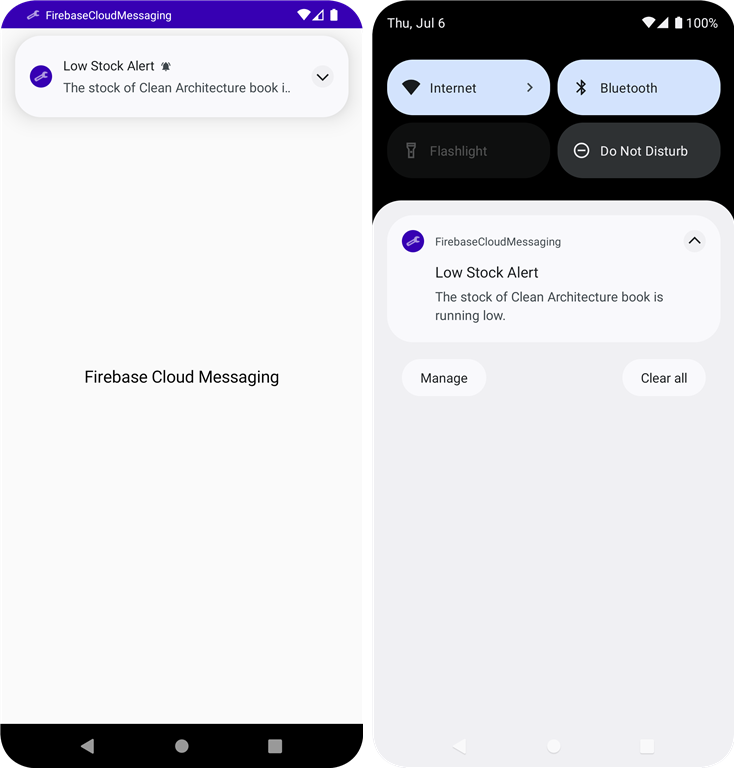
First of all, we’ll create a collection of books in Firestore. Each book will be represented by a document. Besides regular fields like title, author, or ID, each document will also contain a field called stock. Our goal is to create a function that will send a notification each time the stock of a book gets under a threshold. We’ll also create an Android app, that will be able to receive notifications and looks like this:
Let’s begin with creating the database schema in Firestore:

db
|
--- books (collection)
     |
     --- $bookId (document)
           |
           --- author: "Robert C. Martin"
           |
           --- id: "A4fMrDStXm4no22lsy94"
           |
           --- stock: 12
           |
           --- title: "Clean Architecture"

The function that will send the notification to a low-stock topic looks like this:

const functions = require("firebase-functions");
const admin = require("firebase-admin");
admin.initializeApp();

exports.checkBookStock = functions.firestore
    .document("books/{documentId}")
    .onUpdate((change, context) => {
      try {
        const updatedBook = change.after.data();
        const previousStock = change.before.data().stock;
        const currentStock = updatedBook.stock;

        const stockThreshold = 5;
        const isStockBelowThreshold = currentStock < stockThreshold;
        const wasStockAboveThreshold = previousStock >= stockThreshold;

        if (isStockBelowThreshold && wasStockAboveThreshold) {
          const topic = "lowStock";
          const lowStockNotification = {
            notification: {
              title: "Low Stock Alert",
              body: "The stock of "+updatedBook.title+" book is running low.",
            },
            data: {
              bookId: updatedBook.id,
            },
          };
          const messaging = admin.messaging();
          messaging.sendToTopic(topic, lowStockNotification);
        }
        return true;
      } catch (error) {
        console.log(error); //Don't ignore potential errors!

        return null;
      }
    });

A few things to notice. The onUpdate() function will fire each time a document inside the books collection is updated. Inside the try block, we create a condition that can allow a notification to be sent only if the current stock < threshold and previous stock >= threshold. Then we create a new object that contains the notification which in terms contains a title and a body, and additional data. In the end, we call the sendToTopic() function and we pass the topic and the notification as arguments.

Now, let’s go ahead and create a clean architecture Android app that will be able to receive notifications when the stock of a product drops below 5.

Before writing code, make sure you have the following versions for the dependencies in the build.gradle (Project file):

buildscript {
    ext {
        gradle_version = '8.0.2'
        kotlin_version = '1.8.20'
        google_services_version = '4.3.15'
        compose_bom_version = '2023.05.01'
        compose_version = '1.4.6'
        hilt_version = '2.46.1'
        hilt_navigation_compose_version = '1.1.0-alpha01'
        firebase_bom_version = '32.1.0'
    }
    dependencies {
        classpath "org.jetbrains.kotlin:kotlin-gradle-plugin:$kotlin_version"
        classpath "com.google.gms:google-services:$google_services_version"
        classpath "com.google.dagger:hilt-android-gradle-plugin:$hilt_version"
    }
}

plugins {
    id 'com.android.application' version "${gradle_version}" apply false
    id 'com.android.library' version "${gradle_version}" apply false
    id 'org.jetbrains.kotlin.android' version "${kotlin_version}" apply false
}

And the following dependencies in the build.gradle (Module file):

dependencies {
    //Compose
    implementation platform("androidx.compose:compose-bom:$compose_bom_version")
    implementation "androidx.compose.material:material"
    //Hilt
    implementation "com.google.dagger:hilt-android:$hilt_version"
    kapt "com.google.dagger:hilt-android-compiler:$hilt_version"
    //Hilt Navigation Compose
    implementation "androidx.hilt:hilt-navigation-compose:$hilt_navigation_compose_version"
    //Firebase
    implementation platform("com.google.firebase:firebase-bom:$firebase_bom_version")
    implementation "com.google.firebase:firebase-messaging-ktx"
}

Right after that, we need to add a service (outside the activity tag) in the AndroidManifest.xml file:

<manifest xmlns:android="http://schemas.android.com/apk/res/android"
    xmlns:tools="http://schemas.android.com/tools">

    <application
        android:name=".FirebaseCloudMessagingApp"
        android:allowBackup="true"
        android:dataExtractionRules="@xml/data_extraction_rules"
        android:fullBackupContent="@xml/backup_rules"
        android:icon="@mipmap/ic_launcher"
        android:label="@string/app_name"
        android:roundIcon="@mipmap/ic_launcher_round"
        android:supportsRtl="true"
        android:theme="@style/Theme.FirebaseCloudMessaging"
        tools:targetApi="31">

        <meta-data
            android:name="com.google.firebase.messaging.default_notification_icon"
            android:resource="@android:drawable/ic_menu_manage" />
        <meta-data
            android:name="com.google.firebase.messaging.default_notification_color"
            android:resource="@color/purple_700" />

        <activity
            android:name=".presentation.MainActivity"
            android:exported="true"
            android:theme="@style/Theme.FirebaseCloudMessaging">
            <intent-filter>
                <action android:name="android.intent.action.MAIN" />

                <category android:name="android.intent.category.LAUNCHER" />
            </intent-filter>
        </activity>

        <service
            android:name="ro.alexmamo.firebasecloudmessaging.data.services.BookMessagingService"
            android:exported="false">
            <intent-filter>
                <action android:name="com.google.firebase.MESSAGING_EVENT" />
            </intent-filter>
        </service>
    </application>
</manifest>

It is optional, but I have also added some metadata that consists of a random icon from Android and a color that already exists in the project. In a real project, you should create a custom icon and choose a color that defines your project.

Now, getting to the Android code, we have a single activity that contains a column with a text centered on the screen:

@AndroidEntryPoint
class MainActivity : ComponentActivity() {
    private val viewModel by viewModels<MainActivityViewModel>()

    override fun onCreate(savedInstanceState: Bundle?) {
        super.onCreate(savedInstanceState)
        setContent {
            Column(
                modifier = Modifier.fillMaxSize(),
                verticalArrangement = Arrangement.Center,
                horizontalAlignment = Alignment.CenterHorizontally
            ) {
                Text(
                    text = TEXT,
                    fontSize = 18.sp
                )
            }
            SubscribeToLowStockTopic()
        }
    }

    @Composable
    private fun SubscribeToLowStockTopic() {
        when(val subscribeToLowStockTopicResponse = viewModel.subscribeToLowStockTopicResponse) {
            is Loading -> Unit
            is Success -> Unit
            is Failure -> print(subscribeToLowStockTopicResponse.e)
        }
    }
}

The most important thing in the above code is the fact that we collect the result of a subscription to the topic. Notice that the actual subscription exists inside the init block in the ViewModel class:

@HiltViewModel
class MainActivityViewModel @Inject constructor(
    private val repo: MainRepository
): ViewModel() {
    var subscribeToLowStockTopicResponse by mutableStateOf<SubscribeToLowStockTopicResponse>(Success(false))

    init {
        subscribeToTopic()
    }

    private fun subscribeToTopic() = viewModelScope.launch {
        subscribeToLowStockTopicResponse = Loading
        subscribeToLowStockTopicResponse = repo.subscribeToLowStockTopic()
    }
}

As you can see inside the constructor we inject an instance of MainRepository that is created inside the AppModule file:

@Module
@InstallIn(ViewModelComponent::class)
class AppModule {
    @Provides
    fun provideFirebaseMessaging() = Firebase.messaging

    @Provides
    fun provideMainRepository(
        messaging: FirebaseMessaging
    ): MainRepository = MainRepositoryImpl(
        messaging = messaging
    )
}

The subscribeToLowStockTopic() function exists inside the MainRepository interface:

typealias SubscribeToLowStockTopicResponse = Response<Boolean>

interface MainRepository {
    suspend fun subscribeToLowStockTopic(): SubscribeToLowStockTopicResponse
}

And the implementation of the above method exists inside the MainRepositoryImpl class:

class MainRepositoryImpl constructor(
    private val messaging: FirebaseMessaging
) : MainRepository {
    override suspend fun subscribeToLowStockTopic() = try {
        messaging.subscribeToTopic(LOW_STOCK).await()
        Success(true)
    } catch (e: Exception) {
        Failure(e)
    }
}

The most interesting part of this article is related to the Firebase Messaging Service. So we need to create a class that extends the FirebaseMessagingService class. Inside the class we have to override the onMessageReceived() and onNewToken() functions:

class BookMessagingService : FirebaseMessagingService() {
    override fun onMessageReceived(message: RemoteMessage) {
        super.onMessageReceived(message)
        sendNotification(message)
    }

    private fun sendNotification(message: RemoteMessage) {
        if (message.notification != null) {
            val title = message.notification?.title.toString()
            val body = message.notification?.body.toString()

            val channel = NotificationChannel(CHANNEL_ID, CHANNEL_NAME, NotificationManager.IMPORTANCE_HIGH)
            getSystemService(NotificationManager::class.java).createNotificationChannel(channel)
            val notification = Notification.Builder(this, CHANNEL_ID)
                .setContentTitle(title)
                .setContentText(body)
                .setSmallIcon(android.R.drawable.ic_menu_manage)
                .setColor(getColor(R.color.purple_700))
                .setAutoCancel(true)
                .build()
            NotificationManagerCompat.from(this).notify(1, notification)
        }
        if (message.data.isNotEmpty()) {
            val bookId = message.data[BOOK_ID]
            log(bookId)
        }
    }

    override fun onNewToken(token: String) {
        log(token)
    }
}

When a notification arrives on the device and the app is in the foreground, the onMessageReceived() function fires. To get the information out of the RemoteMessage object, we first have to get the notification and right after that the title and the body. Once we have them, we can create a notification channel and the notification itself. The notification has the exact same icon as we set in the Android Manifest file and the exact same color.

The exact procedure is needed to get the data out from the RemoteMessage object. Please also note that the notification object is an object of type Notification, while the data is a Map.

Since we don’t use tokens to send notifications, inside the onNewToken() function, I just simply logged the new token.

Conclusion

That’s the simplest way in which you can send and receive notifications using Firestore, Cloud Functions for Firebase, and Firebase Cloud Messaging.

I hope you found this article useful and if you have any questions regarding this topic, feel free and leave a comment in the section below.

If you wanna support me, please join me!

Thanks for staying with me until the end. You can find the full source code here and you can also watch it on Youtube:

#BetterTogether 🔥

Android
Firebase
Firestore
Firebase Cloud Functions
Firebasecloudmessaging
Recommended from ReadMedium