avatarGokhan Gultekin

Free AI web copilot to create summaries, insights and extended knowledge, download it at here

1805

Abstract

ner. I did so 😊</p><figure id="3e42"><img src="https://cdn-images-1.readmedium.com/v2/resize:fit:800/1*vSHokBtg3cF_bURgt58rfQ.png"><figcaption>Adobe Experience Design</figcaption></figure><h2 id="be65">Convert vector file to Swift/Objective C</h2><p id="2cfe">I used <a href="https://www.paintcodeapp.com">PaintCode</a> to convert drawings from vector image to code. PaintCode is a paid app but there is 5 days trial. I am sure there are some alternatives that you can find them by simply searching. One of them is <a href="https://itunes.apple.com/tr/app/beziercode-vector-drawing-to-objective-c-code/id845159054?mt=12">BézierCode</a>.</p><p id="b159">Simply drag your svg file to the PaintCode window. It might be good to adjust your canvas frame size after dragging the svg file. Because you will paste the generated code of the curve into your custom UIView.</p><figure id="e2b7"><img src="https://cdn-images-1.readmedium.com/v2/resize:fit:800/1*n5MCvn5GoJeevUPMVQzeZA.png"><figcaption>PaintCode</figcaption></figure><h2 id="36fc">Paste the generated code into the custom UIView in Xcode</h2><p id="27e7">Create a UIView to put your Bézier curve in it. I created the <code>AvatarView.swift </code>file as a custom UIView to use in my storyboard. Paste code into the <code>override func draw(_ rect: CGRect)</code> method to apply drawing:</p> <figure id="a067"> <div> <div>

            <iframe class="gist-iframe" src="/gist/gultekingokhan/ceee5ab5aeada789aac0fe5d2c1198e4.js" allowfullscreen="" frameborder="0" height="undefined" width="undefined">
          </div>
        </div>
    </figure></iframe></div></div></figure><p id="eee3">After pasting the code, you can change the colors and points according to your view’s size. You 

Options

may want to set them dynamically.</p><h2 id="68a1">Add your UIView to the Storyboard</h2><p id="f70a">After setting the Bézier path programmatically, the final step is adding the UIView into the Storyboard or the XIB file whenever you want to use. For this example, I use Storyboard and I place it to the top of my profile view.</p><figure id="8442"><img src="https://cdn-images-1.readmedium.com/v2/resize:fit:800/1*_AyjyBaAs5lD2WaTH2tOQA.png"><figcaption></figcaption></figure><p id="a729">That’s all! Run and see your perfectly drawn Bézier Curve 🚀</p><figure id="df43"><img src="https://cdn-images-1.readmedium.com/v2/resize:fit:800/1*q0eHXkEH5dC39BGEk-uE0A.png"><figcaption></figcaption></figure><p id="8c67">You can download the example project from here:</p><div id="a33f" class="link-block"> <a href="https://github.com/gultekingokhan/BezierPathRealWorldExample"> <div> <div> <h2>gultekingokhan/BezierPathRealWorldExample</h2> <div><h3>🎨Example usage of bezier paths in your real world projects. - gultekingokhan/BezierPathRealWorldExample</h3></div> <div><p>github.com</p></div> </div> <div> <div style="background-image: url(https://miro.readmedium.com/v2/resize:fit:320/0*c_0--_tp-XRnfENU)"></div> </div> </div> </a> </div><p id="b8f4">If you like this post or found it useful, you could give a 👏 or <a href="https://paypal.me/gokhangultekin?locale.x=en_US">buy me a coffee</a> 😄 💪</p><p id="41fe">Thanks for reading!</p><p id="f071">Enjoyed? <a href="https://readmedium.com/learning-mvvm-for-ios-development-8efd60f734ca">Here is another Medium post that I shared my learning progress of MVVM</a>.</p></article></body>

How to use Bézier curve in your real-world iOS projects?

What is Bézier curve?

A Bézier curve (pronounced [bezje] in French) is a parametric curve used in computer graphics and related fields. — Wikipedia

If you are a developer, it is good to implement the UI design of an app as much as possible. Small details can affect the whole appearance of the app. The designer gives you the whole assets that you can use but sometimes you may want to draw some of the icons or components. At this point, it might be hard to draw your own custom components programmatically. Bézier curve is one of the options that help you to achieve this. There is a class called UIBezierPath() in UIKit for doing it. If you have coordinates of a path, it might be easy to apply. But what if there are no coordinates? How are you gonna draw the shape? We are not mathematicians. We don’t have so much time to draw it from scratch. Most of the time we have to be pragmatic as developers.

There are lots of tutorials that only explains how to use rectangles or stars which are simple shapes. I am going to try to explain the roadmap of using Bézier curves for creating complex shapes practically in your real-world projects with this tutorial.

Let’s begin!

Choose the design tool

In this example, we used Adobe Experience Design for designing UI’s. You can use Sketch, Adobe Illustrator or any other design tools. Only need to do is exporting the curve as a vector image file (.svg). If you are not able to draw your own graphics, you can get some help from a designer. I did so 😊
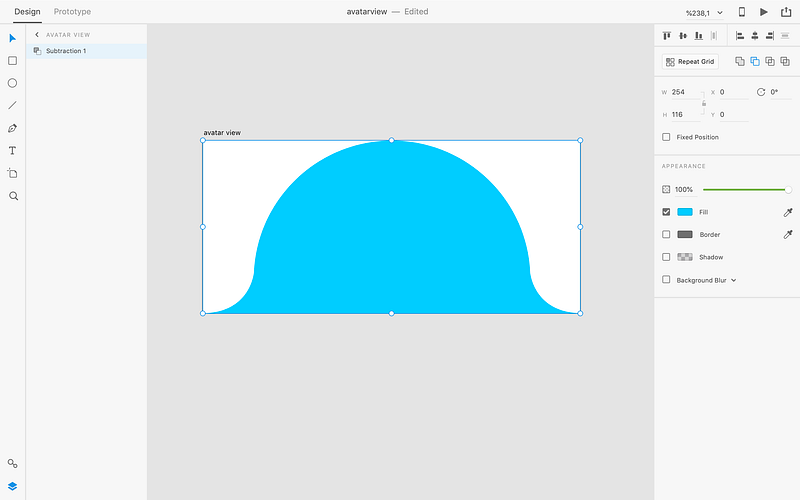
Adobe Experience Design

Convert vector file to Swift/Objective C

I used PaintCode to convert drawings from vector image to code. PaintCode is a paid app but there is 5 days trial. I am sure there are some alternatives that you can find them by simply searching. One of them is BézierCode.

Simply drag your svg file to the PaintCode window. It might be good to adjust your canvas frame size after dragging the svg file. Because you will paste the generated code of the curve into your custom UIView.
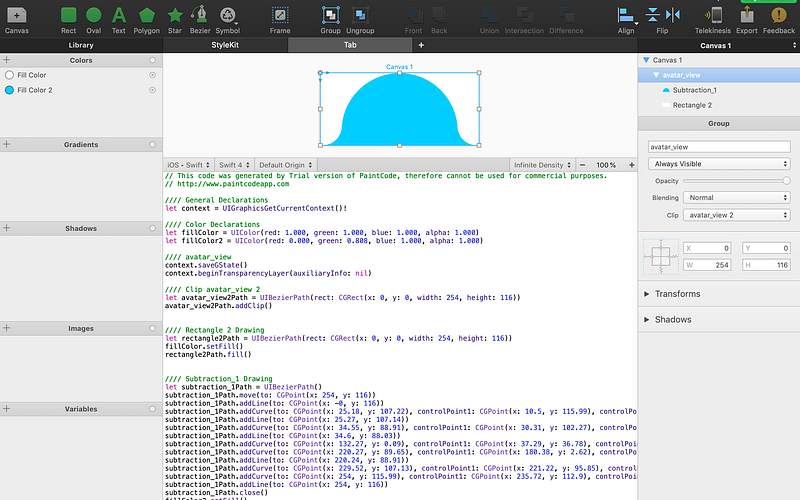
PaintCode

Paste the generated code into the custom UIView in Xcode

Create a UIView to put your Bézier curve in it. I created the AvatarView.swift file as a custom UIView to use in my storyboard. Paste code into the override func draw(_ rect: CGRect) method to apply drawing:

After pasting the code, you can change the colors and points according to your view’s size. You may want to set them dynamically.

Add your UIView to the Storyboard

After setting the Bézier path programmatically, the final step is adding the UIView into the Storyboard or the XIB file whenever you want to use. For this example, I use Storyboard and I place it to the top of my profile view.
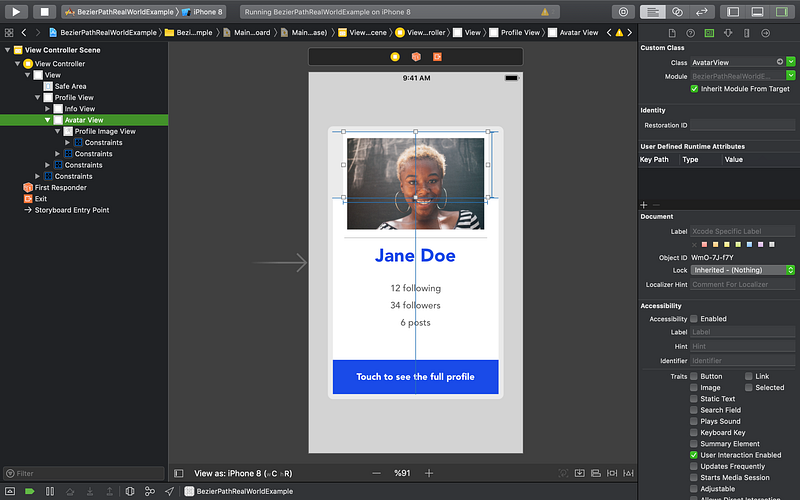
That’s all! Run and see your perfectly drawn Bézier Curve 🚀

You can download the example project from here:

If you like this post or found it useful, you could give a 👏 or buy me a coffee 😄 💪

Thanks for reading!

Enjoyed? Here is another Medium post that I shared my learning progress of MVVM.

iOS
Development
UI
Drawing
iOS Development
Recommended from ReadMedium