
How to use Botkube to monitor Kubernetes Cluster
Introduction
In this tutorial, we will learn how to use Botkube and Slack for deployment monitoring in Kubernetes. By the end of this tutorial, you will be able to receive notifications in Slack whenever a deployment or update occurs in your Kubernetes cluster.
Prerequisites
- Helm
- Kubernetes cluster
- Slack Account
What is Botkube?
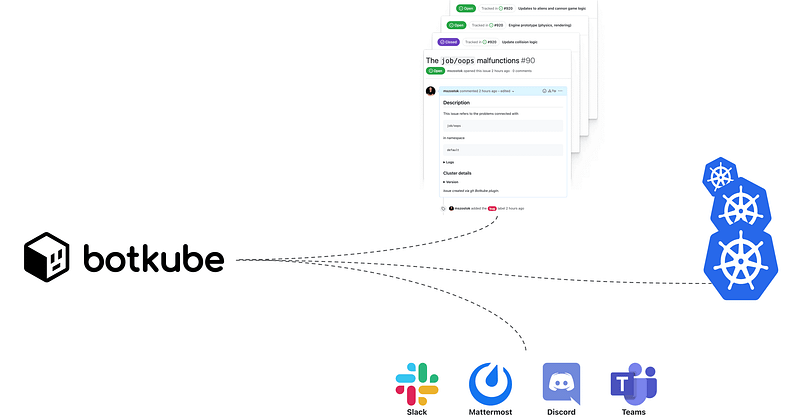
Botkube is an open-source chatbot that helps developers monitor and manage their Kubernetes clusters. It can be integrated with popular chat platforms like Slack, allowing you to receive notifications and perform actions directly from your chat window.
One way to use Botkube and Slack for deployment monitoring is to set up the bot to notify you when a deployment occurs in your cluster. This can be helpful for keeping track of changes to your system and ensuring that deployments are running smoothly.
Create Slack App
We first need to create a Slack bot and obtain the bot token.
- Navigate to the Slack App console to create a Slack app.
- Click Create New App and select From an app manifest in the popup to create an application from the manifest.
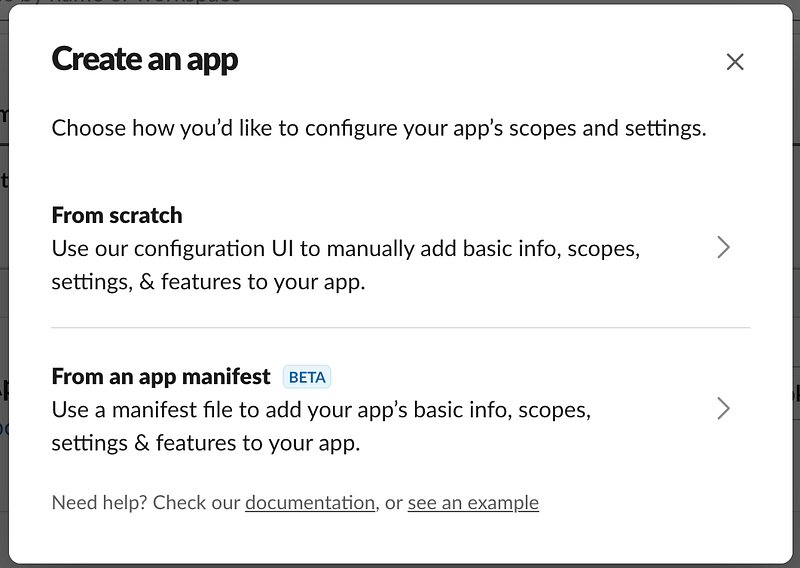
- Next, select a workspace where you want to create the app and click Next.
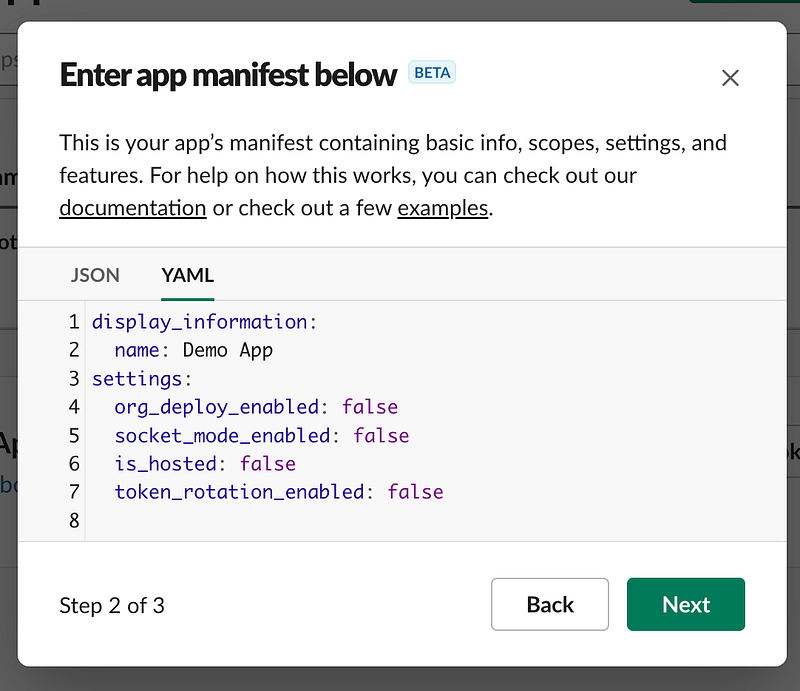
- Under the YAML tab, copy and paste the following manifests, click Next, and then Create.
display_information:
  name: Botkube
  description: Botkube
  background_color: "#a653a6"
features:
  bot_user:
    display_name: Botkube
    always_online: false
oauth_config:
  scopes:
    bot:
      - channels:read
      - app_mentions:read
      - chat:write
      - files:write
settings:
  event_subscriptions:
    bot_events:
      - app_mention
  interactivity:
    is_enabled: true
  org_deploy_enabled: false
  socket_mode_enabled: true
token_rotation_enabled: false- Assuming you’re not an administrator, send a request to install the app.
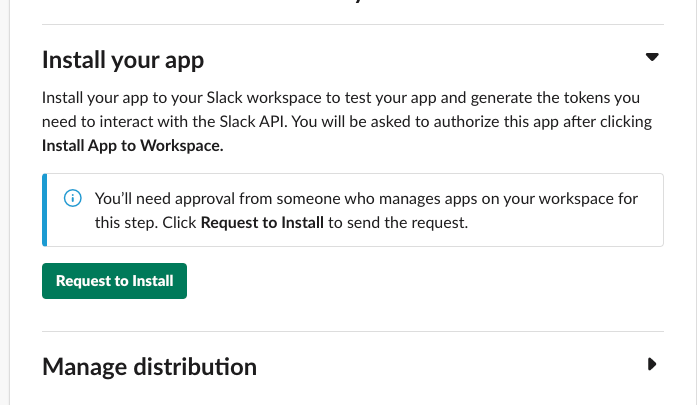
- Once approval is granted and the app is created, you need to get the bot token which should be saved for later. Select OAuth & Permissions section on the left sidebar. On this page, you can copy the bot token which starts with
xoxb....
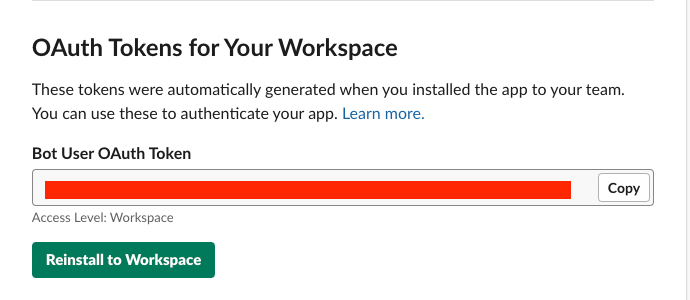
- Export Slack Bot Token as follows.
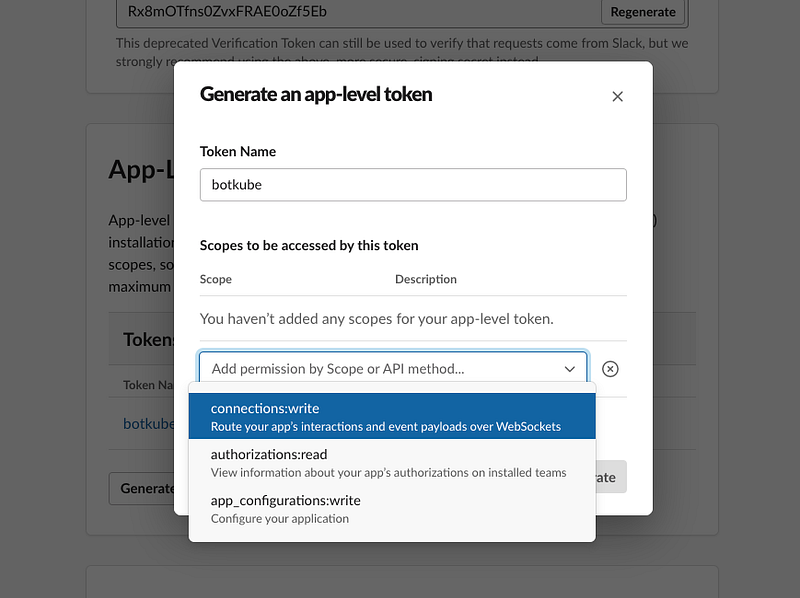
export SLACK_API_BOT_TOKEN="{botToken}"- Generate and obtain App-Level Token. To establish a WebSocket connection, a Slack App that uses Socket Mode necessitates an App-Level Token. To create an App-Level Token, adhere to the instructions below:
- Click on the Basic Information link on the left sidebar, and navigate to the App-Level Token section. Next, select the Generate Token and Scopes button.
- Provide a name, choose the connections:write sc-ope, and then click on the Generate button.
Install Botkube in your Kubernetes cluster
To install Botkube, you will need to have Helm installed. You can follow this guide to install Helm
- Add Botkube chart repository:
helm repo add botkube https://charts.botkube.io
helm repo update
- Create Environment Variable
export CLUSTER_NAME={cluster_name}
export ALLOW_KUBECTL={allow_kubectl}
export ALLOW_HELM={allow_helm}
export SLACK_CHANNEL_NAME={channel_name}SLACK_CHANNEL_NAMEis the channel the bot will be added.SLACK_API_BOT_TOKENis automatically generated when you installed the app in your workspace. You can use these to authenticate your app.SLACK_API_APP_TOKENallows the app to use platform features that apply to multiple (or all) installations. It can be generated from Slack after installing the app in your workspace. Basic Information > App-Level TokensCLUSTER_NAMEis the cluster name.ALLOW_KUBECTLdetermines whether or not to allow Botkube to runkubectlcommands.ALLOW_HELMdetermines whether or not to allow Botkube to runhelmcommands.
And finally the installation 🚀
helm install --version v0.18.0 botkube --namespace botkube --create-namespace \
--set communications.default-group.socketSlack.enabled=true \
--set communications.default-group.socketSlack.channels.default.name=${SLACK_CHANNEL_NAME} \
--set communications.default-group.socketSlack.appToken=${SLACK_API_APP_TOKEN} \
--set communications.default-group.socketSlack.botToken=${SLACK_API_BOT_TOKEN} \
--set settings.clusterName=${CLUSTER_NAME} \
--set executors.kubectl-read-only.kubectl.enabled=${ALLOW_KUBECTL} \
--set 'executors.helm.botkube/helm.enabled'=${ALLOW_HELM} \
botkube/botkube
Once you have completed these steps, your chatbot will be set up and ready to use. Whenever a deployment occurs in your cluster, you will receive a notification in Slack with details about the deployment.
Using Botkube and Slack for deployment monitoring is a convenient and efficient way to keep track of changes to your system. It can help you stay up-to-date with what’s happening in your cluster and quickly respond to any issues that may arise.