
Development setup
How to Use a Yubikey in WSL2 (Linux) on Windows
The advantages of Linux, available in Windows

Windows now includes, natively, a subsystem that provides access to a real instance of Linux (by default Ubuntu).
Access to a bash command line, and Linux tools, can make some situations much easier. Let’s not forget that most servers, and their databases and software, run on a Linux operating system. For example you may want secure SSH access to remote servers without leaving the WSL2 environment, or to sign GitHub commits.
However, if you (or your company) use a YubiKey, or other hardware based authentication for security, it is not obvious how to utilise these within the Linux subsystem on Windows.
This article is aimed at helping you get set up in WSL2 with working YubiKey based GPG/SSH access.
What is WSL2?
WSL2 stands for Windows Subsystem for Linux 2. It is bascially an installation of Linux (by default Ubuntu) running within Windows.
The Windows Subsystem for Linux lets developers run a GNU/Linux environment — including most command-line tools, utilities, and applications — directly on Windows, unmodified, without the overhead of a traditional virtual machine or dualboot setup.
I’m not going to go into why you might want to use Linux within Windows, as I suspect if you are reading this you already have your reasons.
In my case, I use Linux (Manjaro) as my main operating system, and have for many years now. However, Windows is ubiquitous, and I ocassionally have to use it. Having WSL2 as an option is definately a plus.
Before we get started
It is assumed that you already have a YubiKey, and that you have your GPG/PGP keys setup and ready to go on the YubiKey.
If this is not the case, there are a plethora of tutorials available to guide you through it. Please set it up, and come back here once you are ready.
The YubiKey must function for GPG and SSH in Windows
Before we dive into the WSL2 environment, it is probably wise to check that the yubikey works in a Windows environment as you would expect.
Ultimately, you will be creating a path for the yubikey to access authentication tools from Windows…so if your Yubikey doesn’t work properly in Windows, it won’t in WSL2 either.
If you are happy that all is well in Windows, then you can skip this section, otherwise make sure to go through the steps that follow.
Side Note Before Continuing
Previously, the latest versions of GnuGP did not work well with WSL, so I suggested sticking to an earlier version (3.1.16):
Please note that I have linked directly to version 3.1.16 of GnuPG, as this is the last of the version 3 releases. The absolute latest version at the time of writing is 4.0.3. However, I have had issues both in Windows, and in WSL2 using version 4 releases. I would suggest you avoid upgrading for now if you need YubiKey functionality.
There appears to be a workaround now. More up to date versions of GnuPG can therefore be used, but I will leave the above guidance in case some people face issues and wish to stick to the earlier version of GnuPG.
Let’s continue…
Install GnuPG and PuTTY in Windows
First you need to install GnuPG and PuTTY.
This will give you all the tools you need to successfully use a yubikey in Windows for SSH.
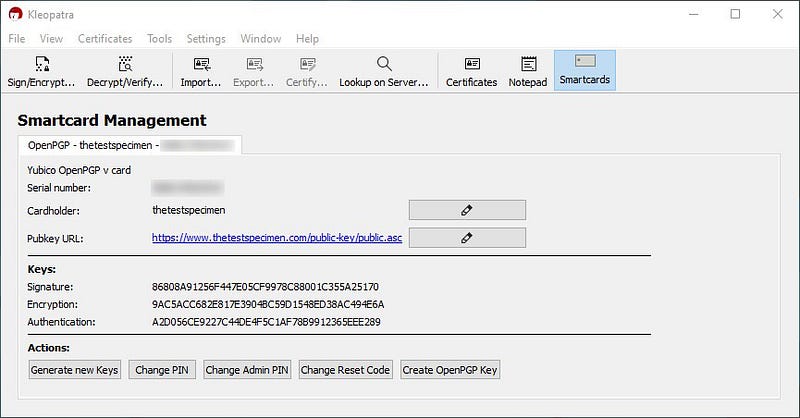
As part of the install for GnuPG you should have a program called Kleopatra. If you open this program and plug in your YubiKey, you should be able to click on “Smartcards” in the interface, then press F5 on your keyboard, and it will display the info about the yubikey, including your keys.
Note: I have generally found that Kleopatra has to be running in windows for the YubiKey to work in WSL2.
GPG Config file
To enable SSH to work properly you will need to create a config file.
If we assume our username is “Dave” then the path to this file would be:
C:\Users\Dave\AppData\Roaming\gnupg\gpg-agent.conf
(Obviously change “Dave” to your own username in Windows in the path above. Also bear in mind that the “AppData” folder is a hidden folder in Windows, so you need to have “Hidden Items” enabled in the view menu of file explorer to see this folder.)
The above mentioned file will likely not exist. If it doesn’t, then just create a blank text file with the name “gpg-agent.conf”, otherwise use the one that is already there.
Then you need to add the following to the file:
enable-putty-support
enable-ssh-support
use-standard-socket
default-cache-ttl 600
max-cache-ttl 7200
Ultimate trust for your public key
Although potentially not essential to this process, it is probably a good idea to include this step.
Essentially, we are going to give our public key ultimate trust (I mean you trust yourself, right?). I am going to assume you can locate your own public key as you have already setup your yubikey at this point.
As an example, mine is here.
Once you have located it you need to import it into Kleopatra (File-Import…), or on the commandline if you know how.
Now we are going to assign the key ultimate trust.
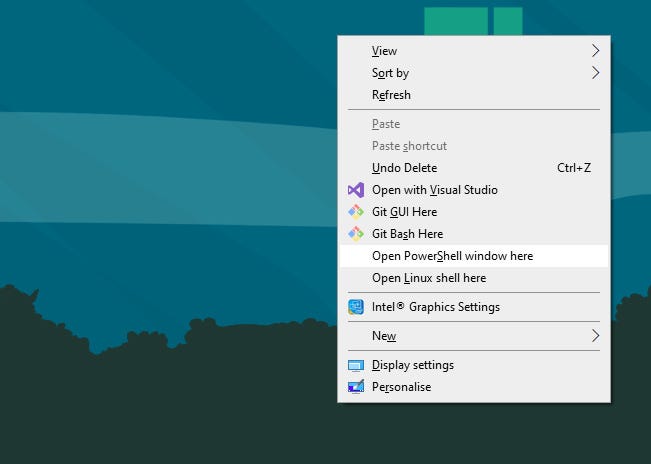
Open powershell (hold down shift, and right click anywhere on your desktop. It will be in the popup menu).
Type gpg --card-status and you should see various information about your yubikey.
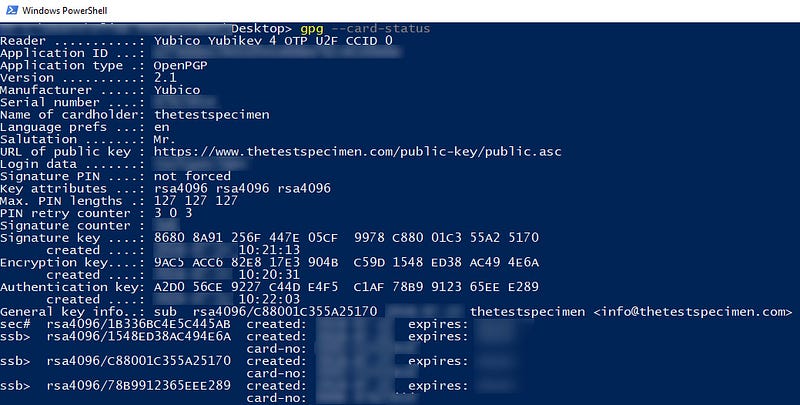
If not, something is not working correctly, try rebooting and give it another go. If you still have issues try going through the steps above again.
The next command is gpg --list-keys. This will give you the gpg public key. The top two lines of the output will look something like this:
pub   rsa4096 2022-09-03 [SC]
  1CA87B39873495770098080098336BC4E5C445AB
The long string is your public key fingerprint, which you will need in the next step.
Type gpg --edit-key 1CA87B39873495770098080098336BC4E5C445AB this will bring up a gpg> prompt in which you should type "trust". It will then prompt you for a number. Enter "5", which is ultimate trust. Then confirm as instructed.
If you now go and check in Kleopatra, or type gpg --list-keys in the commandline, you will see your key has been assigned ultimate trust.
Final checks
You should now be in a position where SSH works within windows.
Before we proceed, it would make sense to check you can actually use SSH within windows with your yubikey. Either use PuTTY to SSH into a server, or try to sign a git commit, and you should see that it is fully functional.
Incidentally, if you have never tried to sign git commits with your YubiKey before, be aware that you need to add some config information in git. See my github for some guidance if you are not familiar.
If your test case doesn’t work, then something is amiss, and there is no point proceeding to the next stage, as it will not work.
One thing you can try is running the following in powershell:
gpg-connect-agent killagent /bye
gpg-connect-agent /bye
This should restart the gpg-connect-agent so you can give it another shot.
WSL2 Setup
Assuming you succeeded with the setup in Windows, let’s proceed to the setup in WSL2.
Install WSL2 (Ubuntu)
Firstly, install WSL2, which is as easy as running the following command in a powershell prompt with administrator privileges (this is easier to do from Windows search):
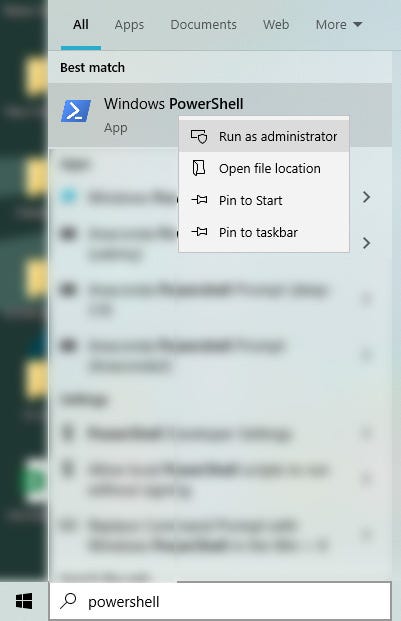
wsl --installIt will take you through the various install steps, restarts etc. It is very straight forward. You can install other distributions than Ubuntu, but by default Ubuntu is installed.
After the install you can search for Ubuntu in Windows search, click on it, and it will open a linux terminal for you.
If you ever need to properly close a WSL instance, type the following command into the linux terminal:
wsl.exe --shutdownJust closing the window will not do this.
Initial steps
Make sure you are up to date:
sudo apt update
sudo apt upgrade
Run the following commands, for more details on what this is please see the source here:
sudo apt install socat iproute2
mkdir ~/.ssh
wget https://github.com/BlackReloaded/wsl2-ssh-pageant/releases/latest/download/wsl2-ssh-pageant.exe -O ~/.ssh/wsl2-ssh-pageant.exe
chmod +x ~/.ssh/wsl2-ssh-pageant.exe
Edit bash-rc
As pointed out by Resettodefaults in the comments to this article, there is a workaround for later versions (4.0.0 and later) of GnuPG as per this issue on GitHub:
Depending on your particular setup you may or may not need the additional information (the text in bold) in the .bashrc file as detailed below. Feel free to try with and without, but if you plan on using the latest version of GnuPG (4.0.0+) you will likely need them.
Note: remember to replace <username> with your actual Windows username, without the <>. So if my windows username was “Dave” then the bold line in the .bashrc text that will follow should be:
config_path="C\:/Users/Dave/AppData/Local/gnupg"Append the following to your ~/.bashrc file (use nano, vim etc. for example nano ~/.bashrc):
Pay attention to the lines that are bold, you will likely need them, but possibly not.
# SSH Socket
# Removing Linux SSH socket and replacing it by link to wsl2-ssh pageant socket
export SSH_AUTH_SOCK="$HOME/.ssh/agent.sock"
if ! ss -a | grep -q "$SSH_AUTH_SOCK"; then
rm -f "$SSH_AUTH_SOCK"
wsl2_ssh_pageant_bin="$HOME/.ssh/wsl2-ssh-pageant.exe"
if test -x "$wsl2_ssh_pageant_bin"; then
(setsid nohup socat UNIX-LISTEN:"$SSH_AUTH_SOCK,fork" EXEC:"$wsl2_ssh_pageant_bin" >/dev/null 2>&1 &)
else
echo >&2 "WARNING: $wsl2_ssh_pageant_bin is not executable."
fi
unset wsl2_ssh_pageant_bin
fi# GPG Socket
# Removing Linux GPG Agent socket and replacing it by link to wsl2-ssh-pageant GPG socketexport GPG_AGENT_SOCK="$HOME/.gnupg/S.gpg-agent"
if ! ss -a | grep -q "$GPG_AGENT_SOCK"; then
rm -rf "$GPG_AGENT_SOCK"
wsl2_ssh_pageant_bin="$HOME/.ssh/wsl2-ssh-pageant.exe"
config_path="C\:/Users/<username>/AppData/Local/gnupg"
if test -x "$wsl2_ssh_pageant_bin"; then
(setsid nohup socat UNIX-LISTEN:"$GPG_AGENT_SOCK,fork" EXEC:"$wsl2_ssh_pageant_bin -gpgConfigBasepath ${config_path} --gpg S.gpg-agent" >/dev/null 2>&1 &)
else
echo >&2 "WARNING: $wsl2_ssh_pageant_bin is not executable."
fi
unset wsl2_ssh_pageant_bin
fi if test -x "$wsl2_ssh_pageant_bin"; then
(setsid nohup socat UNIX-LISTEN:"$GPG_AGENT_SOCK,fork" EXEC:"$wsl2_ssh_pageant_bin --gpg S.gpg-agent" >/dev/null 2>&1 &)
else
echo >&2 "WARNING: $wsl2_ssh_pageant_bin is not executable."
fi
unset wsl2_ssh_pageant_bin
fiNow restart WSL2:
wsl.exe --shutdownYou should now have access to your YubiKey in WSL2:
Try gpg --card-status in WSL2 and you should get info about your yubikey. If not something is wrong. Try going through the steps again.

Change key trustworthiness to ultimate
This is the same thing we did previously in windows, except we will do it on the WSL2 commandline (obviously use your own key):
$ gpg --edit-key 1CA87B39873495770098080098336BC4E5C445AB
gpg> trust
Please decide how far you trust this user to correctly verify other users' keys
(by looking at passports, checking fingerprints from different sources, etc.)
1 = I don't know or won't say
2 = I do NOT trust
3 = I trust marginally
4 = I trust fully
5 = I trust ultimately
m = back to the main menuYour decision? 5
Do you really want to set this key to ultimate trust? (y/N) y
gpg> quitIf you now run gpg --list-keys the keys should have ultimate trust.
Done!
That should be it. You should be able to SSH into a server or use git commits etc.

Note: if you have any issues with the card not being found in WSL2 (after a restart for example), this is usually an issue in Windows. First thing to check is whether you can see the card in Kleopatra in Windows. If not, then solve this first, before going back to WSL2.
Visual Studio Code
One of the things you may want to do is use a text editor/IDE rather than using VIM or Nano on the commandline. This is certainly preferable if you are a software developer and need to edit lots of text files.
Fortunately, you can easily use a program such as VS Code for this.
How to use VS Code in WSL2
You do not need to install VS Code within the WSL2 Ubuntu install. You only need VS Code installed in windows as normal.
On the commandline in WSL2 just type the following:
code .The dot is quite important so don’t forget that!
It will then open a VS Code instance with the path of where you are in the terminal, so maybe “cd” to your project root path first before running it.
It is quite well integrated so if, for example, you are running a python virtual environment, it will pick this up and allow you to select the virtual environment that exists within Ubuntu. This helps greatly with general work flow, and debugging.
If you found this article interesting or useful, remember to follow me, or sign up for my newsletter for more content like this.
If you haven’t already, you could also consider subscribing to Medium. Your membership fee directly supports, not just me, but other writers you read too. You’ll also get full unrestricted access to every story on Medium.
Using my referral link to sign up will grant me a small kickback with zero effect on your membership, so thank you if you choose to do so.
References
The main place that the info in this article comes from is here:
You can also refer to the information provided by the wsl2-ssh-pageant tools author on github:


