
How to Upload and Download Blobs from Azure Blob Storage Using Python

Azure blob storage is a Microsoft feature that allows users to store a large amount of data on Microsoft’s data storage platforms.
Blob storage is perfect for storing massive amounts of unstructured data and structured data. Unstructured data is data that doesn’t conform to a particular data model or definition, such as text or binary data.
This article will teach you how you can upload and download blob files from Azure blob storage. This is the continuation of the last post where I taught how to connect to Azure blob from Alteryx. You can check it out.
The first part of this interesting project is to download files from the Azure Blob Storage, and the second part to this is to upload a transformed data to the Blob Storage.
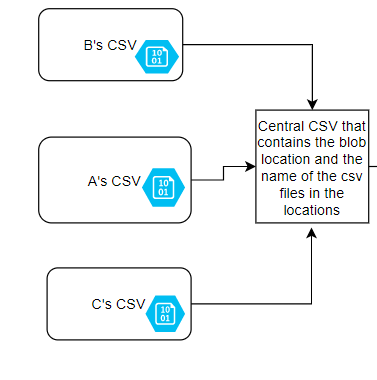
First things first, we need to create a central Excel file that defines the resources’ location and the names of the resources. Below is the screenshot of the process flow.

This is the central Excel file

The next step is to pull the data into a Python environment using the file and transform the data. Having done that, push the data into the Azure blob container as specified in the Excel file.
The code below shows how to get a file from Blob Storage. We are going to use the Python library provided by Microsoft; this library is called azure-storage-blob. You can install this library using pip install azure-storage-blob.
“””
We are going to import all the packages we are going to need here.Then we will get our files. The steps here is that we are going to connect to the central csv file that has the location to all the file on the Blob Storage, we going to use the shared account key to connect with the resources.Please research on how to get your account shared key on your azure portal. Interestingly, the key I provided here will not work.“””
from azure.storage.blob import BlobClientimport osimport pandas as pdfrom azure.storage.blob import BlobServiceClient, BlobClient, ContainerClient, __version__data1 = pd.read_csv('TestinformationB.csv')Get files from Azure Blob to the Remote System
for lenght in range(0, len(data1)):local_path = data1['Location'][lenght]file_to_download_name = data1['Name'][lenght]blobcontainer_name = data1['Containers'][lenght]blob = BlobClient.from_connection_string(conn_str="DefaultEndpointsProtocol=https;AccountName=cndroalteryxblobstorage;AccountKey=M3rUQZgVp1o9U7FJ8WRgyxkt9uGDpgAjfqyBOwEvuXmW8B+2C173XN58AlPq1iMT9XQqtXycjTwBPJw2+cANnw==;EndpointSuffix=core.windows.net", container_name=blobcontainer_name, blob_name=file_to_download_name)file_data = file_to_download_name.split('.')[0] + '.txt'print(file_data)with open(file_data, "wb") as my_blob:blob_data = blob.download_blob()blob_data.readinto(my_blob)file_new_name = file_to_download_nameos.rename(str(file_data), str(file_new_name))At this point, we can now transform our file, we can also perform different operations on our data.
In the code below, we are going to iterate through all the files, their locations, and pick up the files, upload the files to their respective containers on the Blob Storage.
## UPLOAD FILES FROM REMOTE SYSTEM TO THE AZURE BLOBblob_service_client = BlobServiceClient.from_connection_string("DefaultEndpointsProtocol=https;AccountName=cndroalteryxblobstorage;AccountKey=M3rUQZgVp1o9U7FJ8WRgyxkt9uGDpgAjfqyBOwEvuXmW8B+2C173XN58AlPq1iMT9XQqtXycjTwBPJw2+cANnw==;EndpointSuffix=core.windows.net")for lenght in range(0, len(data1)):local_path = data1['Location'][lenght]local_file_name = data1['Name'][lenght]container_name = data1['Containers'][lenght]upload_file_path = os.path.join(local_path, local_file_name)print(upload_file_path)blob_client = blob_service_client.get_blob_client(container=container_name, blob=local_file_name)print("\nUploading to Azure Storage as blob:\n\t" + local_file_name)# Upload the created filewith open(upload_file_path, "rb") as data:blob_client.upload_blob(data)With this implementation, you can work programmatically with all your files in the Blob storage. We can use the blob storage for different purposes; here we have used it for our data store. We can retrieve our data from here and we can also upload our data to this location.
If this post is helpful, kindly give it a clap and share it with your friends. See you next time.


