
How to Update Your Live Django Website
Step-by-step guide for DigitalOcean and links for AWS EB, Heroku and Azure
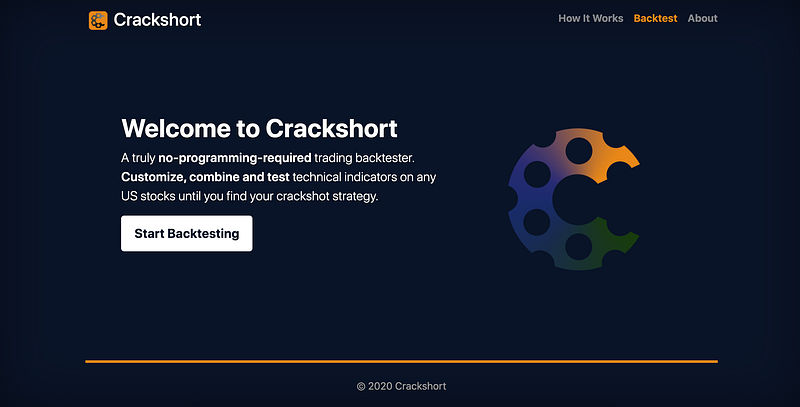
I’ve recently built a web app (see it here) using Django and deployed it through DigitalOcean.
There are many wonderful reasons to use DigitalOcean, but updating is not one of them. Because it is a cloud hosting provider and not a PaaS like AWS Elastic Beanstalk, the updating process is 100% your problem.
Plus, if you’ve also deployed with DigitalOcean, you might have realized that there are very few resources on how to run updates. That’s where I come in.
I’ve written about this process in my detailed walkthrough of how I built my website (which you can read below if you’d like to), but I wanted to elaborate on this to help fill in the knowledge gap for beginners like myself.
If you’re deploying elsewhere than DigitalOcean, updating is much easier, and here are some pages that may be relevant to you:
- AWS Elastic Beanstalk (Console / Command Line Interface)
- Heroku
- Microsoft Azure
How to Update Your Existing Website/App
Step 1: If Django: Configure your Django settings for local debugging. You need to do this to run your work-in-progress on your localhost.
# in settings.py
DEBUG = True
ALLOWED_HOSTS = []
You could make this slightly easier if you use a custom variable in your settings file to switch between ‘live’ and ‘local’ modes, especially if your database changes too (e.g. if you use PostgreSQL).
In this example, all I do is toggle the live_deploy variable when I want to edit or deploy.
Step 2: Make updates in your project’s code.
Step 3: If Django: Make migrations. Make them locally but do the migration on the server because migration files are part of the source code and shouldn’t be tampered with on the server. Read this StackOverflow post for more info.
# in terminal
python3 manage.py makemigrations
Step 4: If Django: Reconfigure your settings for deploying live.
# in settings.py
DEBUG = False
ALLOWED_HOSTS = ['00.000.0.000','www.yourdomain.com'] # insert your IP or domain
Step 5: Stage your changes, commit them to Git and push them to your remote repository of choice. Extremely important, because the remote is where you’ll get the code from while in DigitalOcean (Step 8).
# in terminal
git commit -m "your commit message"
git push origin master
Step 6: Login to your DigitalOcean virtual machine with SSH.
# in terminal
ssh user@00.000.0.000
Step 7: Activate the virtual environment you’re using for your project, because you need to run Django commands.
# in terminal
source venv/bin/activate #replace with your venv
Step 8: From your project directory, pull your updated code from your remote repository.
# in terminal
cd /your/project/dir
git pull origin
Step 9: If Django: Run migration and collect static. Do not make migrations — refer to Step 3.
# in terminal
python3 manage.py migrate
python3 manage.py collectstatic
Step 10: Restart Gunicorn (your WSGI server) to apply the changes. Typically you won’t need to restart NGINX since no changes are made to the web server — the only time I do is when I renew my SSL certificate.
# in terminal
sudo service gunicorn restart
sudo service nginx restart #only if you need to
Seems a little drawn-out, but it’s important to stick to all the steps to ensure that your new code is correctly configured for live deployment, makes it onto the virtual machine, and shows up in your website or app.
If you want to automate updates, you can do so with Fabric and Ansible. You can find a pretty complete guide here, so I won’t expand on it.
But if you’re just starting out like me, odds are you won’t need to perform frequent updates, and prefer to keep things as simple as possible.
In that case, these 10 steps will be all you need to run updates reliably every time.


