avatarNihan Kucukural

Summary

The article provides instructions on how to disable Google Lens and revert to the previous "Search Google for image" feature on Google Chrome.

Abstract

The author of the article expresses their reliance on the "Search Google for image" feature for various purposes, such as verifying image ownership, checking the history of stock images, finding higher quality versions of images, and identifying locations depicted in pictures. After Google replaced this feature with Google Lens, which did not meet the author's needs, they felt the loss deeply and even experienced difficulty in procrastinating as they used to. The author's frustration peaked when trying to find a larger version of a thumbnail image of New Zealand birds, leading to an unsuccessful search with Google Lens. Determined to restore the old functionality, the author discovered a solution on Reddit, which involved disabling Google Lens through a specific Chrome flag. Following the suggested steps, the author successfully reinstated the original image search feature, and they encourage others who prefer the old method to do the same.

Opinions

  • The author was a frequent user and strong advocate for the "Search Google for image" feature, finding it essential for various image-related inquiries.
  • Google Lens is seen as an unsatisfactory replacement for the previous image search functionality, as it did not provide the same results or user experience.
  • The removal of the "Search Google for image" option left the author feeling frustrated and nostalgic for the lost convenience and efficiency it provided.
  • The author views the workaround to disable Google Lens and restore the old feature as a triumph, expressing relief and satisfaction with the outcome.
  • There is an underlying tone of dissatisfaction with Google's decision to replace the image search feature with Google Lens without providing an obvious way to retain the old functionality.

How to Turn Off Google Lens and Search Google By Image Again!

Yay! I just learned how!
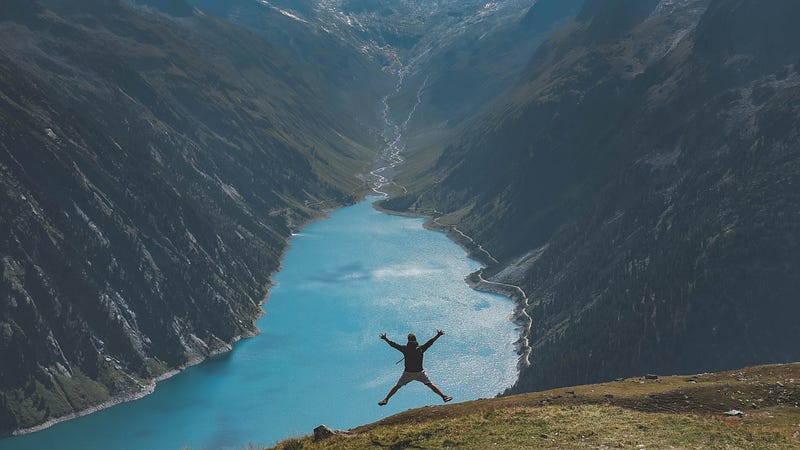
Photo by Paul Gilmore on Unsplash

I use the “Search Google for image” option on my desktop Google Chrome a lot. If you don’t use it, you should give it a try!

Wait, you can’t try it right now. They disabled the option and replaced it with Google Lens, which doesn’t do the same thing. But there is hope!

I kept forgetting that my beloved function had disappeared, and right-clicked every image I was curious about.

  • Does this photo really belong to this person? Right-click, search Google for image, no. He’s this model from France! What a liar!
  • Was this free stock image used on Medium before? Search. Yes, at least four articles have the same title image!
  • Is there a better quality of this image somewhere? Search, pick “large” and here it is!
  • What a beautiful lake! I should go there someday. Where is it? Search. It’s this famous lake in Croatia!

You get the point. Without the search by image option, I couldn’t even procrastinate the way I enjoyed it. I found myself obsessed with some images and had to work like a detective for half an hour to find the image by searching it using various keywords. “lake walkway” “lake waterfall walkway” “blue lake waterfall walkway” etc.

So today I saw a gorgeous illustration of New Zealand birds and I wanted to take a little printout for myself. But it was a thumbnail, so I hoped to find a bigger one. But Google Lens showed me other similar images, not the one I was looking for. It was so annoying!

I said enough is enough! I will find a way to access the old function!

And I found it on Reddit! All you have to do is to disable Google Lens!

So I did exactly what one commenter suggested: I went to chrome://flags/#enable-lens-region-search and disabled Google Lens. When I restarted Chrome, my old friend was back!

So now you know what to do if you were also a big fan of image searches. Good luck!

Google
Images
How To
Reverse Image Search
Illumination
Recommended from ReadMedium