avatarJim Clyde Monge

Free AI web copilot to create summaries, insights and extended knowledge, download it at here

2555

Abstract

ccount” to filter the request to <a href="https://chat.openai.com/backend-api/accounts/check/v4-2023-04-27">https://chat.openai.com/backend-api/accounts/check/v4-2023-04-27</a>. You should see the same user interface as below:</p><figure id="c43a"><img src="https://cdn-images-1.readmedium.com/v2/resize:fit:800/1*JUUVRBJ0fm2teEys54lcnA.png"><figcaption>Image by <a href="undefined">Jim Clyde Monge</a></figcaption></figure><p id="0d3b">We need to override the content of this HTTP response. But before doing that, you need to set up the local overrides.</p><h2 id="863c">Step #2: Set up local overrides</h2><p id="997b">If you haven’t already enabled local overrides in DevTools, click “Select folder” at the top and choose a folder on your computer to store overrides.</p><figure id="f1b6"><img src="https://cdn-images-1.readmedium.com/v2/resize:fit:800/1*kfG8RXsWTlqkG8ii4PXCew.png"><figcaption>Image by <a href="undefined">Jim Clyde Monge</a></figcaption></figure><p id="3f30">You may need to create a folder on your local disk to store the override scripts. Allow full access when prompted.</p><figure id="0548"><img src="https://cdn-images-1.readmedium.com/v2/resize:fit:800/1*KnfMox5tjvqbFiH_weCVlg.png"><figcaption>Image by <a href="undefined">Jim Clyde Monge</a></figcaption></figure><p id="36d7">Now, we are ready to override the HTTP response.</p><h2 id="1141">Step #3: Override the content of the HTTP response</h2><p id="7e54">Go back to the Network tab and right-click on the "v4-2023-04-27" response. Choose “Override content”.</p><figure id="8017"><img src="https://cdn-images-1.readmedium.com/v2/resize:fit:800/1*d0cwwaeo3cT8cluRFJpHHw.png"><figcaption>Image by <a href="undefined">Jim Clyde Monge</a></figcaption></figure><p id="e116">This will open the Sources tab where you can edit the response body. Inside the two sets of “features” lists, insert “gizmo_inline_tagging” like below:</p><figure id="0652"><img src="https://cdn-images-1.readmedium.com/v2/resize:fit:800/1*JTVIChlFsHErNNMtNkhjbQ.png"><figcaption>Image by <a href="undefined">Jim Clyde Monge</a></figcaption></figure><p id="d92d">Save the response file and refresh the ChatGPT webpage.</p><figure id="d096"><img src="https://cdn-images-1.readmedium.com/v2/resize:fit:800/1*UFrVW3Ds9wDugf9Kr4y1fQ.png"><figcaption>Image by <a href="undefined">Jim Clyde Monge</a></figcaption></figure><p id="8a8b">You should see a notification about GPT mentions.</p><p id="45c6">Congratulations! You have just enabled a feature ahead of everyone else.</p><h2 id="e652">Step #4. Start usin

Options

g GPT Mention</h2><p id="7dff">One cool trick of being able to tag GPT apps is the ability to switch between them in one chat instance.</p><p id="4144">For example, I had Dall-E generate a cute dog image.</p><figure id="c3a1"><img src="https://cdn-images-1.readmedium.com/v2/resize:fit:800/1*Vuf31_fCBEY4JRd5Ezr8gQ.png"><figcaption>Image by <a href="undefined">Jim Clyde Monge</a></figcaption></figure><p id="19b6">Then I switched to another GPT app called “Coloring Book Hero” inside the same chat box to transform the dog into a coloring book page.</p><figure id="a26c"><img src="https://cdn-images-1.readmedium.com/v2/resize:fit:800/1*p0YP2W5u9gqUMttkQGoYug.png"><figcaption>Image by <a href="undefined">Jim Clyde Monge</a></figcaption></figure><p id="83da">How cool is that? You can call other GPTs to make further modifications to these images.</p><p id="4d48">If you want to disable the feature, you can do so by disabling the local overrides on your browser.</p><h2 id="b441">Step #5: Remove local overrides</h2><p id="6884">Go to the Sources tab in DevTools and uncheck the “Enable Local Overrides” checkbox. Alternatively, you can delete the overrides that are already saved on your local drive by clicking on the delete button.</p><figure id="c252"><img src="https://cdn-images-1.readmedium.com/v2/resize:fit:800/1*9q1-0h20cRitHoNH-palrQ.png"><figcaption>Image by <a href="undefined">Jim Clyde Monge</a></figcaption></figure><p id="e4d0">This action can’t be undone, and you will have to manually recreate the deleted overrides.</p><h2 id="7698">Final Thoughts</h2><p id="8f5e">Okay, that’s about it. I hope you have fun enabling and trying out GPT Mentions ahead of the crowd. If you encounter any issues while following this guide, let me know in the comments.</p><p id="902e">A huge shout out to X user <a href="https://twitter.com/danizord">Danizord — e/acc</a> for posting this little trick in X.</p><figure id="bcb2"><img src="https://cdn-images-1.readmedium.com/v2/resize:fit:800/0*JBw4IxYqKbWRgvE8.png"><figcaption></figcaption></figure><p id="8539">This story is published on <a href="https://generativeai.pub/">Generative AI</a>. Connect with us on <a href="https://www.linkedin.com/company/generative-ai-publication">LinkedIn</a> and follow <a href="https://www.zeniteq.com/">Zeniteq</a> to stay in the loop with the latest AI stories. Let’s shape the future of AI together!</p><figure id="60a5"><img src="https://cdn-images-1.readmedium.com/v2/resize:fit:800/0*ewVK7ZbFTssdP3DB.png"><figcaption></figcaption></figure></article></body>

How To Try “GPT Mention” In ChatGPT Ahead Of Its Official Release
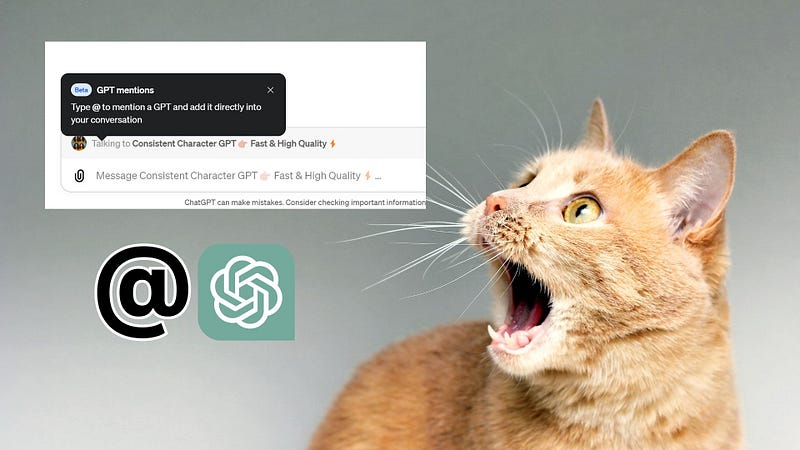
Image by Jim Clyde Monge

Hey ChatGPT users, I have some really cool tricks to share with you today.

Ahead of the upcoming new feature of ChatGPT called “GPT Mention," you can enable this feature now.

Disclaimer: This hack is a bit technical so I tried my best to be as detailed as I can so anyone can follow.

Let’s start by explaining what the “GPT Mention” feature is all about.

GPT Mention allows you to inline tag any other custom GPT by using the “@” tag followed by the name of the GPT application. This feature also enables using different GPTs in the same conversation, taking an agent-like approach.

Right now, the feature doesn’t work yet in most ChatGPT users. If you type the keyword “@,” will not do anything on your chat.
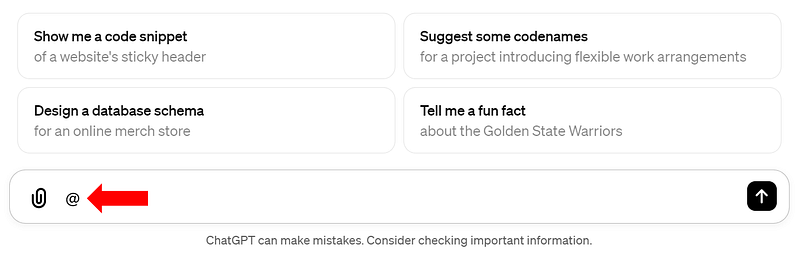
Image by Jim Clyde Monge

After the trick is applied, typing the “@” handle should bring up a list of GPT applications you can inline tag.
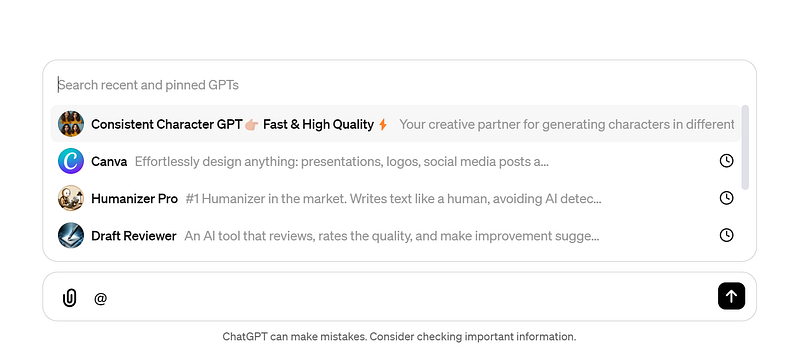
Image by Jim Clyde Monge

Here’s a summary of the steps:

  • Step #1: Find the request to /backend-api/accounts/
  • Step #2: Set up local overrides
  • Step #3: Override the content of the HTTP response
  • Step #4. Start using GPT Mention
  • Step #5: Remove local overrides

Awesome. Now let’s begin with the tutorial.

Step #1: Find the request to /backend-api/accounts/

First, open Google Chrome browser and go to https://chat.openai.com. Right click and choose “Inspect” to open the DevTools window.
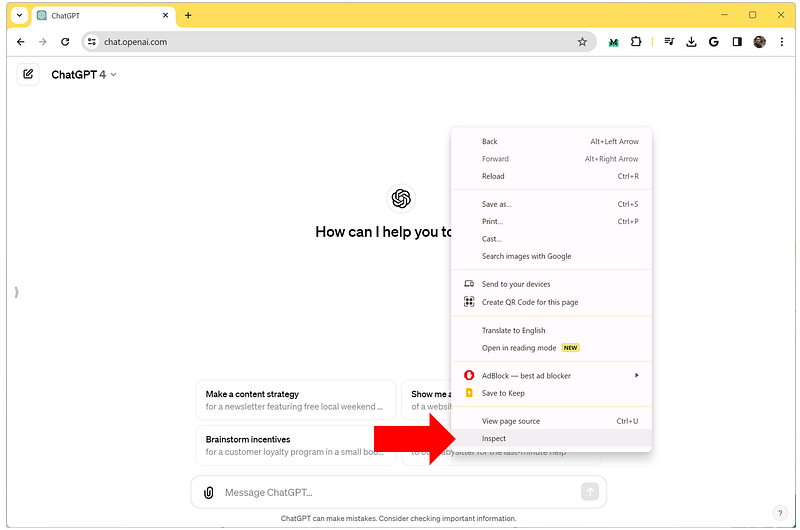
Image by Jim Clyde Monge

In the filters field, type “/account” to filter the request to https://chat.openai.com/backend-api/accounts/check/v4-2023-04-27. You should see the same user interface as below:
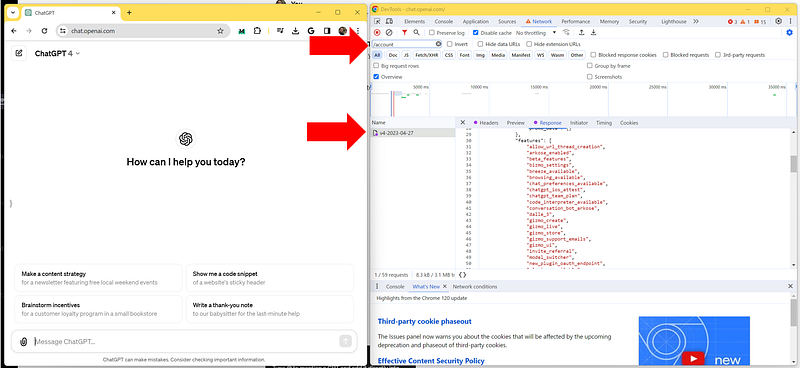
Image by Jim Clyde Monge

We need to override the content of this HTTP response. But before doing that, you need to set up the local overrides.

Step #2: Set up local overrides

If you haven’t already enabled local overrides in DevTools, click “Select folder” at the top and choose a folder on your computer to store overrides.
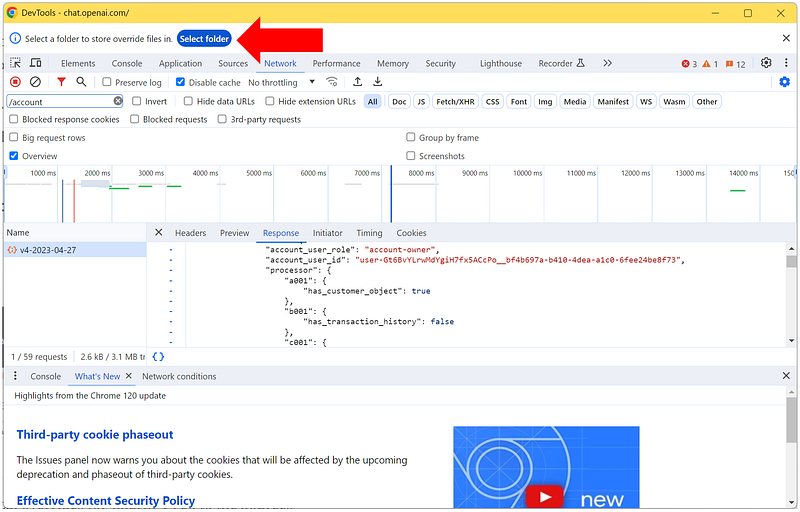
Image by Jim Clyde Monge

You may need to create a folder on your local disk to store the override scripts. Allow full access when prompted.
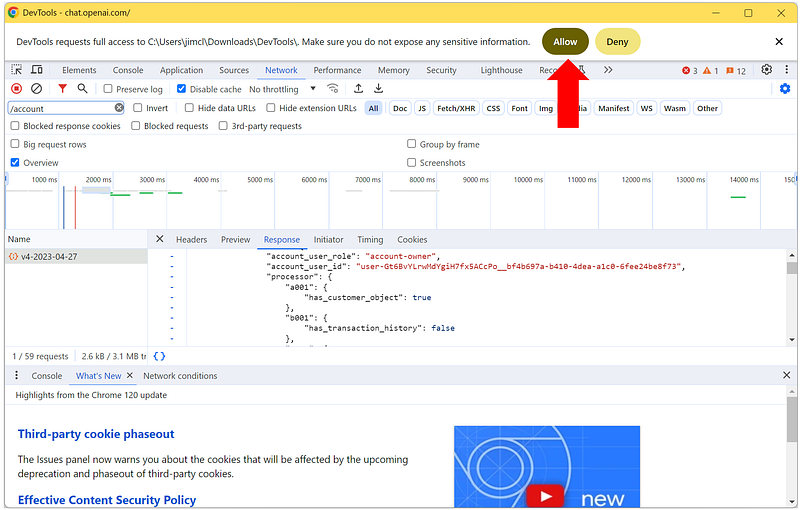
Image by Jim Clyde Monge

Now, we are ready to override the HTTP response.

Step #3: Override the content of the HTTP response

Go back to the Network tab and right-click on the "v4-2023-04-27" response. Choose “Override content”.
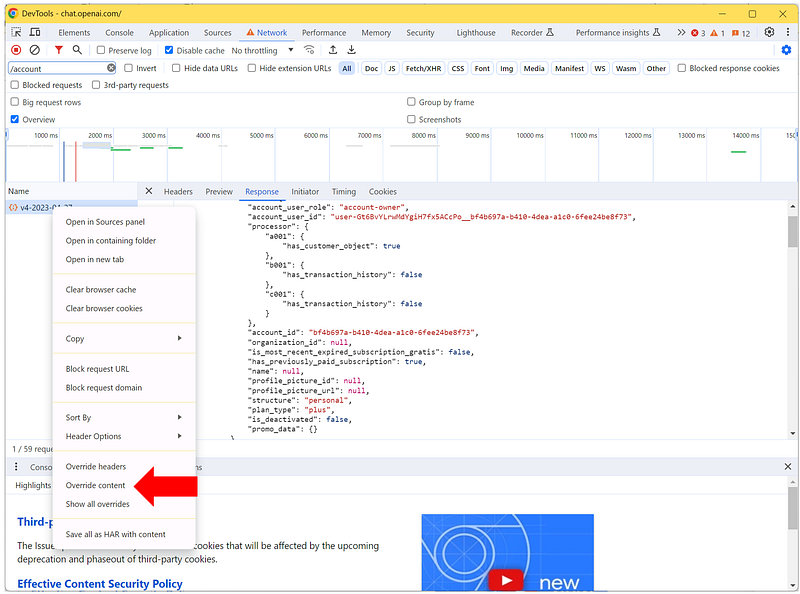
Image by Jim Clyde Monge

This will open the Sources tab where you can edit the response body. Inside the two sets of “features” lists, insert “gizmo_inline_tagging” like below:
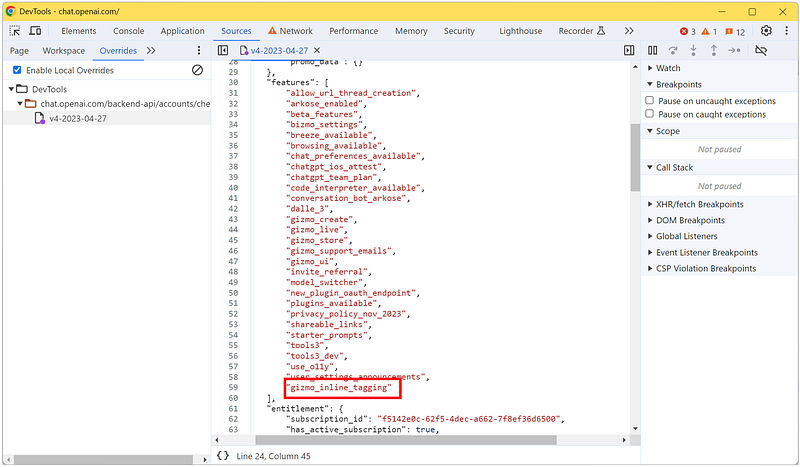
Image by Jim Clyde Monge

Save the response file and refresh the ChatGPT webpage.
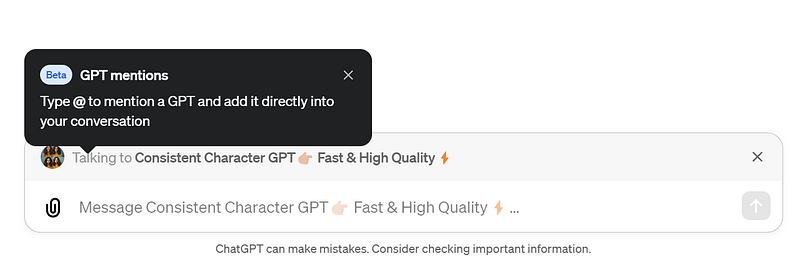
Image by Jim Clyde Monge

You should see a notification about GPT mentions.

Congratulations! You have just enabled a feature ahead of everyone else.

Step #4. Start using GPT Mention

One cool trick of being able to tag GPT apps is the ability to switch between them in one chat instance.

For example, I had Dall-E generate a cute dog image.
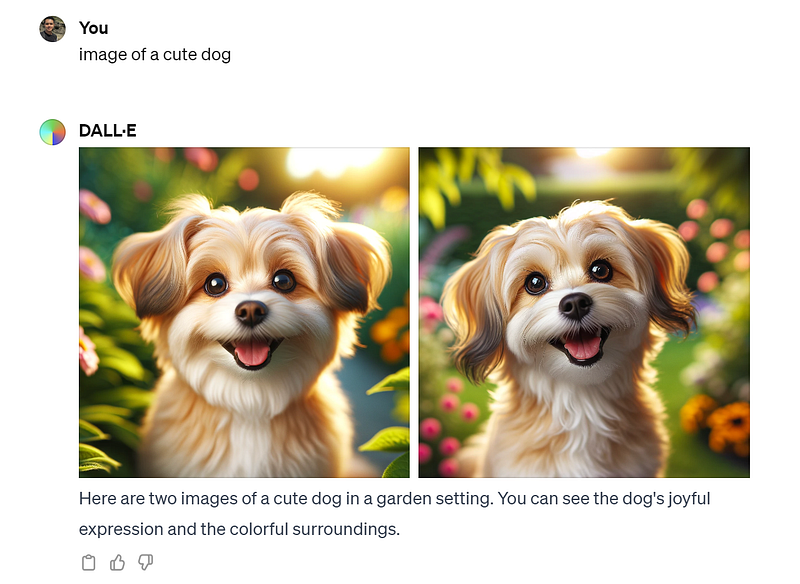
Image by Jim Clyde Monge

Then I switched to another GPT app called “Coloring Book Hero” inside the same chat box to transform the dog into a coloring book page.
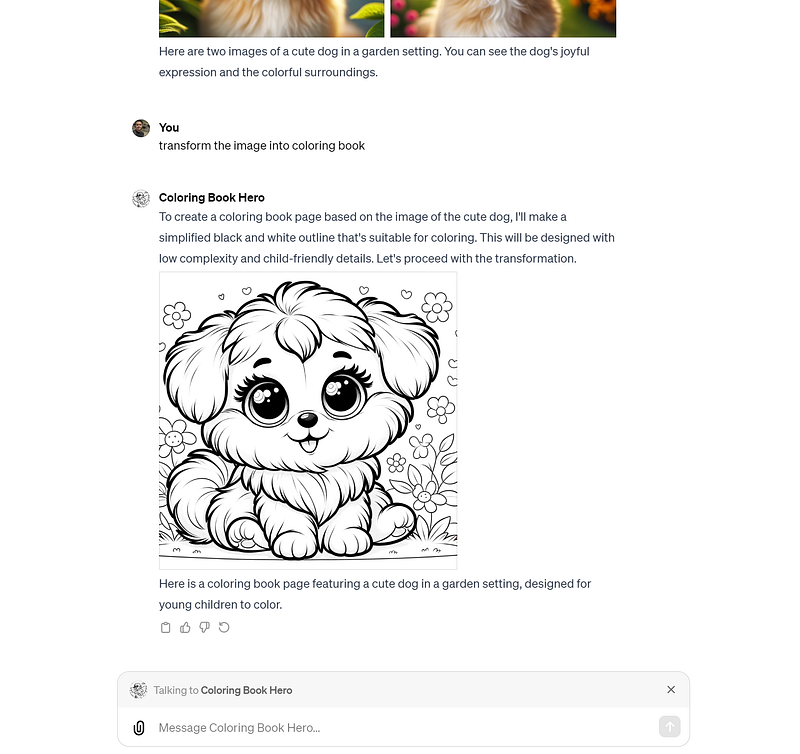
Image by Jim Clyde Monge

How cool is that? You can call other GPTs to make further modifications to these images.

If you want to disable the feature, you can do so by disabling the local overrides on your browser.

Step #5: Remove local overrides

Go to the Sources tab in DevTools and uncheck the “Enable Local Overrides” checkbox. Alternatively, you can delete the overrides that are already saved on your local drive by clicking on the delete button.
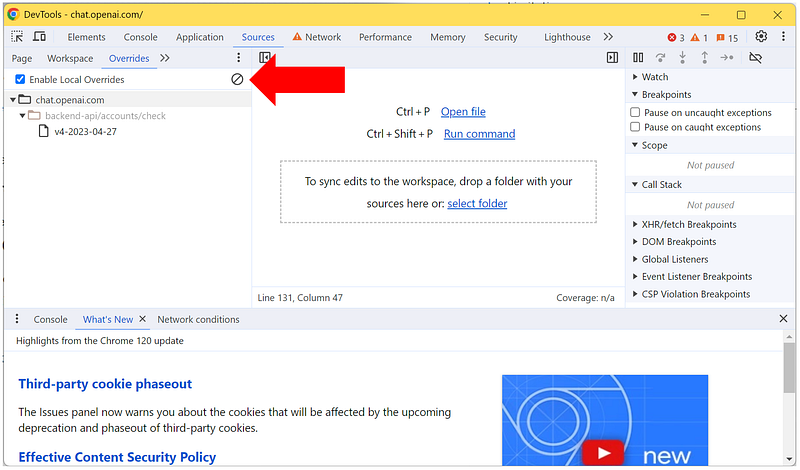
Image by Jim Clyde Monge

This action can’t be undone, and you will have to manually recreate the deleted overrides.

Final Thoughts

Okay, that’s about it. I hope you have fun enabling and trying out GPT Mentions ahead of the crowd. If you encounter any issues while following this guide, let me know in the comments.

A huge shout out to X user Danizord — e/acc for posting this little trick in X.

This story is published on Generative AI. Connect with us on LinkedIn and follow Zeniteq to stay in the loop with the latest AI stories. Let’s shape the future of AI together!

Technology
Artificial Intelligence
ChatGPT
Gpt Mention
Large Language Models
Recommended from ReadMedium