
How to Transcribe YouTube Podcasts or Videos for Obsidian Notes

Forget the pen and notebook. This method is much easier!
Introduction
One of the most favourite parts of my day is my walk in the bush every morning. I am very lucky to have a walking track in my small town that has native plants, lots of birds and even the occasional kangaroo. This is the time of day I listen to my podcasts. They can be on a range of interests, but predominant amongst them is AI, Leadership, Community and Nueroscience.
The problem I find is that when listening to them, I don’t get the opportunity to take notes. So when a pearl of wisdom is shared, I have to remember it when I get home. This is not as easy as it may sound!
The Solution
The solution is really quite simple and it is a transcript of the podcast. Some podcasts offer these and attach them to the show notes which is wonderful, but for the ones that do not, an alternative solution needs to be found.
First we will look at an easy one which is podcasts that are broadcast on Youtube as well as the podcast platforms. This will form Part 1 of a series of two articles. I will cover YouTube in this one and normal podcasts in the next.
YouTube
Transcripts are easy to obtain from YouTube. For this I use Glasp, a social web highlighter and transcript provider for YouTube. First thing is to sign up to Glasp which is free. The link is an “Invite Code” by the way, not an affiliate code.
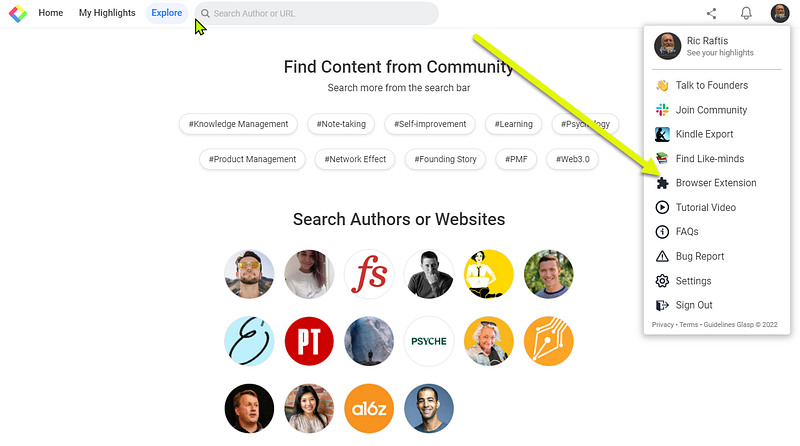
When you have your account setup, click on your avatar in the top right-hand corner and in the dropdown, select “Browser Extension” per the image below. Install the browser extension and we are ready for YouTube, and other uses as well that I will leave you to explore. And by the way, Glasp has an integration to Readwise too if you use that platform.
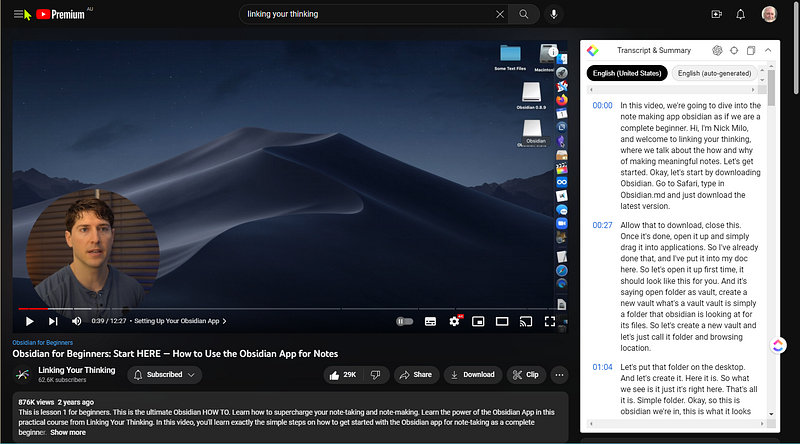
Now, if you go to YouTube and select a video to watch, you will find the Transcript and Summary will come up on the right-hand side of the video. Note the Glasp icon at top left. This is what the extension is doing in your browser.
In the image below, you can see one of Obsidian’s greatest advocates, Nick Milo, presenting a video. On the right, you can see the transcript and summary, including the timestamps. I will include a link to the videos for Obsidian in the references below.
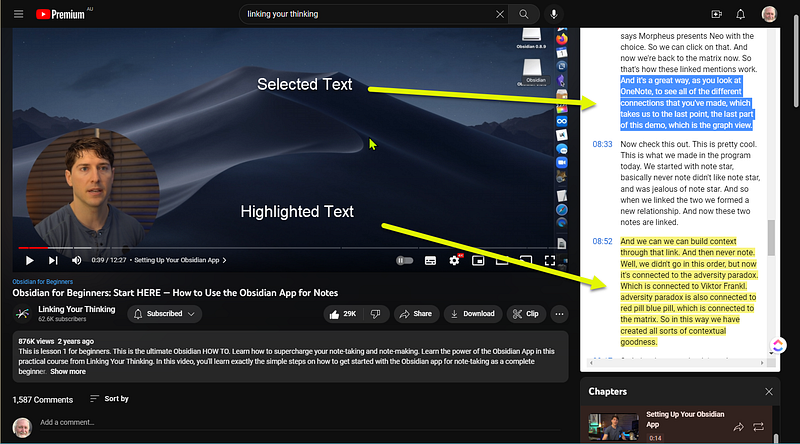
It doesn’t stop there, though. You can select the text from the transcript and even highlight areas for subsequent export.
So what other magical properties does this browser extension from Glasp provide? How about an AI summary of the video? Let’s see how it goes.
In the short video, I am highlighting some text, but you don’t have to do this. I then click on the Open AI icon at the top and Glasp opens ChatGPT and runs the transcript through the model which results in the output you will see on the screen. You could copy this and paste it into your Obsidian notes and then curate it to reflect your own summary.
If the explanations here are confusing, then here is a video to walk you through the steps.
Conclusion
I find this to be an extremely useful tool. One of my favourite podcasts is the Huberman Lab and his episodes can run for up to four hours. Now, I must admit, I don’t walk for that long in one go, but generally listen to his podcasts over a week. I find a lot of the information absolutely riveting and need to record it as a note in my Obsidian vault. Glasp really comes into its own here providing the service that it does.
In the follow up article, I will show you how to extract a podcast from a website and create a transcript for use in note making.
Want access to the best stories and articles on the web? Subscribe to Medium through my referral link for just $5 a month. You’ll have access to exclusive content and valuable insights that non-members miss out on. Don’t wait, elevate your reading experience and support me by subscribing now here.
References
- Obsidian for Beginners: Start HERE — How to Use the Obsidian App for Notes
- YouTube Nick Milo’s Obsidian Videos
- Andrew Huberman — YouTube
- Obsidian
More content at PlainEnglish.io.
Sign up for our free weekly newsletter. Follow us on Twitter, LinkedIn, YouTube, and Discord.
Build awareness and adoption for your tech startup with Circuit.


