avatarZulie Rane

Free AI web copilot to create summaries, insights and extended knowledge, download it at here

1462

Abstract

id="5bf6">Step 1: Select a curated story</h1><p id="b274">Medium no longer shows you on the stats page what it was curated into, but you can see that it WAS curated.</p><figure id="0e16"><img src="https://cdn-images-1.readmedium.com/v2/resize:fit:800/1*Zr7p__KMhGl5F_hvyqa8xg.png"><figcaption>Screenshot taken by author</figcaption></figure><p id="1939">But we don’t know what topics it was curated into.</p><p id="e68a">Pick a story you know for sure was curated, and then open it in a new tab.</p><h1 id="ca43">Step 2: Open developer tools</h1><p id="b973">Once you open the story, you can either:</p><ol><li>Right-click and select inspect, OR</li><li>If you’re using Chrome, you can hit the three dots in the top righthand corner, select Settings, and then Developer Tools</li></ol><figure id="47f5"><img src="https://cdn-images-1.readmedium.com/v2/resize:fit:800/1*AFPK7pmtgEFOpEx1xK_pSw.png"><figcaption></figcaption></figure><figure id="e3ef"><img src="https://cdn-images-1.readmedium.com/v2/resize:fit:800/1*8Xf0mRNOLDkBZAJAX6Ksiw.png"><figcaption>The two different options to open dev tools</figcaption></figure><h1 id="cdb0">Step 3: Find the “topic:” text in what opens up</h1><p id="3333">When you click that, you’re going to open up the source code behind the story. It looks like a lot, so don’t panic. We’re only looking for one thing.</p><p id="6522">Hit Ctrl+F (PC) or Cmd+F (mac) and type <code>topic:</code></p><p id="071e">This will show you wh

Options

at your story was distributed in.</p><figure id="616d"><img src="https://cdn-images-1.readmedium.com/v2/resize:fit:800/1*fDSAtM8WxiDUsXrt-Cresg.png"><figcaption>Screenshot taken by author</figcaption></figure><h1 id="d1c0">Step 4: Confirm by using the topic pages</h1><p id="49f7">If you don’t trust the lines of code, or just want to confirm the topics your story was curated into, there’s one more step you can do. Simply go to Medium.com/topic/[the topic your story was curated into]. E.g. in this case, I’d check medium.com/topic/election-2020, medium.com/topic/politics, and medium.com/topic/social-media. You’ll see it show up there, too.</p><figure id="863a"><img src="https://cdn-images-1.readmedium.com/v2/resize:fit:800/1*Ih8lMslgwCcHmRrXCXw0mg.png"><figcaption>Screenshot taken by author</figcaption></figure><p id="407d">That’s it!</p><h1 id="0a99">Important Caveat:</h1><p id="0cd0">It’s worth noting that you can’t use this tool to see whether or not a story has been curated. It’s only useful to see what topics a story you know has been curated into. I see tag/topic show up for stories I don’t believe have been curated. This only is valuable, for now, to see what topics it was curated into.</p><p id="23e0">You can use this information to satisfy your nosiness if you’re like me and just were dying to know. You can also use it to gain further insights on how your audience found your story, and their particular interests.</p></article></body>

How to Tell What Topics Your Medium Story Was Curated Into

Diving into the source code.
Image made by author in Canva

How do you know what topics your Medium story was curated or distributed into? Medium used to make it easy to see, but no longer. Recently, they removed the curation tags on a story. Luckily, it’s not the end of the line for us — there’s still a way.

Using source code, it is possible to find out what you got curated into! This video is about 5 minutes long and shows you exactly how, step by step. All you need is a story you know has been curated and a computer.

If you prefer a written version, read on.

Step 1: Select a curated story

Medium no longer shows you on the stats page what it was curated into, but you can see that it WAS curated.
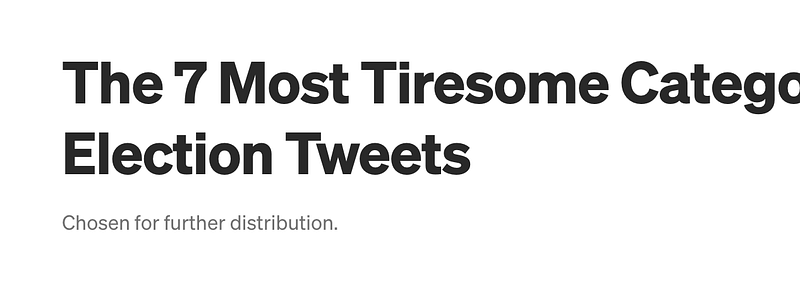
Screenshot taken by author

But we don’t know what topics it was curated into.

Pick a story you know for sure was curated, and then open it in a new tab.

Step 2: Open developer tools

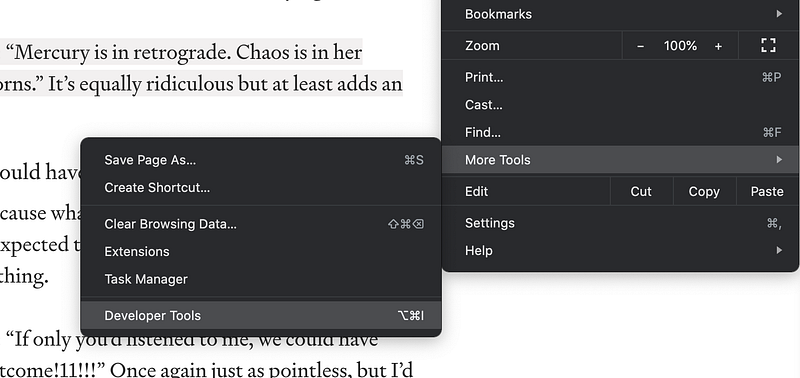
Once you open the story, you can either:

  1. Right-click and select inspect, OR
  2. If you’re using Chrome, you can hit the three dots in the top righthand corner, select Settings, and then Developer Tools
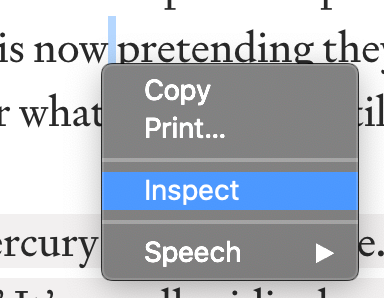
The two different options to open dev tools

Step 3: Find the “topic:” text in what opens up

When you click that, you’re going to open up the source code behind the story. It looks like a lot, so don’t panic. We’re only looking for one thing.

Hit Ctrl+F (PC) or Cmd+F (mac) and type topic:

This will show you what your story was distributed in.
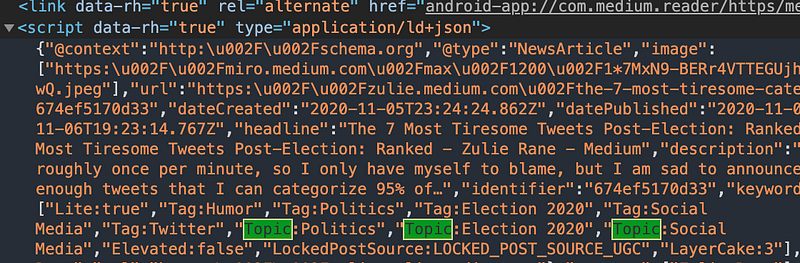
Screenshot taken by author

Step 4: Confirm by using the topic pages

If you don’t trust the lines of code, or just want to confirm the topics your story was curated into, there’s one more step you can do. Simply go to Medium.com/topic/[the topic your story was curated into]. E.g. in this case, I’d check medium.com/topic/election-2020, medium.com/topic/politics, and medium.com/topic/social-media. You’ll see it show up there, too.
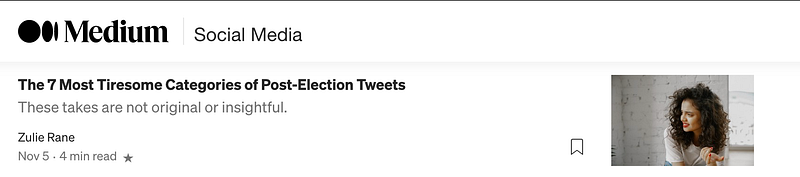
Screenshot taken by author

That’s it!

Important Caveat:

It’s worth noting that you can’t use this tool to see whether or not a story has been curated. It’s only useful to see what topics a story you know has been curated into. I see tag/topic show up for stories I don’t believe have been curated. This only is valuable, for now, to see what topics it was curated into.

You can use this information to satisfy your nosiness if you’re like me and just were dying to know. You can also use it to gain further insights on how your audience found your story, and their particular interests.

Medium
Writing
Curation
Medium Partner Program
Blogging
Recommended from ReadMedium