avatarChris Hedges

Free AI web copilot to create summaries, insights and extended knowledge, download it at here

2594

Abstract

*pzCcudakqcm4rK2R8NRo7Q.png"><figcaption>Color coded folders for easy scanning and sorting. Screenshot by Chris Hedges. (Author).</figcaption></figure><h1 id="7312">Make your filters</h1><p id="cff2">The key to take advantage of Gmail’s sorting power is to make a filter. When you receive an email, select it like you want to read it. In the example below, the new email is in bold from “me” and has “test email” in the subject line. I will click on that email to open it.</p><figure id="a99c"><img src="https://cdn-images-1.readmedium.com/v2/resize:fit:800/1*6NHSQYFf-jes2YfA9gnpgw.png"><figcaption>Primary email screen. Note the color coding for the messages. Screenshot by Chris Hedges (author).</figcaption></figure><p id="842d"><b>Once you have selected the email and opened it to read it, press the “more” button (with three stacked dots) to select the “more” menu.</b></p><figure id="c029"><img src="https://cdn-images-1.readmedium.com/v2/resize:fit:800/1*NGrVng7zi_rwFpznHcA-ZA.png"><figcaption>The “more” menu button is circles. This is where filter options are located. Screenshot by Chris Hedges (author).</figcaption></figure><p id="03b7"><b>Once you are in the “more” menu, select “Filter messages like these” from the options presented.</b></p><figure id="e00e"><img src="https://cdn-images-1.readmedium.com/v2/resize:fit:800/1*DEzjId7zWaaB0BgottT5SA.png"><figcaption>Options inside the “more” menu. Select “Filter messages like these.” Screenshot by Chris Hedges. (Author).</figcaption></figure><p id="0b8f"><b>Click the “Filter messages like these” and a fill-in box with options will appear on your screen, as well as a list of messages that meet whatever options you choose. In the example below, the filter rule finds all the emails with my email address. This lets me find messages sent to me, as well as those I have sent.</b></p><p id="7a7b"><b>This is the first part of your filter creation.</b></p><figure id="61e6"><img src="https://cdn-images-1.readmedium.com/v2/resize:fit:800/1*EAIomLGPdZl41Lqxrj2sCA.png"><figcaption>First step of creating your filter. Screenshot by Chris Hedges. (author).</figcaption></figure><p id="e98d">For part two of creating the filter, select “Create filter” at the bottom right corner of the first option box (see the image above).</p><p id="c9d3">The screen with various options (see below), will appear. This is where you will determine where you email is filtered.</p><figure id="6b0a"><img src="https://cdn-images-1.readmedium.com/v2/resize:fit:800/1*U-GWcwFfrUCP4ZSWg_TB2A.png"><figcaption>Part two — Select your filter options and pr

Options

ess, “Create filter.” Screenshot by Chris Hedges. (author).</figcaption></figure><p id="ec70">This is the fun part. Select what you want to have happen with your email. You can mark it with a star, delete it, spam it, send it to a folder, and more.</p><p id="8f06">In our case, you’ll want to send it to a folder. You can select that option and create the folder where you want your Medium alert email to be sorted to. You can make all sorts of folders for various purposes. Private messages contained in stories. Or, mentions in Medium posts. Or new submissions to publications where you are editor. A world of options is available to you.</p><p id="f9e5">I usually mark Medium mail as “read” so that when it is time to delete mass amounts, the system will see that it was “read” and it won’t accidentally end up in the spam filter. Gmail learns from how you handle your email, so marking it read teaches the algorithm that you are interested in that mail, but that you want it sorted.</p><p id="f0a4">Good luck with your filters.</p><p id="3aa5">Let me know if you have any questions.</p><p id="f1b1"><a href="undefined">Chris Hedges</a>, BA, JD, is a photographer and writer. I am also an editor at ILLUMINATION. I also own <a href="https://96c.co/i">Publisher’s Spotlight</a> and <a href="https://x29.co">Unicorn Labs</a> where Illumination Amplifier lives.</p><div id="c31e" class="link-block"> <a href="https://96c.co/i"> <div> <div> <h2>Writers, share your stories here | Publisher's Spotlight</h2> <div><h3>We want to spread the messages you are creating every day to the world. This is a place where we help amplify your…</h3></div> <div><p>96c.co</p></div> </div> <div> <div style="background-image: url(https://miro.readmedium.com/v2/resize:fit:320/0*hpAqBNq7Jdve82Gv)"></div> </div> </div> </a> </div><div id="2921" class="link-block"> <a href="https://x29.co/mehmet"> <div> <div> <h2>Illumination Amplifier</h2> <div><h3>A Pandemic Soon Winds Down As I was out and about today (with my mask and hand sanitizer) a new line of thinking had…</h3></div> <div><p>x29.co</p></div> </div> <div> <div style="background-image: url(https://miro.readmedium.com/v2/resize:fit:320/0*zDAnKHq-BX1rMgRi)"></div> </div> </div> </a> </div></article></body>

Secrets of Time Management

How to Sort Your Medium Emails Using Gmail’s Folders

I have so many alerts, it is easier to check Gmail for Medium notifications

Photo by Valerie Elash on Unsplash

The problem — too many notifications

I get a bunch of notifications in my Medium account. I can check on my phone, but it only picks up a certain amount. If I don’t check it all the time, I will lose notifications.

If I check it on the computer, I will get notices that can reach into the hundreds. I don’t know when the counter turns over because I have never let it get past 999 alerts, but even 300 or 400 alerts means time reading them and taking action.
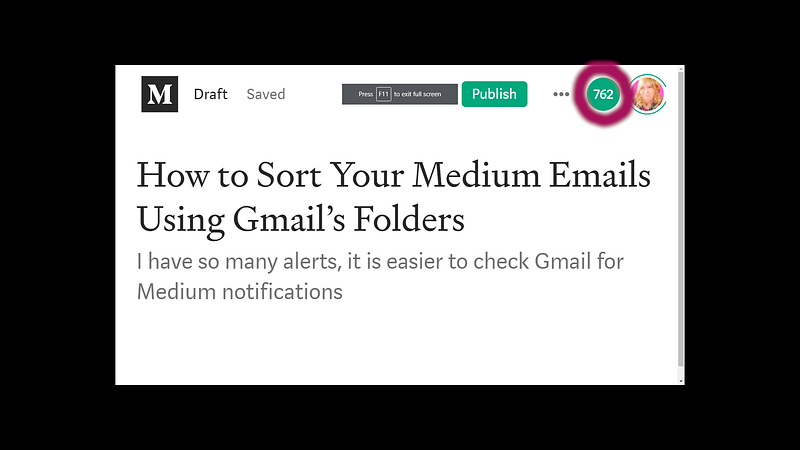
I have 762 alerts. Yikes! Screenshot by Chris Hedges. (Author).

The Solution — use Gmail to sort your email alerts into folders

The solution I use to handle the onslaught of alerts is to accept all of the email alerts, but filter them into various folders.

№1: To do this, you will need to set up a Gmail account (or use your existing account).

№2: Once your account is set up, receive some Medium email alerts.

№3: Set up your various filters based on keywords contained in the emails.
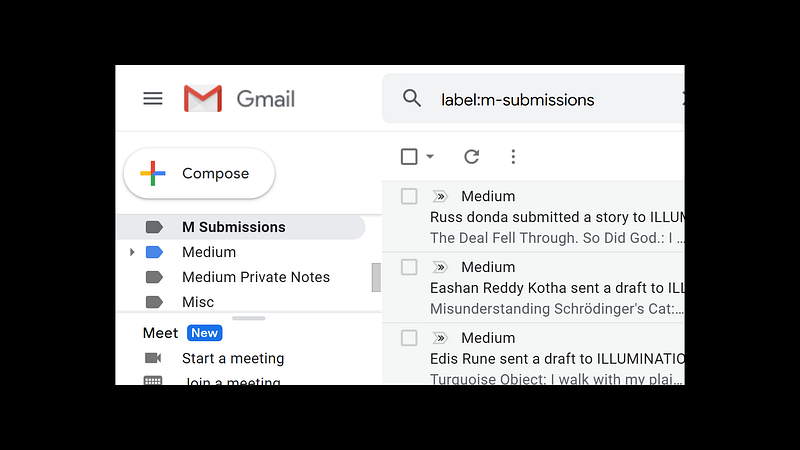
A view of some of the labels I use to sort email using Gmail. Screenshot by Chris Hedges. (Author).
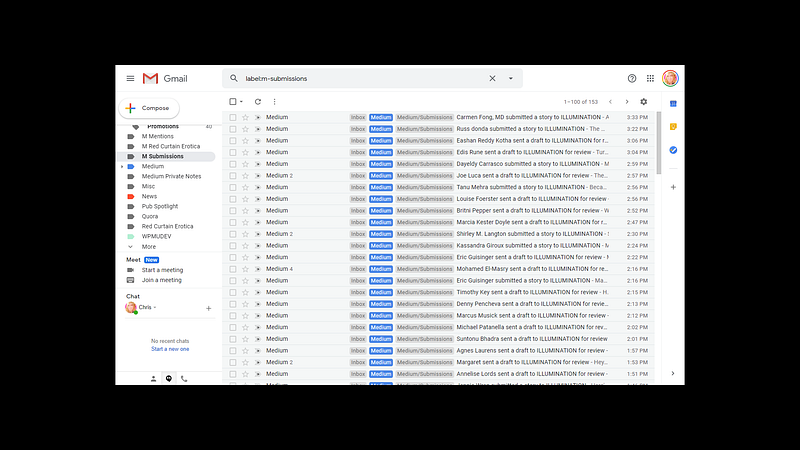
About an 1 1/2 hours worth of submission alerts. Screenshot by Chris Hedges. (Author).

The nice thing about the Gmail folders is that you can change their colors to make items stand out when you are scanning your list. I edit a couple of publications, so I can make different color folders for each publication, if I desire.
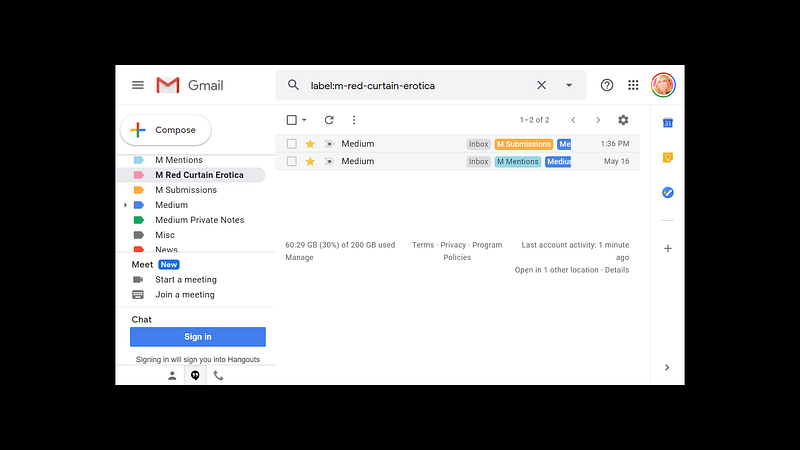
Color coded folders for easy scanning and sorting. Screenshot by Chris Hedges. (Author).

Make your filters

The key to take advantage of Gmail’s sorting power is to make a filter. When you receive an email, select it like you want to read it. In the example below, the new email is in bold from “me” and has “test email” in the subject line. I will click on that email to open it.
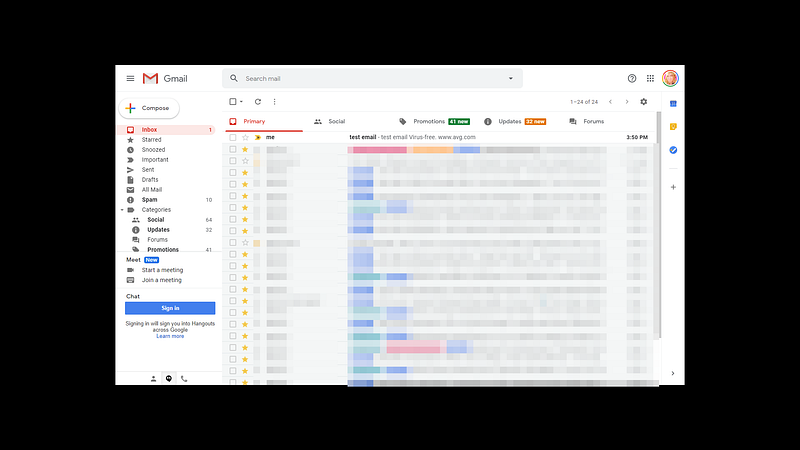
Primary email screen. Note the color coding for the messages. Screenshot by Chris Hedges (author).

Once you have selected the email and opened it to read it, press the “more” button (with three stacked dots) to select the “more” menu.
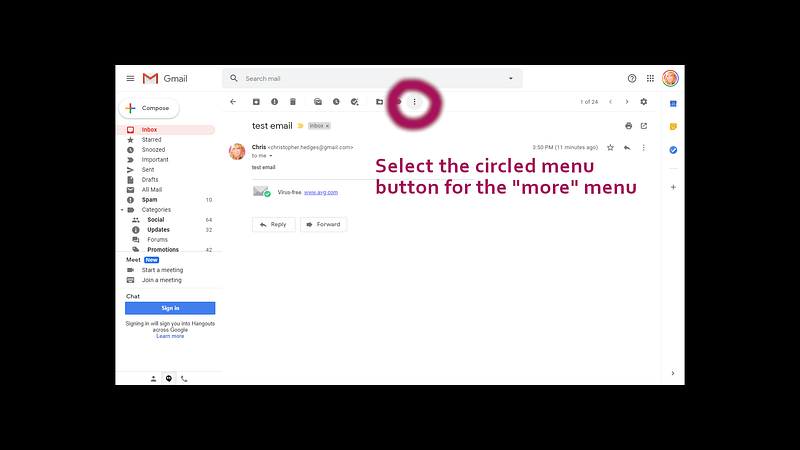
The “more” menu button is circles. This is where filter options are located. Screenshot by Chris Hedges (author).

Once you are in the “more” menu, select “Filter messages like these” from the options presented.
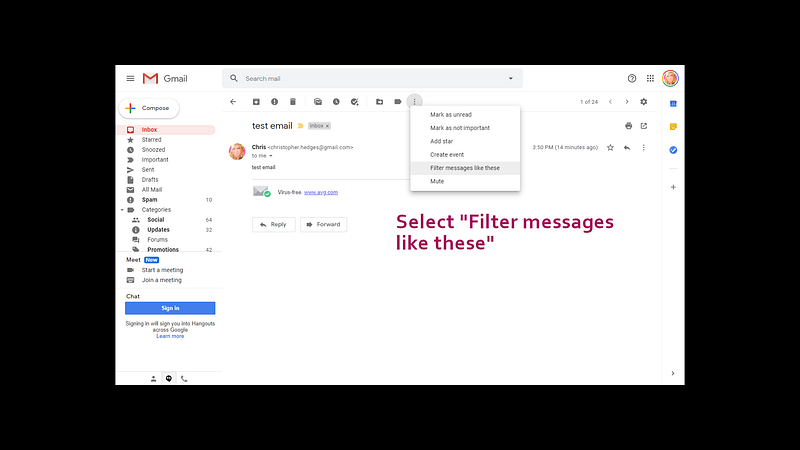
Options inside the “more” menu. Select “Filter messages like these.” Screenshot by Chris Hedges. (Author).

Click the “Filter messages like these” and a fill-in box with options will appear on your screen, as well as a list of messages that meet whatever options you choose. In the example below, the filter rule finds all the emails with my email address. This lets me find messages sent to me, as well as those I have sent.

This is the first part of your filter creation.
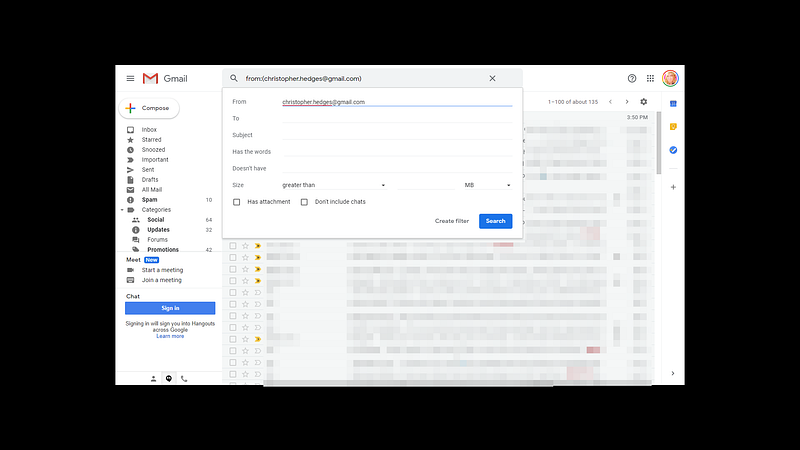
First step of creating your filter. Screenshot by Chris Hedges. (author).

For part two of creating the filter, select “Create filter” at the bottom right corner of the first option box (see the image above).

The screen with various options (see below), will appear. This is where you will determine where you email is filtered.
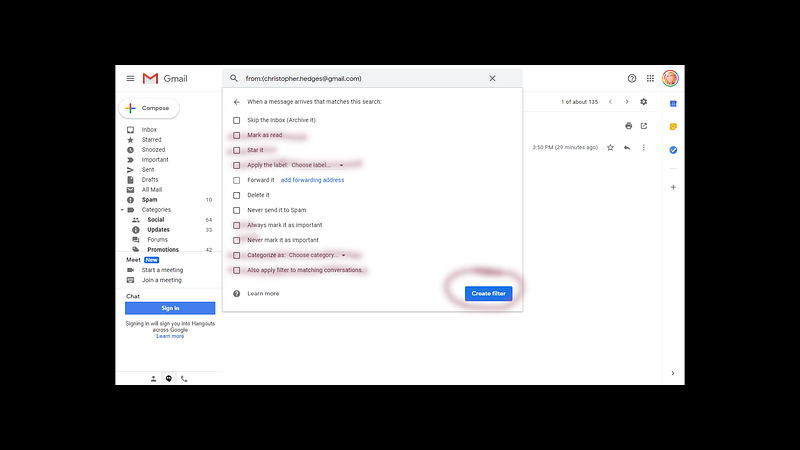
Part two — Select your filter options and press, “Create filter.” Screenshot by Chris Hedges. (author).

This is the fun part. Select what you want to have happen with your email. You can mark it with a star, delete it, spam it, send it to a folder, and more.

In our case, you’ll want to send it to a folder. You can select that option and create the folder where you want your Medium alert email to be sorted to. You can make all sorts of folders for various purposes. Private messages contained in stories. Or, mentions in Medium posts. Or new submissions to publications where you are editor. A world of options is available to you.

I usually mark Medium mail as “read” so that when it is time to delete mass amounts, the system will see that it was “read” and it won’t accidentally end up in the spam filter. Gmail learns from how you handle your email, so marking it read teaches the algorithm that you are interested in that mail, but that you want it sorted.

Good luck with your filters.

Let me know if you have any questions.

Chris Hedges, BA, JD, is a photographer and writer. I am also an editor at ILLUMINATION. I also own Publisher’s Spotlight and Unicorn Labs where Illumination Amplifier lives.

Technology
Personal Development
How To
Productivity
Tips
Recommended from ReadMedium