
How to Set WSL as the Default Terminal on JetBrains IDEs (Webstorm, PyCharm, IntelliJ IDEA, PhpStorm, CLion, Rider, RubyMine)
This short tutorial explains the steps to set the WSL/WSL2 Terminal as your default terminal choice on any JetBrains IDE.
After setting this up, when you open a project from your IDE, you will be able to open all its project files from a native Linux command-line program provided by your WSL distro (such as bash shell) instead of using a Windows-based command-line program (such as Windows Command Prompt, PowerShell, Git Bash for Windows).
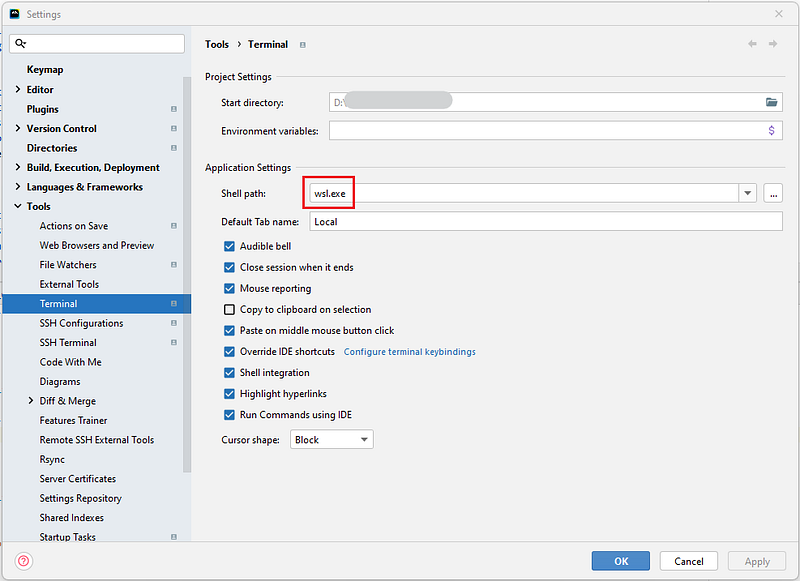
#1 — Open File > Settings > Tools > Terminals
Alternatively, when the Settings window is open, you can search “Terminals” and find the same.


#2 — Application Settings > Shell path: “wsl.exe” > Apply > OK
This will point your shell path to C:\Windows\System32\wsl.exe or simply wsl.exe.
#3 — Verify changes
Now, fire up a new terminal and try some commands to verify that everything is working as expected.

Bonus Tip #1 — Multiple Linux Distributions
If you have multiple Linux distros installed with WSL and you want to point the shell path to a non-default WSL distro, then you can use the below configuration in the above Shell path setting.
Shell path: wsl.exe --distribution <your distro choice>e.g.
wsl.exe --distribution CentOS7
wsl.exe --distribution Ubuntu
wsl.exe --distribution DebianBonus Tip #2 — Compilers / Interpreters
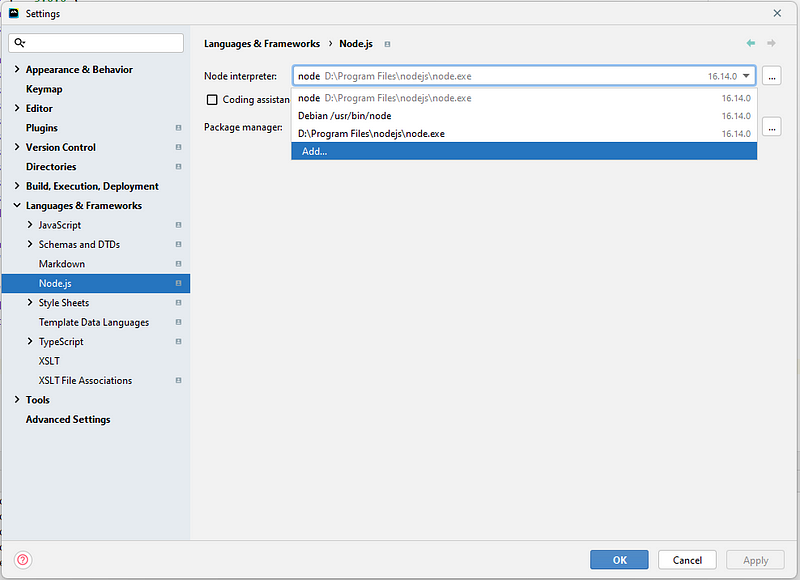
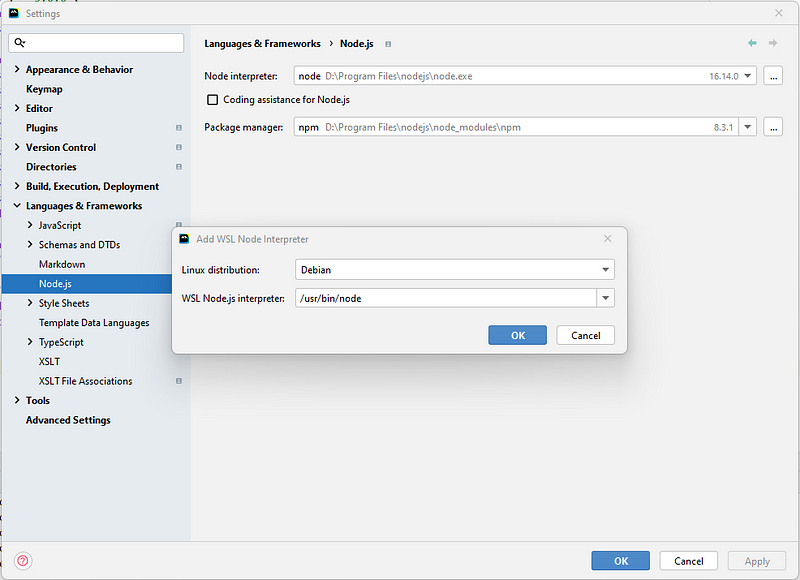
In addition to the terminal, you can change the Compilers / Interpreters under the Languages & Frameworks setting to use the WSL tools. For example, on WebStorm, you can change the Node.js Interpreter to use WSL by following the below steps. For other IDEs, you can do the same by visiting the Languages & Frameworks setting.

Conclusion
With this setup, you get access to so many additional tools built for Linux (such as Linux terminal, Docker, and more) without even leaving your favourite Jetbrains IDE window and while enjoying the benefits of both Linux + Windows worlds.
If you have any suggestions to improve this piece or questions for me, I would love to hear them in the comments section.
Stay tuned for the next programming tip. Until then, happy coding!


