
How to set up your Telegram Bot using BotFather
In this article, I will show you how to setup a new Telegram bot and its profile picture, description, about text and commands!
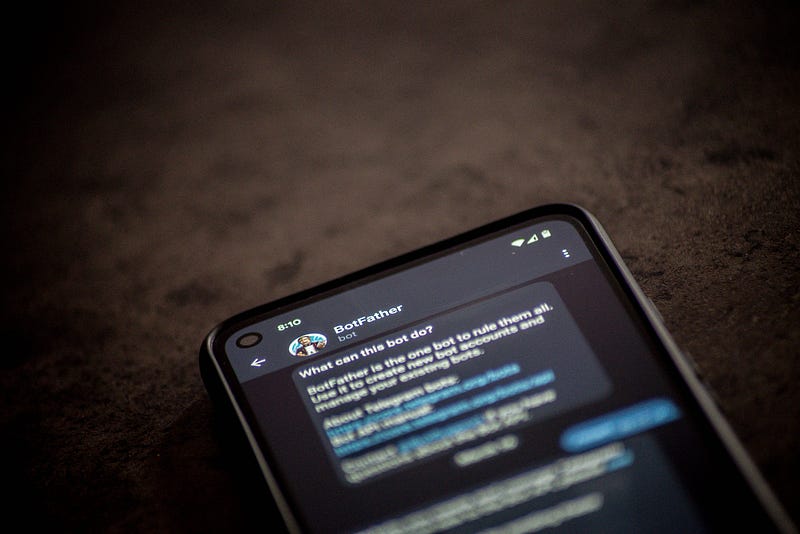
Who is BotFather?
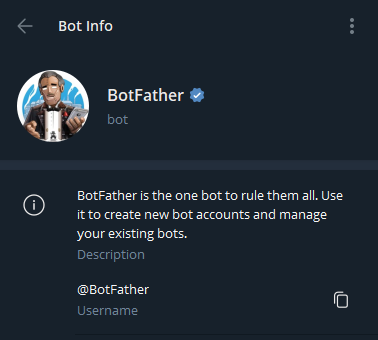
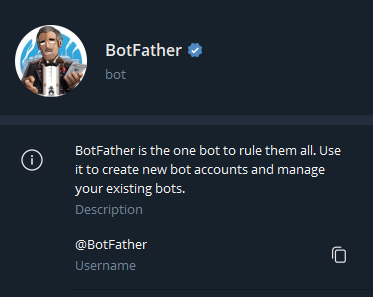
BotFather is a bot on Telegram that manages all the bots that you create via your account on Telegram. You can reach him by searching @BotFatheron Telegram and you should see this profile
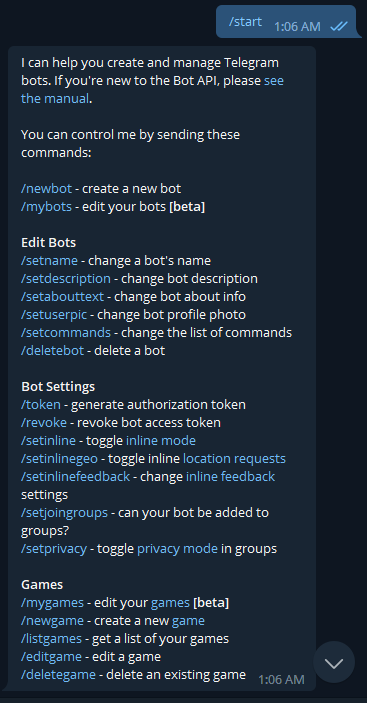
To see what he can do, send /start or /help in the chat with BotFather, and you should see a list of commands that he has.
1. Creating a new bot
The very first step when creating a new Telegram bot project, is to register your new bot with BotFather. We are going use a Todo list bot as an example.
1. Send /newbot to BotFather
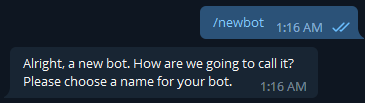
2. Reply BotFather with the name of the bot you wish to use.
Note that this will be the name of the bot that will appear in your conversations and it does not need to be unique
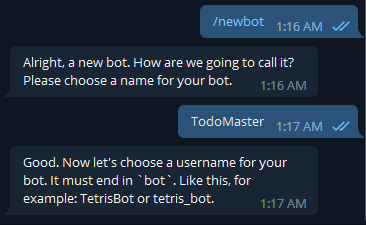
3. Next, reply BotFather with the username of the bot you wish to use for your bot
The username is a unique identifier for your bot, and so it has to be unique to all other bots. It will also be appended with a ‘@’ at the front, and is usually how people will find your bot. Note that the username of a bot has to end with the word bot, and BotFather will ask you to try again if it does not meet that criteria, or if your username is not unique.
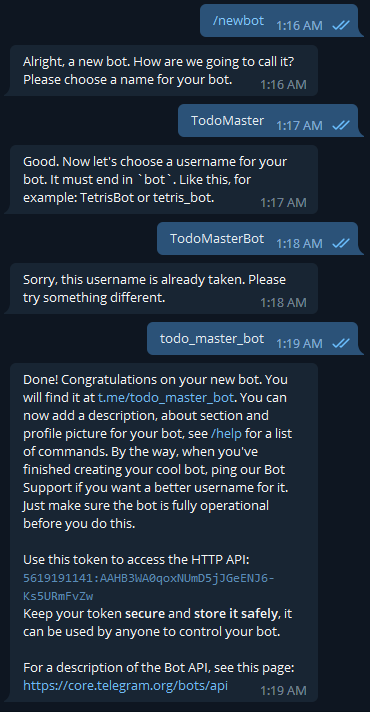
4. At this point, your bot should have been created!
In the reply, you should be able to see the bot’s token. This is very important when creating new bots, and make sure that you do not give this token to anyone, as whoever has this token can take control over your bot. (Don’t worry, I have deleted this example bot so there is no point in copying my token in the screenshot :P)
Click on the t.me/<bot_username> link, and you should be brought straight to your new telegram bot. You should see the name of your new bot at the top of the chat display, and you should also see the bot's username in the Bot Info page.
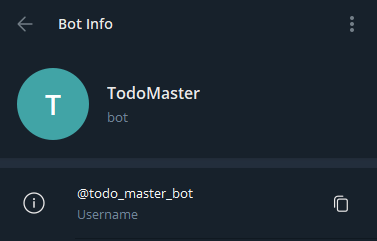
If at any point you need to access your bot’s access token again, send /mybots to BotFather, click on the bot's username, click on API Token in the inline keyboard, and you should be able to see the bot's token again.
2. Adding a Profile Picture
To make your bot stand out from other bots, it needs to have a profile picture.
1. From the BotFather chat, send /setuserpic or you can the 'Menu' button on the left if the chat box, and scroll down to /setuserpic. All commands should be in the menu so you can use the menu whenever you need to send a command.
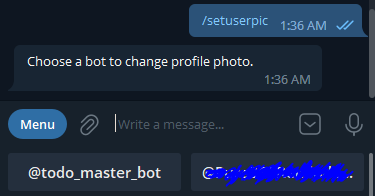
2. Click on your bot’s username
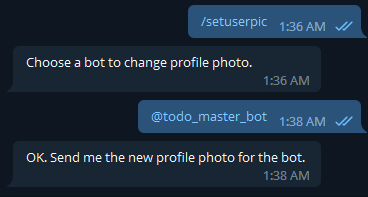
3. Upload a picture to BotFather (image must be at least 150x150)
4. Once you’ve uploaded your picture, go back to your new bot, and it should have its profile picture updated! Nice!
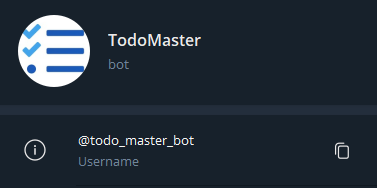
3. Setting the Bot’s Description
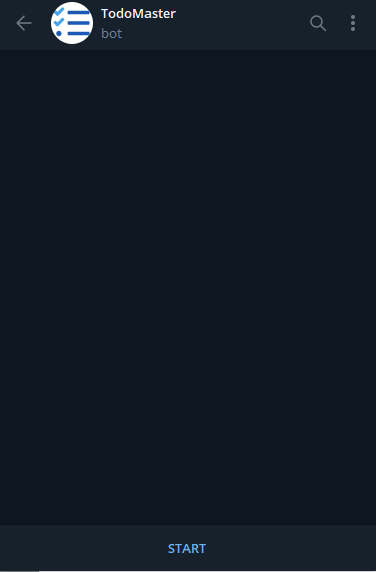
If you’re looking at this picture and find that it is missing something, you’re right, it is missing the bot’s description. The description is usually shown whenever a person visits the bot for the first time, and it will be seen with the header ‘What can this bot do?’. This is very important to set up as you want your users to know immediately what is the bot’s function right as he visits the bot.
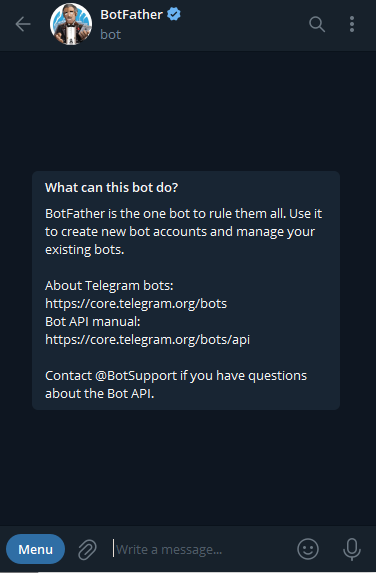
To set the bot’s description, it is similar to the step above. Send /setdescription to BotFather and follow the instructions.
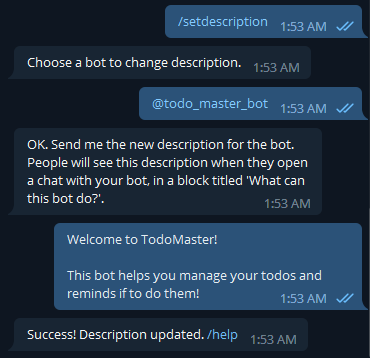
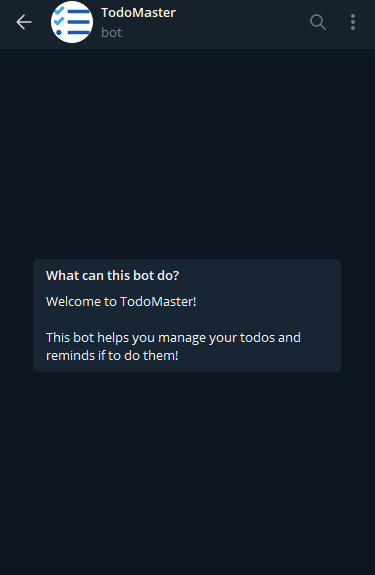
Now for some strange reason, if you want your bot to have the ‘description’ section in the Bot Info page, this ‘description’ is actually the bot’s ‘About’ text, and to set it, use the
/setabouttextcommand. Don't ask me why its designed this way, I have no idea too.
4. Setting the Bot’s Commands
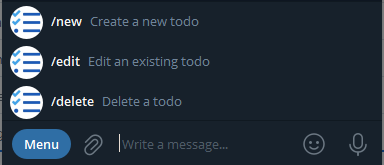
It’s good to provide users with a list of available commands for your bot via the ‘Menu’ button on the left. This also saves them the need of typing the entire command out.
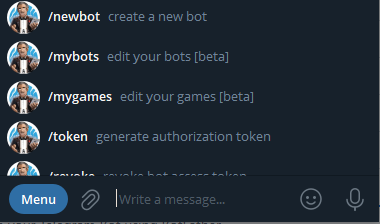
To get this for your bot, we want to send /setcommands to BotFather and select our bot.
Assuming we have 3 commands /new, /edit, and /delete, what you need to reply back to BotFather is a list of your commands and their description in the following format:
new - Create a new todo
edit - Edit an existing todo
delete - Delete a todo
Note that we exclude the slash for the command, and we use a dash (-) to separate between the command and its description.
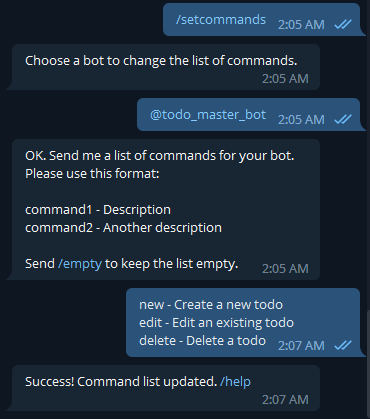
Now your bot should have their commands easily accessible through the ‘Menu’ button! Awesome!
That’s all folks!
I hope this article was helpful in explaining the features of BotFather! Please feel free to leave a follow or a clap if this helped you and comment what you would like to learn next about Telegram bots! I specialise in Telegram bot development and free deployment tips and tricks, do checkout my other article on Telegram bots here: https://blog.devgenius.io/create-and-deploy-your-telegram-bot-here-entirely-free-757d5d5e8099


