avatarConnor Leech

Free AI web copilot to create summaries, insights and extended knowledge, download it at here

3682

Abstract

keg-only, <span class="hljs-keyword">which</span> <span class="hljs-keyword">means</span> it was not symlinked into /usr/<span class="hljs-keyword">local</span>, because macOS provides the BSD gettext library & some software gets confused <span class="hljs-keyword">if</span> both are <span class="hljs-keyword">in</span> the library path.

<span class="hljs-keyword">If</span> you need to have gettext first <span class="hljs-keyword">in</span> your PATH <span class="hljs-keyword">run</span>: echo 'export PATH=<span class="hljs-string">"/usr/local/opt/gettext/bin:$PATH"</span>' >> ~/.zshrc

<span class="hljs-keyword">For</span> compilers to find gettext you may need to <span class="hljs-keyword">set</span>: export LDFLAGS=<span class="hljs-string">"-L/usr/local/opt/gettext/lib"</span> export CPPFLAGS=<span class="hljs-string">"-I/usr/local/opt/gettext/include"</span>

==> libffi libffi is keg-only, <span class="hljs-keyword">which</span> <span class="hljs-keyword">means</span> it was not symlinked into /usr/<span class="hljs-keyword">local</span>, because some formulae require a newer <span class="hljs-keyword">version</span> of libffi.

<span class="hljs-keyword">For</span> compilers to find libffi you may need to <span class="hljs-keyword">set</span>: export LDFLAGS=<span class="hljs-string">"-L/usr/local/opt/libffi/lib"</span>

==> libpq libpq is keg-only, <span class="hljs-keyword">which</span> <span class="hljs-keyword">means</span> it was not symlinked into /usr/<span class="hljs-keyword">local</span>, because conflicts with postgres formula.

<span class="hljs-keyword">If</span> you need to have libpq first <span class="hljs-keyword">in</span> your PATH <span class="hljs-keyword">run</span>: echo 'export PATH=<span class="hljs-string">"/usr/local/opt/libpq/bin:$PATH"</span>' >> ~/.zshrc

<span class="hljs-keyword">For</span> compilers to find libpq you may need to <span class="hljs-keyword">set</span>: export LDFLAGS=<span class="hljs-string">"-L/usr/local/opt/libpq/lib"</span> export CPPFLAGS=<span class="hljs-string">"-I/usr/local/opt/libpq/include"</span>

==> [email protected] To enable PHP <span class="hljs-keyword">in</span> Apache add the following to httpd.<span class="hljs-keyword">conf</span> and restart Apache: LoadModule php7_module /usr/<span class="hljs-keyword">local</span>/opt/[email protected]/lib/httpd/modules/libphp7.<span class="hljs-keyword">so</span>

&lt;FilesMatch \.php$&gt;
    SetHandler application/x-httpd-php
&lt;/FilesMatch&gt;

Finally, check DirectoryIndex includes index.php DirectoryIndex index.php index.html

The php.ini and php-fpm.ini <span class="hljs-keyword">file</span> can be found <span class="hljs-keyword">in</span>: /usr/<span class="hljs-keyword">local</span>/etc/php/7.1/

[email protected] is keg-only, <span class="hljs-keyword">which</span> <span class="hljs-keyword">means</span> it was not symlinked into /usr/<span class="hljs-keyword">local</span>, because this is <span class="hljs-keyword">an</span> alternate <span class="hljs-keyword">version</span> of another formula.

<span class="hljs-keyword">If</span> you need to have [email protected] first <span class="hljs-keyword">in</span> your PATH <span class="hljs-keyword">run</span>: echo 'export PATH=<span class="hljs-string">"/usr/local/opt/[email protected]/bin:PATH"</span>' &gt;&gt; ~/.zshrc echo 'export PATH=<span class="hljs-string">"/usr/local/opt/[email protected]/sbin:PATH"</span>' >> ~/.zshrc

<span class="hljs-keyword">For</span> compilers to find [email protected] you may need to <span class="hljs-keyword">set</span>: export LDFLAGS=<span class="hljs-string">"-L/usr/local/opt/[email protected]/lib"</span>

Options

export CPPFLAGS=<span class="hljs-string">"-I/usr/local/opt/[email protected]/include"</span>

To have launchd start [email protected] now and restart at login: brew services start [email protected] Or, <span class="hljs-keyword">if</span> you don't want/need a background service you can just <span class="hljs-keyword">run</span>: php-fpm</pre></div><h1 id="c39e">Optional: Symlink Sublime Text</h1><p id="0540">Symbolic links help you quickly open applications or programs using the command line. In my case I like to have a file or directory open in Sublime Text (which you can download <a href="https://www.sublimetext.com/">here</a>) when I type <code>subl filename</code>.</p><p id="9e83">To do this you need to add Sublime Text to your load path. Check the load path location by running <code>echo PATH</code>. This will show the load paths separated by colons.</p><div id="ef86"><pre><span class="hljs-meta prompt_"> </span><span class="language-bash"><span class="hljs-built_in">echo</span> <span class="hljs-variable">PATH</span> /usr/local/bin:/usr/bin:/bin:/usr/sbin:/sbin</span> <span class="hljs-meta prompt_"> </span><span class="language-bash"><span class="hljs-built_in">ln</span> -s <span class="hljs-string">"/Applications/Sublime Text.app/Contents/SharedSupport/bin/subl"</span> /usr/local/bin/subl</span> <span class="hljs-meta prompt_"> </span><span class="language-bash">subl ~/.zshrc</span></pre></div><p id="0295">This creates a symbolic link or sym link so that you can open Sublime from the command line. <a href="https://olivierlacan.com/posts/launch-sublime-text-3-from-the-command-line/">This tutorial</a> is super helpful.</p><h1 id="00ad">Install VirtualBox</h1><p id="1e1d">Vagrant runs on top of <a href="https://www.virtualbox.org/wiki/Downloads">VirtualBox</a>. You’ll need to have it installed on your machine.</p><figure id="54f6"><img src="https://cdn-images-1.readmedium.com/v2/resize:fit:800/0*3Ixj66uuyXbhMe92.png"><figcaption></figcaption></figure><h1 id="11f9">Install Vagrant</h1><p id="e828">You can download Vagrant for Mac <a href="https://www.vagrantup.com/downloads.html">here</a>.</p><p id="0cb6">Move to a folder where you’d like to set up your virtual environment. For example you can make a folder named <code>mkdir vm</code> to run vagrant commands inside of. Install <a href="https://github.com/laravel/homestead">Laravel Homestead</a> by running:</p><div id="6dff"><pre><span class="hljs-meta prompt_"> </span><span class="language-bash"><span class="hljs-built_in">cd</span> /yourPathToVagrantFolder</span> <span class="hljs-meta prompt_"> </span><span class="language-bash">vagrant init</span> <span class="hljs-meta prompt_"> </span><span class="language-bash">vagrant box add laravel/homestead</span></pre></div><p id="8fcb">When I tried to run this command the first time I got an error: <code>OpenSSL SSL_read: SSL_ERROR_SYSCALL, errno 54</code>. The next morning I ran <code>vagrant destroy</code> and then ran the command to add the vagrant box and it worked. I believe that issue was due to the network. Trying it at a different time of day worked for me.</p><p id="b243">Once installed clone your project, <code>cd</code> into it and run <code>vagrant up</code>. You may need to run <code>vagrant reload --provision</code> when booting up your machine. Be sure to consult the <a href="https://laravel.com/docs/5.8/homestead">Laravel Homestead</a> documentation for more notes on running a Laravel 5.8 app with Vagrant and the Homestead box for your development environment!</p><p id="d3ee"><i>Originally published at <a href="https://employbl.com/blog/install-vagrant-on-mac">https://employbl.com</a>.</i></p></article></body>

How to set up Vagrant on Mac

Here are some steps and notes I took recently when setting up Vagrant for Laravel development on a Mac

I recently started a new job at Phone2Action and am setting up a new macbook pro for software development. These are some of the steps I’ve taken to get up and running with Vagrant on a new Macbook. Vagrant is a virtual environment on your computer. You can install Vagrant Boxes to have a common development environment with other developers on your team. By installing and using a Vagrant box it can eliminate the need to install many other softwares like PHP, MySQL, Redis etc.

Install Xcode and Xcode developer tools.

Conventional wisdom is to run xcode-select --install to install Xcode. I ran into an error that "Xcode is not currently available from the Software Update server". I then had to download Xcode and the developer tools with my Apple Developer account here. It takes a while to download but is an important first step for software development.

Install Homebrew

Once Xcode is installed install Homebrew with the one liner from their website:

/usr/bin/ruby -e "$(curl -fsSL https://raw.githubusercontent.com/Homebrew/install/master/install)"

Optional: Install iTerm and Oh My ZSH

iTerm has some extra functionality for your terminal: https://www.iterm2.com/

Oh My Zsh: https://github.com/robbyrussell/oh-my-zsh

Install packages

Once Homebrew is installed you can use it to install lots of important packages for software development. I’ll be using PHP and MySQL with Node.js. These commands install composer, package manager for PHP. Yarn, which is the new new version of NPM. PHP version 7.1 and the AWS command line tools.

$ brew install composer 
$ brew install yarn 
$ brew install node 
$ brew install redis 
$ brew install php71 
$ brew install awscli

This is the ending summary from the PHP install:

==> Summary
🍺  /usr/local/Cellar/[email protected]/7.1.30: 513 files, 63MB
==> Caveats
==> libtool
In order to prevent conflicts with Apple's own libtool we have prepended a "g"
so, you have instead: glibtool and glibtoolize.
==> gettext
gettext is keg-only, which means it was not symlinked into /usr/local,
because macOS provides the BSD gettext library & some software gets confused if both are in the library path.

If you need to have gettext first in your PATH run:
  echo 'export PATH="/usr/local/opt/gettext/bin:$PATH"' >> ~/.zshrc

For compilers to find gettext you may need to set:
  export LDFLAGS="-L/usr/local/opt/gettext/lib"
  export CPPFLAGS="-I/usr/local/opt/gettext/include"

==> libffi
libffi is keg-only, which means it was not symlinked into /usr/local,
because some formulae require a newer version of libffi.

For compilers to find libffi you may need to set:
  export LDFLAGS="-L/usr/local/opt/libffi/lib"

==> libpq
libpq is keg-only, which means it was not symlinked into /usr/local,
because conflicts with postgres formula.

If you need to have libpq first in your PATH run:
  echo 'export PATH="/usr/local/opt/libpq/bin:$PATH"' >> ~/.zshrc

For compilers to find libpq you may need to set:
  export LDFLAGS="-L/usr/local/opt/libpq/lib"
  export CPPFLAGS="-I/usr/local/opt/libpq/include"

==> [email protected]
To enable PHP in Apache add the following to httpd.conf and restart Apache:
    LoadModule php7_module /usr/local/opt/[email protected]/lib/httpd/modules/libphp7.so

    <FilesMatch \.php$>
        SetHandler application/x-httpd-php
    </FilesMatch>

Finally, check DirectoryIndex includes index.php
    DirectoryIndex index.php index.html

The php.ini and php-fpm.ini file can be found in:
    /usr/local/etc/php/7.1/

[email protected] is keg-only, which means it was not symlinked into /usr/local,
because this is an alternate version of another formula.

If you need to have [email protected] first in your PATH run:
  echo 'export PATH="/usr/local/opt/[email protected]/bin:$PATH"' >> ~/.zshrc
  echo 'export PATH="/usr/local/opt/[email protected]/sbin:$PATH"' >> ~/.zshrc

For compilers to find [email protected] you may need to set:
  export LDFLAGS="-L/usr/local/opt/[email protected]/lib"
  export CPPFLAGS="-I/usr/local/opt/[email protected]/include"

To have launchd start [email protected] now and restart at login:
  brew services start [email protected]
Or, if you don't want/need a background service you can just run:
  php-fpm

Optional: Symlink Sublime Text

Symbolic links help you quickly open applications or programs using the command line. In my case I like to have a file or directory open in Sublime Text (which you can download here) when I type subl filename.

To do this you need to add Sublime Text to your load path. Check the load path location by running echo $PATH. This will show the load paths separated by colons.

$ echo $PATH /usr/local/bin:/usr/bin:/bin:/usr/sbin:/sbin 
$ ln -s "/Applications/Sublime Text.app/Contents/SharedSupport/bin/subl" /usr/local/bin/subl 
$ subl ~/.zshrc

This creates a symbolic link or sym link so that you can open Sublime from the command line. This tutorial is super helpful.

Install VirtualBox

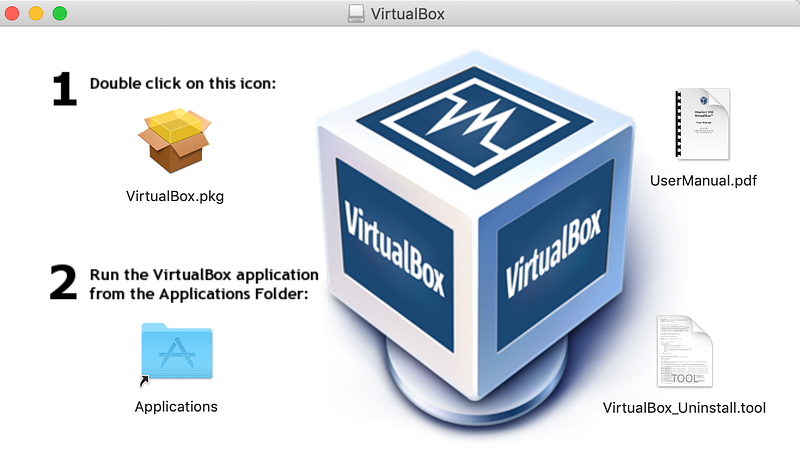
Vagrant runs on top of VirtualBox. You’ll need to have it installed on your machine.
Install Vagrant

You can download Vagrant for Mac here.

Move to a folder where you’d like to set up your virtual environment. For example you can make a folder named mkdir vm to run vagrant commands inside of. Install Laravel Homestead by running:

$ cd /yourPathToVagrantFolder 
$ vagrant init 
$ vagrant box add laravel/homestead

When I tried to run this command the first time I got an error: OpenSSL SSL_read: SSL_ERROR_SYSCALL, errno 54. The next morning I ran vagrant destroy and then ran the command to add the vagrant box and it worked. I believe that issue was due to the network. Trying it at a different time of day worked for me.

Once installed clone your project, cd into it and run vagrant up. You may need to run vagrant reload --provision when booting up your machine. Be sure to consult the Laravel Homestead documentation for more notes on running a Laravel 5.8 app with Vagrant and the Homestead box for your development environment!

Originally published at https://employbl.com.

Laravel
Vagrant
Virtual Machine
MySQL
Software Development
Recommended from ReadMedium