
How To Set Up & Use DragGAN
While we wait for the official release, you can already play with DragGAN
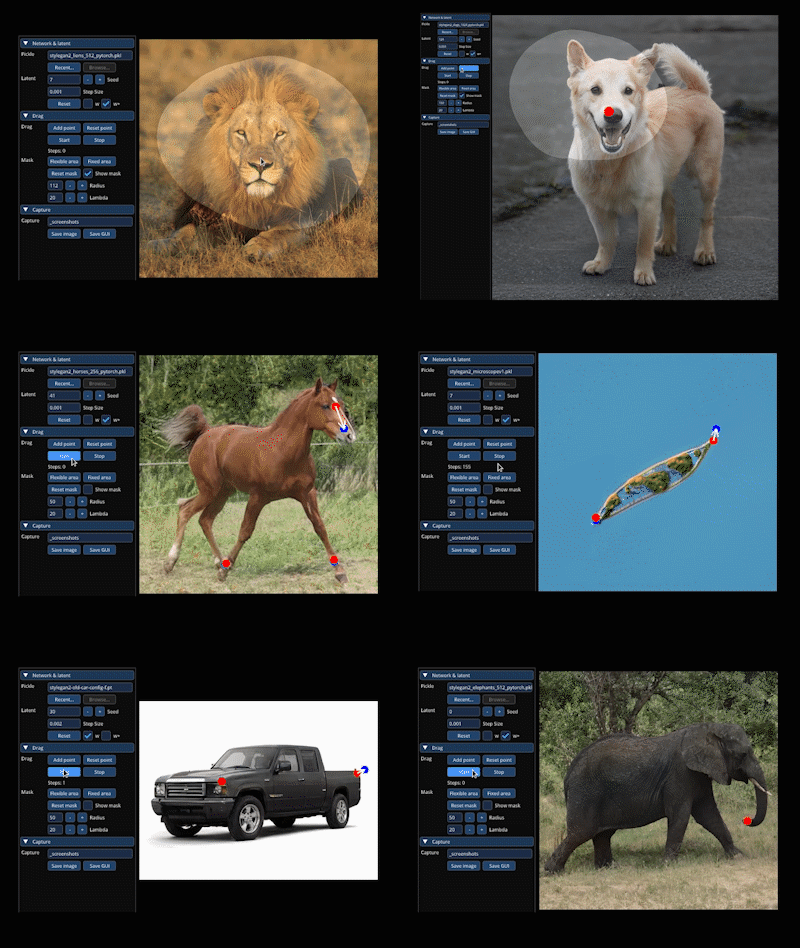
It’s one of those releases that everyone is excited about. And with good reason: DragGAN not only puts GAN back on the map but also opens up a ton of new possibilities for GAN image manipulation.
The official release is announced this month. But you can already try out the new tool in an unofficial demo. Here’s how.
Wait, what’s GAN again?
A Generative Adversarial Network (GAN) is a type of machine learning system that uses a specific architecture to produce incredibly realistic synthetic data.
How DragGAN works
DragGAN allows you to drag any point of a GAN-generated image to a target point, thus transforming the image.
For more information about DragGAN and lots of image examples, check out my recent post:
For a technical deep dive, check out the original paper here.
How to set up and use DragGAN
Two ways to use DragGAN right now (before the official release): via Google Colab or Huggingface Spaces.
Google Colab
There is a Google Colab that lets you run DragGAN in your browser window. All you need to do is get a Google account and some GPU time ($10/month).
Step one: navigate to https://colab.research.google.com/github/Zeqiang-Lai/DragGAN/blob/master/colab.ipynb#scrollTo=JwFHP4JUWtko
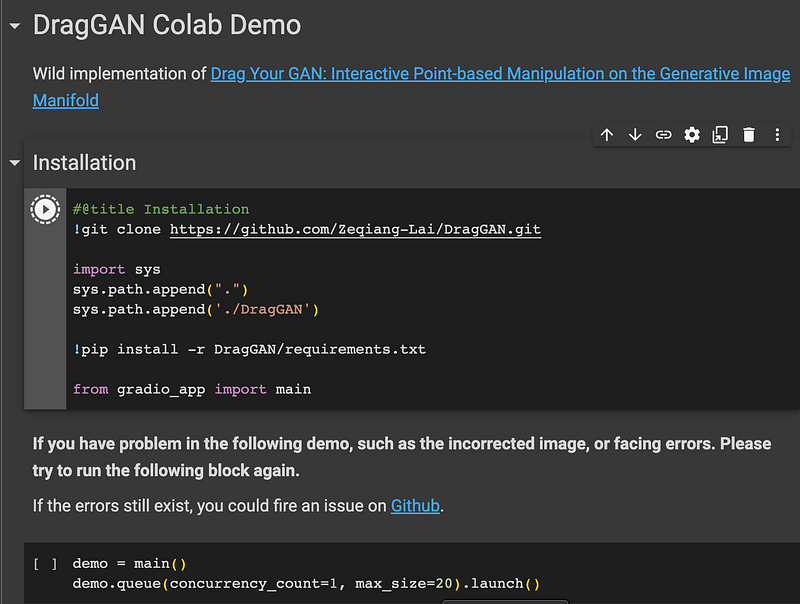
Step two: select your GPU in the notebook settings and run the installation code, after that run the demo code block.
Step three: Choose a model and image to test DragGAN by setting origin and target handles and clicking “Drag it” (available via the “Setup Handle Points” menu).
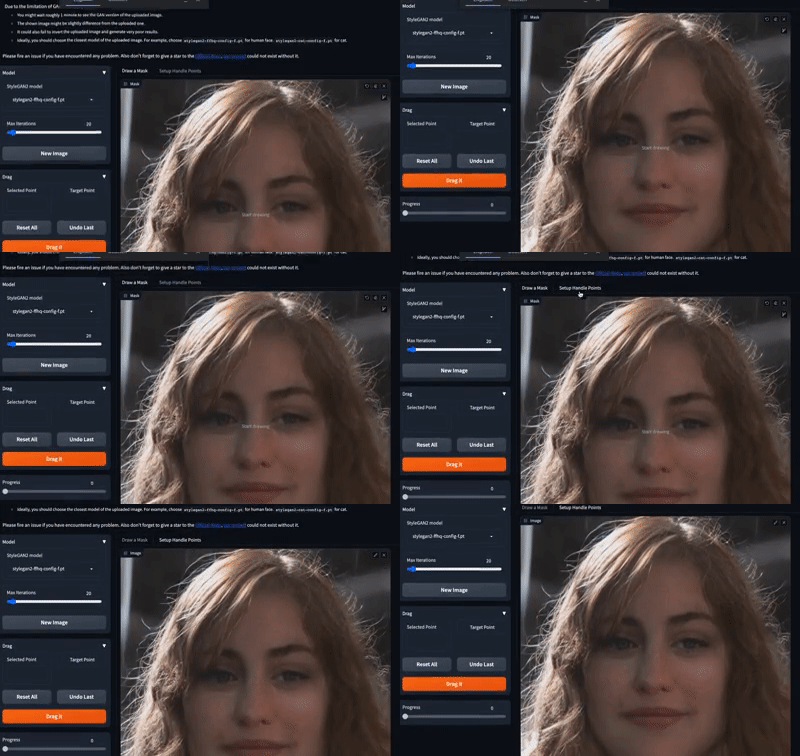
Huggingface Space
There is a space on Huggingface that is pre-configured and has simple click & drag functionality (you don’t have to set origin and target points, which makes it easier to get a feel for the method, but of course less controllable)
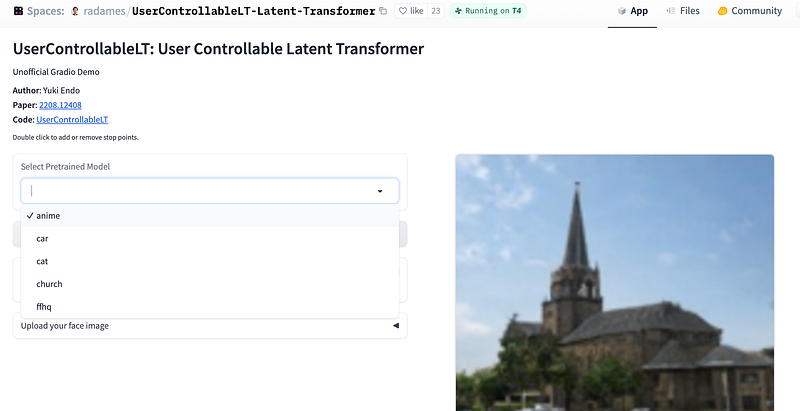
Step one: navigate to https://huggingface.co/spaces/radames/UserControllableLT-Latent-Transformer
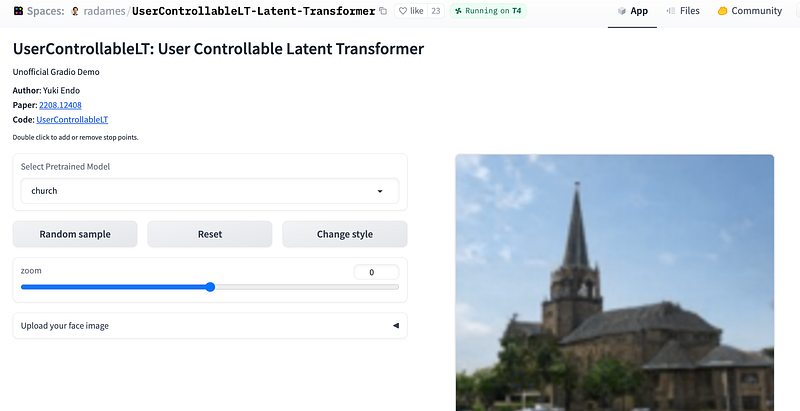
Step two: select an image to work with.
There are two options for this: generate an image with one of the provided GAN models or upload a face image/use a sample face image.
Option 1: Generate an image
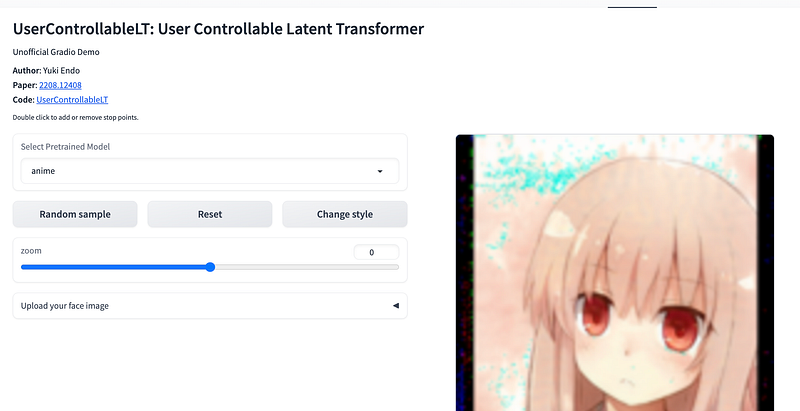
Choose one of the “Pretrained Models”. In this example, I use the “anime” model.
Then click “Random sample” until you find an image you like (alternatively, use “Change style” to change the image)
Option 2: Use a face image sample or upload your own face image
Click the upload your face image rider to either upload an image or use one of the provided sample images.
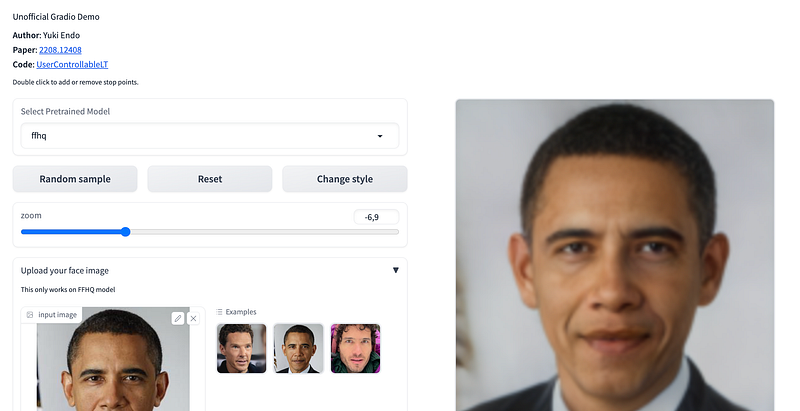
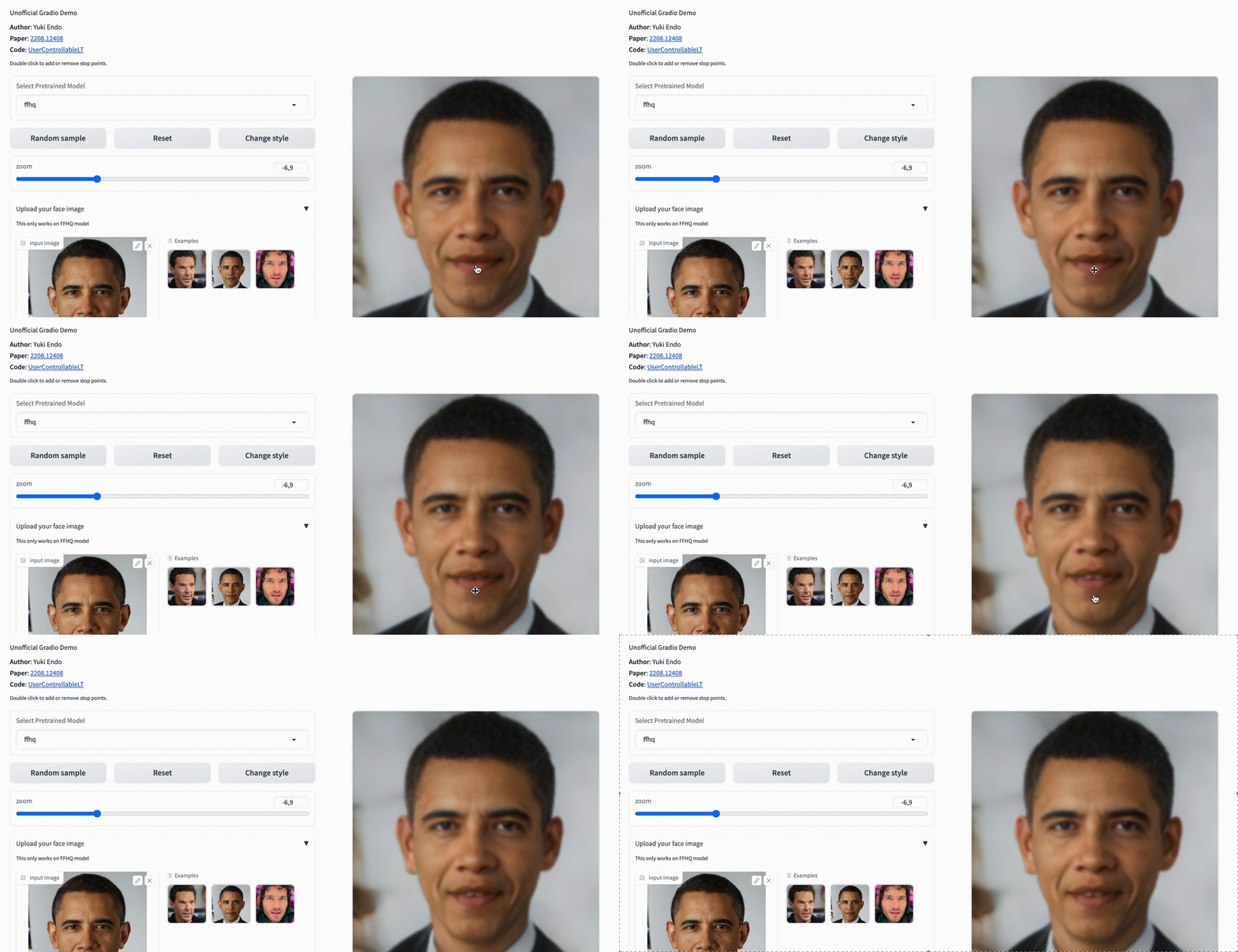
Step three: click&drag over the chosen image to manipulate it.
Here’s an example:
🚨 For more information about AI & Creativity, follow me on Twitter or use my referral link to get full access to all my Medium articles (+ those of thousands of other writers).
➡️ If you like my content, why not leave a “clap” at the end of this article, so more people can see it?