
How to set up Google Workspace to send emails in Gmail with a custom domain

You are using Google Workspace and now want to set up a Gmail account to send and receive emails using your custom domain. In this article, we explain how to set up Gmail with your custom domain.
- Login to Google Admin and go to
Domains > Add a Domain
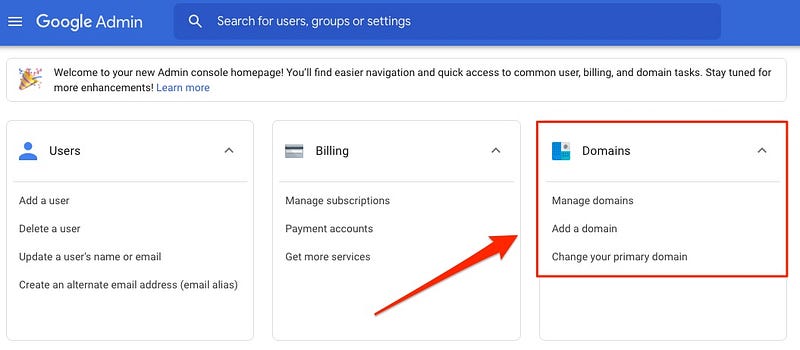
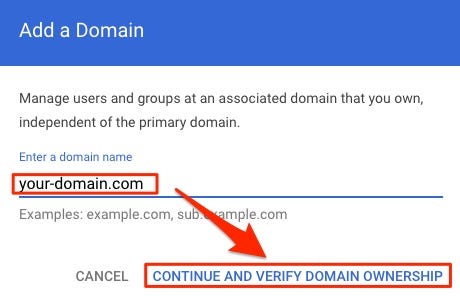
2. Fill in your domain name and click CONTINUE AND VERIFY DOMAIN OWNERSHIP
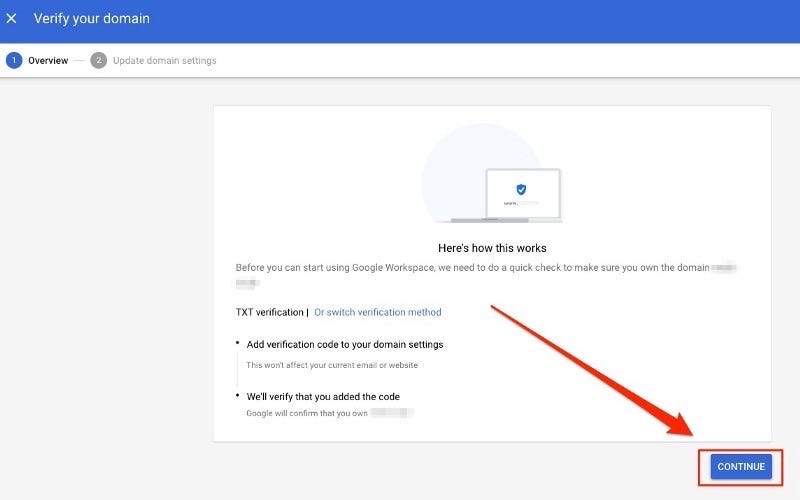
3. Click on CONTINUE
4. Copy the TXT record and add it to your domain host.
Google made a list on how to do it for a lot of domain hosts, check if your domain host is included by clicking on the link here
5. After adding the TXT record to your domain host, go back to Google Admin and click VERIFY DOMAIN
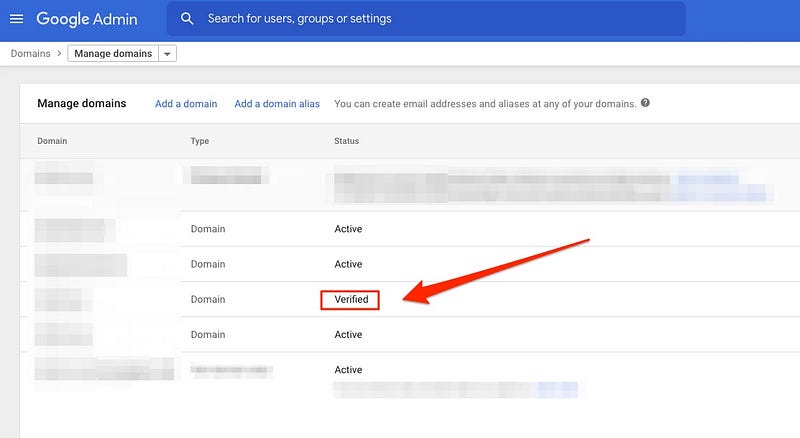
6. Once this is successful, you should be redirected to Manage Domains and your domain status is verified
7. Next we create a new user with the verified domain
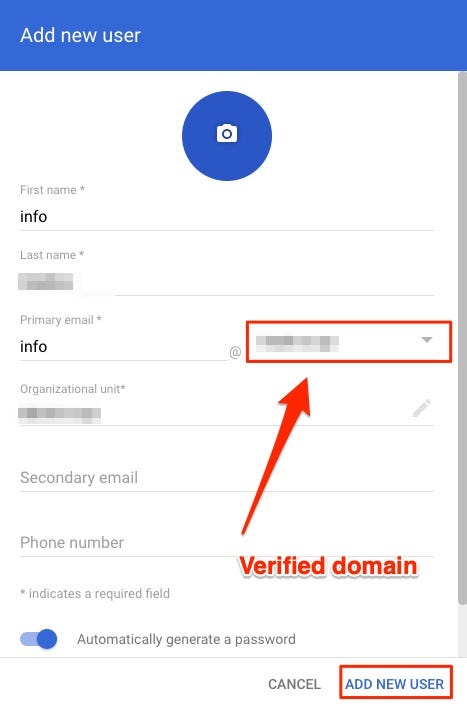
8. Go to Gmail and log in with the newly created user.
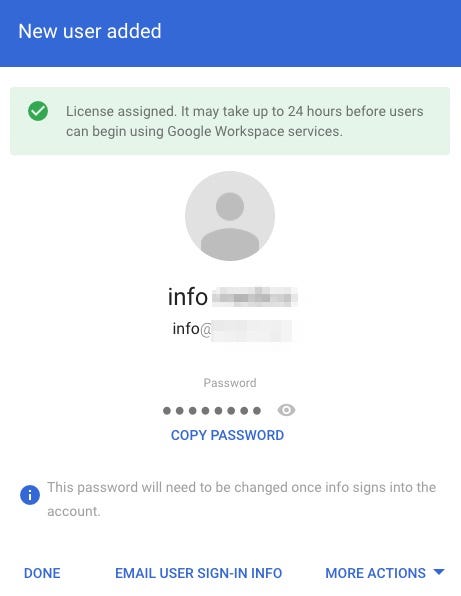
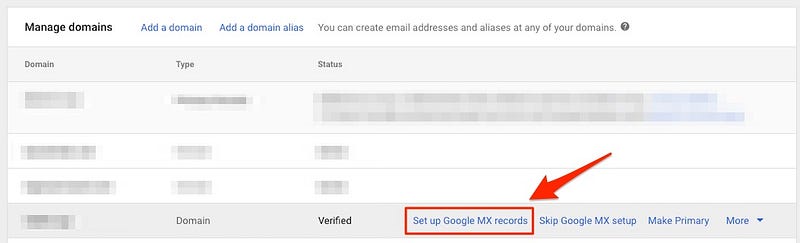
9. We can send emails with the created account, but we cannot receive emails yet. To receive emails, we have to set up the MX record. Go back to the Manage Domains page and click on Set up Google MX records
10. Accept that Gmail will be your main for receiving emails on your custom domain
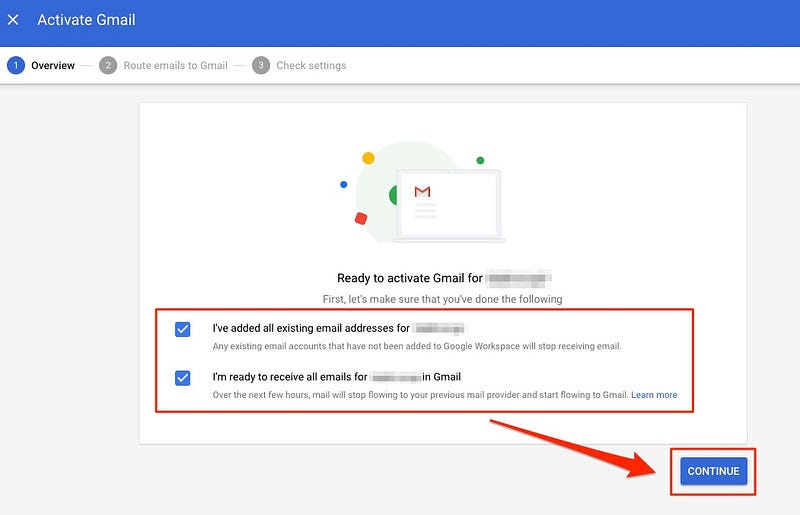
11. Add the MX record to your domain host. Click here for a complete list of how to set up for each domain host.
12. After finishing setting up in your domain host, go back to Admin Google and click on ACTIVATE GMAIL
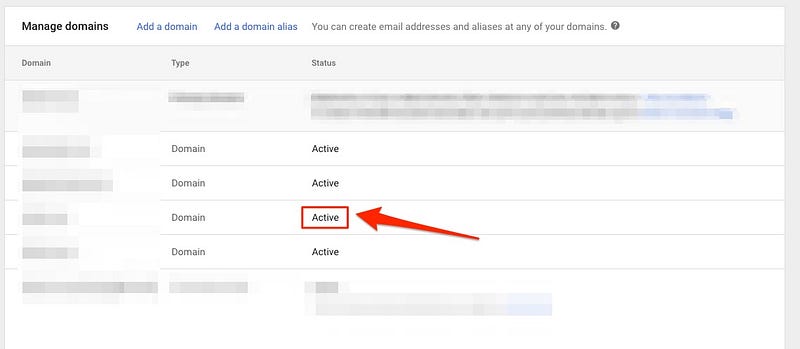
13.It will redirect you to Manage Domains and your custom domain should change from verifiedto active
Now the setup is complete and you can now send and receive emails through your custom domain in Gmail.