avatarKirsten Swanson

Free AI web copilot to create summaries, insights and extended knowledge, download it at here

1783

Abstract

admedium.com/v2/resize:fit:800/1*AhSeF_rFQjXhjAj1triQSw.png"><figcaption>Vercel Domain Invalid Configuration</figcaption></figure><p id="4b1b">5. Go to your GoDaddy account to manage your DNS. Navigate to your domain list. Select your domain you want your Vercel app to redirect to.</p><figure id="367f"><img src="https://cdn-images-1.readmedium.com/v2/resize:fit:800/1*G4l7jGH5IgZcwl41wzn65A.png"><figcaption>GoDaddy Domains Nav</figcaption></figure><p id="c226">6. In the <b>Domain Settings</b>, scroll all the way to the bottom of the page to the block titled “<b>Additional Settings.</b>” Turn the <b>Domain Lock “Off.” </b>Click on the Manage DNS link to configure your DNS.</p><figure id="9e75"><img src="https://cdn-images-1.readmedium.com/v2/resize:fit:800/1*ynGP6hEwxvjDwMFkL-K8uw.png"><figcaption>GoDaddy Additional Settings for Domain</figcaption></figure><p id="6835">7. This next step is dependent upon whether you chose the <b>A Record </b>or <b>Nameservers</b> method to configure the domain. Below I go over both options:</p><p id="0498"><b>A Record Option</b></p><p id="d9c6">In the “Records” section click on the “<b>ADD</b>” button and fill in the inputs based on Vercel’s A Record info and IP address. You might be prompted to remove an existing A record, which you should do.</p><figure id="0716"><img src="https://cdn-images-1.readmedium.com/v2/resize:fit:800/1*au6qih2NgUx8hkOG_ATaoA.png"><figcaption>GoDaddy Records</figcaption></figure><figure id="4f4d"><img src="https://cdn-images-1.readmedium.com/v2/resize:fit:800/1*USjyLSrnvc-SHG9YK6KMJQ.png"><figcaption>GoDaddy A Record row</figcaption></figure><p id="9b90"><b>Nameservers Option</b></p><p id="cf39">You are provided the Vercel nameservers that you can use in GoDaddy.</p><figure id="91b4"><img src="h

Options

ttps://cdn-images-1.readmedium.com/v2/resize:fit:800/1*GytVBQ5IQRjOEUd4Y67Rtg.png"><figcaption>Vercel Nameservers</figcaption></figure><p id="b5ce">You will replace GoDaddy’s nameservers with Vercel’s nameservers. GoDaddy will send you an email to verify that you want to make this change.</p><figure id="e948"><img src="https://cdn-images-1.readmedium.com/v2/resize:fit:800/1*MVECEuOAllqX0DL-zxGZ0w.png"><figcaption>GoDaddy Nameservers Configuration</figcaption></figure><p id="ea39">8. Once the configuration is set up correctly, you will no longer see the invalid message and instead you will see “<b>Valid Configuration</b>” and the redirect to your domain.</p><figure id="f885"><img src="https://cdn-images-1.readmedium.com/v2/resize:fit:800/1*BIpMD6qIqaKpLUM3CKLvHw.png"><figcaption>Vercel Successful Domain Configuration Set up</figcaption></figure><p id="ce04">9. To view the DNS configuration in Vercel click on the “<b>Edit</b>” button on the domain name that you just added and configured.</p><figure id="9a61"><img src="https://cdn-images-1.readmedium.com/v2/resize:fit:800/1*4N54xrx7pxtT6fIhrqsq4A.png"><figcaption>Vercel Domain Edit Button</figcaption></figure><p id="eba8">Then you will see the link “<b>View DNS Records & More</b>,” which will direct you to your DNS records and SSL Certificate.</p><figure id="0494"><img src="https://cdn-images-1.readmedium.com/v2/resize:fit:800/1*6CNh3um_QFBBluecZAROag.png"><figcaption>Vercel View DNS Records & More Link</figcaption></figure><p id="8fc8">Hooray, you’ve successfully configured your Vercel app with a GoDaddy domain 🎉 The redirect might not work instantly, so don’t panic. It may take a little bit for your DNS configuration to update, but after that celebrate and share your website!</p></article></body>

How to Set up GoDaddy Domain with Vercel

Vercel deployments for your apps are a breeze and easy to set up. Vercel has great documentation about how to configure custom domains, but if you’re not so familiar with GoDaddy’s platform it can be difficult navigating to the DNS area. Vercel automatically assigns a domain to your project at deployment, but if you’re looking to use a custom GoDaddy domain, here are the steps to configure:

  1. First, you have already purchased a domain from GoDaddy and want to redirect your Vercel app to this domain.
  2. Go to your project on the Vercel platform. In the Overview tab of your Vercel project, click on the “View Domains” button.

3. Enter your GoDaddy domain in the input, which adds it to your project.
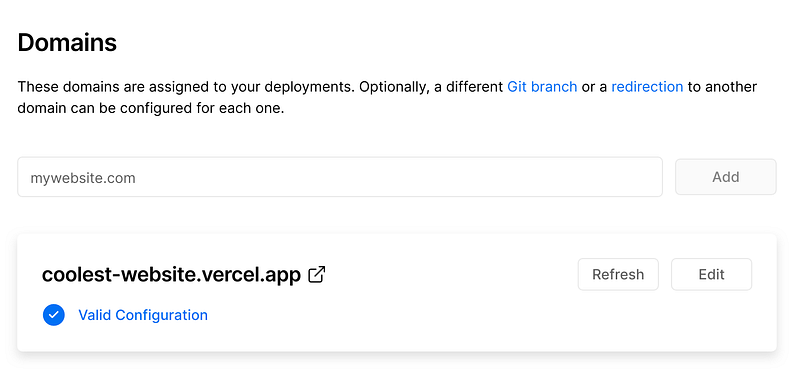
Vercel Domain Settings

4. After you add the domain you are given this “Invalid Configuration” message and given the option to either configure your domain by A record or Nameservers (A Record method recommended). Choose which method you would like to configure your domain.
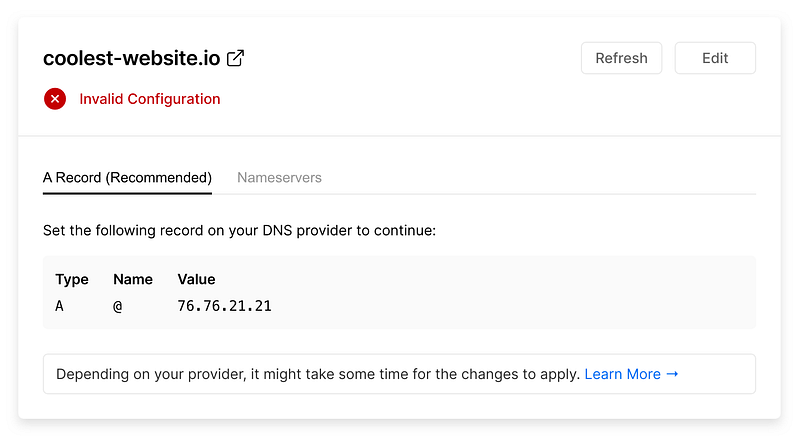
Vercel Domain Invalid Configuration

5. Go to your GoDaddy account to manage your DNS. Navigate to your domain list. Select your domain you want your Vercel app to redirect to.
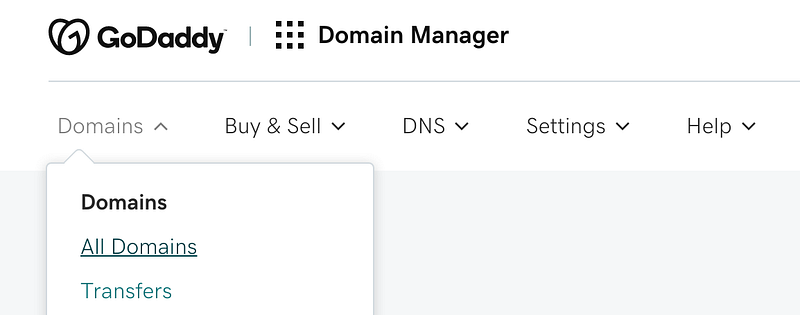
GoDaddy Domains Nav

6. In the Domain Settings, scroll all the way to the bottom of the page to the block titled “Additional Settings.” Turn the Domain Lock “Off.” Click on the Manage DNS link to configure your DNS.
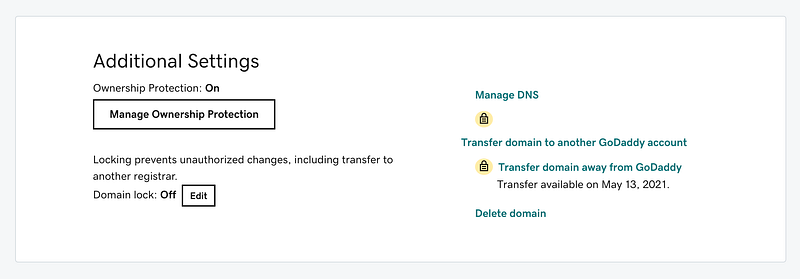
GoDaddy Additional Settings for Domain

7. This next step is dependent upon whether you chose the A Record or Nameservers method to configure the domain. Below I go over both options:

A Record Option

In the “Records” section click on the “ADD” button and fill in the inputs based on Vercel’s A Record info and IP address. You might be prompted to remove an existing A record, which you should do.
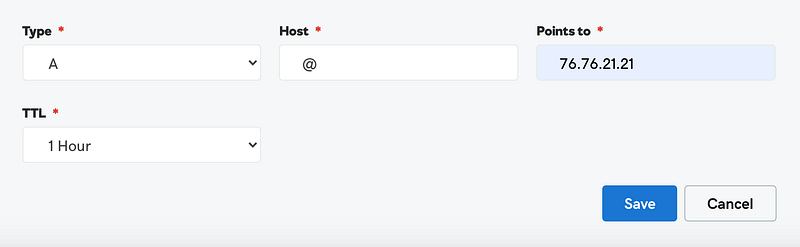

GoDaddy Records
GoDaddy A Record row

Nameservers Option

You are provided the Vercel nameservers that you can use in GoDaddy.
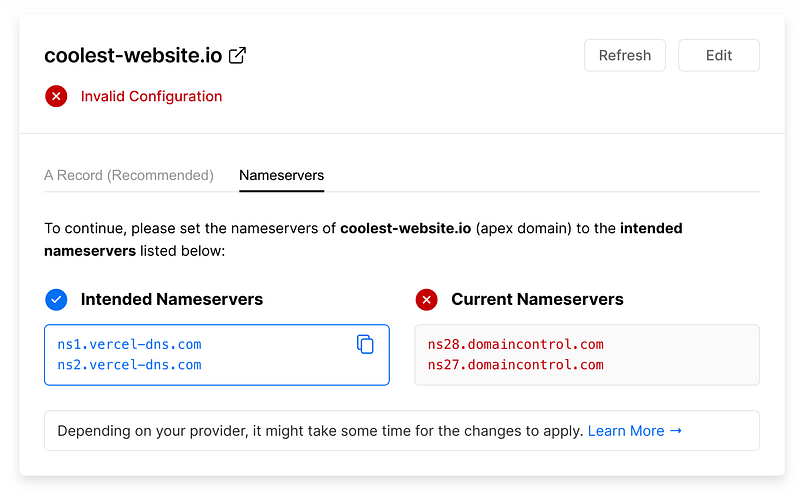
Vercel Nameservers

You will replace GoDaddy’s nameservers with Vercel’s nameservers. GoDaddy will send you an email to verify that you want to make this change.
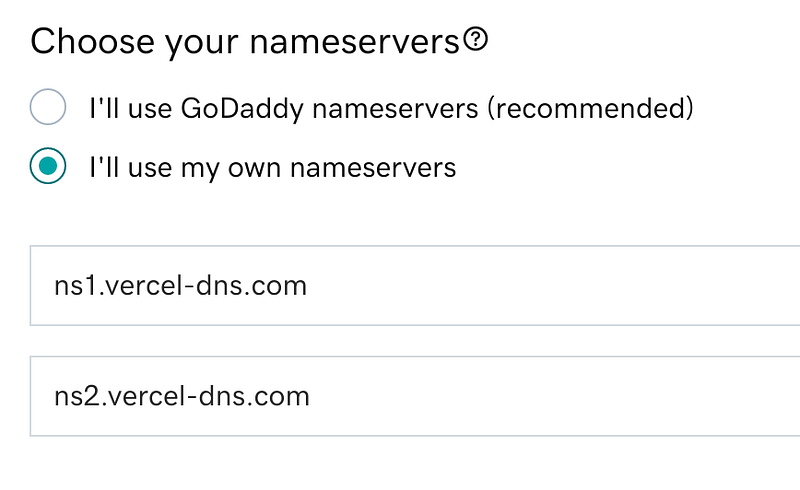
GoDaddy Nameservers Configuration

8. Once the configuration is set up correctly, you will no longer see the invalid message and instead you will see “Valid Configuration” and the redirect to your domain.
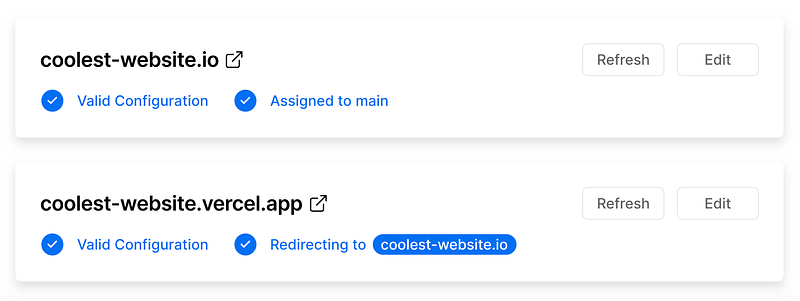
Vercel Successful Domain Configuration Set up

9. To view the DNS configuration in Vercel click on the “Edit” button on the domain name that you just added and configured.

Vercel Domain Edit Button

Then you will see the link “View DNS Records & More,” which will direct you to your DNS records and SSL Certificate.
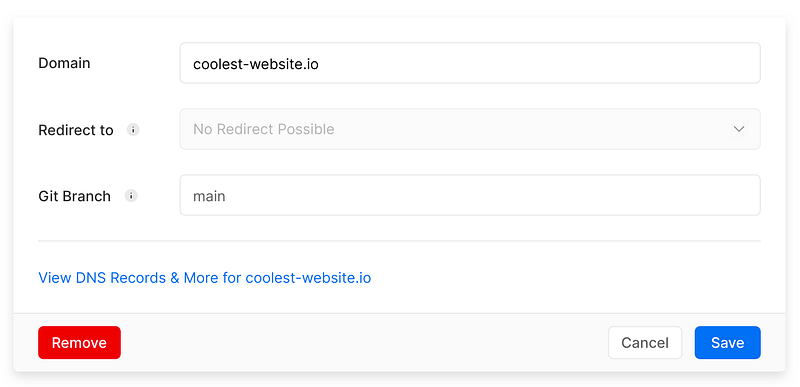
Vercel View DNS Records & More Link

Hooray, you’ve successfully configured your Vercel app with a GoDaddy domain 🎉 The redirect might not work instantly, so don’t panic. It may take a little bit for your DNS configuration to update, but after that celebrate and share your website!

Godaddy
Vercel
Custom Domain
Guides And Tutorials
Recommended from ReadMedium