
Deploy a React Application in Kubernetes | Dockerizing a React Application
How to Set Up a Kubernetes Cluster in Google Cloud Platform
3 Step Guide to Set Up Standard Kubernetes Cluster on Kubernetes Engine in Google Cloud Console

The Google Cloud Platform provides Kubernetes as a service. Google Kubernetes Engine (GKE) is a managed cloud service offered by Google Cloud Platform.GKE provides a production-ready environment with features like autoscaling, load balancing, security, and other features to manage containerized applications.
In this article, I will demonstrate the steps of creating a Kubernetes cluster in GKE.
Need to know more details of the GKE clusters ?? I recommend watching the Kubernetes Cluster Setup on Google Cloud Platform on Enlear Acadamy YouTube Channel. It covers how to set up a Kubernetes Cluster in GKE along with a demo at the end and will bring you up to speed.
Prerequisites
- Create a GCP account and create a project.
Steps to create a project,
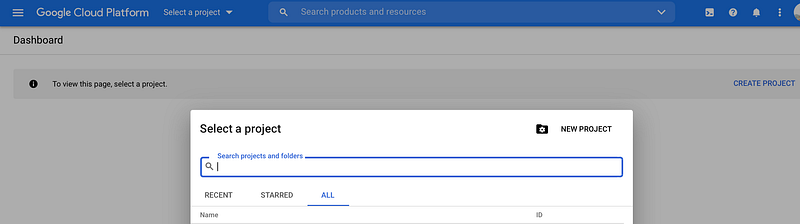
a.Visit Google Cloud Console.
b. Click on Select a project dropdown and select the project if you have already created one or click on NEW PROJECT.
- Install Kubectl (Kubernetes command-line tool) to run commands against Kubernetes clusters.
- Install gcloud-sdk to access and manage GCloud resources.
- Create a service account.
Steps to create a service account,
Visit the menu in gcloud console and go to IAM & admin, and click Service accounts.
a. Give a name for your service account and click Create.
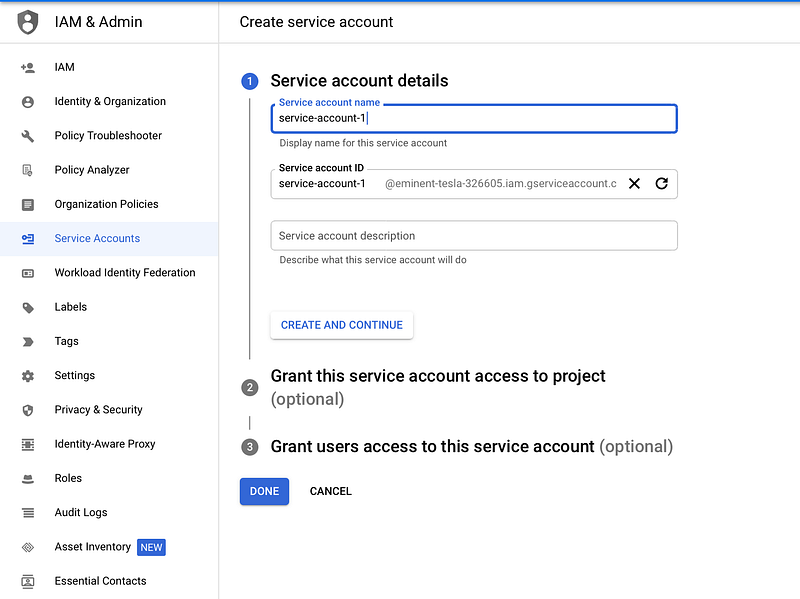
b. Give Kubernetes Engine Admin permission for the service account and click on DONE.
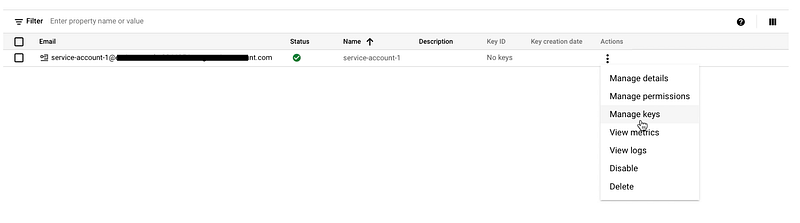
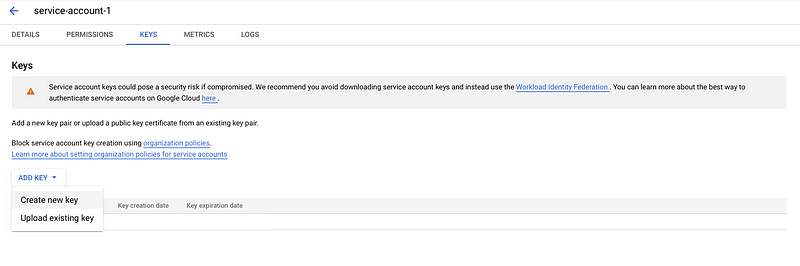
c. Under the Action dropdown, click Manage keys, click the Create key button, JSON selected, and save the file.
Note: Do not lose this file,GCP will only provide you with a copy.

Step 1 — Set up a Kubernetes Cluster in GKE
Steps to create a Kubernetes Cluster in Google Cloud Console,
- Visit the Google Kubernetes Engine menu in the gcloud console and go to Clusters.
- Enable Kubernetes Engine API.
3. Click CREATE.
- Choose the GKE Standard template and click on CONFIGURE to customize the template with the necessary following fields.
Section 1 — Cluster basics
- Name: It must be unique within the project and the zone.
- Location Type: Zonal or Regional
You can’t change the cluster type after the cluster is created, but you can change whether you want a single zone or multi-zone. Choose a Zone or Region closer to your location.
I do recommend using a regional cluster for production as it offers high availability.
Note: In order to create a multi-zone cluster check the “Specify default node locations” checkbox and select the additional zones.
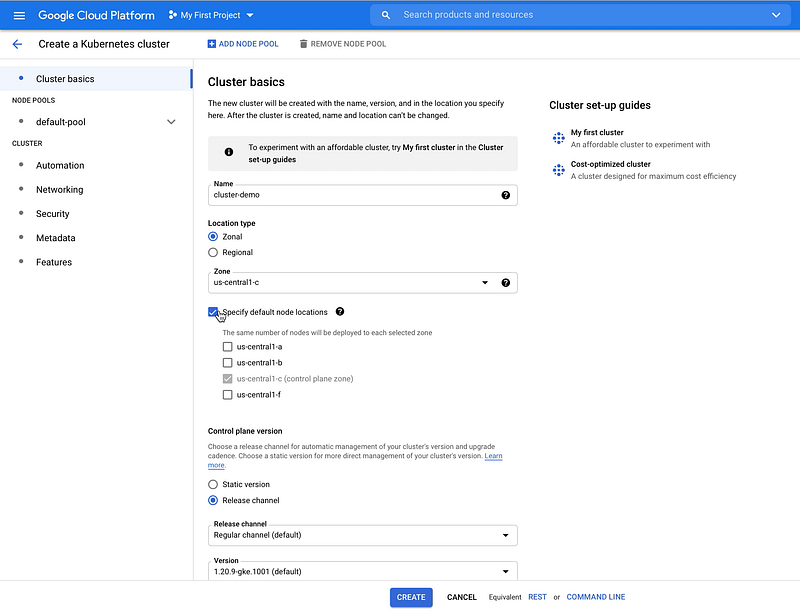
- Control plane version: Static version or Release channels.
Chose the version of Kubernetes you want to use for your cluster. I do recommend the option of the Release channel because it will automatically upgrade or update your cluster. If you choose the static version, you need to manually specify the version and upgrade or update your cluster.
Section 2 — default-pool
Under the node pool: choose the default node pool and customize it with the necessary fields.
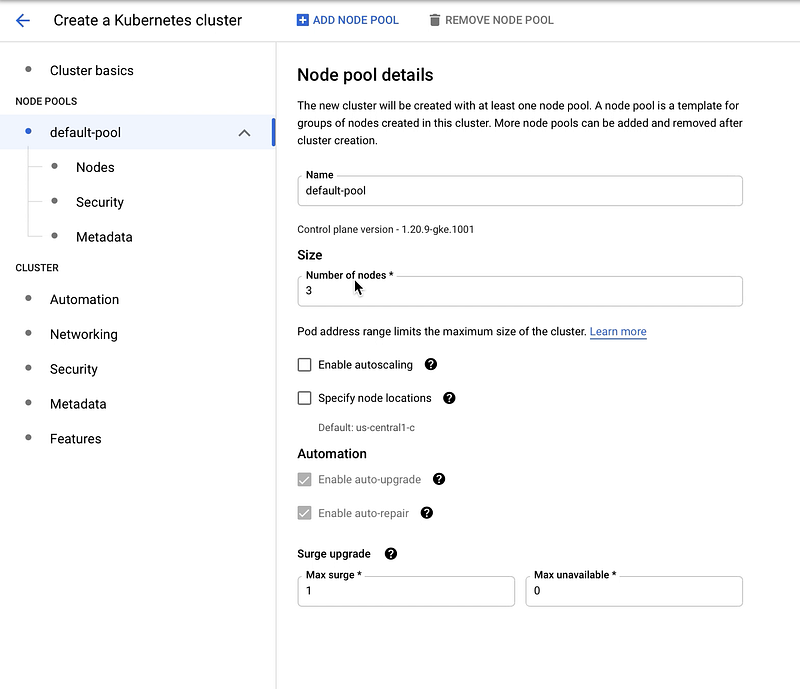
- size: The number of nodes to create in the cluster. For this use case, the number of nodes is 3.
- Enable autoscaling: You can enable autoscaling when you deploy your production application. Pod autoscaler will scale the number of pods in a replication-controller/deployment/replica-set based on observed CPU utilization provided metrics.
- Surge upgrade: surge upgrades minimize interruptions to your nodes while performing cluster maintenance and allow you to control the number of nodes upgraded concurrently.
A. Nodes
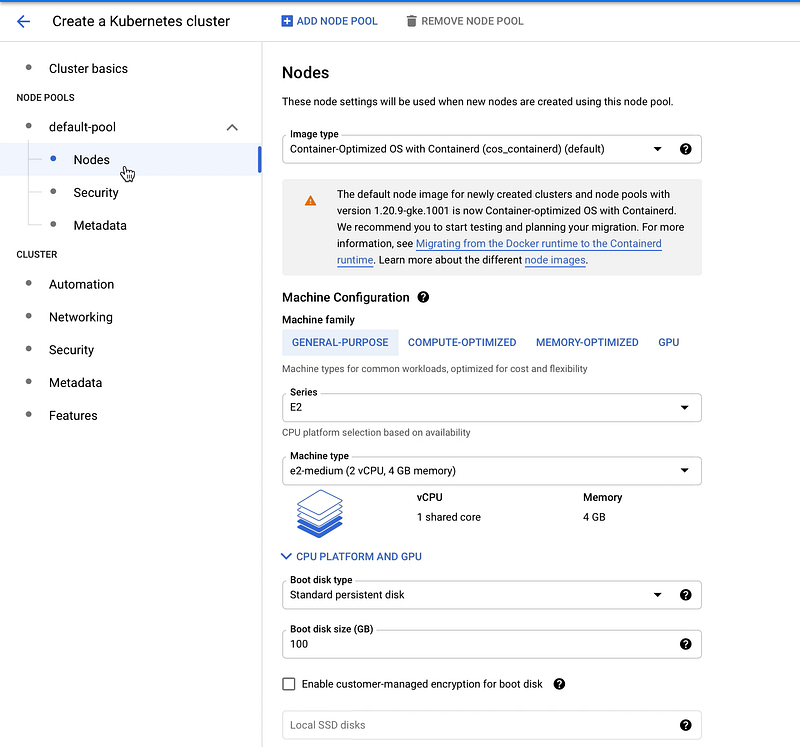
- Image type: select the node image from the drop-down list. For this use case, I selected the default.
- Machine Configuration: There are different types of configurations under the Machine family. I choose the GENERAL-PURPOSE.
- Machine type: Compute Engine machine type to use for the instances. Each machine type is billed differently. The default machine type is n1-standard-1. I changed it to n1-standard-4 15GB memory
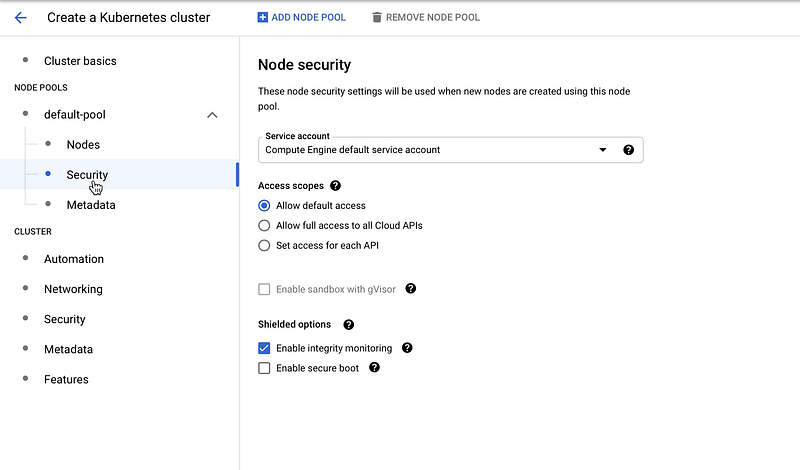
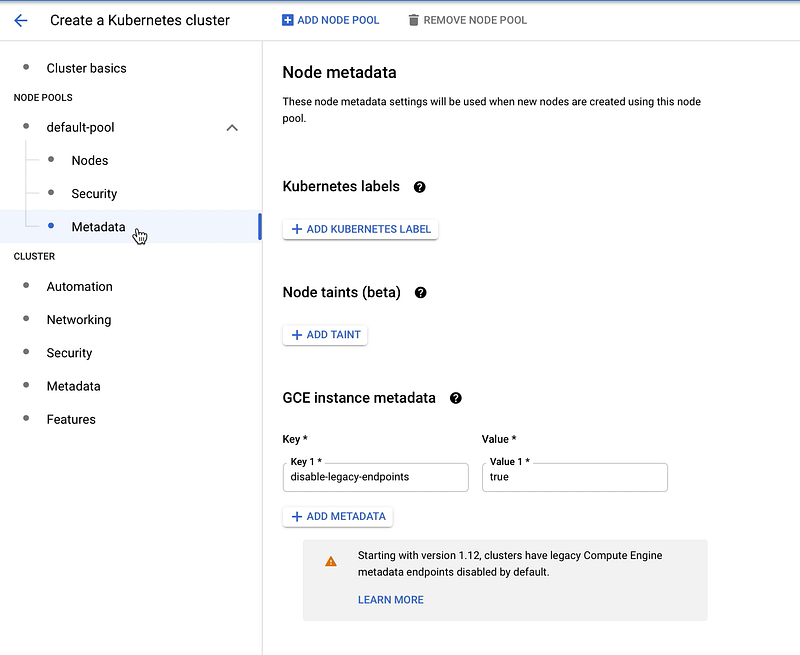
B. Security
- You can configure all the security settings in this section.
C. Metadata
- You can configure all the meta settings in this section.
Section 3— CLUSTER
This section can be used for advanced configurations.

Note: In order to create a private cluster select Private cluster in the Network Tab. A private cluster is a type of VPC-native cluster in which nodes are isolated from internal and external traffic by assigning them an internal IP address only.
- For this use case, I will select the public cluster.
Step 2— Create a Kubernetes Cluster in GKE
There are three methods to create a Kubernetes cluster in GKE.
- Using the command line on your local machine or the cloud shell in Gcloud.
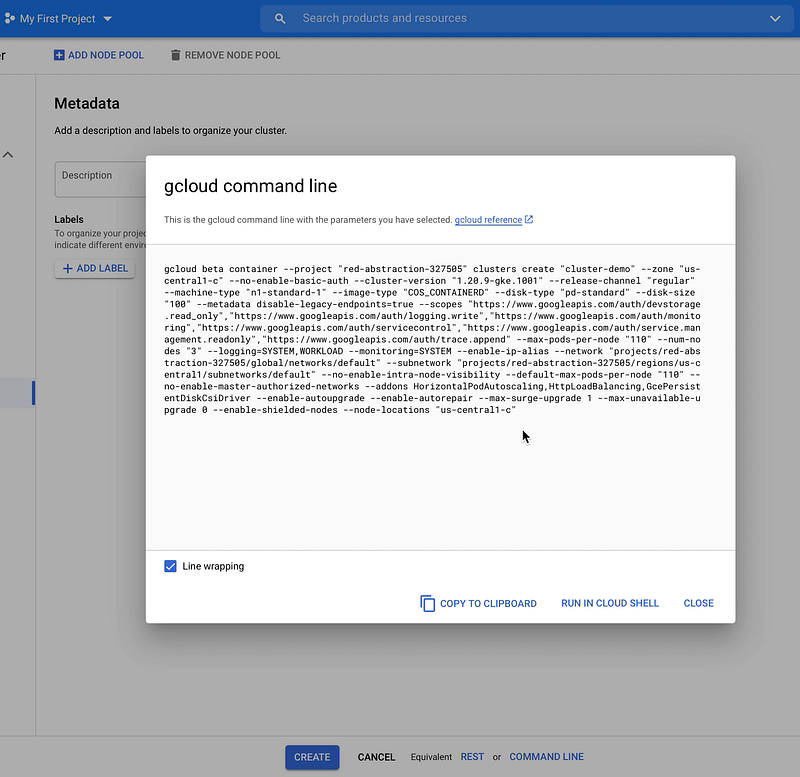
cloud beta container --project "red-abstraction-327505" clusters create "cluster-demo"--zone "us-centrall-c" --no-enable-basic-auth--cluster-version "1.20.9-gke.1001 --release-channel "regular"
--machine-type "n1-standard-1" --image-type "COS_CONTAINERD" --disk-type "pd-standard" --disk-size "100" --metadata disable-legacy-endpoints-true-- scopes"https://www.googleapis.com/auth/devstorage.read_only", "https://www.googleapis.com/auth/logging.write."https://www.googleapis.com/auth/monitoring","https://www.googleapis.com/auth/servicecontrol "https://www.googleapis.com/auth/service.management.readonly*,"https://www.googleapis.com/auth/trace.append" --max-pods-per-node "118" --num-nodes "3" --logging=SYSTEM, WORKLOAD --monitoring-SYSTEM--enable-ip-alias --network*projects/red-abstraction-327505/global/networks/default --subnetwork "projects/red-abstraction-327505/regions/us-central1/subnetworks/default" --no-enable-intra-node-visibility --default-max-pods-per-node "118" --no -enable-master-authorized-networks --addonsHorizontalPodAutoscaling,HttpLoadBalancing,GcePersistentDisksiDriver --enable-autoupgrade --enable-autorepair --max-surge-upgrade1 --max-unavailable-upgrade 0 --enable-shielded-nodes--node-locations "us-centrall-c"- Go to the terminal and paste this command.
2. using a Rest Request.
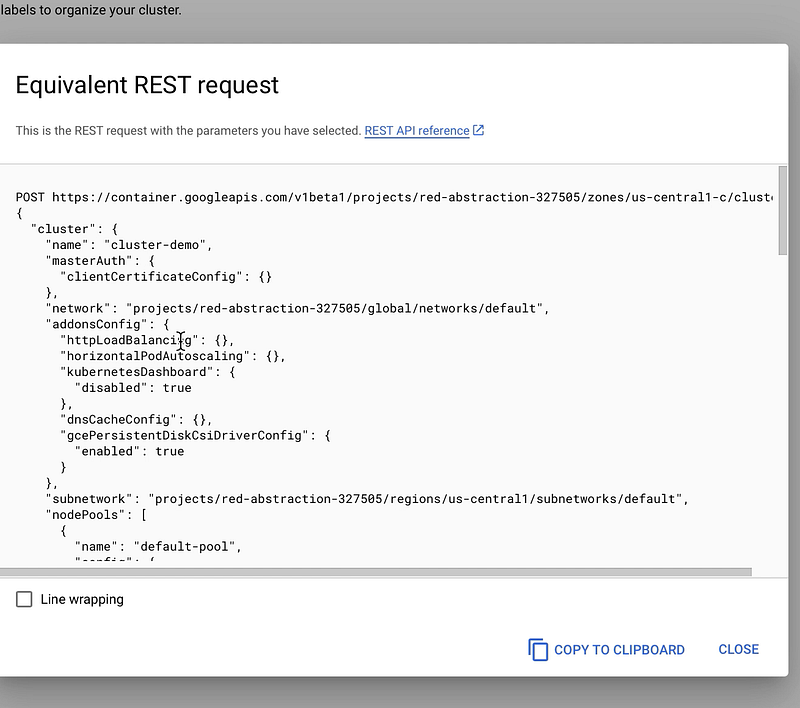
3. Using the Google Cloud Console (UI)
I will use Google Cloud Console to create a Kubernetes Cluster in GKE.
- In the end, click on Create.
- Navigate to Clusters under the Kubernetes Engine in the GCloud console and see the status.

Step 3— Connect to the Kubernetes cluster.
There are two methods to connect to a Kubernetes cluster in GKE.
- Using the command line in your local machine.
- Using the cloud shell in Gcloud
Steps to connect using the cloud shell in Gcloud,
- Click on the cluster name in the Kubernetes clusters.
- Click on ‘CONNECT’
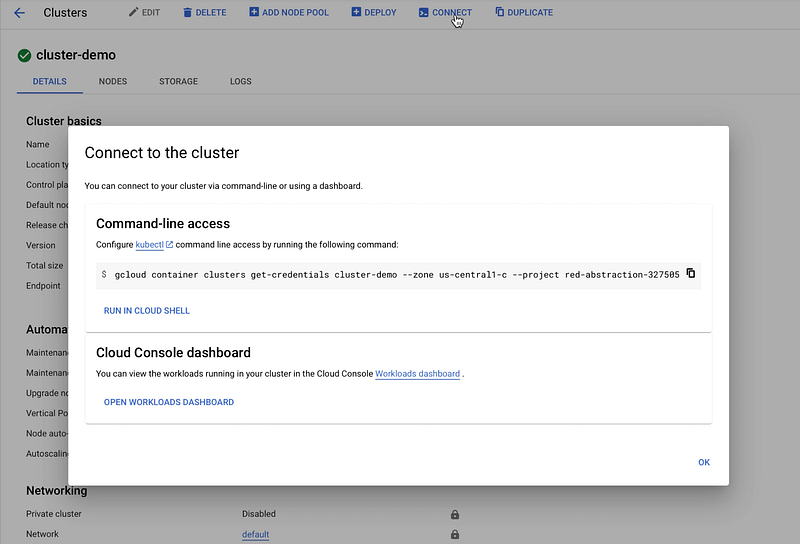
3. Click on “RUN IN CLOUD SHELL.”
Note: To connect via command line in your local machine, copy the Command-line access command and paste it in your local machine (Configure kubectl command-line access by running the following command: gcloud container clusters get-credentials <CLUSTER_NAME> — zone <ZONE> — project <PROJECT_NAME>)
- Go to the terminal and paste the command
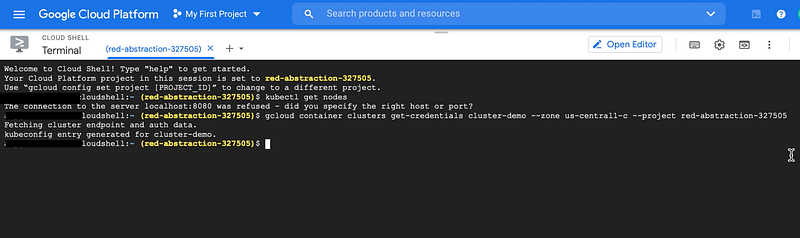
Tada👏, now you have successfully created a Kubernetes Cluster in GKE and access the cluster!!!🥳
Conclusion
As you have seen, you can create your Kubernetes cluster using GKE, which is a managed cloud service, and you can create and customize it based on your needs.
Thanks for Reading! 😊
New to Kubernetes? I recommend watching the Kubernetes for beginners tutorial on Enlear Acadamy YouTube Channel. It covers all the basics of Kubernetes and will bring you up to speed.