
How to Set Default Python Interpreter in VS Code
A guide on how to set up your Visual Studio Code for Python operations.
Visual Studio Code is one of the most popular IDE for developers. A screenshot of the PYPL Index for VS code is as follows for the US:

The graph contains only IDEs that are common among Python developers, but they are not the only ones on the list.
VS Code can be downloaded from this link: https://code.visualstudio.com/download.
Important Setup For Python
After the installation, there are a few things that are required to be set up if you want to use Python in VS code.
Python Extension
- Open Visual Studio Code
- Click the extension button on your left
- Type “Python”, and you will see the Python extension on the top among the list of extensions, choose that.
- Click install, it should be enabled automatically, if not enable it.

Python Interpreter
The next thing we need to set up is the default Python interpreter. To do that first we need our Python path.
Find out the path for windows
For Windows users, if you do not know the path, open your command prompt, and then:
- Type Python to open the Python shell.
- Type the following command, and be aware of indentation:
import sysfor pth in sys.path:
print(pth)
Copy the path like the one highlighted. Mine is Python 3.9, yours can be different.
Now that you know the path, let's set it up in vs code.
- Go to File > Preferences > Settings or Press “Ctrl + ,”.

2. Choose User > Extensions>Python > Python Path and paste the path that we copied earlier. Remember the path is not complete. So, add “\python.exe” in the end.
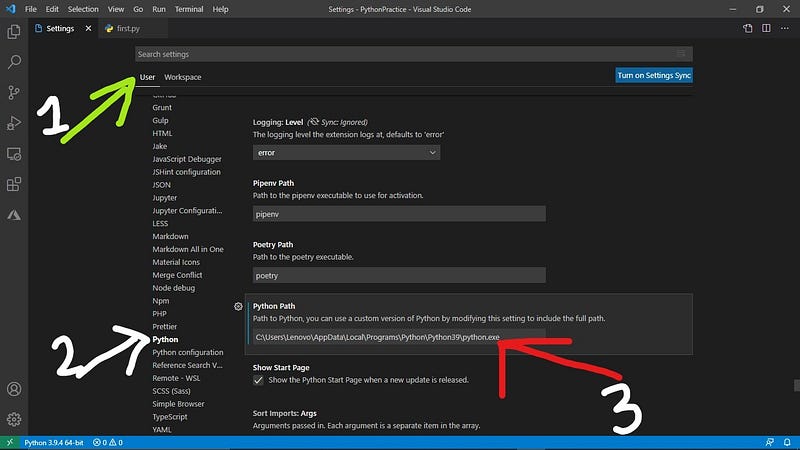
Now at the bottom left, you will be able to see the Python interpreter name like in the pic above >>> Python 3.9.4 64-bit <<<
For Linux its simply : /bin/python_Version for instance: /bin/python3
Pylint for Formatting
It's easier to check and reduce errors if they are highlighted. Hence comes Pylint.
- On your VS code press Ctrl + Shift + P, to open the command palette.
- Type and select “Python: Select Linter”.
- Choose PyLint from the list.
Now, your Visual Studio Code is set for Python operations.

Thank You for Your Time
I make Google Add-Ons and can also write Google Apps Scripts for you. If you need my services let me know.
Checkout my other blogs at kcl.hashnode.dev

More content at plainenglish.io. Sign up for our free weekly newsletter. Get exclusive access to writing opportunities and advice in our community Discord.


