
How to Run Your Streamlit Apps in VSCode
VSCode needs a little bit of configuration to run Streamlit apps but it’s not difficult

You don’t run Streamlit in the same way as a normal Python app like this:
python myapp.pyYou do it by calling the Streamlit app itself:
streamlit run myapp.pyBut VSCode doesn’t know this so if you want to use VSCode as your Streamlit development environment you have three choices.
You can just use it as an editor and run the app from a command/shell window (no prizes for that solution). Or you can do much the same thing by running the command in a VSCode terminal window (also sub-optimal).

Far better to spend a little effort in configuring VSCode so you can run Streamlit apps from the Run menu as you would a normal Python app.
Here’s how.
Configure VSCode to run Streamlit apps
First create an app — something simple like this will do:
import streamlit as st
st.write("Hello from Streamlit")
When you first create this and save it as, for example, myapp.py, VSCode thinks it is just a normal Python file and if you try and run it from the Run menu it won’t do very much.
We need to tell VSCode how to run it. To do this click on the run/debug icon on the left of the window. This will bring up the Run/Debug pane where you will see a couple of options. The one we are interested in is create a launch.json file.

Click on that and it will prompt you to select a configuration as in the image below. Select the option that I have highlighted in yellow Module Debug a Python module by invoking it with ‘-m’.

Next you need to specify the name of the module which is streamlit.

Doing this will create a file called launch.json that contains the launch configuration. The file will look like the one below (but we need to change it a little).
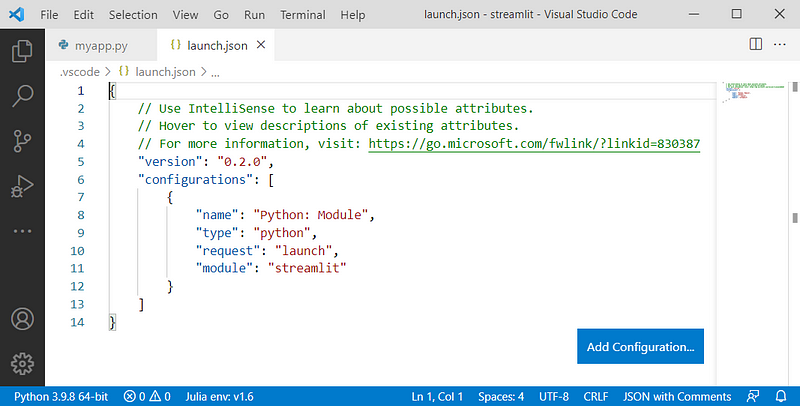
The default configuration assumes that there are no parameters but we need to supply two: the word run and the name of the file that we are going to run. We do this by adding an args list as you can see highlighted below.
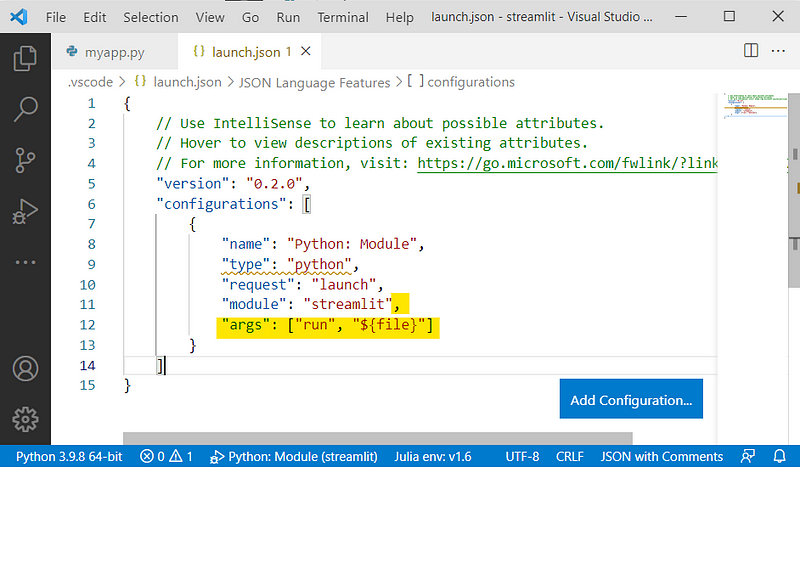
So the argument list is "args": ["run", "${file}"] — where the second one is a VSCode variable that refers to the currently open file.
And don’t forget to add the comma at the end of the previous line!
Save the launch file and go back to your app.
Now when you select run from the run menu, this is what will happen:

The actual command that is being executed is:
python -m streamlit run myapp.pyAnd that is the equivalent of what you would normally run in the terminal window.
The result being that you get this lovely app running in your browser (I’m sure you can do better than this!).

Now any file that is in the same directory as the new launch.json will be run as a Streamlit file.
Job done!
As ever thanks for reading and if you would like to know when I publish new articles, please consider signing up for an email alert here.
You might also be interested in these other Streamlit articles:
If you are not a Medium subscriber, how about signing up so you can read as many articles as you like for $5 a month. Sign up here and I’ll earn a small commission.


