
avatarMats Bauer

Summary

The web content provides instructions on how to execute terminal commands on a Mac from an iPhone using Apple Shortcuts and SSH.

Abstract

The article explains the process of setting up and using Apple Shortcuts to run terminal commands on a Mac remotely via SSH. It begins by guiding users to add the "Run script over SSH" action in the Shortcuts app, followed by configuring the Mac to allow SSH access by enabling "Remote Login" in System Settings / Sharing. The article then details how to input the correct host, port, and user information into the Shortcuts app. It also offers two methods for authentication: using a password or an SSH key. For the latter, the article describes how to transfer the SSH key to the Mac using various methods, including AirDrop, and how to append it to the authorized_keys file. Finally, it instructs users on how to input terminal commands into the Shortcuts app and suggests chaining multiple commands with &&.

Opinions

  • The article seems to assume that the reader is somewhat familiar with the terminal and SSH concepts.
  • It implies that using SSH keys is a more secure method of authentication compared to passwords.
  • The author provides multiple options for transferring the SSH key to the Mac, indicating a consideration for different user preferences and situations.
  • The article encourages exploration and creativity with Mac automation by concluding with an invitation to "have fun" creating automations.
Photo by Luis Quintero from Pexels

How to run terminal commands from Apple Shortcuts using SSH

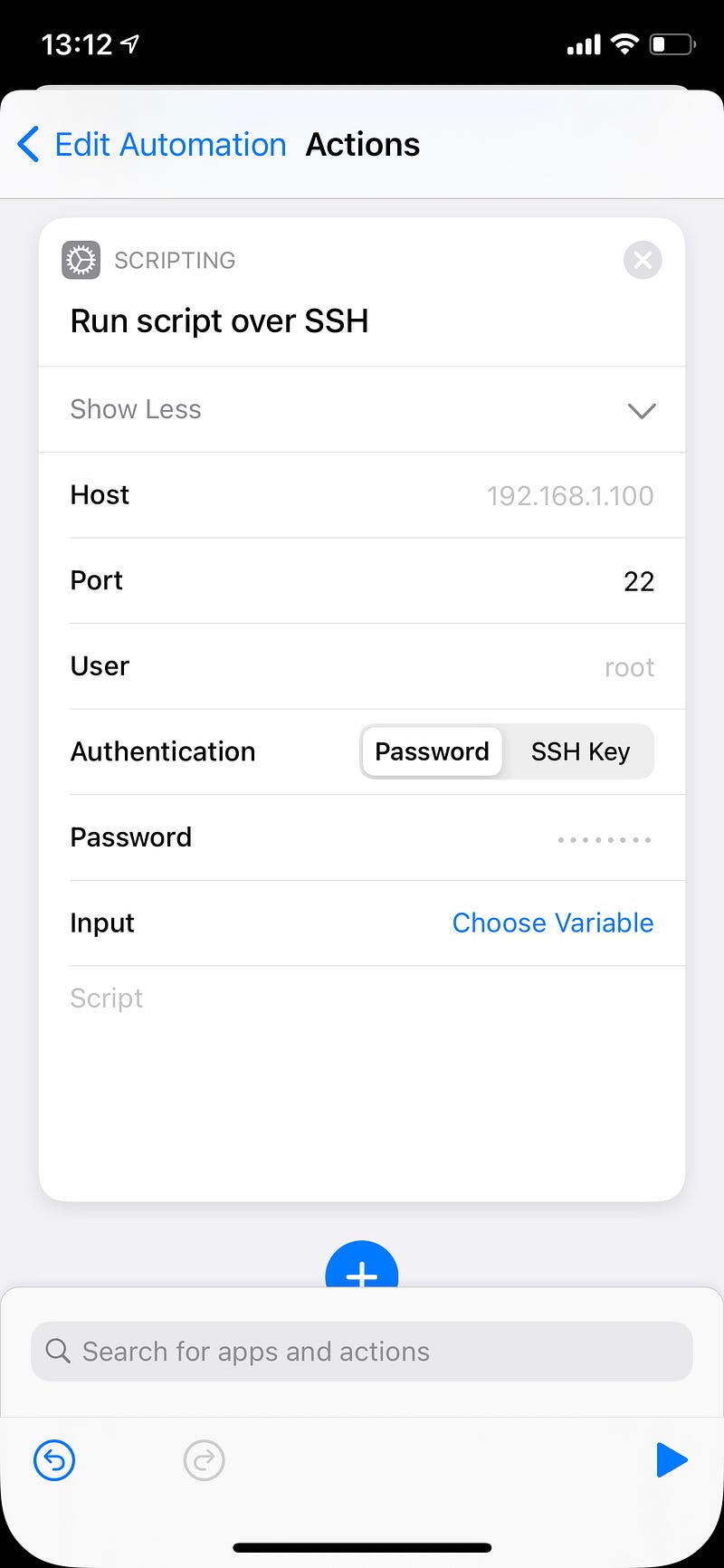
Let’s have a look at how to run a terminal command from your iPhone using Apple Shortcuts. First, we need Shortcuts installed and be working on automation. Let’s add the action: “Run script over SSH” and tap “Show More”.
Setup Mac

To enable SSH access on your Mac, we need to open System Settings / Sharing. On the left, we need to enable “Remote Login”. This allows SSH access (read official Apple documentation). Now we need the local network device name. You can find this at the of the Sharing Settings.

Local Computer Name

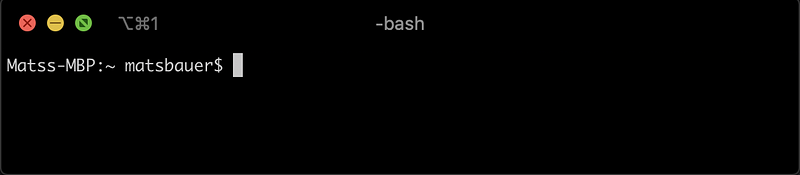
We enter this local computer name into “Host” of Shortcuts. Port 22 is correct. In the field “user” you have to put in your Mac username. Suppose you don’t know, open Terminal. There you see your username (matsbauer in my case).
Next step, you can either input the password you use to login into your computer or the SSH key. Let’s look at the SSH key option:

Tap on the SSH Key Authentication type and then the blue “ed12345 Key”. To add the SSH key to your computer, you can email it to you or use AirDrop, Whatsapp, Notes, or the Copy function. I will AirDrop it to my Mac. You will now see a .txt file on your Downloads folder. Open it in TextEdit and copy what's inside (CMD + C). Now go back into the terminal and type:

pbpaste >> ~/.ssh/authorized_keys

And you are good to go!

Now you can add any terminal commands into the field at the bottom. Use && to chain multiple commands.

Have fun creating your Mac automation!

Automation
Smart Home
iPhone
Ssh
Technology
Recommended from ReadMedium